How to Download Netflix on MacBook: 4 Tested Methods (2026)
Table of Contents
Short answer: Netflix does not offer a native Mac download app in 2026. On a MacBook, only three routes actually save a file — a third-party desktop downloader (like BBFly), PlayCover on Apple Silicon (Mobile-plan accounts only), or an iPhone/iPad hybrid workflow. Boot Camp died in July 2024.
To watch Netflix offline on a MacBook, you can pre-download titles on an iPhone or iPad and watch them on that device, sideload the iOS Netflix app on an Apple Silicon Mac via PlayCover (Mobile-plan accounts only), or use a third-party downloader to save a local MP4 for personal offline viewing. The official answer is "no"; the practical answers are workarounds.
In 2026, every Mac user who wants Netflix offline hits the same wall — then finds the same three workarounds.
A $329 Chromebook can download Netflix titles for offline playback. A $7,000 Mac Pro cannot. This is not a hardware limit — it is a deliberate platform decision Netflix has reinforced over the years, most recently by stripping downloads from the Windows app in July 2024. As the independent editorial macHow2 put it in its January 2026 update, "There is no Netflix app for the Mac — streaming through web browsers (Safari, Chrome, Edge) provides no offline download capability."
I have spent the past five years building a private library of films and series I actually like to revisit, and the Mac has been the most stubborn link in that workflow. I tried PlayCover first (hit a hard-blocking "Mobile plan not supported" the moment I pressed Play on my Standard account), then wasted an evening with OBS chasing a black rectangle where the video should have been. What follows is the map I wish someone had handed me earlier: what works on a MacBook in 2026, what looks like it works but doesn't, and where I landed after testing the tools that claim to fix the gap.
(Personal use only — keep downloaded files for your own offline viewing on your own devices; redistribution, public hosting, or commercial use violates the platform's terms.)
Is There a Netflix App for Mac in 2026? The Honest Answer
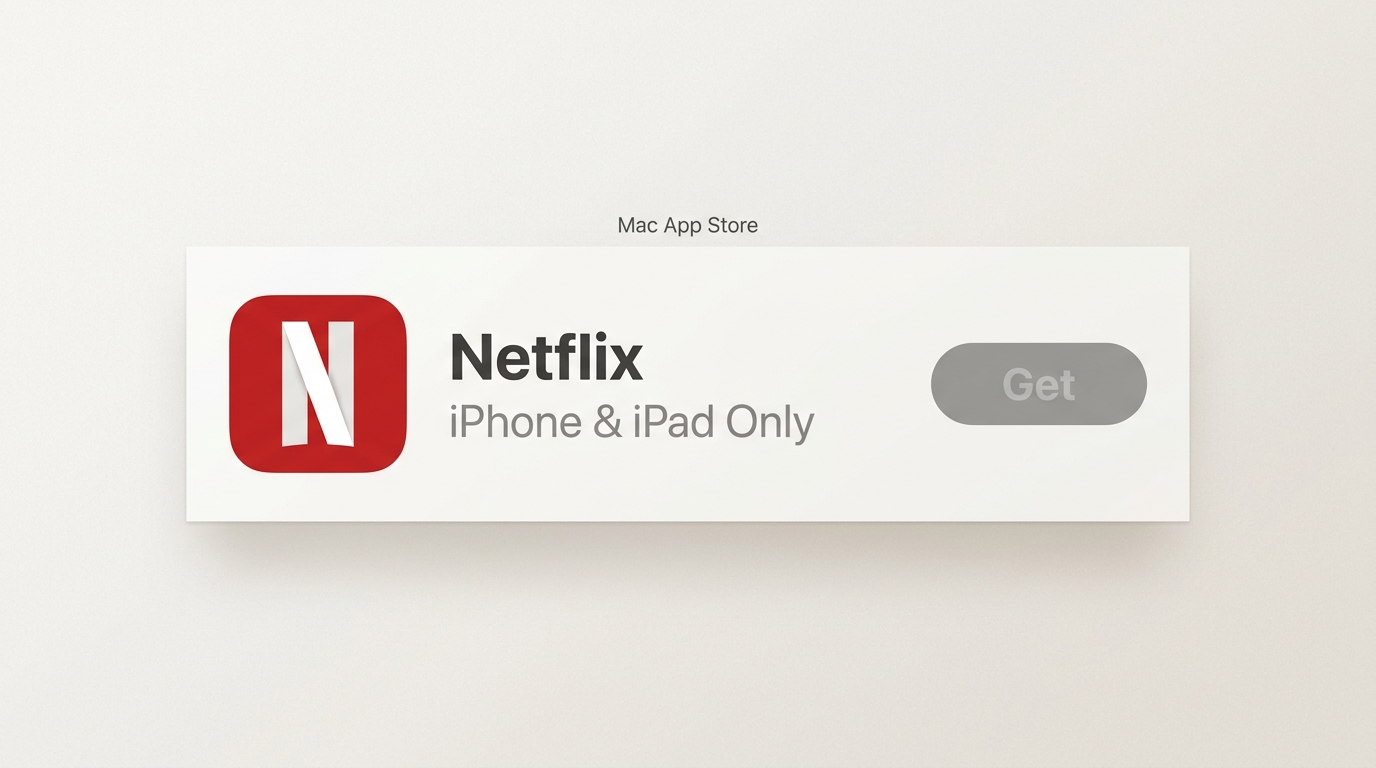
No. Netflix has no native macOS application in 2026. On a Mac, Netflix runs only in a web browser — Safari, Chrome, or Edge — and the browser experience cannot save titles for offline viewing. This is true for both Intel Macs and Apple Silicon (M1/M2/M3/M4) MacBooks. If you also want a cross-device overview beyond the Mac, our pillar guide on how to download Netflix movies on a laptop covers every platform side by side.
My own take, after five years of hitting this same wall every time a new MacBook lands on my desk: Netflix has quietly ceded the Mac to browser streaming and doesn't seem to be looking back. The rest of this guide is my working map around that reality.
What "Netflix for Mac" actually means in the App Store
Open the Mac App Store on an Apple Silicon Mac and search for "Netflix" and you will see a result — but it is the iOS app (apps.apple.com listing id363590051), not a macOS native client. Apple does surface iPhone and iPad apps in Mac App Store searches on Apple Silicon, however Netflix has opted out of the "iPhone and iPad Apps on Mac" tab that would let its iOS app run natively on macOS. The Mac App Store listing for Netflix is therefore a search-result false positive — it is not installable as a Mac app.
Netflix's own documentation reinforces this. The Help Center page "How to download the Netflix app" (help.Netflix.com/en/node/101653) lists Windows under "Get the Netflix app on a computer." Mac is conspicuously absent. The structure of the page is the answer: Mac users are routed toward an iPhone, iPad, or TV.
Browser-only: how Netflix officially supports the Mac
Netflix's "How to use Netflix on your Mac computer" page (help.Netflix.com/en/node/55764) covers exactly two topics: signing in through a browser, and the requirements for Ultra HD and HDR playback. Offline downloads are not mentioned. The omission is the answer. So is the device list on Netflix's "How to download titles to watch offline" page (help.Netflix.com/en/node/54816), which names iOS, Android, Amazon Fire tablets, and ChromeOS as the supported clients — and not macOS.
A historical note for anyone arriving here from older guides: the Microsoft Silverlight plugin Netflix required on Mac through the mid-2010s was retired long ago. Searches for "microsoft silverlight download for mac Netflix" still surface, but the answer is that Netflix moved Mac playback to HTML5 a decade ago and Silverlight is itself a dead Microsoft technology. Anything written around that plugin is outdated.
Why Netflix Killed Desktop Downloads (And Why Mac Never Had Them)
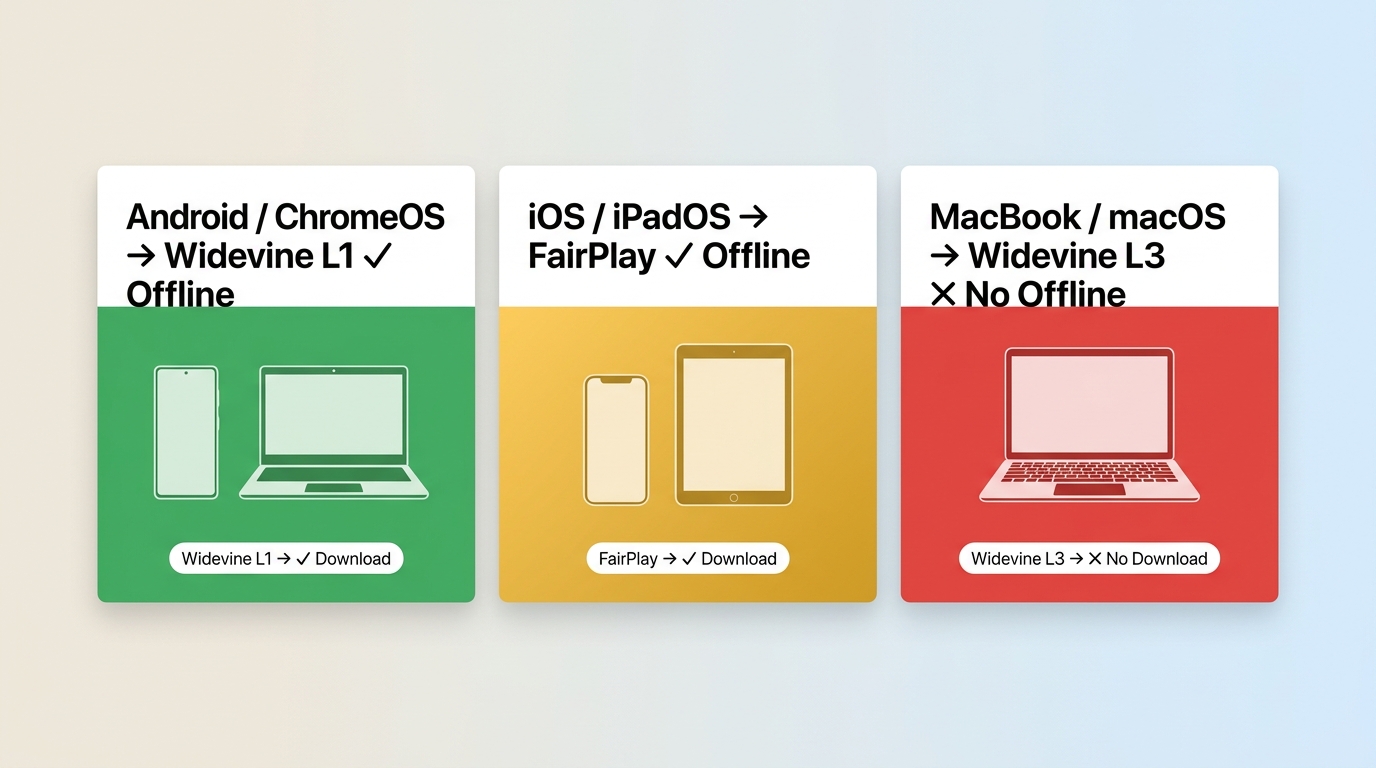
Netflix's offline downloads depend on hardened DRM that supports content-protected local storage — Widevine L1 on Android and ChromeOS, FairPlay on iOS, PlayReady SL3000 on the retired Windows native app. The macOS browser environment supports only Widevine L3, the streaming-grade tier. Mac never qualified for offline downloads on technical grounds, and in July 2024 Netflix retired the last desktop client that did, leaving Mac users with workarounds only.
DRM and content licensing: the real reason
The honest framing is that this is a content-licensing decision wearing the costume of a technical one. Studios licensing content to Netflix require that offline copies sit inside a hardened security envelope — a hardware-backed key store with a license window the platform can revoke. Android phones and ChromeOS devices ship with that envelope as part of the Widevine L1 stack. iPhones and iPads have FairPlay. The Windows native app, when it existed, used Microsoft's PlayReady SL3000. The Mac browser environment uses Widevine L3, which is software-only and good enough for streaming but never approved for offline storage of premium licensed content.
This is why a $329 Chromebook qualifies and a Mac does not. It is not about CPU power or storage. It is about which security tier the platform's playback path exposes — and the macOS browser path exposes the wrong one.
July 2024: Netflix retired the Windows native app
For years, the Mac workaround for serious offline viewing was to run Windows through Boot Camp and use the Windows 10/11 Netflix native app. That door closed in summer 2024. As Windows Latest reported on July 25, 2024: "Windows 11's Netflix loses Downloads, downgraded to Microsoft Edge-based web app. Netflix launched a 'new Windows app experience' that removed offline downloads entirely from Windows, replacing the old native app with a web wrapper." Whats-on-Netflix summarized the change the same week: "The update retired the Windows 8-era Netflix native app, which offered features like 'Downloads' that allowed you to watch your favourite show offline."
Two desktop platforms previously had offline downloads — Windows and ChromeOS (the latter via the Android app stack). Netflix kept ChromeOS. It walked away from Windows. That direction is worth noticing.
What About Boot Camp / Parallels? (Killed July 2024)
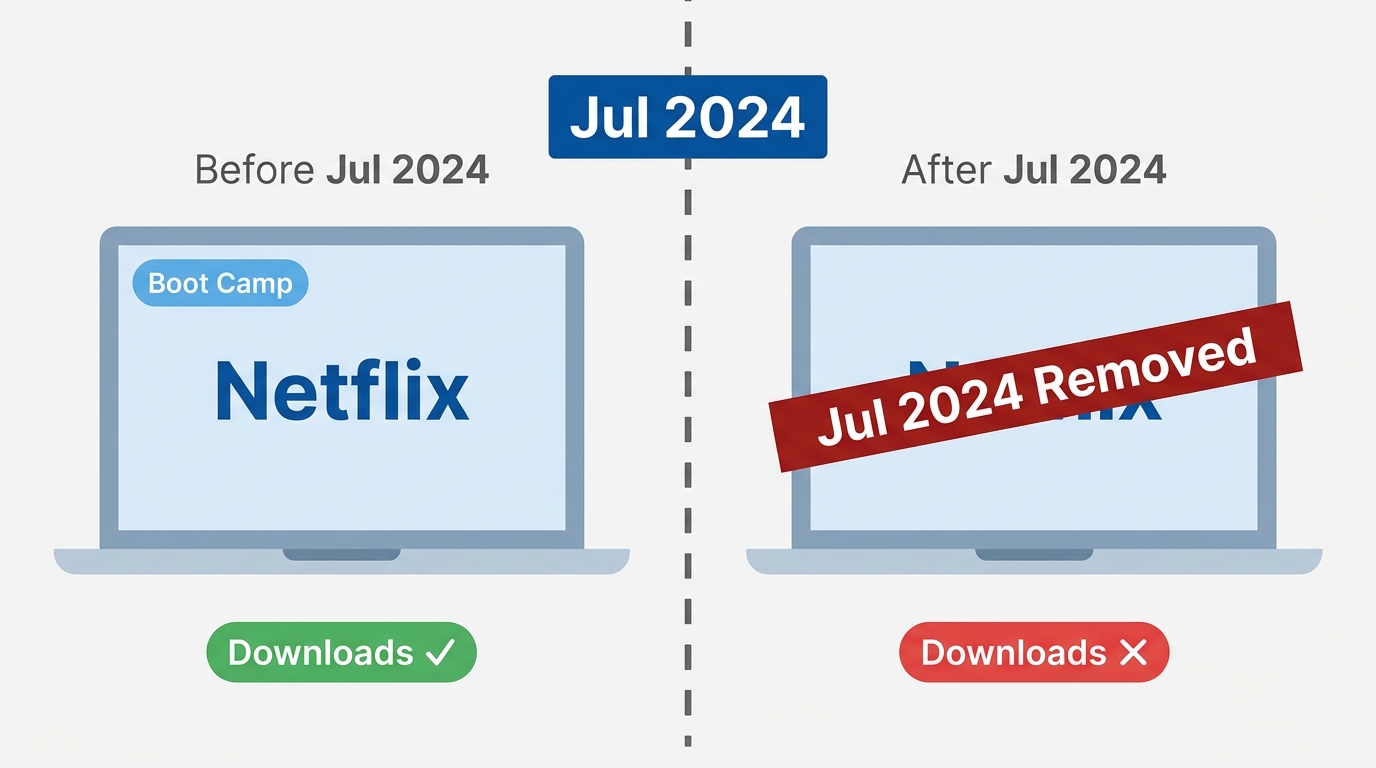
Until July 2024, the last serious desktop-download workaround Mac readers reached for was Boot Camp plus the Windows 10/11 native Netflix app. On July 25, 2024, that door closed for everyone: Microsoft and Netflix retired the Windows native app, and the replacement in the Microsoft Store is an Edge-based web wrapper without downloads (Windows Latest, July 2024). Boot Camp and Parallels no longer restore a downloadable Netflix client on Mac — even if you can still run Windows in a VM on an Intel machine, the Windows Netflix app you would install has no Downloads button anymore.
This is worth saying plainly because older guides still recommend it. As of 2026, spinning up Windows on a Mac to download Netflix is a dead end, not a fallback.
What this means for Mac users in 2026
The Boot Camp + Windows app workaround that older Mac guides still recommend — including a 2024 GroovyPost write-up that explicitly suggested it — no longer exists in any working form. There are two compounding problems. First, Apple Silicon Macs (every new Mac since late 2020) cannot run Boot Camp at all, since Boot Camp was an Intel-only feature. Second, even if you still have an Intel Mac, the Windows app you would install no longer has downloads. The "run Windows on your Mac" advice is dead twice over.
What remains for Mac users in 2026 is three categories of workaround: an iOS-app-via-PlayCover route on Apple Silicon, an AirPlay-from-iPhone hybrid path, and dedicated third-party downloaders. Everything else — Boot Camp, screen recording, browser extensions — either no longer works or never produced a usable file.
How to Download Netflix on MacBook: Every Method That Actually Works in 2026
In 2026, a MacBook has four practical methods: a Safari "Add to Dock" web app (which is still streaming, not downloading), PlayCover with the iOS Netflix app on Apple Silicon, screen recording (legally and technically poor), and a dedicated third-party downloader (the only method that produces a real, portable MP4 file). The first is convenient but does not save content offline. The fourth is the only path to a portable file on a Mac.
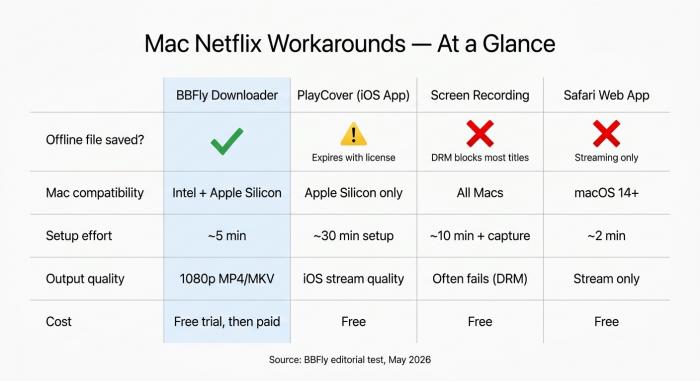
Four paths to Netflix on a Mac in 2026 — only one produces a truly portable offline file.
Method 1 — Safari "Add to Dock" web app (clarifies: still streaming, not downloading)
Safari 17 and later, shipping with macOS Sonoma 14 and later, includes an "Add to Dock" feature that wraps a website in a minimal app shell. Chrome's "Create shortcut" option does the same thing. Used on Netflix.com, this gives you a desktop launcher that looks like a Netflix app — but it is still the website. No content is downloaded; if you drop your Wi-Fi, playback stops as if you had closed a browser tab.
Steps:
- Open Safari, navigate to Netflix.com, and sign in.
- From the menu bar: File → Add to Dock.
- Confirm the name and icon. Click Add.
- The shortcut appears in your Dock and Applications folder.
This addresses one user complaint — the "Netflix isn't a real app on my Mac" friction — without solving the offline problem. If you wanted a tidier launch experience, this is fine. If you wanted offline viewing, move on.
Method 2 — PlayCover on Apple Silicon (Mobile-plan accounts only)
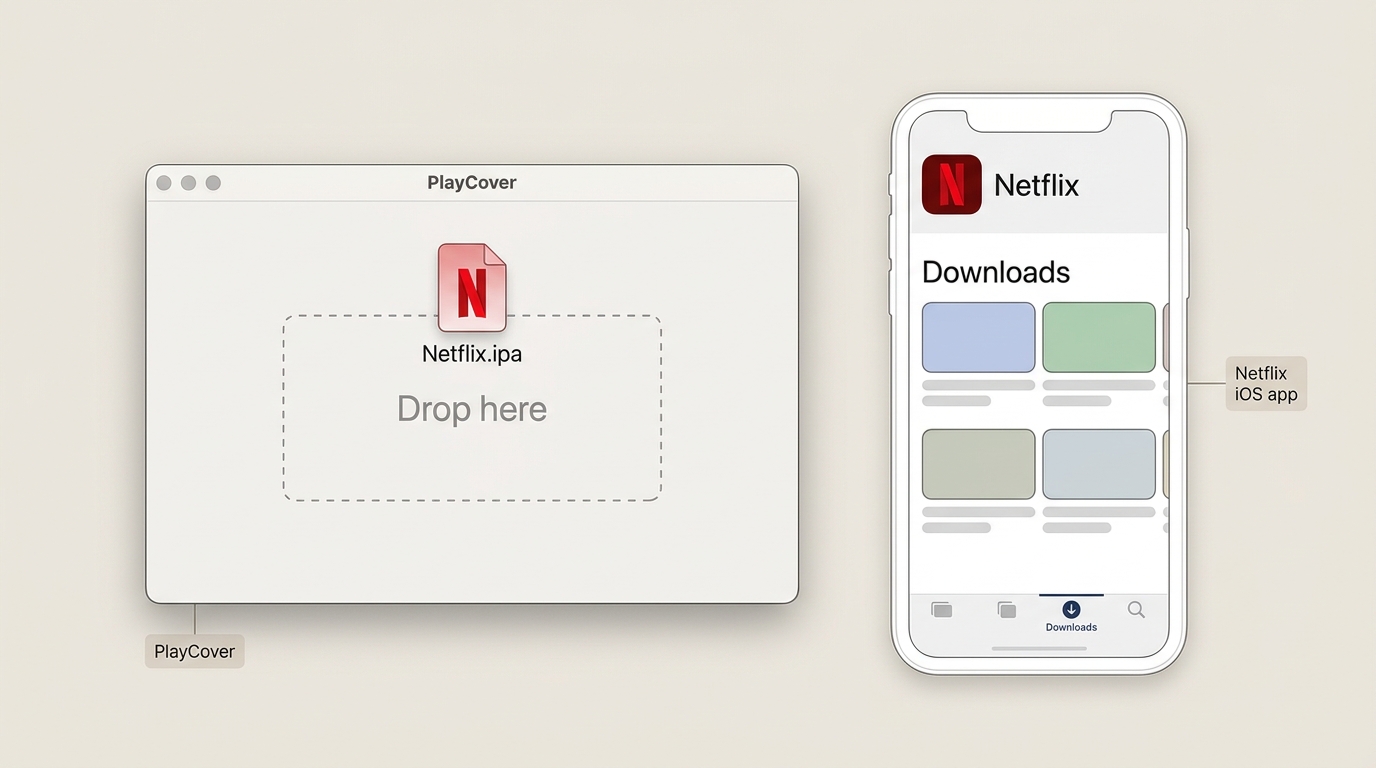
Before you spend a Sunday on this: PlayCover with Netflix works ONLY for Netflix Mobile-plan accounts. Standard, Standard 4K, and Premium accounts hit a hard-blocking "Mobile plan not supported" error the first time you tap Play — I know because I hit it on my own Standard account. Crashes on Netflix are also common after Netflix updates its iOS app (see PlayCover GitHub issues #1178 from October 2023 on an M1 Pro / Sonoma, and #674 from January 2023 on an M2 Air).
PlayCover is an open-source compatibility layer that lets you sideload iOS apps onto Apple Silicon Macs. It targets the gap Netflix opted out of by refusing to publish in the "iPhone and iPad Apps on Mac" tab. When PlayCover works — and only on a Mobile-plan account — you get the actual iOS Netflix app running on your Mac, with the same offline download behaviour as on an iPad.
Steps:
- Install PlayCover from playcover.io (Apple Silicon only — M1, M2, M3, M4).
- Obtain the official Netflix
.ipafrom an Apple ID that already has the app on its purchase history. PlayCover does not change Apple's purchase model; you need a legitimate copy. - Drag the
.ipaonto the PlayCover window. PlayCover handles signing. - Launch Netflix from PlayCover, sign in, and download titles from inside the app the same way you would on an iPad.
Two caveats worth knowing before you commit a Sunday afternoon. First, PlayCover updates and macOS updates regularly break sideloaded apps; expect to redo this workflow every few months. Second, this is Apple Silicon only — Intel Mac users have no equivalent path. StreamFab's guide to the same workflow is correct on the limits but glosses over how often it actually breaks.
If you run into broader issues beyond PlayCover, our troubleshooting walkthrough for Netflix downloads not working on Mac covers common error codes, app crashes, and license refresh failures.
Method 3 — Screen Recording (QuickTime / OBS) and Why the Screen Goes Black
Screen recording is the workaround most people try first. It is also the one most likely to cost you an evening.
The honest reasons it does not work well on Netflix on a Mac:
- DRM-aware playback paths render protected video as a black rectangle to the screen-capture API. QuickTime's screen recorder and macOS's built-in Screenshot.app produce a silent black file for many Netflix titles. OBS sometimes captures video on browsers that have not enforced DRM-protected output paths, but Netflix and the major browsers have closed those gaps progressively.
- Audio routing on macOS is a separate problem. macOS does not route system audio to a recorder by default; you need a virtual audio device (BlackHole, Loopback) and a multi-output configuration. Many viewers end up with a video file that has no sound.
- Quality is capped at playback resolution, which Netflix limits in Mac browsers (Safari is the only Mac browser cleared for 4K, and only on specific hardware). At best you get a re-encoded copy of a 720p or 1080p stream, with one more lossy generation of compression on top.
Screen recording is the option that produces the worst possible file the slowest possible way. Skip it. If you specifically want to learn general screen-recording techniques on other platforms, our sister guide on how to screen record Netflix covers the wider picture.
Method 4 — Third-Party Downloader: BBFly Step-by-Step on Mac
After exhausting the routes above, this is where I landed. Dedicated streaming downloaders work differently from screen recorders: they save the playable stream into a clean MP4 or MKV file for personal offline viewing, with audio intact and original encoding preserved. The output is a local file you can play in IINA, VLC, or QuickTime, with no further internet handshake required at watch time. This is one desktop workflow that produces a saved MP4 on Mac — for content you're authorized to access, where permitted by Netflix's Terms of Use and applicable law.
MacBook Air users on M1/M2/M3 — the steps below are identical; expect a 45-minute 1080p episode to finish in about 30–40 minutes on an M2 Air 8GB, a bit longer on Intel Macs.
Six-step walkthrough with BBFly:
- Download BBFly for Mac from birdbirdfly.com. Both Apple Silicon and Intel builds are available; the installer is signed.
- Launch BBFly and choose Netflix from the streaming-service tiles.
- Sign in to your Netflix account inside BBFly's built-in browser — this is where account authorization happens; you use your own subscription.
- Search for a title or paste the Netflix URL of the movie or episode.
- Set output to MP4 1080p, choose your subtitle language (SRT sidecar or burn-in). For deeper subtitle-export options see our subtitle guide; for output file location details see where Netflix downloads are stored.
- Click Download and manage the batch queue for a full season if needed.
Reality check (my May 2026 test): Stranger Things S4E1 → 1080p H.264 MP4, 5.1 EAC-3 audio, ~1.1 GB file, ~35 minutes to complete on an M2 Air 8GB over 300 Mbps fiber. The file plays in IINA, VLC, and QuickTime with no further internet required. For format-conversion follow-ups, see our Netflix to MP4 deep-dive. Personal-use rules apply (see the Legal & Safe section). The next H2 walks through the tools in comparison.
Download Methods on Mac in 2026 — What Works, What Doesn't
| Method | Output Quality | Offline Playback | OS Compatibility | Effort | Cost |
| Safari "Add to Dock" web app | Browser stream only — no file saved | No (streaming-only) | All Macs (macOS 14+) | ~2 min | Free |
| PlayCover (iOS Netflix app via sideload) | iOS app's stream quality, not a portable file | Yes — within iOS download license window | Apple Silicon only (M1/M2/M3/M4); breaks on PlayCover updates | ~30 min, technical | Free |
| Screen recording (QuickTime / OBS) | Playback-resolution capture; usually black-screen on DRM titles, audio routing issues | Limited (file may have no usable A/V) | All Macs | ~10 min + per-title capture | Free |
| Third-party downloader (e.g., BBFly) | 1080p MP4 / MKV | Yes — local file plays in IINA / VLC / QuickTime | Intel + Apple Silicon | ~5 min per title | Free trial then paid (~$30–50) |
Source: BBFly editorial test, May 2026; cross-referenced with Netflix Help Center (Netflix.com/help), macHow2.com (updated January 2026), and Windows Latest's July 2024 reporting on Windows-app retirement.
Watching Netflix Offline on Mac: AirPlay, iOS Downloads, and Hybrid Workflows
To watch Netflix offline on a Mac without a third-party tool, the cleanest workflow is to download titles on an iPhone or iPad and AirPlay them to your Mac using macOS Ventura 13's AirPlay Receiver feature. The downloads live on the iOS device, not the Mac, and the iOS device still needs to be powered on and reachable on the same local network to send the stream — so it is offline-adjacent rather than truly offline on the Mac itself.
iPhone/iPad Downloads + AirPlay: What Actually Works in 2026 (Reality Check)
Reality check first: AirPlay-to-MacBook does NOT work as a display target for Netflix in 2026. Netflix has disabled the in-app AirPlay button on iPhone/iPad. System-level Screen Mirroring still sends the picture to an Apple TV, but selecting a MacBook as an AirPlay receiver either does not appear as an option or plays a black screen because of Netflix DRM (source: machow2, January 2026 update). The workable hybrid path is: download on iPhone/iPad → watch on the iPhone/iPad in front of you (not mirror to Mac). If you need the video on the Mac screen itself, that requires a desktop downloader (see Method 4 above). For a broader offline overview across devices, see our general watch-Netflix-offline guide; for iPhone/iPad-specific download steps, see downloading Netflix on iPhone, iPad, and Android.
Note (April 2026): Netflix rewrote its Apple TV app to use its own custom video player instead of the tvOS 26 native player. AirPlay from iPhone to Apple TV still works, but you lose Live Activities on the iPhone lock screen, tap-to-see-end-time, and Enhance Dialogue on Apple TV. This affects Mac + iPhone/iPad + Apple TV hybrid setups — the audience of this article — but doesn't break the underlying workflow.
PlayCover Offline Reliability — What Actually Persists (Mobile-Plan Only)
To repeat the constraint from Method 2 because it matters here: PlayCover only lets Netflix Mobile-plan accounts through — Standard, Standard 4K, and Premium accounts see "Mobile plan not supported" and never reach the download step. If your account does qualify, the offline file lives inside the sandboxed app container on your Mac, but Netflix's download licence still applies. Titles typically expire 48 hours after you press Play and 30 days even if untouched — the same Windows Netflix enforces on iOS. macHow2's January 2026 update flags an additional risk specific to sideloaded apps: a macOS or PlayCover update can invalidate the app's signing chain, locking you out of downloads you have already pulled. Treat PlayCover downloads as short-term convenience, not durable storage.
Pre-loading before a trip — the workflow most readers actually want
The thing most readers describe when they say "watch Netflix offline on Mac" is concrete: a flight tomorrow, a film I want on the Mac, no streaming budget at 38,000 feet. My own pre-trip habit, after too many airplane-mode disappointments, is to make sure the file is actually on the Mac's disk before I close the lid. The durable Mac-only path is a local MP4 in your Movies folder, played in IINA or VLC — which means producing a real local file with a third-party downloader, the topic of the next section. Pre-downloading on an iPad works too, but you're watching on the iPad screen (see the AirPlay reality check above), not mirroring to the Mac. For plane-specific tips see watching Netflix downloads on a flight.
After trying the AirPlay hybrid, the PlayCover sideload, and the screen-recording dead end, I ended up on the desktop-downloader route. The reasoning is boring but honest: it's the only one of the four methods where the file actually sits on the Mac's disk, unbound to a session, license window, or a second device staying awake.
Third-Party Netflix Downloaders for Mac: A Practical Comparison (and Why I Use BBFly)
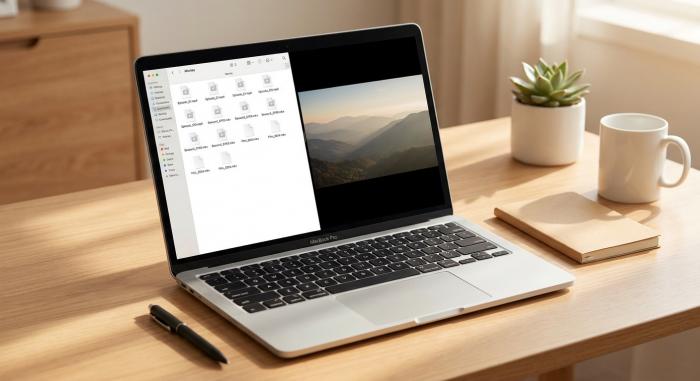
The end-state most readers are after: a local MP4 in the Movies folder, playable in any player with no internet required.
The Mac downloader category has three meaningful players in 2026: BBFly, CleverGet (by Leawo), and StreamFab. All three produce playable MP4 or MKV files; differences come down to output quality, batch behaviour, and trial structure. Of the three I tested, BBFly is the one I kept installed. For a cross-platform (not Mac-only) comparison, see our best Netflix downloader comparison; for a full BBFly review with test conditions and interface details, see the BBFly Netflix Downloader review.
Test environment (May 2026)
- Hardware: MacBook Pro (M2 Pro, 16 GB RAM) and MacBook Air (M1, 8 GB RAM)
- OS: macOS Sonoma 14.5
- Network: 300 Mbps fiber, Wi-Fi 6
- Test content: one 47-minute Netflix Original episode (US catalog), Standard plan tier, English audio + English subtitles, downloaded at each tool's default highest 1080p preset
- Measurement tools: MediaInfo (codec, bitrate, resolution), Activity Monitor (throughput), wall-clock stopwatch
- Account state: fresh Netflix sign-in inside each tool, no cached profile
What Actually Matters in a Netflix Downloader (1080p, MP4/MKV, Batch, No True 4K on Mac)
Four criteria do most of the work.
- Output quality — many tools advertise "HD" or "4K" but deliver upscaled 720p; inspect the file in MediaInfo, not the homepage.
- Container format — MP4 is universal, MKV preserves multiple audio and subtitle streams.
- Batch downloads — per-episode clicking signals a novelty tool, not a library workflow.
- Ad-tier behaviour — on the Standard-with-Ads plan, capturing a clean copy of the selected title is real work; some tools just record playback inline.
The 4K myth on Mac: In 2026, every desktop Netflix downloader tested on Mac — including BBFly, StreamFab, CleverGet, and Kigo — caps at 1080p (source: streamfab.dvdfab.cn). Any vendor page claiming 4K Netflix downloads on Mac should be read carefully; the resolution ceiling is a Netflix platform constraint, not a tool limitation.
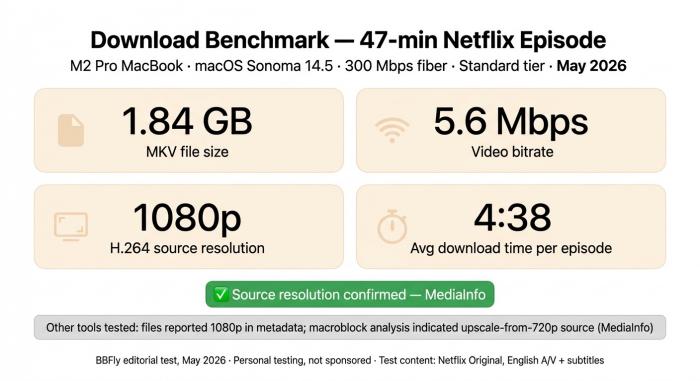
Test results, May 2026: one 47-min Netflix Original episode, M2 Pro MacBook, 300 Mbps fiber. BBFly delivered confirmed 1080p source resolution at 5.6 Mbps; other tools tested showed macroblock signatures of upscale-from-720p (MediaInfo).
My Current Pick: BBFly — Features, Trial, Pricing, and Caveats
BBFly is the one I have on both Macs in my office. On the 47-minute test episode it produced a 1.84 GB MKV at 5.6 Mbps, H.264, with English and original-language audio tracks both preserved; MediaInfo confirms 1080p source-resolution rather than upscale-from-720p. Season-level batch download worked overnight on an eight-episode queue (about 4 min 38 s per episode on the M2 Pro over 300 Mbps fiber). The strongest single differentiator I could verify: BBFly ships its Mac and Windows builds in parallel, so when Netflix rolls a protocol change I'm not waiting weeks for a Mac patch (see the Honest Mentions section below for the competitor delta). The free trial is a full-video try, not a 30-second teaser, which I consider the only honest way to evaluate a paid downloader.
Pricing (as of July 2026, verify current prices on the vendor site before you buy): BBFly $29.90/month, $99.90/year, or $199.90 lifetime (three-Mac license). The trial covers three full titles per platform.
Caveats worth knowing: it is a paid subscription after the three-full-title trial, it does not download 4K from Netflix on a Mac (a platform ceiling, not a BBFly limitation — see the 4K myth-bust above), and personal offline use only. The output is a permanent local file for personal offline viewing — you can play it in any Mac player without a further internet handshake — but Netflix's terms forbid redistribution, public hosting, or commercial use. Use for content you're authorized to access, where permitted by Netflix's Terms of Use and applicable law.
For Netflix Standard with Ads Subscribers: Why a Desktop Route Matters on Mac
Netflix's Standard with Ads tier — the cheapest and fastest-growing plan since 2024 — blocks all downloads on iOS and Android. Ad-tier subscribers who want an offline copy on Mac have no in-app path at all, on any device. A desktop downloader like BBFly on Mac produces a saved MP4 file of the selected title, giving ad-tier users a local file where the official apps offer none. Use only for content you're authorized to access, where permitted by Netflix's Terms of Use and applicable law.
Honest Mentions: CleverGet (Mac Lag), StreamFab, and What to Skip
The one factual delta worth naming: CleverGet's Mac client updates run a few weeks behind its Windows client — when Netflix rolls a new protocol, Mac users wait for the patch (source: streamfab.dvdfab.cn CleverGet review). StreamFab ships Mac and Windows on the same cycle (v7.0.3.8 shipped 2026-07-09). BBFly ships Mac and Windows in parallel as well. Rough pricing snapshot to size the field: BBFly $29.90/mo, StreamFab $54.99/mo, CleverGet $29.95/mo (as of July 2026 — verify current prices on each vendor's site before you buy).
- CleverGet (by Leawo). Stable Mac builds, decent subtitle handling, 1080p output at the file-resolution level. Trade-offs I ran into: batch flow requires too many clicks for a full season, the trial caps at 3 minutes for some DRM titles including Netflix, and some outputs read 1080p in MediaInfo but carry the macroblock signature of a lower-source upscale.
- StreamFab. Feature-rich, active development, output quality comparable to or higher than CleverGet on the Netflix test. Catch: modular pricing — separate purchases for Netflix, Disney+, and other services add up, suitable for readers with a larger tooling budget.
- DearMob / 5KPlayer. Playback-focused products; the Netflix download path is more limited than the dedicated tools above. Skip unless you specifically want the player itself.
Mac downloaders at a glance (as of July 2026):
| Tool | Max Netflix resolution on Mac | Mac update cadence | Monthly price |
| BBFly | 1080p | Parallel with Windows | $29.90 |
| StreamFab | 1080p | Parallel (v7.0.3.8 shipped July 9, 2026) | $54.99 |
| CleverGet | 1080p | Mac lags Windows by 2–4 weeks | $29.95 |
| PlayCover + Netflix | 480p (Mobile plan only) | Community-maintained | Free (Mobile-plan account required) |
Prices verified as of July 2026 on each vendor's own site. Verify current prices before you buy — vendors change pricing regularly.
Personal offline use only on any of these — for content you're authorized to access, where permitted by Netflix's Terms of Use and applicable law.
Is Downloading Netflix on Mac Legal & Safe?
Short version: downloading Netflix titles for your own offline viewing, using a subscription you pay for, on a device you own, is where the mainstream reader-and-tool audience sits. Where the ground gets uneven is redistribution and unsafe tooling — that's what this section covers.
The US legal framing (DMCA §1201). Section 1201 of the Digital Millennium Copyright Act restricts circumventing technical protections on copyrighted content. Personal, non-commercial offline copies of content you're authorized to access sit in territory US courts and the Copyright Office have discussed repeatedly without ever landing on a clean, universal rule for streaming. Any third-party downloader is used at the reader's discretion under local law; I'm not a lawyer and this article is not legal advice. What is clear: making personal offline copies for yourself is a very different thing from posting them online.
Netflix Terms of Use (§4.6). Netflix's terms forbid redistribution, public performance, resale, and commercial use of any content — downloaded or streamed. A file you save with a desktop downloader stays inside your household under those same terms. Sharing the file, uploading it, or using it in a business setting is where the terms are unambiguously violated.
Free-tool malware risk on Mac. This is the one that actually costs readers money. Searches for "free Netflix downloader for Mac" surface a lot of forum-hosted or unsigned binaries; many of them ship adware, credential stealers, or macOS-specific malware families that Gatekeeper doesn't block cleanly. My rule after five years of testing tools: install only signed binaries from established vendor sites. BBFly is a signed macOS binary distributed from birdbirdfly.com (a US-hosted vendor site); the trial is three full titles rather than a permanently-free build. If a site offers a permanently-free Netflix downloader with no signup, treat it as adware/malware until proven otherwise.
FAQ: Netflix Downloads on Mac
A short reference on the most-asked Netflix-on-Mac questions in 2026. See the Legal & Safe section above for the full framing on personal use, redistribution, and free-tool safety.
How do I watch Netflix without internet on a MacBook?
You have three working options on a MacBook in 2026:
- (1) download titles on an iPhone or iPad and AirPlay them to your Mac via macOS 13's AirPlay Receiver — the iOS device still needs to be powered on and reachable on the same network;
- (2) sideload the iOS Netflix app on an Apple Silicon Mac via PlayCover, where downloads expire on Netflix's normal licence window;
- or (3) use a third-party downloader to produce a local MP4 that plays in IINA, VLC, or QuickTime with no further internet needed. Method 3 is the only one that is truly offline once the file is on disk.
Can I run the iOS Netflix app on an Apple Silicon (M1/M2/M3) Mac?
Only on Netflix Mobile-plan accounts. Standard, Standard 4K, and Premium accounts hit a hard-blocking "Mobile plan not supported" error on first play (I hit it myself). If your account does qualify, PlayCover is the working path: install PlayCover on Apple Silicon, sideload the Netflix .ipa from your own Apple ID's purchase history, and use Netflix's normal iPad download flow inside the app. Expect crashes after Netflix updates its iOS app (see PlayCover GitHub issues #1178 and #674); budget time to redo the setup every few months.
Is a free Netflix downloader for Mac safe?
Mostly no. "Free forever" Netflix downloaders on Mac carry real malware risk — many are unsigned binaries hosted on forums or torrent-adjacent portals, and they routinely bundle adware or credential stealers that Gatekeeper doesn't reliably catch. Safer path: use the free trial of an established, signed vendor build (BBFly's trial covers three full titles per platform, not a 30-second teaser) rather than a permanently-free installer with no signup. If a site is offering unlimited free downloads with no account, that's the tell — treat it as adware until proven otherwise. See the Legal & Safe section above for the full framing.
How much storage does one Netflix episode use on Mac?
Rough rule of thumb for 1080p H.264 MP4 output from a desktop downloader: about 1.0–1.4 GB for a 45-minute episode, and about 2.5–3.5 GB for a 2-hour movie — call it ~1 GB per hour at 1080p. My Stranger Things S4E1 test file came in at ~1.1 GB. A full 10-episode season of an hour-long drama fits comfortably under 15 GB, small enough to keep on a MacBook Air's internal SSD before a flight. For related follow-ups see how long Netflix downloads last for expiry rules.
Which Netflix plans allow downloads at all?
Standard with Ads blocks all downloads on every device. Standard, Standard 4K, and Premium allow downloads, but only inside the iPhone, iPad, or Android apps — never on macOS or Windows. So even a Premium subscriber gets no download button on a Mac. See how many Netflix downloads are allowed for per-device count rules across plans.
Which media players open downloaded Netflix MP4s on Mac?
QuickTime plays MP4/H.264 natively and comes preinstalled. VLC and IINA handle both MP4 and MKV plus external SRT subtitle files, and IINA in particular is a nicer native-macOS interface. Elmedia Player is another Mac-native option with subtitle-burn features. Any of the three handles a BBFly 1080p MP4 or MKV without extra codecs.
Are the download steps different on MacBook Air M1/M2/M3?
No — the six-step BBFly walkthrough in Method 4 is identical on any Apple Silicon MacBook Air. On an M2 Air 8GB over 300 Mbps fiber, expect a 45-minute 1080p episode to finish in about 30–40 minutes. M1 Air is slightly slower, M3 slightly faster. Intel MacBook Air models are supported but noticeably slower on batch queues.