
Amazon Prime Video Rental Download Offline: Limits & Workarounds
Table of Contents
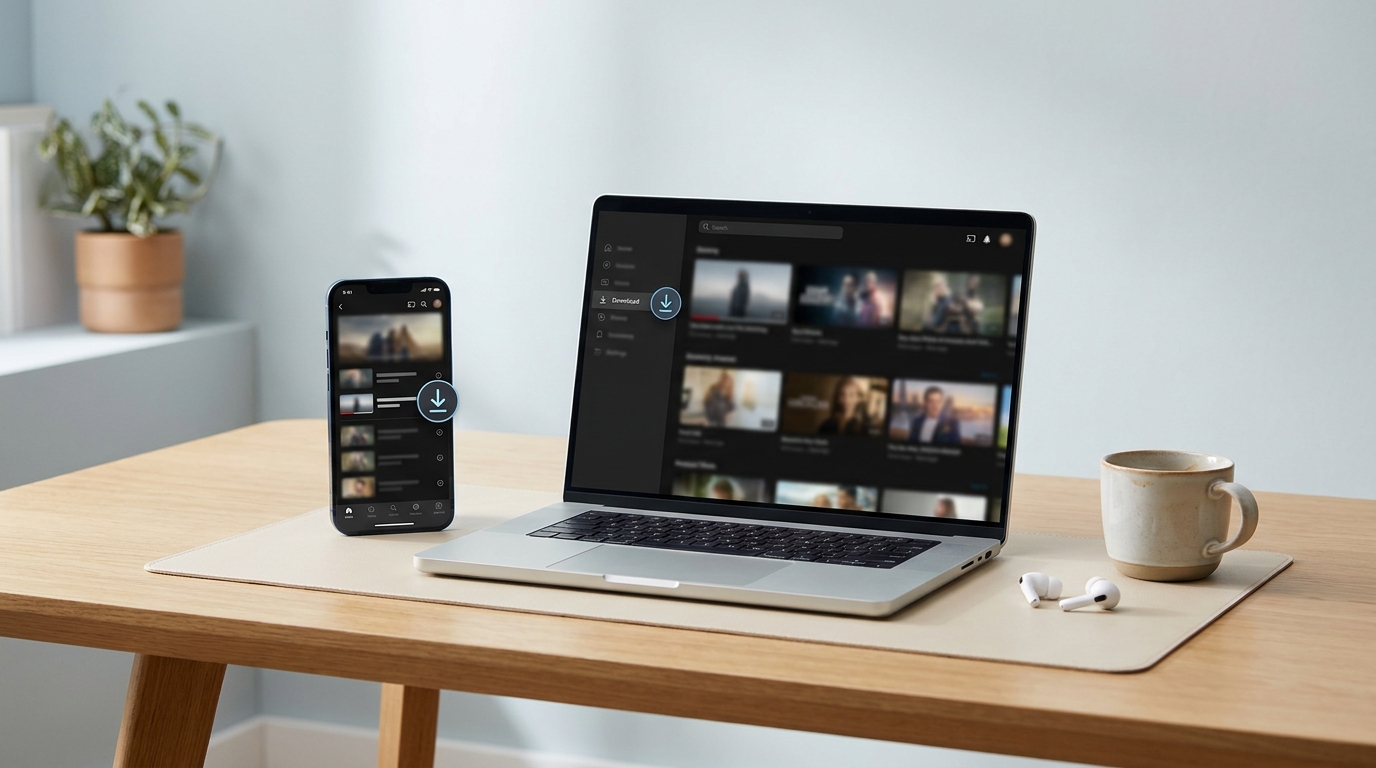
Yes, you can download an Amazon Prime rental for offline viewing on iOS, Android, a Fire tablet, and now the Windows 10/11 or macOS Prime Video app too. The file expires 30 days after download or 48 hours after you press Play, whichever lands first. Quality caps at about 720p SDR in the mobile app and up to 1080p in the desktop app, the file stays inside the app sandbox on every platform, and not every rental ships with a Download button, studio licensing decides title by title.
The clearest demonstration of how Amazon thinks about rentals is the moment your movie cuts off mid-scene. As one industry write-up on the policy puts it, "Amazon is quite strict regarding the 48-hour limit — they will even interrupt your viewing in the middle of a movie if the 48th hour starts while you're watching." That's the policy doing exactly what it was written to do. After fifteen years moving content between disks, NAS shares, and streaming sandboxes, the Amazon rental is the most punitive variant I deal with — you pay for a playback window, not a file. The rest of this piece walks the official path, the rules that bite, and the one desktop workaround worth knowing.
Can You Download Rented Movies on Amazon Prime for Offline Viewing? (Short Answer)
Yes — Amazon Prime lets you download a rented movie inside the Prime Video app on iOS, iPadOS, Android, or a Fire tablet. The file lives under a double clock: 30 days from download, or 48 hours from first play, whichever lands sooner.
The 48-hour cliffhanger most renters discover too late
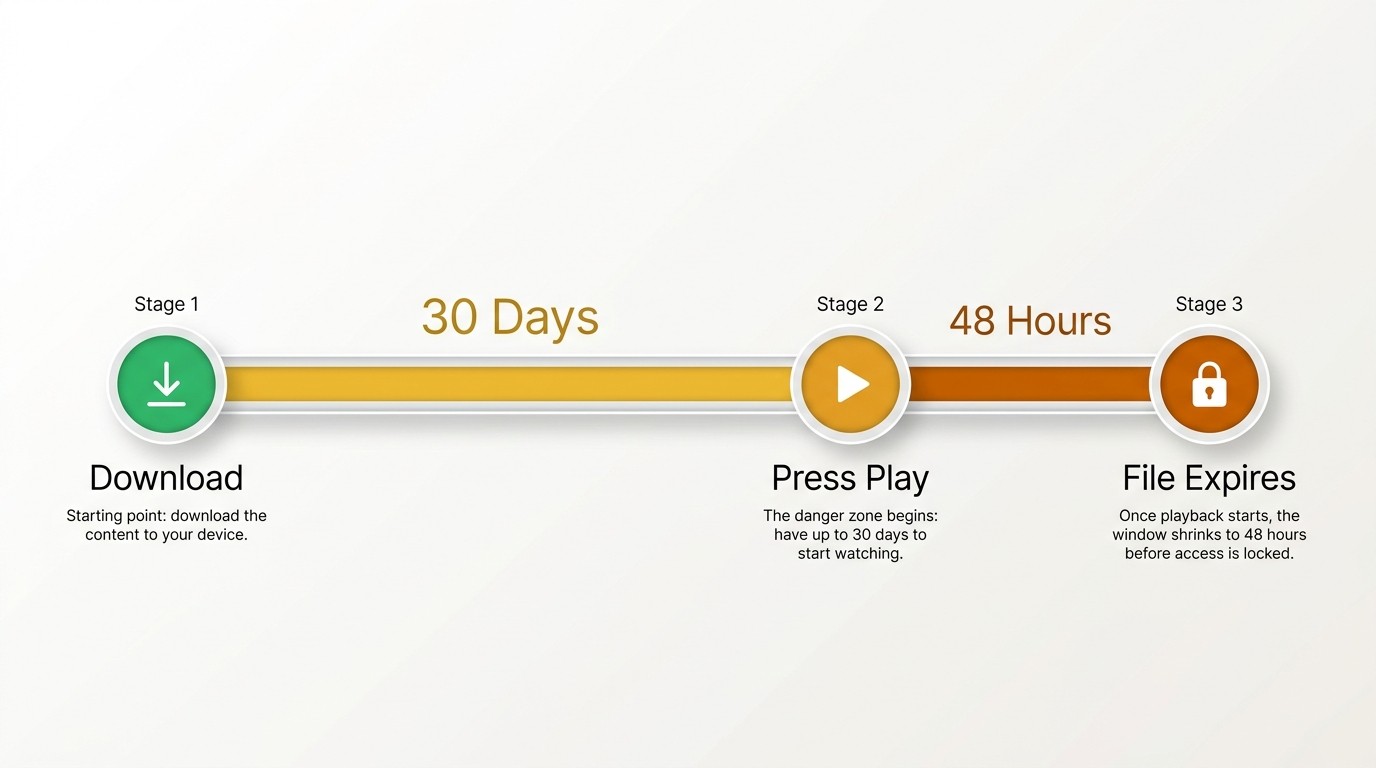
The 48-hour timer starts the moment you press Play, not when the movie is convenient to finish. Press Play on a Friday evening and the file goes dark by Sunday evening — finished or not. Most renters only learn this after the credits don't roll.
Short answer: yes, with strict limits — and now on desktop too, with the same clock
Per Amazon's Prime Video help, rentals are downloadable on iOS, iPadOS, Android, Fire tablets, and the Windows 10/11 and macOS Prime Video apps, locked to one device at a time, and capped by a per-account ceiling that varies with studio licensing. The desktop apps close the old browser-only gap, but the same 30-day / 48-hour clock, the same quality ceiling, and the same non-portable app sandbox all follow the file from mobile to desktop. I'll walk it in the order that matters: official path first, the rules that catch people out next, then a desktop alternative worth keeping in your back pocket.
If you also subscribe to Prime and want to know which non-rental titles you can keep longer, our full guide on how to download Amazon Prime Video to your device covers quality settings, download limits, and the apps that support offline playback.
How to Download a Rented Amazon Prime Movie for Offline Viewing — Step by Step
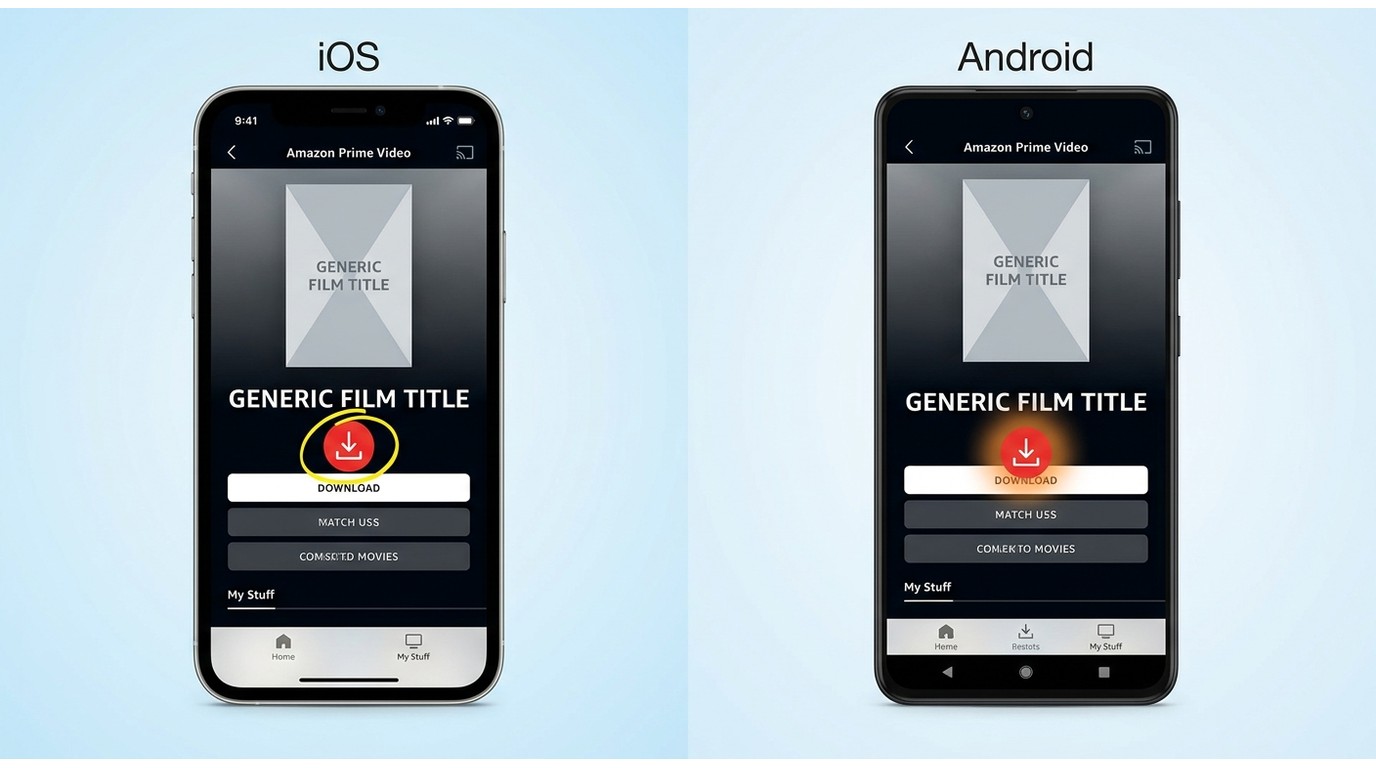
To download a rented Amazon Prime movie, rent it first from a browser or desktop, then open the Prime Video app on iPhone, Android, or a Fire tablet, find it in your library, and tap the download icon. The file sits inside the app sandbox; it isn't something you can copy out.
Before you start: rent from a browser, download on the app
The mobile Prime Video app has no Rent or Buy button — the rental itself has to happen on a browser (Amazon.com or Prime Video.com) or the desktop site. Once it hits your account, the rental surfaces in your mobile library and the download icon appears. This is the most common source of "where's the download button" confusion on the Amazon forums.
iPhone & iPad: tap the download icon on the title page
- Open Prime Video → My Stuff (or the title's detail page) → tap the down-arrow download icon.
- Under Settings → Stream & Download, pick quality (Best / Better / Good) and toggle Wi-Fi-only if you want.
- Completed downloads land under the Downloads tab.
Android phone & Fire Tablet: same flow, sandboxed file
- Library (or My Stuff on Fire) → rental title → download icon. On Fire, the rental must already be in your library before the Download button appears.
- The file lives inside Prime Video's private app storage on both — not a folder a file manager can browse, and uninstalling the app takes the download with it.
- Same per-device lock and same 30/48 clock as iOS.
Windows / Mac: the desktop Prime Video app does download — same 30/48 clock, same sandbox
Prime Video for Windows (Microsoft Store, shipped in 2023 and still maintained in 2026) and the macOS Prime Video app both support offline rental download inside the app sandbox. Some rentals stay restricted by studio license, but the desktop path exists. What follows the file across mobile and desktop is unchanged: the 30-day / 48-hour clock, the quality ceiling (about 720p SDR in the mobile app, up to 1080p in the desktop app), and the non-portable sandbox. For the actual click-by-click, see our sibling guides on downloading Prime Video to a Windows PC and to a Mac.
The Rental Download Rules That Actually Trip Up Renters
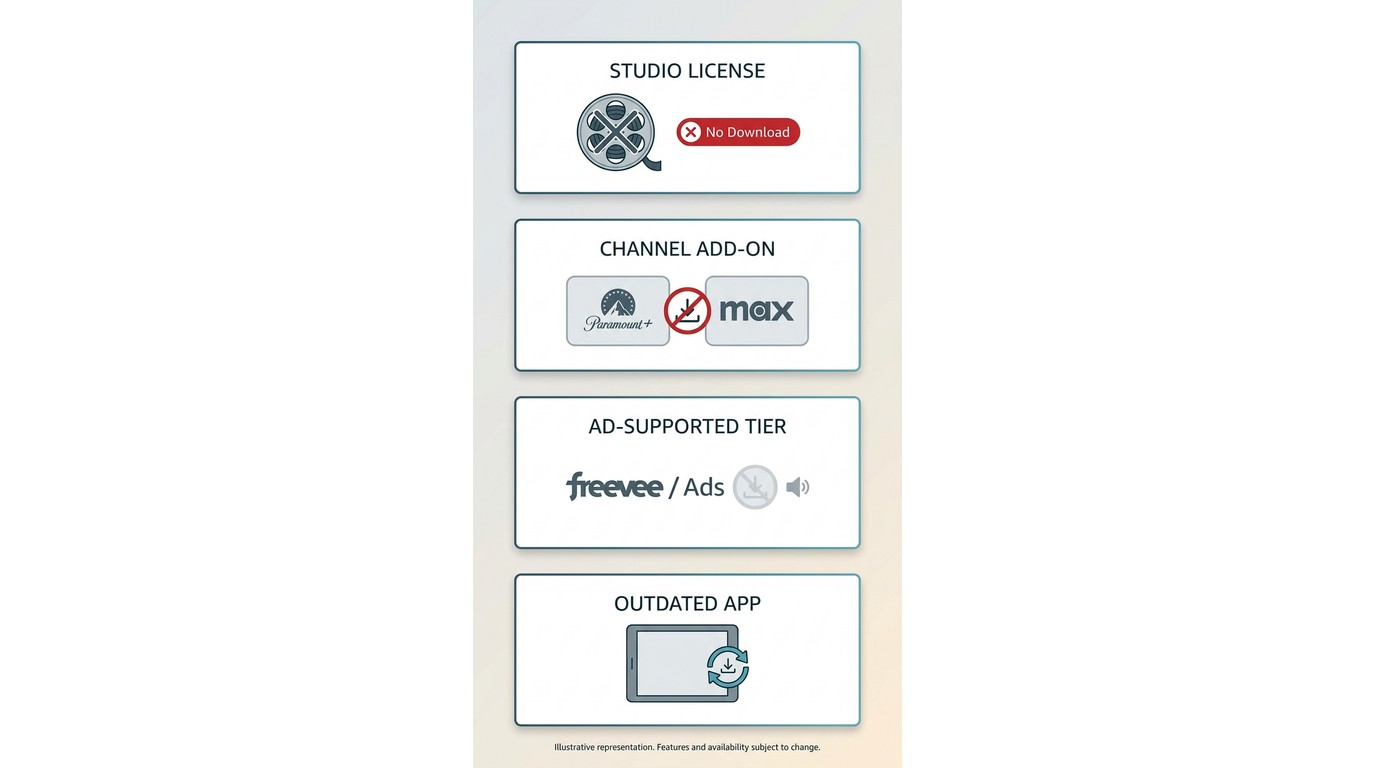
Amazon rental downloads run on a 30-day-then-48-hour timer, lock to one device, block Chromecast and AirPlay, and aren't even offered on every title. Studio licensing decides which rentals get a Download button at all.
The double clock: 30 days to start, 48 hours to finish (and the one reset that still works before Play)
A rented movie sits in your library for 30 days unwatched. The instant you press Play — even accidentally — the second clock starts: 48 hours to finish. One user write-up summed up the trip-with-downloads case as a hamster wheel: download a few episodes before a long trip, fail to finish them in time, and you "may lose access even if you are still offline."
The one reset that still works: before you press Play, delete the download and re-download the title, and the 30-day clock starts over. Once you press Play, though, nothing resets the 48-hour timer — in fifteen years of asking, I've never seen support budge on it.
One device at a time — and Chromecast / AirPlay are blocked
The rental follows the device, not the account. Switching tablets mid-rental means deleting from the first and re-downloading on the second — the UK Amazon forum has a canonical thread from renters who couldn't play a rental on a second device signed into the same account. Casting is out, too: Amazon's Help Center explicitly disallows Chromecast and AirPlay for downloaded titles.
Why some rentals show no Download button — four reasons, not just one
Not every rental is downloadable, and studio licensing is only the most common reason. Four patterns show up across Amazon's help pages and forum threads:
- Studio licensing. The per-title license decides whether the Download badge appears at all, with no warning before you pay. Amazon forums have a recurring thread from renters who could download one movie and then couldn't download the next.
- Prime Video Channel add-ons. Titles watched through a channel subscription (Paramount+, Max add-on, and similar) can have downloads disabled by the channel provider, independent of the movie's own license.
- Ad-supported Prime Video / Amazon Freevee. Titles that only ship on the ad-supported tier introduced in 2024–2025 may not offer download at all.
- Outdated or unsupported client. An older iOS, Fire OS, or desktop-app version can hide the Download button even when the title itself supports it.
Check the detail page for the Download badge before you click Rent; if it isn't there, offline is off the table for that title.
Account-wide cap: 15–25 per title license, ~50 on Prime / ~100 on Prime Video Ultra — and the file that can't move
On top of the per-device limit, there are two ceilings working in parallel. The per-title-license figure is still 15–25 active downloads, decided title by title. Amazon's own Prime Video for Windows help now cites a per-tier account ceiling on top of that: about 50 total active downloads on the Prime tier and about 100 on Prime Video Ultra (post-2024 restructure). And one more rule worth pulling out of the comparison table into plain view: rental downloads cap at about 720p SDR in the mobile Prime Video app and up to 1080p in the newer Windows / Mac desktop app; 4K HDR streams stay online-only inside Prime Video, regardless of what the same title supports in streaming.
The file itself won't move: no USB transfer, no external drive, no Smart TV sideload. After fifteen years tracking how platforms handle offline rights, my read on these four rules is that the 48-hour timer is the one that feels designed with intent to hurt — the other three you can at least work around by juggling devices or planning rentals ahead. So when I call Amazon's official path the most worry-free route, it comes with strings: only if the 30/48 clock, the 720p–1080p ceiling, and the app-sandboxed file all fit your use case.
BBFly Amazon Downloader: A Desktop Alternative When the 30/48 Clock or App Sandbox Get in the Way
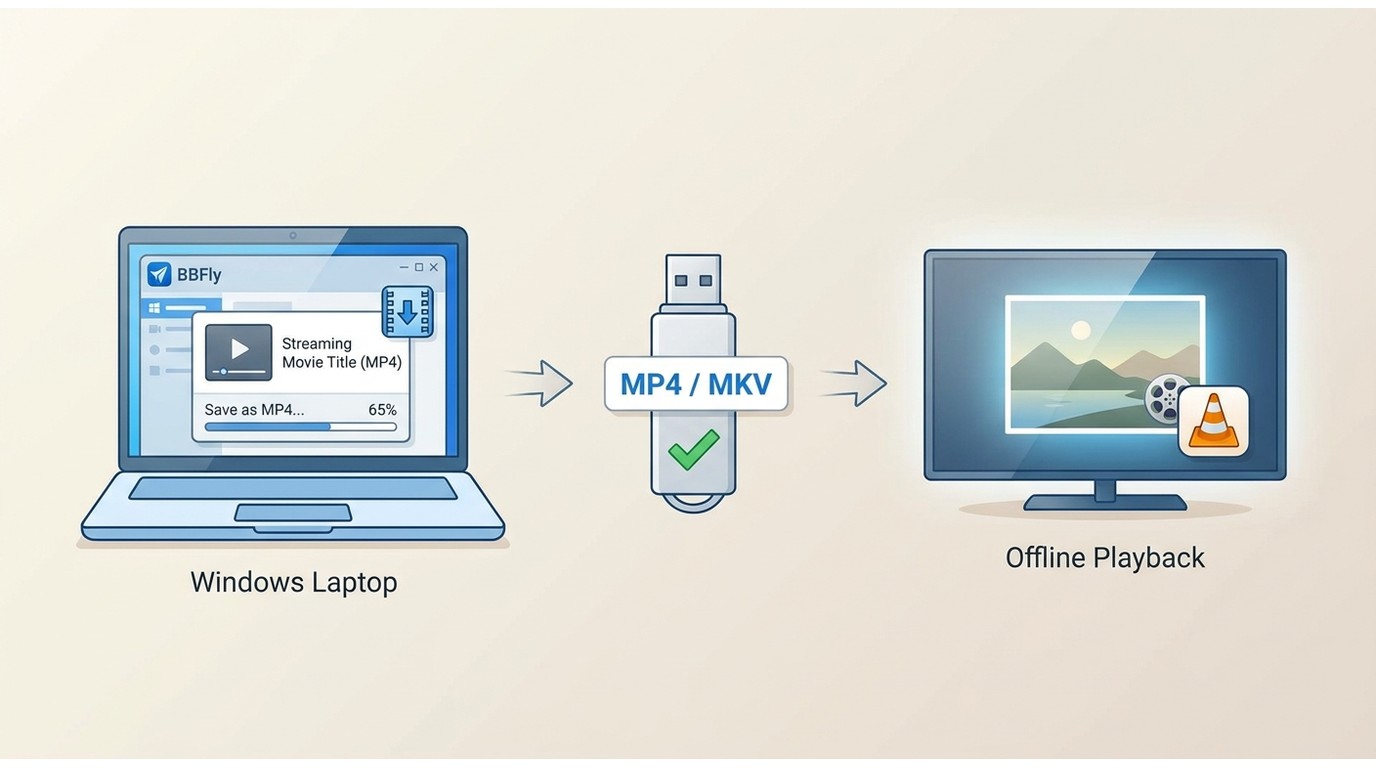
Please note: Third-party downloaders may conflict with Amazon's Terms of Use. Keep any local copies to content you've personally paid for or actively subscribe to, and use them for personal offline viewing only — no redistribution or resale. If you're on mobile and 48 hours fits your schedule, Amazon's own path is still the most worry-free route.
For content you're authorized to access, where permitted by Amazon's Terms of Use and applicable law, a desktop tool like BBFly Amazon Downloader is one practical workaround for anyone who finds the 30-day / 48-hour rental clock, the ~720p SDR mobile / up-to-1080p desktop ceiling, or the non-portable app sandbox limiting for personal offline viewing. It saves a paid, active rental as a standard MP4 or MKV on your Windows or Mac machine — no recording, no re-encode — so the file plays in VLC, Infuse, Plex, or off a USB stick on a Smart TV, without the 30-day or 48-hour rental clock on the local copy.
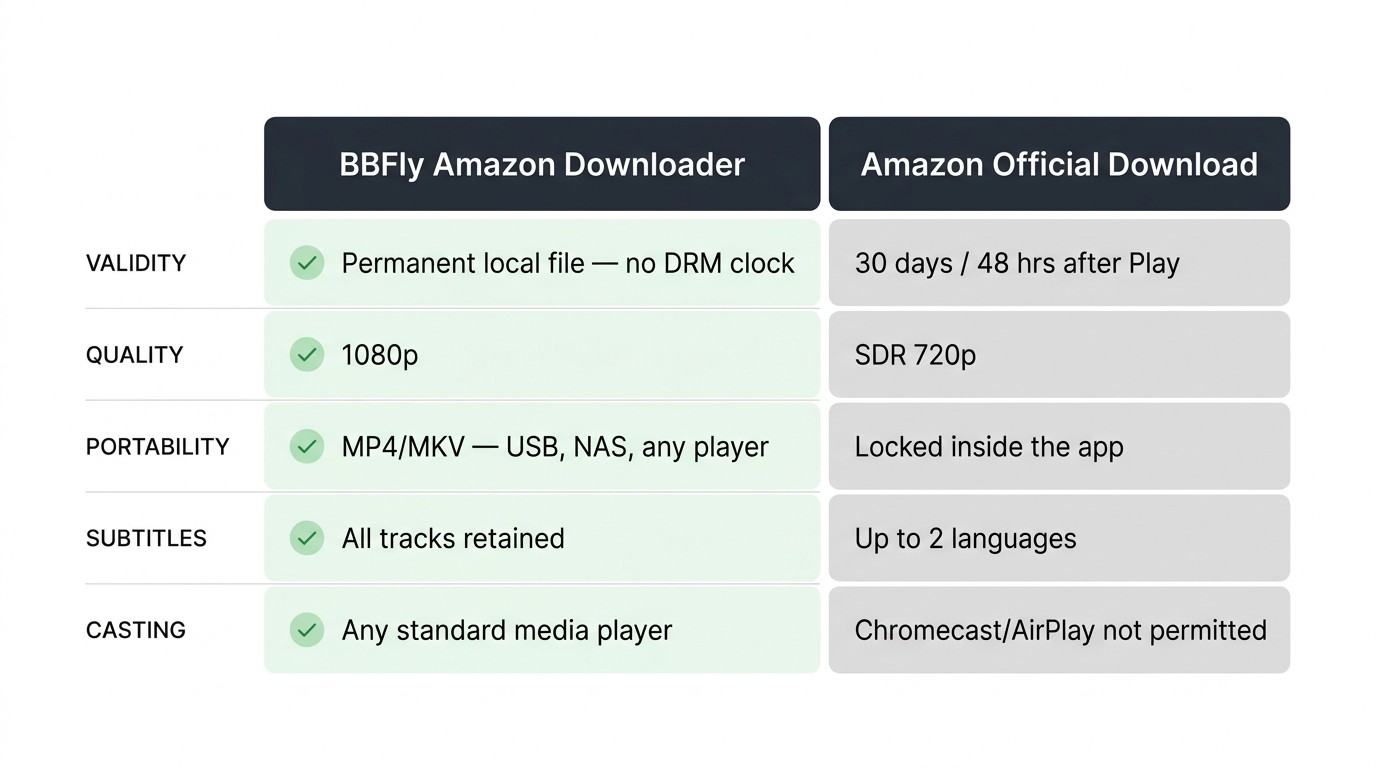
What you actually get — the side-by-side
| Dimension | Amazon official rental download | BBFly Amazon Downloader (personal offline use) |
|---|---|---|
| Download validity | 30 days unwatched / 48 hours after Play | Local MP4 you keep — no 30-day / 48-hour rental clock on the local copy (subject to Amazon ToU & applicable law) |
| Maximum quality | ~720p SDR (mobile app) / up to 1080p (Windows & Mac desktop app) | 1080p (Widevine L3 industry ceiling) |
| File portability & casting | Locked in app; Chromecast/AirPlay disabled | MP4 / MKV — any standard player, Smart TV via USB |
| Subtitle tracks | Up to 2 languages | All available tracks retained |
| Per-device / account cap | 15–25 per-title license; ~50 total (Prime) / ~100 (Prime Video Ultra) | Local-storage limited |
Source: Amazon Prime Video Help and Prime Video for Windows help; BBFly capabilities from published specs, as of July 2026. BBFly is paid Windows/Mac software, not a phone app — a three-title per-platform trial lets you verify output first.
FAQ: Amazon Prime Rental Downloads
These are the questions I keep getting in forums and reader email — short answers, same evidence trail as the rules section above.
Why can't I download a rented Amazon Prime movie I just paid for?
Studio licensing decides per title — some rentals never offer the Download button. Check the detail page for the Download badge before you confirm; if it isn't there, offline is off the table.
How long does an Amazon Prime rental download last on my device?
30 days from download if you don't press Play. Once you press Play, 48 hours — then the file goes dark inside the app.
Can I extend the 48-hour playback window on an Amazon rental?
No. The one workaround inside the rules: before pressing Play, delete and re-download to reset the 30-day clock. After that first Play, nothing pauses the timer — in fifteen years I've never seen support budge on it.
What happens to my downloaded Amazon rental if my Prime membership ends?
Rentals are billed separately from Prime membership, so ending your Prime subscription doesn't cancel the rental itself — but the 30-day and 48-hour clocks are unchanged, and the app still requires sign-in with the account that bought the rental. If you sign out, or lose access to that account, playback stops.
Can I watch an Amazon Prime rental on a plane with no internet?
Yes, if you downloaded it before takeoff. The catch most travelers miss: the 48-hour clock starts the moment you press Play, mid-flight or not — start it on the outbound leg and the file may already be dead by the return.
Can I download Amazon Prime rentals in 4K?
No. Rental downloads cap at about 720p SDR in the mobile Prime Video app and up to 1080p in the newer Windows / Mac desktop app; 4K HDR titles stay online-only inside Prime Video, regardless of what the source title supports in streaming. If you specifically need a 1080p local copy of a rental for personal offline viewing — for content you're authorized to access, subject to Amazon's Terms of Use and applicable law — a desktop tool like BBFly Amazon Downloader is one workaround.
Can I move an Amazon Prime download to an external drive or USB?
No — the file is sandboxed inside the Prime Video app, with no supported export path. Renters who need a portable file (NAS, external drive, Smart TV via USB) need a desktop tool that outputs a standalone MP4.
Is it safe to log into Amazon Prime inside a third-party downloader?
Check the platform's ToS first, and only use such tools for content you've personally paid for. My own filter, after years of bad installs: a registered company, a support email that answers, and sign-in handled inside the platform's own login UI. No-name utilities from free-software directories I don't touch.