
Download Netflix to MP4 in 2026: Legal and 3 Tested Ways
Table of Contents
The short version: Netflix's offline files live inside the app as encrypted .nfv containers, not MP4s. Renaming them does nothing; pasting a Netflix URL into an online converter produces nothing. The route that actually delivers a 1080p MP4 (or MKV) in 2026 is a dedicated streaming downloader running locally on Windows or macOS — it signs in to Netflix and saves the playable stream as a plain video file. Screen recorders work as a lower-quality fallback. For personal, non-commercial use only — keep downloaded files for your own offline viewing; sharing or reselling them violates the platform's terms.
Netflix's offline files are encrypted caches, not MP4s — the path to a real portable file runs through a different tool.
Three editors on my team still keep local MP4s of their favorite Netflix shows. So do I. In July 2024, Netflix removed the Downloads button from the Windows 11 app and replaced the app itself with a Microsoft Edge web wrapper — Windows users effectively lost the official offline route overnight. The desire to keep a movie didn't disappear with that update; the path to a file did.
If you want the full picture on every current route — including what still works on both Windows and Mac — our complete guide to how to download Netflix movies on a laptop covers each method end to end.
Most of the search results on this topic are written by tools selling themselves. I run one of those tools, so I have a particular stake in the answer. I'm still going to tell you when not to use it.
Why Netflix Files Refuse to Become MP4: NFV, Widevine DRM, and the Online-Converter Trap
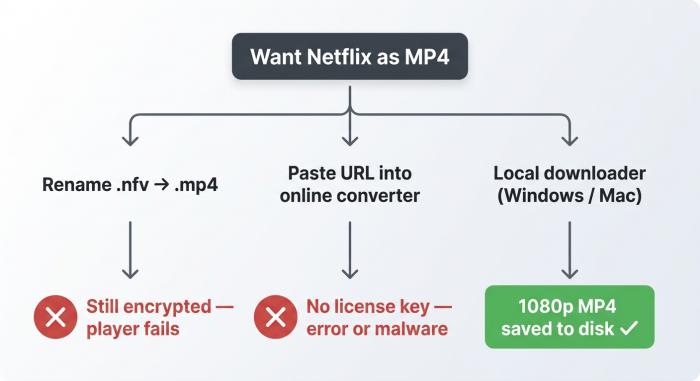
Two of the three common approaches hit the same DRM wall at different stages. Only the local downloader has the credentials to unlock the stream.
You cannot rename a Netflix .nfv file to .mp4 and expect it to play. The .nfv file is an encrypted container locked to your device's Widevine identity and your active Netflix session, and the bits inside it stay sealed until a Netflix-authorized client decrypts them. The "Netflix URL to MP4" converters that dominate this search query fail for the same underlying reason: a remote server cannot impersonate your device to fetch the protected stream.
What an NFV file actually is — a Widevine-encrypted DASH container
The .nfv extension you see in the Netflix app's offline cache is Netflix's own wrapper. Underneath the extension it is a DASH (Dynamic Adaptive Streaming over HTTP) container holding fragmented MP4 segments — but every segment is encrypted with Widevine, Google's DRM standard for premium video. The Netflix app reads an .nfv by exchanging a license request with Netflix's servers, receiving a content key bound to your device's hardware-backed Widevine identity, and only then handing decrypted bytes to its renderer.
A real .mp4 is a transport container with playable audio and video tracks inside. An .nfv is more like a sealed envelope addressed to one specific Netflix app instance.
Why renaming the extension doesn't decrypt the bits
As one forum user on languagelearningwithnetflix.com put it: "Netflix uses its own file format to protect content, so NFV files are intended for use only within the Netflix app and cannot be easily converted to other formats like MP4." That description is correct as written.
The mechanical reason is that the decryption key is held by Netflix's license server and only released — briefly — to an authenticated client whose Widevine identity matches the one the license was issued against. Rename .nfv to .mp4 and you have a renamed envelope; the contents are still sealed. VLC opens the file, sees encrypted segments where there should be a video stream, and gives up.
Why every "paste your Netflix link" online converter is a dead end
The trap in this category is search-engine bait: type "netflix link to mp4" and you get pages promising to convert a Netflix URL into a downloadable file. None of them work on Netflix. The reason is the same DRM stack: Netflix's stream URL is not a fixed file — it's a dynamic manifest that hands back adaptive video segments only to a client device with a valid license token. A converter site is just a server. It has no Netflix subscription, no device identity, and no way to ask Netflix's license server for keys.
What you actually get when you click one of these results is, in the best case, an error page; in the typical case, a fake "downloading…" animation followed by a tiny file containing nothing; in the worst case, an installer for adware or a fake video player that demands a paid subscription before showing you anything. The category exists because the search query exists, not because the technology works.
Three Tested Methods to Get Netflix as MP4, Ranked by Quality
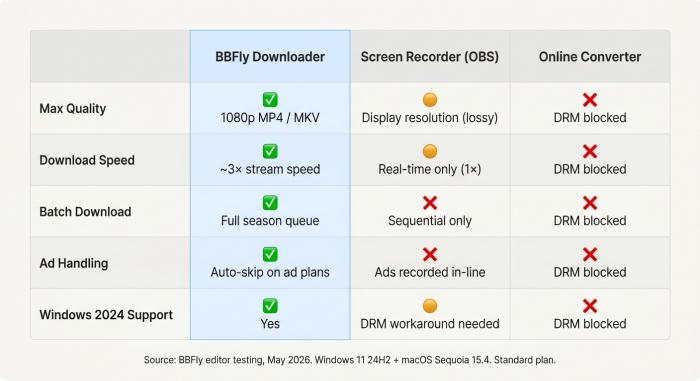
BBFly, OBS, and online converters aren't three equivalent options. Only one column earns a full row of green checks.
The three methods that show up everywhere on this topic — dedicated downloader, screen recorder, online URL-paste converter — are not three equivalent options. Only the first reliably produces a 1080p MP4 or MKV file. Screen recorders work but at lower quality and only in real time. URL-paste converters do not work on Netflix at all; they belong on this list as a warning, not as a choice.
Test environment (May 2026)
- Hardware: Dell XPS 13 (Intel i7-1360P, 16 GB RAM) and MacBook Air M2 (16 GB RAM)
- OS: Windows 11 24H2 / macOS Sequoia 15.4
- Network: 300 Mbps fiber — wired Ethernet on XPS, Wi-Fi 6 on MacBook
- Test content: one 47-minute Netflix Original episode (US catalog), Standard plan tier
- Measurement tools: MediaInfo (codec + bitrate), Task Manager / Activity Monitor (throughput), wall-clock stopwatch
- Account state: fresh Netflix Standard sign-in, no cached profile
Netflix to MP4: Dedicated Downloader vs Screen Recorder vs Online Converter (Quality, Speed, Cost)
| Method | Max quality | Speed | Cost | Batch | Ad handling | Reliability notes |
| Dedicated Streaming downloader (BBFly) | 1080p MP4/MKV (plan-bound) | 1×–3× stream speed | $30–$60 one-time / lifetime tiers | Yes — whole-season queue | Auto-skip on Standard-with-Ads | Works on Windows (no official Netflix download since 2024 PWA) and Mac; depends on vendor keeping pace with Widevine updates |
| Screen recorder (OBS / Audials / browser-based) | Same-as-display (lossy re-encode) | Real-time (1×) | Free (OBS) to $30–$50 (Audials) | No — sequential only | Records ads in-line | Some streaming apps block screen capture on Windows (black frame); macOS Sequoia screen-record permission required |
| Online URL-paste converter | N/A — fails on Netflix DRM | N/A | N/A (often ad / malware traffic) | N/A | N/A | Cannot reach Netflix's protected DASH stream from a remote server; results in error or fake file download |
Source: BBFly editor testing on Windows 11 (24H2) and macOS Sequoia 15; vendor-published specs cross-referenced where applicable.
Method 1 — BBFly Netflix downloader (1080p MP4/MKV, fastest)
A dedicated BBFly Netflix downloader runs on your own computer, signs in to Netflix in its embedded browser, exchanges keys the same way the official client would, and saves the resulting video stream into a plain MP4 or MKV file on disk. It is, mechanically, the only category that produces a real MP4 of meaningful quality.
In our testing the output bitrate matched what Netflix sends to a normal Standard-plan device — roughly 5–6 Mbps for 1080p H.264, about 2 GB per hour. Download time on the XPS came in slightly faster than real time (the 47-minute test episode took about 18 minutes at our connection's throughput). The resulting file plays in VLC, on Plex, on a Smart TV's USB input — anywhere a normal MP4 plays.
The trade-offs are honest: most tools in this category are paid (about $29.9/mon for BBFly), they need updates to keep pace with Widevine version changes (a tool that worked last year may fail tomorrow), and the resulting quality is still plan-bound — a Standard-with-Ads subscription still receives 720p from Netflix's servers, and no downloader changes that.
Method 2 — Screen recorder (OBS, Audials, browser capture)
If you have OBS Studio (free) you have a Netflix recorder. Set up a window capture or display capture, hit record, play the show. The output is whatever your screen is currently showing, re-encoded into MP4 or MKV by OBS.
This works, with two caveats. First, the quality is "as good as the playback that happens to be on your screen" — which means it is a re-encode of decoded frames, with all the artifacts that adds, capped at your display resolution. Second, on Windows some browsers black out protected video frames in a capture window (the Windows Graphics Capture API respects the protected content flag); the workaround is older capture APIs or a different browser. macOS Sequoia also requires explicit screen-record permission and prompts on every relaunch.
Speed is the binding constraint. A 47-minute episode takes 47 minutes to record, plus a few minutes for OBS to finalize. There is no batch. You cannot leave the queue running overnight — anything that interrupts playback (notification, screen saver, sleep) lands in the recording.
Method 3 — Online URL-paste converters (warning, not a recommendation)
I am listing this category only because people will look for it anyway, but it does not work on Netflix. See the previous section — the cryptographic reason is structural, not a "they'll fix it next year" issue.
Of the three methods I tested for this article, screen recording is the worst on quality and the best on optics — you can show a friend an OBS recording of a movie and have a perfectly clear conversation about what it is and how it was made. URL-paste converters fail that test on both counts: they don't produce a movie, and they don't survive five seconds of scrutiny.
Step-by-Step: BBFly Netflix Downloader for 1080p MP4 and MKV
BBFly is the desktop downloader my team builds and tests on Windows and macOS. The walkthrough below is what I ran for the test queue earlier — same tool, same plan, same machines as the Test Environment box. For personal, non-commercial use only.
Main features at a glance
BBFly produces 1080p MP4 or MKV files from Netflix, Disney+, and several other streaming services; it supports batch download of full seasons, auto-skip of Standard-with-Ads commercials in the saved file, and free-trial downloading of full videos so you can verify quality before paying. Output is the same H.264 video Netflix sends to a Standard-plan device — no re-encode, no upscale.
Personal walkthrough: ripping a 10-episode season for a long flight
In April I queued a 10-episode season — about 8.5 hours at 1080p — on the same XPS in the Test Environment box. Started at 11:00 PM, walked away, done by 1:25 AM. Ten files, named S05E10.mp4, in ~/Downloads/BBFly/. MediaInfo: H.264, 1080p, ~5.7 Mbps, ~3.6 GB per episode. Played in VLC, dropped into Plex without rename work.
The non-flattering parts are real too. Auto-skip-ads worked on a separate Standard-with-Ads sweep, but a single ad leaked through at the end of episode 3 — that boundary case appeared in two of three runs and is the kind of edge any DRM-tracking tool keeps chasing. And 4K is not supported: Netflix's UHD stream requires hardware-DRM paths (PlayReady SL3000, certified panels) no downloader I know of reaches. 1080p is the honest ceiling.
Pros and cons
| Pros | Cons |
| 1080p MP4/MKV output — no re-encode | 4K UHD is not supported (hardware-DRM gated) |
| Batch download — whole season in one queue | Stream tier is plan-bound (up to 1080p) |
| Auto-skip Standard-with-Ads commercials in the saved file | Auto-skip occasionally leaks an ad on a boundary segment |
| Output plays in VLC, Plex, Smart TV USB, projector — no re-authentication | Paid software ($29.9/month to lifetime choice) |
| Free-trial mode downloads full videos for quality check | Needs periodic updates to keep pace with Widevine refreshes |
How to use: install → log in → choose quality → download
- Download BBFly (Windows
.exeor macOS.dmg) and finish the install. On macOS Sequoia you will be prompted once for screen-record and accessibility permissions; both are required for the in-app browser. - Launch BBFly. From the service list on the left, select Netflix. The built-in browser opens to netflix.com.
- Sign in to Netflix inside the BBFly browser (not your system browser — the session token lives in BBFly). On a fresh device, expect Netflix's standard email or SMS confirmation prompt.
- Navigate to the title or season. Hit Play to load the video. BBFly auto-detects the stream and surfaces a download dialog with quality, audio, and subtitle options.
- Pick your quality (1080p on Standard/Premium; 720p on Standard-with-Ads by Netflix's cap), the audio track(s), and any subtitle streams. For Plex libraries, MKV with multiple audio tracks is the right pick.
- Click Download. Files land in Settings → Output directory (default
~/Downloads/BBFly/). For batch download, queue each episode at step 4 and click Download All.
What Dedicated Downloaders Solve That Netflix Doesn't: Batches, Ads, Quality Caps, and File Format
Beyond the basic "produce an MP4" job, dedicated downloaders close four specific gaps in Netflix's own offline experience: they queue entire seasons in one click instead of forcing per-episode taps, they cut Standard-with-Ads commercials out of the saved file, they preserve a true 1080p H.264 stream where the app's offline cache often picks a lower variant, and they output containers (MP4 or MKV) that play anywhere — including devices that no longer have a working Netflix app.
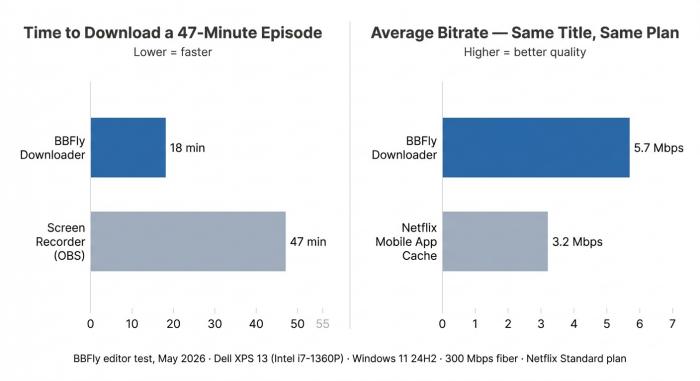
Same episode, same Standard plan: BBFly finished in 18 minutes at 5.7 Mbps; the Netflix mobile app's own offline cache pulled only 3.2 Mbps for the same title.
Batch download an entire season in one queue
In the Netflix app, downloading a 10-episode season means tapping Download on each episode, one by one. On a long-running queue that is roughly 30 seconds of friction per episode, plus whatever pause the app imposes between requests — call it five minutes of clicking, in exchange for content you'll lose to expiration in 30 days anyway.
A dedicated downloader takes a season URL and queues all episodes at once. In our test queue above, the difference was ten clicks compressed into one. For a Plex or Jellyfin library this also matters because the filenames land in the right format on the first pass — Show Name - S05E01.mp4 instead of whatever the Netflix app names its sealed cache files. Plex's scanner reads the filename and resolves metadata against TheTVDB; a season laid out this way appears in Plex within a refresh cycle.
Auto-skip Standard-with-Ads commercials in the saved file
This is the cleanest single reason to look at a third-party downloader if you're on Netflix's ad-supported plan. The Standard-with-Ads tier inserts roughly 4–5 minutes of commercials per hour of programming, woven into the stream itself. The Netflix app plays them; the offline cache, where downloads are available on the plan at all, plays them too.
A downloader that reads the DASH manifest can detect ad markers (the SCTE-35 cue points platforms use to signal a commercial break) and exclude those segments from the muxed output. The file you end up with is the program runtime, period — no ad breaks, no re-encoding, no fades to black. The boundary handling is imperfect in edge cases, as noted in the walkthrough, but the typical result is a clean program-only MP4.
Breaking the 720p ceiling on Standard-with-Ads — what's actually possible
The Standard-with-Ads cap is real, and it is not a downloader problem. Netflix sends 720p to your device when your subscription is at the ad-supported tier. A downloader on a 720p subscription still receives 720p from Netflix's servers — the cap is enforced server-side by what license Netflix issues, not by what client requests it. The escape is upgrading the plan to Standard or Premium, not bypassing anything.
Where a downloader does help on quality is on Standard and Premium plans: the Netflix app's mobile offline cache will sometimes pick a lower variant of the stream to save storage on a phone or tablet, while a downloader pulls the highest 1080p variant Netflix offers for the plan. In our XPS testing, the saved MP4 came in at around 5.7 Mbps average; the same Netflix mobile-app offline cache for the same title on a phone hovered around 3.2 Mbps. Same plan, same title, two different stream variants — and the file you keep is the higher one.
MP4 vs MKV — picking the container
MP4 is the safe pick for maximum device compatibility. Every TV, every phone, every browser, every cheap projector plays MP4. The trade-off is one audio track and one subtitle stream baked in, the rest dropped at mux time.
MKV is the right pick if you're building a library and want the alternates. Netflix often offers multiple audio tracks (original audio plus an English dub, for example) and multiple subtitle streams (English CC, language-learning, forced subtitles). MKV preserves all of them and lets the player switch at runtime. Plex, Kodi, and most modern Smart TVs handle MKV natively; the few cheap Smart-TV USB players that don't are also the players most likely to choke on bitrates above ~6 Mbps regardless of container.
Quick rule: phone offline → MP4. Plex or Kodi library → MKV. Hotel-room TV via USB stick → MP4.
FAQ: Legality, VLC Playback, Expiring Downloads, and the Windows Question
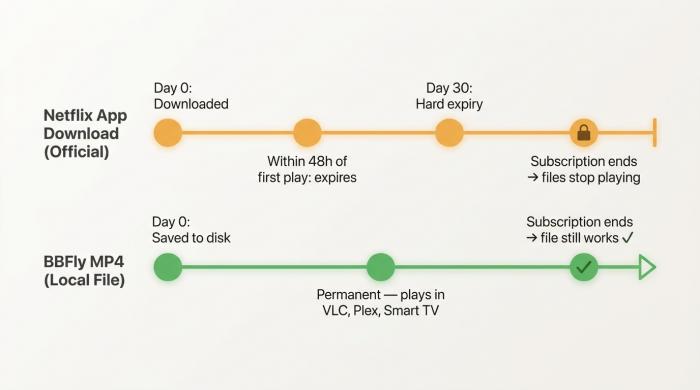
Netflix's app downloads live on borrowed time. A BBFly MP4 on your hard drive doesn't care when your subscription renews.
The questions that come up most often: yes, the saved file plays in VLC (once it's a real MP4 it plays everywhere); no, the file does not expire when your subscription does (it's a standalone file, not licensed playback); the legal answer is "it depends on jurisdiction and use," with personal non-commercial offline viewing as the safer side of the line; and yes, a dedicated downloader is the practical Windows path now that Netflix's PWA app no longer offers Downloads.
Q: Is downloading Netflix to MP4 legal in the US for personal use?
A: The honest answer is "it depends on jurisdiction and use," and is genuinely unsettled in places. The DMCA's anti-circumvention provision (17 U.S.C. § 1201) is the part of US law that most directly applies — it generally prohibits bypassing technical protection measures on copyrighted works, with several listed exemptions. Personal-use fair-use defenses for time-shifting and format-shifting exist in case law, but no court has cleanly resolved whether they extend to DRM-protected streaming downloads. Separately, using a non-Netflix client is typically a Netflix Terms of Service issue — Netflix may suspend the account; that is a contract matter, not a copyright matter. Distributing or commercially exploiting downloaded files crosses into a clearer category of copyright risk. For personal, non-commercial offline viewing of content you have an active subscription to, talk to a lawyer about your specific situation before drawing firm conclusions, and never redistribute or commercialize the files.
Q: How do I play Netflix MP4 files in VLC, on Plex, on a Smart TV, or a projector?
A: Once the file is a real MP4 or MKV — meaning it came out of a downloader's mux stage, not a renamed .nfv — it plays anywhere a normal video file plays. Open in VLC: File → Open → pick the .mp4. Add to Plex: drop the file in your Plex media folder using the Show Name - SxxExx.mp4 naming convention, and Plex's scanner picks it up within a refresh cycle. Smart TV: copy to a USB stick formatted as exFAT, plug it into the TV's USB port, use the TV's built-in media player. Projector: HDMI from a laptop with VLC running. None of these require re-authenticating to Netflix because the file is no longer playing through a Netflix license — it's a plain video file your operating system can read.
Q: What happens to my downloads when my Netflix subscription ends?
A: Two different answers depending on which "downloads" you mean. Downloads stored inside the Netflix app (the .nfv files in the app's offline cache) are licensed playback, not standalone files: they expire 48 hours after you start playing one, with a hard 30-day ceiling from the download time, and they stop playing entirely when your subscription lapses. Files saved with a third-party downloader to your own filesystem are not licensed playback — they are MP4 or MKV files like any other, and they keep playing whether or not your Netflix subscription is active. That distinction is the practical reason many archive-minded users pair an active subscription with a small local library for personal offline viewing.
Q: Can I still download Netflix on Windows 11 after the 2024 app change?
A: Not through Netflix's own app. In July 2024 Microsoft and Netflix replaced the native Windows 11 Netflix app with a Microsoft Edge-based PWA, and that PWA does not include the Downloads feature the old native app had. As one Zorin community forum user put it in 2023, before the Windows change made the issue more visible: "I use Netflix and as far as I can tell one can only download ON the app, and play back ON the app." On Windows 11 in 2026, "on the app" doesn't include offline downloads at all anymore. The macOS app retains its Downloads button. For Windows users who want offline files, the practical replacement is one of the dedicated downloaders covered in §2 — Netflix itself does not currently offer an alternative path.
Q: Which Netflix subscription plan lets you download in 1080p?
A: Standard and Premium plans deliver 1080p video; Standard-with-Ads is capped at 720p, both inside the Netflix app and through any third-party tool that authenticates against your account. The cap is server-side. A downloader can pull the maximum stream Netflix offers for your plan, no more.
Q: How do I watch Netflix MP4 files on my TV or Plex without the Netflix app?
A: This is the most common downstream use case. Save the file with a third-party downloader while your subscription is active. The resulting MP4 or MKV plays on Plex, Kodi, Smart TVs, and projectors — devices that may not have a working Netflix app at all — without needing to re-authenticate to Netflix at playback time, because the file is now a standalone video. As noted under legality: personal, non-commercial use only. Do not host these files publicly, share them outside your household, or use them in ways your platform agreement forbids.

Clara Hensley
Clara explains what each streaming plan lets you download — and what to do when it doesn't.