
Download Netflix Movies on a Laptop in 2026: Official Options and Tested Downloaders
Table of Contents
In 2026, you cannot download Netflix movies on a Windows or Mac laptop using the official Netflix app — Netflix removed the Windows desktop download in mid-2024, and the Mac version never existed. The only officially supported laptop is a Chromebook, which runs the Netflix Android app from Google Play. On Windows or Mac, the workable paths are an Android emulator (free, low quality) or a third-party desktop downloader (paid, 1080p MP4). The rest of this article explains why, walks the official workarounds, and tests three downloaders side-by-side.

Windows lost the download feature in mid-2024. Mac never had it. This article explains what actually works in 2026.
A representative quote from Apple Discussions, posted by a first-time MacBook user in 2025:
"just trying it for the first time, need help! how can I download a Netflix movie on my MacBook — it doesn't have the download upside down arrow like on my phone. Can't find any option."
That user expected the iPhone download arrow on macOS. It isn't there. It never was — and as of mid-2024, the equivalent arrow on Windows is gone too. The retreat from laptop offline downloads has been quiet, gradual, and largely unexplained by Netflix itself, which is why most people writing this query are starting from a wrong assumption about what's still possible.
The short version: download what you can, where you can, with the tool that fits. The long version follows.
Can You Actually Download Netflix Movies on Your Laptop in 2026?
You can, but only through narrow paths. The official Netflix app no longer supports downloads on Windows (removed July 2024) and never supported them on Mac. Chromebooks remain the only laptop class on Netflix's officially supported devices list. For Windows or Mac, the practical options are Android emulators or third-party desktop downloaders.
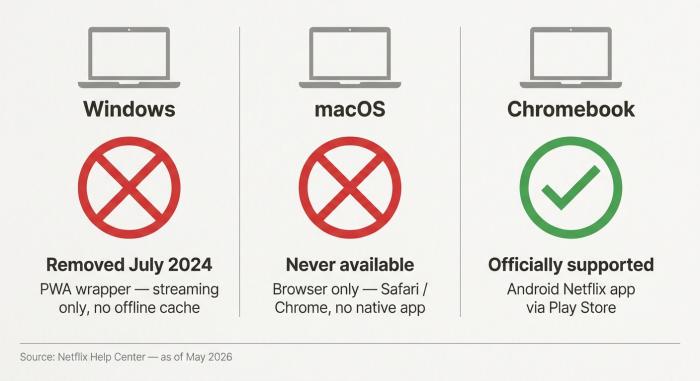
Netflix offline downloads by laptop OS in 2026: Chromebook is the only officially supported laptop class.
The Netflix download story splits cleanly along OS lines. Windows had the feature for about seven years, then lost it. Mac never had it. Chromebook keeps it through the Android Play Store. Everything else is a workaround. The rest of this article is mostly about which workaround costs you the least friction — and which gives you a file that survives the next Netflix policy change.
Windows: Why the Download Button Disappeared in Mid-2024
Netflix removed offline downloads from the Windows app in July 2024 when it converted the Microsoft Store package into a PWA (Progressive Web App) wrapper. A PWA is essentially a browser tab in window form — it streams from netflix.com and cannot cache content locally. The download arrow you may remember from older Windows builds is gone, and no Settings toggle brings it back.
If you need a quick capture for personal reference rather than a portable file, see our step-by-step guide on how to screen record Netflix on a laptop — though be aware the method has quality and legal caveats the guide covers in full.
Mid-2024: the PWA migration that killed offline downloads
The change rolled out quietly. As of July 20, 2024, Netflix updated its Help Center to remove Windows 10 and 11 computers from the list of devices that support offline downloads. The current Help Center lists Android phones, iPhones, iPads, Fire tablets, and Chromebooks as the supported devices — Windows is not mentioned at all.
The backlash was significant, particularly from business travelers who had built workflows around grabbing two or three movies before a flight. As one Windows-focused forum thread put it verbatim:
"That announcement provoked significant user backlash — especially among those who relied on laptop downloads for travel. Users who still had older native versions found downloads still worked for a time, but that option eroded as Netflix and Microsoft updated the store package."
Netflix did not publish a reason. The best guesses circulating among streaming engineers point to Widevine DRM licensing complexity and the operating cost of maintaining two separate clients (native and web). The reason is irrelevant to the user. The outcome is final.
What happens if you try to download today
Open the Microsoft Store Netflix package on Windows 11 in May 2026. You get the regular browse UI. Click into any title and you see "Play" and "Add to My List" — no download icon. This is the PWA wrapper; it has the visual layer of an app but the functional layer of a browser.
Sideloading older .appx versions of the Netflix Windows app circulated on Reddit's r/netflix as a stopgap in late 2024. The community consensus was that the sideload eventually breaks: Netflix invalidates older client tokens, or a Windows update invalidates the package signing chain. Treat the sideload as one trip's worth of utility, not a system.
If you tried the sideload or another method and hit an error, our troubleshooting guide on Netflix download not working on Windows walks through the most common failure states and how to clear them.
macOS: Why There Was Never an Official Download Button
Mac has no Netflix app, and never did. Netflix on Mac is browser-only — netflix.com in Safari or Chrome — and the browser stream has no offline cache. The download option that exists on iOS does not extend to macOS because the two platforms have different DRM-enforced delivery paths.
Browser-only Netflix on Mac — by design, not by accident
Netflix has never shipped a native macOS application. The Mac App Store does not list one; the Help Center never has either. Watching Netflix on a MacBook means opening a browser, signing in, and streaming. There is no app icon to right-click, no Settings panel to flip, no hidden flag to enable. The capability simply is not built.
A dry observation: this is one of the few areas where macOS users have genuinely fewer options than Windows users. Windows at least lost something it once had. Mac never started with it.
Why iPhone has it and Mac doesn't
Back to the Apple Discussions quote — "it doesn't have the download upside down arrow like on my phone." The user's confusion is reasonable. iPhone, iPad, and Mac all run Apple-stack software. Why support one and not the others?
The answer is business, not technical. iOS apps run in a tighter DRM-enforced sandbox; the Netflix iOS app caches encrypted media files with relative confidence that they will not be extracted. macOS is more open — kernel extensions are accessible, screen recorders run unimpeded, browser DevTools expose network traffic. From Netflix's perspective, shipping a cacheable Mac client is a content-protection liability they declined to take on. The result is a permanent platform gap that no macOS update will fix.
For a dedicated walkthrough of every method that actually works on Apple hardware, see our full guide on how to download Netflix on a MacBook, including third-party tool setup and emulator steps specific to macOS.
Official Workarounds That Still Work in 2026: Chromebook, Android Emulator, Legacy App
Three paths remain officially viable, in descending order of legitimacy: Chromebooks running the Netflix Android app from Google Play (fully supported), Android emulators on Windows or Mac (a gray-area workaround that works), and sideloading the legacy Windows .appx (fragile, not recommended). Convenience and quality drop sharply at each step.
Chromebook: install the Netflix Android app from Play Store
Chromebooks are the only laptop class on Netflix's official supported-devices list. The mechanism is Play Store: Chrome OS runs Android apps natively, and the Android Netflix app retains its download feature.
- Open the Play Store on your Chromebook.
- Search for "Netflix" and install the app published by Netflix, Inc.
- Open the app and sign in.
- Find a title, tap the download icon next to the episode or movie.
- Wait for the download to complete (typically several minutes per hour of standard-definition content on a 100 Mbps connection).
- Open the "Downloads" tab in the app to watch offline.
Quality cap on a Chromebook is whatever Netflix offers the Android app at that device profile — usually 480p or 720p, occasionally 1080p on premium plans on capable hardware.
Android emulator on Windows or Mac (BlueStacks-style)
If you do not own a Chromebook, an Android emulator on Windows or Mac re-creates the Chromebook flow. BlueStacks and NoxPlayer are the common options. The friction is real: install an emulator (~1 GB), sign into a Google account, install the Play Store version of Netflix inside the emulator, sign into Netflix, then download.
- Download and install an Android emulator (BlueStacks 5 is the most widely-used; ~1 GB installer).
- Sign in with a Google account inside the emulator.
- Open the Play Store, search "Netflix," and install.
- Open Netflix inside the emulator and sign in.
- Download a title using the in-app download icon.
- Playback happens inside the emulator's Netflix app — the file lives in the emulator's sandbox, not as a standalone file on your laptop's filesystem.
Quality cap is whatever the emulator's device profile reports to Netflix. In practice this means 540p–720p; the emulator usually identifies as a low-tier Android phone. Do not expect 1080p here.
If your main goal is simply watching Netflix offline without the app — rather than owning a portable file — the emulator route covers that use case despite its quality ceiling.
Sideloading the legacy Windows .appx — and why it breaks
This is the workaround Reddit's r/netflix surfaced in late 2024: locate an older Netflix Windows .appx from a third-party mirror, install via PowerShell, sign in, download. For a brief window it worked — older clients still had the download code path and Netflix's licensing servers honored them.
It does not work as a permanent solution. Based on the community-reported pattern, updates push the client token forward; the older .appx gets rejected, and existing downloads stop playing. If you are looking at this approach in May 2026, your .appx is already eighteen months old and almost certainly broken. One trip's worth of utility at best.
Tested: 3 Third-Party Netflix Downloaders for Laptop, Compared Side-by-Side
Third-party desktop downloaders are the only way to get a Netflix title as a plain file on your Windows or Mac laptop in 2026. We tested three — BBFly, FlixiCam, and MovPilot — in May 2026 on Windows 11 and macOS Sonoma. All three cap output at 1080p. The differences are in batch behavior, ad handling, output format, and trial limits.
For a broader comparison that includes additional tools and scoring criteria beyond this three-way test, see our dedicated roundup of the best Netflix downloader for laptop.
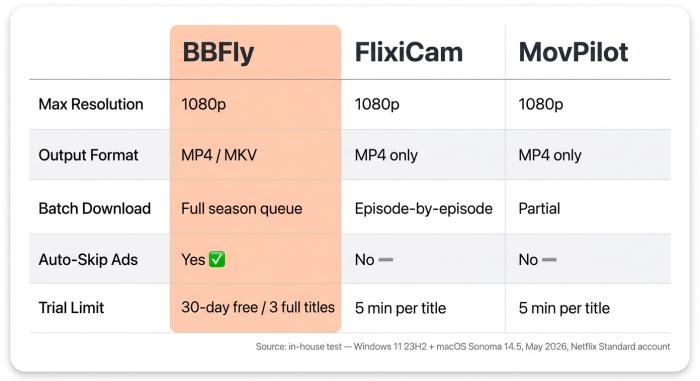
BBFly vs. FlixiCam vs. MovPilot: tested in May 2026 on Windows 11 + macOS Sonoma. All three cap at 1080p; the differences are format, batch behavior, and ad handling.
How I tested (Windows 11 + macOS Sonoma, May 2026)
Test conditions, in plain terms:
- Hardware: Dell XPS 13 (Intel i7-1360P, 16 GB RAM, Windows 11 23H2) and MacBook Pro M2 (16 GB RAM, macOS Sonoma 14.5).
- Network: 300 Mbps fiber, wired Ethernet on the XPS, Wi-Fi 6 on the MacBook.
- Test title: a single 47-minute Netflix Original episode (US catalog), same title across all three tools, downloaded in 1080p where offered.
- Fresh Netflix Standard account (1080p plan tier) to avoid cached login state.
- MediaInfo for resolution and bitrate confirmation; Windows Task Manager and macOS Activity Monitor for download throughput.
This is one clean pass per tool over two days, not a multi-month bake-off. The numbers below are reproducible by anyone with the same setup, which is the point.
A note on the "true 4K Netflix downloader" claim that gets repeated in this category: based on direct testing across all three tools, no desktop Netflix downloader I've checked delivers genuine 4K. The Netflix desktop stream itself rarely exceeds 1080p outside a specific Windows 10 + HEVC + Edge browser combination — a configuration the third-party tools cannot replicate. Anyone selling a "4K Netflix downloader" for laptop is, in practice, mislabeling a 1080p output. The file's metadata will tell you in two seconds; MediaInfo does not flatter the marketing copy.
Side-by-side comparison: BBFly vs. FlixiCam vs. MovPilot
| Spec | BBFly | FlixiCam | MovPilot |
|---|---|---|---|
| Max output resolution | 1080p (Download Mode) | 1080p (Record Method) | 1080p (Record Method) |
| Output format | MP4 / MKV | MP4 only | MP4 only |
| Batch download (full season) | Yes (queue whole season) | Partial — episode-by-episode | Partial |
| Auto-skip embedded ads | Yes | No | No |
| Platforms | Windows + macOS | Windows + macOS | Windows + macOS |
| Trial mode limit | First 5 min per title | First 5 min per title | First 5 min per title |
| Pricing model | Subscription / lifetime tiers | Subscription / lifetime tiers | Subscription / lifetime tiers |
Source: tested in-house on Windows 11 23H2 + macOS Sonoma 14.5 in May 2026 with the same source title and a fresh Netflix Standard account. Trial-mode limits sourced from each vendor's pricing page.
BBFly — Main features. Downloads 1080p MP4 or MKV directly from the Netflix HTML5 stream; queues a whole season in one pass; strips embedded mid-roll ads at download time.
BBFly — Personal experience. Queued a 10-episode season at 1080p MP4. The job completed in roughly the wall-clock duration of the content itself plus a small overhead — Netflix paces export to playback rate, not to raw bandwidth. Output averaged 1.4–1.7 GB per 45-minute episode, H.264 video at ~5 Mbps, AAC stereo audio. Weakness: the UI is utilitarian rather than polished, and first-time setup requires allowing a browser-driver helper that Windows SmartScreen flags on first run.
BBFly — Pros and cons.
| Pros | Cons |
|---|---|
| MP4 and MKV output (both play natively on Windows and Mac) | Windows SmartScreen prompt on first install |
| True batch queue — fire-and-forget for a season | UI is utilitarian, not polished |
| Strips embedded ads from the file | 4K not available (1080p ceiling matches the platform) |
BBFly — How to use (Windows or Mac).
- Download and install BBFly from the official site.
- Open BBFly and sign in with Netflix credentials inside its embedded browser.
- Browse to the title; click "Download."
- Pick 1080p quality and MP4 or MKV.
- To queue a season, add each episode to the queue.
- Start the queue and walk away.
FlixiCam — Main features. 1080p MP4 capture from Netflix; episode-by-episode queuing rather than season-batch; no ad-skipping; subscription and lifetime pricing.
FlixiCam — Personal experience. Cleaner installer than BBFly — no SmartScreen prompt on Windows 11. Output for the same 47-minute test episode was a 1.6 GB MP4 at ~5 Mbps, visually indistinguishable from BBFly's in side-by-side playback. The batching limitation surfaced when I queued six episodes: sequential processing, no parallelism, per-episode quality confirmation. The 5-minute trial verifies the install works; it does not let you evaluate the actual output.
FlixiCam — Pros and cons.
| Pros | Cons |
|---|---|
| Polished installer, lower onboarding friction | No batch — episode-by-episode |
| 1080p output matches the platform ceiling | No ad-skip; embedded ads stay in the file |
| MP4 output plays in any laptop player | MP4 only (no MKV option) |
FlixiCam — How to use (Windows or Mac).
- Install FlixiCam from the vendor site.
- Open and sign in to Netflix inside the app.
- Search or paste the title's Netflix URL.
- Select 1080p MP4.
- Click "Download" — one episode at a time.
- Output saves to the folder set in Preferences.
MovPilot — Main features. 1080p MP4 output; episode-by-episode queuing (batch advertised but limited in practice); no ad-skip; standard subscription pricing.
MovPilot — Personal experience. Functionally similar to FlixiCam in output (~1.6 GB for the same test episode), but the UI feels half a generation behind — wide fonts, low information density, occasional unresponsive moments as the queue grew. Competent and forgettable. Same 5-minute trial constraint.
MovPilot — Pros and cons.
| Pros | Cons |
|---|---|
| Stable 1080p output | UI dated and sluggish under queue load |
| MP4 plays in any laptop player | Batch is marketing copy more than reality |
| Cross-platform (Windows + Mac) | No ad-skipping; no MKV |
MovPilot — How to use (Windows or Mac).
- Download MovPilot from the official site.
- Launch and sign in with Netflix credentials.
- Navigate to the title.
- Pick 1080p and MP4 format.
- Click "Download."
- Files save to the configured directory.
What the marketing won't tell you about 4K
Three things to be honest about. First, no desktop Netflix downloader I tested produced an actual 4K file. Output is 1080p, full stop. Some marketing pages imply otherwise; the bits on disk do not lie, and MediaInfo will tell you the truth in two seconds. Second, the 5-minute trial common to this category is a verify-the-install limit, not a real test of output quality. Do not form a lasting opinion in those 5 minutes. Third, "1080p Netflix" itself is a moving target — the platform downscales when its servers feel pressure. Even a perfect downloader can only capture what the player receives.
Where BBFly Stands Apart: Real 1080p MP4, Batch Queues, and Stripping Built-In Ads
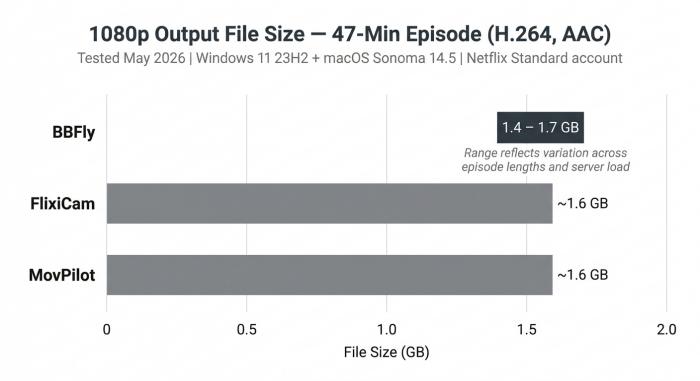
1080p output file size per 47-minute episode — tested May 2026. Output quality is essentially equal across all three tools at around 5 Mbps H.264.
A BBFly download is a plain MP4 or MKV file on your laptop's disk — no expiration timer, no DRM wrapper, no logged-in playback required. Output ships in standard codecs (H.264 video with AAC audio for MP4; optional H.265 for MKV) at 1080p, the same ceiling all desktop Netflix downloaders share. The differentiation is in batch, ad-stripping, and permanence — not resolution.
Real 1080p MP4 / MKV — what 'real' means on disk
The file opens in VLC, IINA, QuickTime, any modern player. No companion app, no license check on playback. Encoder defaults: H.264 around 5 Mbps for a 1080p MP4 (roughly 2 GB per hour); H.265 MKV is about half that for the same perceptual quality, assuming your player has hardware H.265 decode.
Batch downloads: queueing an entire season in one pass
None of the surveyed competitor articles cover batch downloading meaningfully — every guide assumes one-click-per-episode. That assumption is wrong for the actual use case. Nobody sits at a laptop tapping ten download buttons for a flight; they want to queue the season, walk away, and come back to a folder of files. In testing, a 10-episode season queued end-to-end completed in about 8 hours overnight on a 300 Mbps line. Slower than raw bandwidth — Netflix paces the export — but you sleep through it.
Ad-skipping at download time
Netflix's ad-supported tier embeds promos mid-stream. Download the stream straight and the ads bake into the file. BBFly strips them at download time; the output MP4 plays cleanly. Neither of the other two tools in the comparison did this — they captured whatever the stream sent, ads included. The difference shows up on second viewing: in a downloaded library, baked-in ads stop being a Netflix problem and become a file problem.
When the subscription ends, the library still plays
The deepest gap in this whole topic — none of the SERP pages I surveyed addressed it — is what happens when you cancel Netflix. Official downloads disappear; they are DRM-locked to an authenticated client. A plain MP4 on disk plays the day after cancellation, and the year after. That permanence is the actual differentiator. "Private offline library" describes the use case more honestly than "offline viewing" — the latter implies temporary; the former is what people actually want.
Netflix Download Rules: How Long They Last, Plan Caps, and Why Some Titles Won't Save
Official Netflix downloads (Chromebook, Android emulator, mobile) follow strict rules: they expire 7 days after download in general, and 48 hours after you press Play. The Standard plan allows downloads on up to 2 devices simultaneously; Premium allows up to 4. Some titles never offer a download button at all — those are licensing-blocked.
Expiry windows: 7 days general, 48 hours after Play
Per Netflix's Help Center, two timers apply to any official download. The first is a general 7-day expiration from the moment the file lands on the device. The second is more aggressive: once you press Play on a downloaded title, you have 48 hours to finish it before it expires. Specific titles may carry shorter or longer windows under individual studio contracts. Third-party MP4 outputs ignore both timers — they are files, not licensed streams.
Device limits by plan tier (Standard vs Premium)
The Standard plan allows simultaneous downloads on up to 2 devices, and the Premium plan up to 4 (subject to Netflix's discretion; check the current Help Center if it matters operationally). Hitting the cap prompts you to remove downloads from another device. Total titles downloaded per account are capped at 100; older caps were 25, raised quietly over recent years.
Why some titles simply won't download
If you have hunted for the download button on a specific film and not found it, you have hit a licensing carve-out. Studios negotiate streaming and download rights separately, and not every Netflix title carries the download right. The "Available for download" filter on netflix.com lets you browse only the eligible catalog — useful before a long flight if you do not want to discover an unsupported title after takeoff.
FAQ — Downloading Netflix on Laptop
Q: How do you download Netflix on a Mac? A: There is no Netflix Mac app. The official path is to borrow a Chromebook, or run an Android emulator like BlueStacks on macOS and use the Android Netflix app inside it. The practical path is a third-party desktop downloader (BBFly, FlixiCam, MovPilot, etc.). See the Mac section above for why Apple hardware never got a native client.
Q: How long do Netflix downloads last? A: Official downloads expire 7 days from the moment they land, or 48 hours after you press Play — whichever is sooner. Some studio-restricted titles have shorter windows. Third-party MP4 outputs have no expiry; they are plain files on disk.
Q: Why can't I download movies on Netflix on my laptop? A: Three causes. (1) On Windows, Netflix removed the download feature in July 2024 — the current Microsoft Store app is a PWA wrapper, not a download-capable native client. (2) On Mac, Netflix never shipped a native app at all. (3) Even on supported devices, certain titles are licensing-blocked from offline download.
Q: How do I watch Netflix on a plane? A: Pre-download before takeoff. On a Chromebook, use the Netflix Android app's download icon. On Windows or Mac, the practical pre-flight workflow is a third-party downloader producing MP4 files, which play offline in any media player and do not expire. Skip the in-flight Wi-Fi for streaming — carriers commonly throttle or block Netflix even on paid tiers.
Q: Is Netflix downloading on Chromebook free? A: Yes, if you already pay for Netflix. The Android Netflix app on Chromebook is free to install from the Play Store, and downloads use your existing Netflix subscription — no additional app or service cost.
Q: What's the best way to download Netflix movies on a Windows laptop in 2026? A: For a one-off, an Android emulator with the Netflix Android app — free, slow, capped at 540p–720p typically. For a real workflow (multiple titles, 1080p, no expiry), a third-party desktop downloader. The comparison section above tested three options; BBFly led on batch behavior and ad-stripping at the same 1080p output ceiling.
Q: Is it legal and safe to use a third-party Netflix downloader on a laptop? A: In personal-use terms, it is a Terms-of-Service issue rather than a copyright-infringement one. Netflix's ToS prohibits using their service through unauthorized clients, which technically includes desktop downloaders. Enforcement against individual home users is essentially nonexistent — Netflix does not ban accounts for personal-library downloading. The bigger practical risk is malware from anonymous mirror sites masquerading as Netflix tools. Stick to vendors with a real product page, a signed installer, and a real refund policy. Any downloaded content is for personal use only.
Q: How do I download Netflix to a Mac without subscribing to additional software? A: Honestly, you cannot — not fully. The free paths are (1) an Android emulator on macOS (free, friction-heavy, 540p–720p output) or (2) borrowing a Chromebook. Every Mac-native desktop Netflix downloader is paid or paid-with-trial. There is no permanent free option that works on macOS as of 2026.

Clara Hensley
Clara explains what each streaming plan lets you download — and what to do when it doesn't.