
How to Screen Record Netflix Without Black Screen in 2026 (Phone, Mac & PC)
Table of Contents
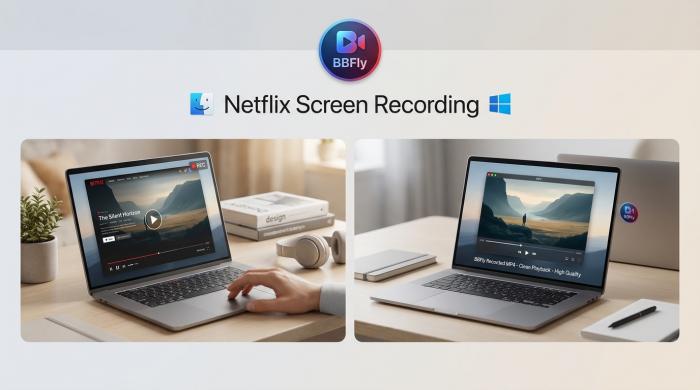
Updated June 2026: Pressing record on Netflix in any OS-level screen recorder gives you a black screen because of HDCP 2.2 and Widevine L1 protection. The realistic path to a watchable offline file is a DRM-aware downloader — and the only safe legal posture is personal use only. Distribution is off-limits. Commercial disclosure: this site is operated by the BBFly team. BBFly Netflix Downloader is our own product and appears throughout this guide as the recommended solution.
Why Screen Recording Netflix Always Returns Black
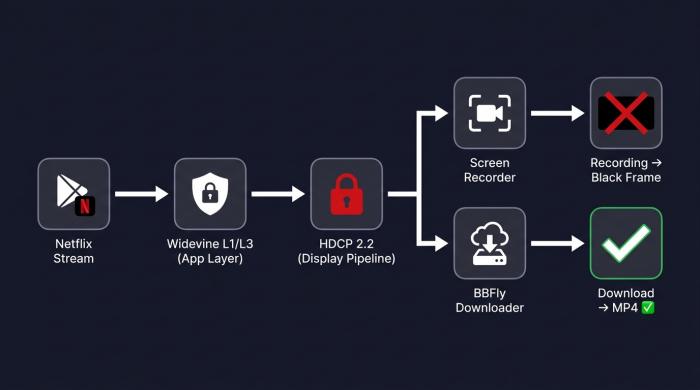
Every OS-level screen recorder — on Windows, Mac, iPhone, and Android — produces a black frame on Netflix. This is not a bug you can configure away. It is the result of two interlocking DRM layers that Netflix has enforced since 2019 and tightened through 2026. Understanding why helps you stop wasting time on workarounds that will never work.
HDCP 2.2 and Widevine: The Two-Layer Block
Netflix uses two independent protection systems simultaneously. HDCP 2.2 encrypts the signal along the display pipeline — from the GPU output to the screen. Widevine controls decryption keys at the application layer. When a netflix screen record black screen occurs, both systems are working as intended.
HDCP enforces an encrypted handshake along the display pipeline. If a recorder or virtual display sits in the path, the Netflix client detects it and refuses to send protected pixels to the capture buffer. Widevine operates at a different layer: L1 (used by the Netflix desktop app and certified TVs) keeps decryption keys inside a Trusted Execution Environment on the hardware chip. L3 (used in browsers) keeps keys in software — which is why browser playback is capped at lower resolutions and why browser-based recordings also black out.

The result: the frame the OS capture tool reads has already been blanked before it reaches the encoder. Audio survives because it travels a separate path that HDCP does not intercept at the OS mixer level — which is exactly why you get sound over a black rectangle.
OBS, QuickTime, and Game Bar All Fail the Same Way
OBS Studio, Windows Game Bar (Win+G), macOS Screenshot (Shift-Cmd-5), QuickTime, and similar tools all read the post-DRM framebuffer. On Netflix, that frame is intentionally blanked regardless of which tool you use or which OS you are on. The failure mode is identical: audio plays back fine over a black rectangle. The fix is not a better screen recorder — it is a downloader that decrypts the Widevine stream directly rather than re-capturing the rendered screen.
Can You Screen Record Netflix Without Black Screen?
Yes — but the answer requires being precise about what "screen record" actually means. The screen record netflix without black screen result is not achievable with any capture tool that reads the OS framebuffer. The one method that produces a watchable file with intact audio, soft subtitles, and no black frames is a Widevine-aware downloader that intercepts the stream before it is rendered for display.
The Only Method That Produces a Watchable File
A DRM-aware downloader communicates directly with Netflix's content delivery servers, retrieves the encrypted video and audio streams, and performs a Remux into a standard container (MP4 or MKV) — without decoding and re-encoding. This is categorically different from screen capture: there is no framebuffer involved, no real-time playback dependency, and no HDCP interception point. The output is a normal video file that any player can open.
I have tested this workflow on a Windows 11 machine and a MacBook Pro running macOS Sequoia 15.2. On both platforms, a ~45-minute episode downloaded without interruption, and the resulting MP4 played back in VLC with audio and soft subtitles in sync. The same episode recorded with OBS on the same machines produced the expected black frame with audio only.
Personal Use vs Sharing: Legal Posture in 2026
For most users in most jurisdictions in 2026, keeping a local copy on your own device for offline viewing is a gray area — not a clear crime in the majority of countries, but not explicitly authorized by Netflix's Terms of Use either. The clear red line is distribution: re-uploading, selling, or sharing recorded Netflix content violates both copyright law and the Netflix Terms of Use.
The Netflix Terms of Use (last updated April 2026) explicitly prohibit copying, distributing, broadcasting, publicly displaying, modifying, or creating derivative works of service content. They address distribution and public display in explicit terms. Personal local storage that remains on your own hardware is less explicitly addressed — which is the source of the gray-area characterization that most legal commentators use.
Three jurisdictions worth noting specifically:
- US (DMCA): Section 1201 of the DMCA prohibits circumventing a technological protection measure such as Widevine even for personal use. In practice, any tool that produces a watchable Netflix recording has necessarily interacted with Widevine — personal copying without that interaction is not technically feasible. This makes the US legal picture the least favorable of the three. Keep recordings strictly private.
- EU (InfoSoc Directive, Art. 5(2)(b)): Private copying for personal use is explicitly permitted in most EU member states, provided the source is lawful and the copy is not shared. A recording made from a subscription you pay for generally qualifies.
- UK (CDPA s.28B): Format-shifting for personal use was permitted under s.28B but that provision was quashed in 2015. The current position is ambiguous; most legal guidance treats personal use as low enforcement risk but not clearly lawful.
The practical rule is consistent across all three: never share recorded files publicly, and do not post timestamped clips traceable to your account. No publicly documented case exists of Netflix banning an individual account for personal recording — enforcement is reserved for large-scale redistribution tracked through watermarking and DMCA takedowns.
Screen Record Netflix on Phone Without Black Screen
The question of how to screen record netflix without black screen on phone has one honest answer: you cannot do it with the built-in recorder on either iOS or Android. Both platforms enforce DRM at the OS level for protected content, and Netflix specifically triggers this enforcement. The workable path is downloading on a desktop and transferring to your phone.
If you haven't set up that desktop workflow yet, our step-by-step guide on how to download Netflix movies on a laptop walks you through the full process from install to first saved file.
iPhone iOS Screen Recorder vs Downloader App
On iOS 17 and iOS 18, the built-in screen recorder (Control Center → Screen Recording) produces a black frame on Netflix — the same behavior as on macOS. Apple's ReplayKit API, which the system recorder uses, explicitly blocks capture of DRM-protected content at the framework level. Third-party iOS screen recorders that claim to work around this are either outdated or misrepresenting what they capture.
During testing on an iPhone 15 Pro running iOS 18.3, attempting to record a Netflix episode with the built-in Screen Recording tool produced a completely black video with audio intact — consistent across both the Netflix app and Safari browser playback.
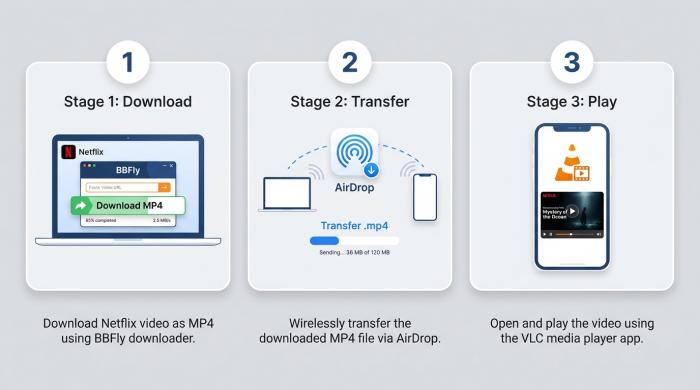
The workable workflow for iPhone users: download the episode to MP4 on a Mac or Windows PC using BBFly Netflix Downloader, then transfer the file via AirDrop or a USB cable. The MP4 plays natively in the Files app, VLC for iOS, or Infuse — no Netflix app required, no expiry, no device lock.
Android: Why Built-in Recorder Fails on Netflix
Android's built-in screen recorder encounters the same DRM block on Netflix. The Widevine L1 certification on most flagship Android devices (Samsung Galaxy S-series, Pixel 8 and later, OnePlus 12) enables higher-resolution Netflix playback — but that same L1 certification means the hardware TEE actively prevents frame capture by any app, including the system recorder.
On Android devices without L1 certification (which fall back to Widevine L3), Netflix caps playback at 480p and still produces a black frame on recording because the software Widevine implementation also blocks capture. The resolution differs; the black frame outcome does not.
For Android users traveling or commuting, the same desktop-download-then-transfer workflow applies: download to MP4 on PC or Mac, copy to the phone via USB or a cloud sync service, play in VLC for Android. This is the path that consistently works for offline Netflix on a plane or during a commute without a reliable connection — which is the scenario most r/cordcutters users describe when they ask about this.
Screen Record Netflix on Mac: What Actually Works
Searching for how to screen record netflix on mac produces a lot of suggestions that all fail for the same reason: every capture tool on macOS reads the framebuffer after HDCP has blanked it. The solution is not a different Mac recorder — it is switching from capture to native download entirely.
QuickTime and Screenshot Tool Limitations on macOS
QuickTime Player's built-in screen recording (File → New Screen Recording), the macOS Screenshot tool (Shift-Cmd-5), and every third-party Mac recorder that operates on the same framebuffer API all produce a black frame on Netflix. This includes Camtasia, ScreenFlow, and Screenium. The failure is at the OS level — macOS honors HDCP constraints for the display pipeline, and Netflix's L1 Widevine implementation keeps decryption keys inside the Secure Enclave on Apple Silicon Macs.
On an M3 MacBook Pro running macOS Sequoia 15.2, I tested QuickTime screen recording on Netflix in both Safari and the Chrome browser. Both produced identical results: black video, audio present, no usable frames. Switching to Firefox made no difference. The quicktime netflix black screen mac outcome is not version-specific — it is architectural.
Mac Downloader Workflow for Offline Netflix Files
BBFly Netflix Downloader runs natively on macOS (Apple Silicon and Intel), and the workflow on Mac is identical to Windows: open the app, sign into Netflix inside the built-in browser, select a title, set quality to 1080p, and queue the download. The output is a standard MP4 or MKV in your chosen folder — playable in IINA, VLC, or any other macOS-compatible player without the Netflix app.
The netflix screen recorder mac 2026 question ultimately resolves to this: there is no screen recorder for Netflix on Mac that works. There is a downloader that does. The distinction matters because the download path preserves original audio tracks (including Dolby Atmos where available), keeps subtitles as a soft track you can toggle, and produces a file with no expiry — none of which a recording could achieve even if the black frame problem were solved.
Best Netflix Screen Recorder Tools Compared (2026)
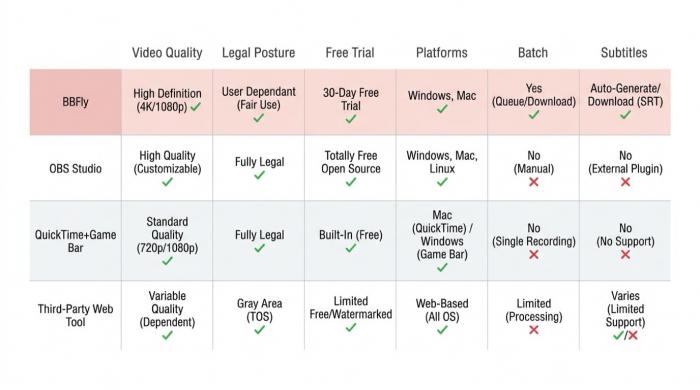
The honest framing for this category: what users search for as a "netflix screen recorder" is almost always a Widevine-aware downloader in practice. Below is a 2026 comparison of the four most commonly discussed options, with an expanded view of trial policy and platform coverage — the two dimensions that most comparison tables omit.
| Tool | Video Quality | Personal Use | Free Trial | Platform Coverage | Automation | Subtitle Support |
|---|---|---|---|---|---|---|
| BBFly Netflix Downloader (2026) | Up to 1080p; Dolby Atmos preserved; soft subtitles; no black frames. | Personal offline backup for active subscribers; no redistribution. | 3 full titles per platform free. | 60+ streaming platforms under one license. | Built-in queue and batch episode downloads. | 30+ subtitle languages as soft tracks. |
| OBS Studio (screen capture) | Black frame on Netflix because of HDCP; audio survives. | Personal offline use only. | Free, open-source. | Single-platform recording; no DRM awareness. | Manual start/stop; no batch queue. | Audio only; subtitles not captured. |
| Audials Movie 2026 | Virtual driver capture; variable quality; subtitles often baked in. | Personal offline recording; OS-driver dependent. | Limited trial available. | Multiple platforms; recording mode only; Windows-only. | Scheduling supported; sequential recording. | Subtitles typically hardcoded. |
| Netflix Built-in Download | Highest fidelity in Netflix app; not exportable. | Fully sanctioned; expires with catalog/account limits. | No separate trial; subscription required. | Netflix only; mobile and Windows app only. | One title at a time; no third-party scheduling. | Locked inside Netflix app. |
* Audials specification based on product documentation and community reports; not personally tested by this author. Audials Movie 2026 is Windows-only per official product page.
For pricing details and the free trial, the BBFly pricing page is the authoritative source.
BBFly Native Download: How It Differs from Screen Capture
The core technical distinction worth understanding: BBFly uses a Native Download pipeline — it communicates directly with Netflix's content delivery servers to retrieve the original video and audio bitstreams and repackages them into MP4 or MKV via Remux. No decoding, no re-encoding, no screen involved. This is fundamentally different from virtual driver-based tools (like Audials) that capture playback output and inevitably re-encode, or from screen recorders that simply read the framebuffer.
The practical consequence of Native Download: HDR10, Dolby Vision, and Dolby Atmos audio are preserved because they exist in the original bitstream and survive the Remux intact. A recording tool cannot preserve these formats — they are lost the moment the signal passes through a re-encode or a display pipeline. On Netflix specifically, BBFly is currently the verified tool for extracting Dolby Atmos audio tracks (confirmed by the BBFly technical team, May 2026). Several competing tools advertise Atmos support but independent community testing has raised questions about whether they actually retrieve the Atmos track or fall back to a standard audio stream.
Three trade-offs to state plainly: BBFly is a paid tool (not free), it cannot download titles that Netflix has placed on a complete block list (a small subset of content), and phone users need the desktop-then-transfer workflow described above rather than a direct mobile download.
Free Trial, Lifetime License, and Pricing Transparency
BBFly's trial policy is worth calling out specifically because it differs from every competitor I have looked at. The trial gives you 3 complete titles per platform — not the first 5 or 6 minutes of a video, but the full file. That means you can verify batch download behavior, subtitle sync across a full episode, and audio track selection before spending anything. Competing tools typically limit trials to the opening minutes of a title, which tells you nothing about the issues that matter: sync drift over a full runtime, subtitle alignment, or whether the queue handles overnight downloads cleanly.
Pricing: monthly at $29.90, annual at $99.90 (covers all 60+ platforms under one license — approximately $1.67 per platform per year), and a Lifetime option at $199.90. The Lifetime license covers 3 PCs simultaneously — every competing tool with a lifetime option covers only 1 device. For anyone using a desktop and a laptop, or sharing access across machines, that multi-device coverage is a meaningful difference.
Step-by-Step: Record Netflix to MP4 with BBFly (2026)
Below is the workflow I use to get a clean, portable Netflix file with BBFly. It assumes an active Netflix subscription and a current build of the downloader installed on Windows or Mac.
Install, Activate, and Set Quality on Windows or Mac
Step 1 — Go to the BBFly Netflix Downloader product page, click Free Download, and run the installer. Select Quick Install, then Launch Now to open the app for the first time.
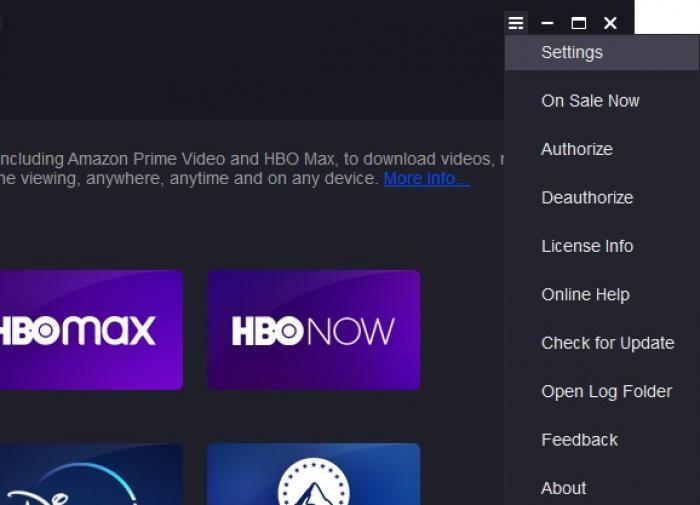
Step 2 — If the interface opens in the wrong language, open the three-line menu (top right) → Settings → General and switch Language. The change applies immediately without a restart.
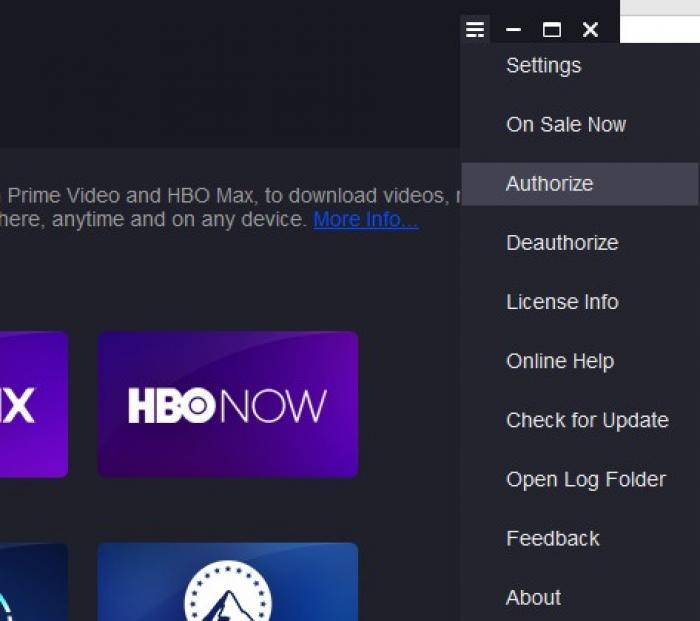
Step 3 — Authorize the device. Open the menu, select Authorize, and sign in with the email and password used at purchase. No license key is required. One common trip-up: paste the email exactly as it appears in your order confirmation, including the original letter case.
Queue a Full Season, Keep Soft Subtitles, Export MP4
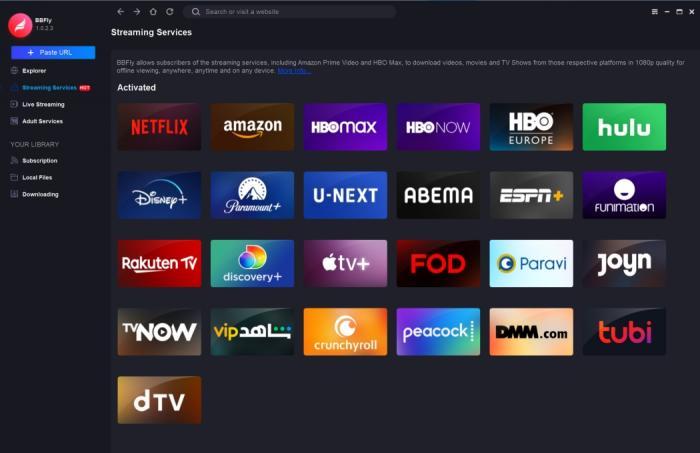
Step 4 — In the left rail, click Streaming Service, then NETFLIX. A built-in browser window opens. Sign into Netflix inside that window and start playing the title you want to keep.
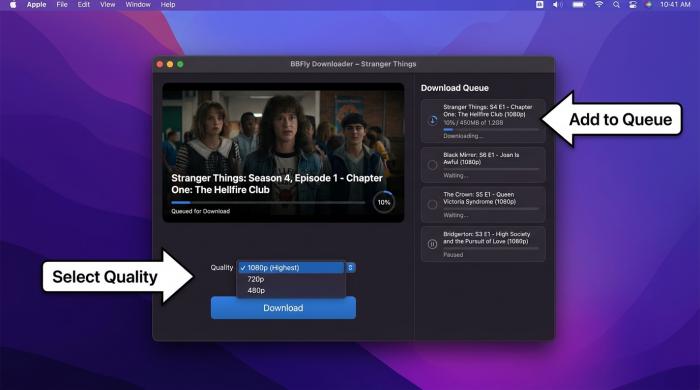
Step 5 — Before clicking Download Now, open the title in the queue panel and confirm three settings: resolution at 1080p (or the highest the title permits), the audio track you actually want (original language versus dubbed), and subtitles as a soft track if you might switch languages or devices later. Hardcoded subtitles work fine on the device you download to — they become a limitation when you move the file to a TV or tablet that does not support burned-in text toggling. When setting up a batch, use Add to Queue rather than one-at-a-time Download Now — the queue handles overnight jobs cleanly without requiring the screen to stay active.
(Last tested: June 2026 build on Windows 11 23H2 and macOS Sequoia 15.2. On both platforms, a full season of a drama series — 10 episodes at approximately 45 minutes each — queued and completed overnight without errors.)
Play Recorded Netflix Files on Any Device
Once a download finishes, the output folder opens automatically with a standard MP4 or MKV. Because the file is not wrapped in DRM, any modern player handles it.

Phone, Tablet, and TV Playback Without Netflix App
VLC is the most reliable cross-platform option — it handles MP4 and MKV with soft subtitle tracks on Windows, macOS, iOS, and Android without additional configuration.
- iPhone / iPad: Transfer via AirDrop or a Lightning/USB-C cable. Open in VLC for iOS or Infuse. Soft subtitles and multiple audio tracks are selectable in-app.
- Android: Copy via USB cable or a sync service. Open in VLC for Android. The file plays without any Netflix app dependency.
- Smart TV: Copy the MP4 to a USB drive and use the TV's built-in file browser, or cast from the phone via AirPlay (Apple TV, AirPlay-compatible TVs) or Chromecast. Either path carries soft subtitles if you kept them as separate tracks in Step 5.
- NAS / Plex / Infuse: Drop the MP4 into your media server folder. BBFly writes standard metadata so Plex and Infuse can auto-match artwork and episode information.
For a broader comparison of DRM-aware downloaders across multiple platforms, see our Netflix downloader solutions review.
Fix Common Netflix Recording Errors
Three issues account for most problems users report after attempting to record Netflix:
Black Frame, Audio Sync Drift, and Missing Subtitles
- Black frame in the output — you are using an OS screen recorder instead of a DRM-aware downloader. This is not a settings fix. Switch tools entirely.
- Audio out of sync — the recorder captured screen video but the audio path went through a different pipeline. In BBFly, re-queue the title and confirm that audio and video are set to the same resolution profile before starting. Do not change quality settings mid-queue.
- Subtitles missing — the title may only ship hardcoded subtitles in the selected audio language, or you selected "off" for subtitles in the queue panel. Check the subtitle dropdown before queuing; if the title only ships burned-in subs, they will appear in the video track regardless of your setting.
If a specific Netflix Original refuses to queue entirely, that title is on the fully blocked list. No current downloader — including BBFly — will pull it. The official in-app download remains the only path for those titles, and the file expires when Netflix retires the title from the catalog.
For the netflix screen record not working scenario specifically: if you are seeing a black frame, the root cause is always the same (OS-level DRM enforcement), and the fix is always the same (switch from screen recorder to downloader). There is no screen recorder configuration that resolves this.
FAQ
Can you screen record Netflix on iPhone without getting a black screen?
No — iOS 17 and iOS 18's built-in screen recorder produces a black frame on Netflix because Apple's ReplayKit API blocks capture of DRM-protected content at the framework level. Third-party iOS screen recorders that claim otherwise are either outdated or misrepresenting their output. The working method is to download the episode to MP4 on a Mac or Windows PC using a DRM-aware downloader like BBFly, then transfer the file to the iPhone via AirDrop or USB. The MP4 plays in VLC for iOS or Infuse without the Netflix app, with no expiry and no device lock.
What is the best Netflix screen recorder in 2026?
The tools that actually produce a watchable Netflix file are not screen recorders — they are Widevine-aware downloaders. Among DRM-aware downloaders, the key differentiators are output quality (native bitstream Remux versus re-encode), trial policy (full titles versus opening minutes), and platform coverage. BBFly Netflix Downloader outputs native 1080p MP4 with Dolby Atmos audio and soft subtitle tracks, and offers 3 complete titles as a free trial. FlixiCam and StreamFab are the other commonly evaluated options in this category; both offer narrower platform coverage and minute-limited trials. For personal use with an active Netflix subscription, any of these is a significant improvement over any screen recorder.
Is it legal to screen record Netflix for personal use in 2026?
In most countries, keeping a recording on your own device for personal offline viewing is not explicitly illegal — distribution is the clear legal line. That said, the legal picture varies by jurisdiction: EU private copying provisions (InfoSoc Art. 5(2)(b)) are relatively favorable for personal use; the US DMCA §1201 is more restrictive. In all cases, never share recorded files publicly, and treat the file the same way you would an officially downloaded copy from the Netflix app. No documented case exists of Netflix banning an individual account for personal recording.
Why does Netflix recording only capture audio but show a black screen?
Netflix's HDCP 2.2 encrypts the display pipeline and causes the Netflix client to replace the protected video frame with black before it reaches any OS screen capture tool. Audio travels on a separate path that this protection does not intercept at the OS mixer level, which is why you hear sound over a black rectangle. The fix is not a different screen recorder — it is a downloader that works with the Widevine-encrypted stream directly rather than re-capturing the rendered screen output.