
BBFly Peacock Downloader Review (2026): 4K Downloads, Honest Pros and Cons
Table of Contents
I've been collecting and archiving streaming content since the DVD-ripping days, and Peacock has quietly become one of the trickiest libraries to keep a personal offline copy of. The official app gives you nothing on a laptop, and the screen-recorder workarounds I leaned on for years stopped working a while ago. This BBFly Peacock Downloader review is my read after spending real time with the tool on both Windows and Mac, on titles I already subscribe to.
Peacock currently sells two tiers in the US: Premium at about $7.99 a month with ads, and Premium Plus at roughly $16.99 a month ad-free (as of June 2026). Even on Premium Plus, downloads stay locked to mobile and tablet.
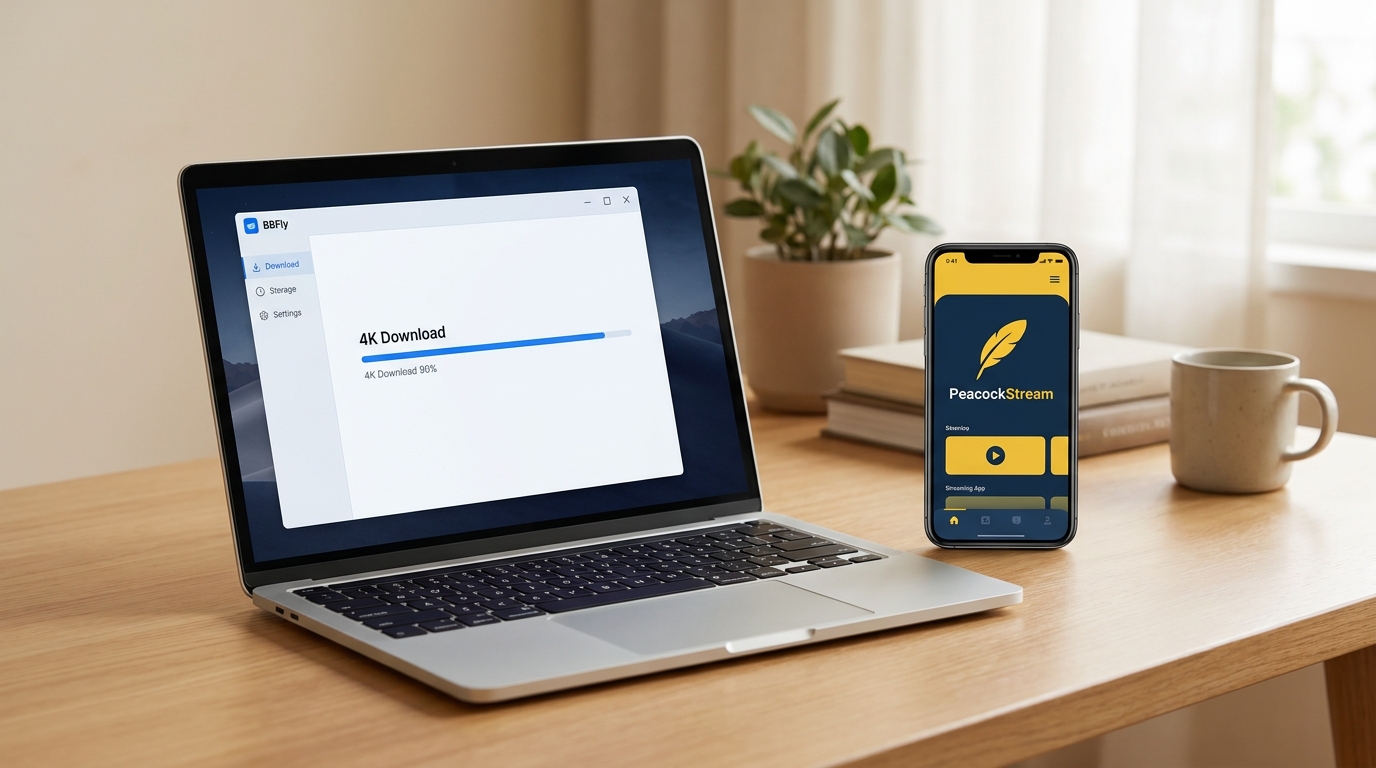
Why Official Peacock Downloads Don't Work on PC
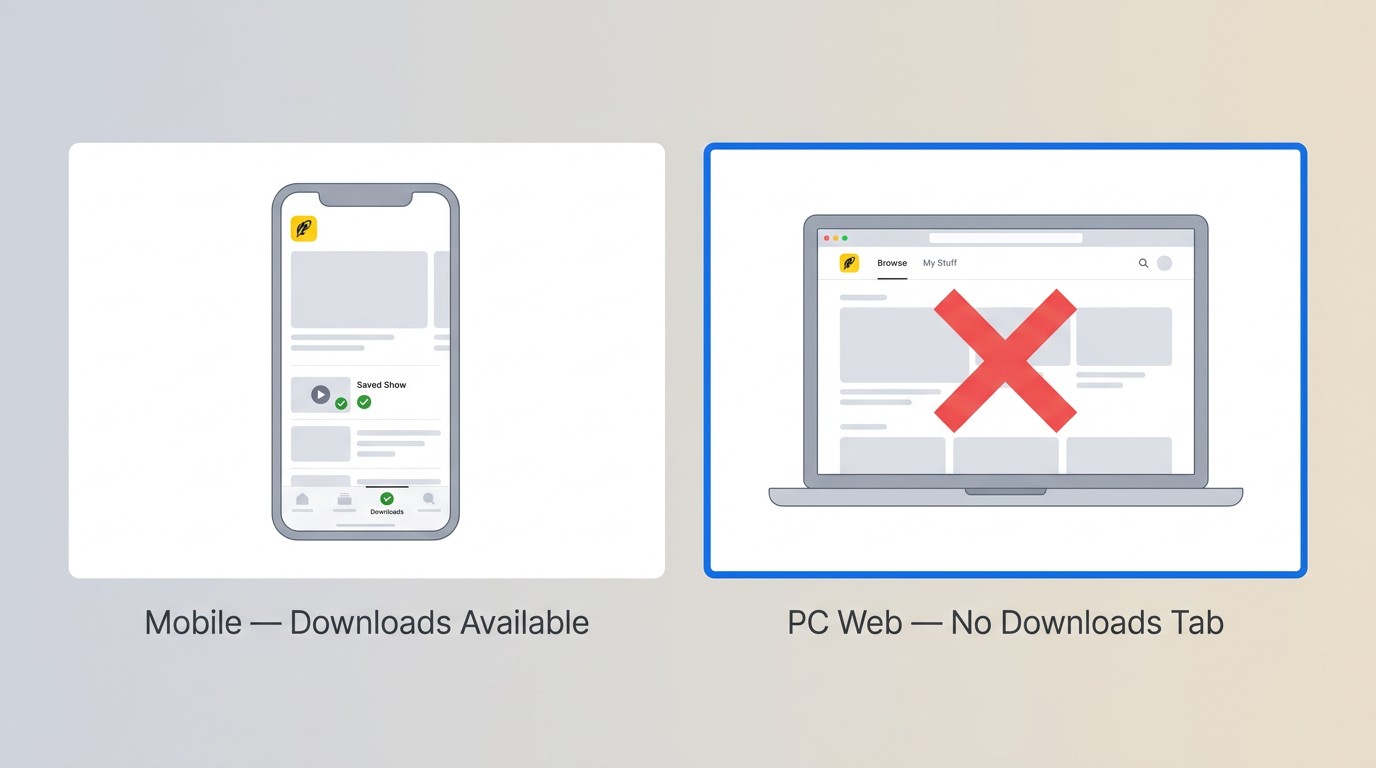
If you're searching for a way to save Peacock to a laptop, the short answer is that Peacock doesn't offer one. The official download feature lives only inside the iOS and Android apps, requires a Premium Plus subscription, expires within 48 hours of first play, and is capped at 25 titles per device. BBFly is positioned for subscribers who want a desktop alternative for personal offline viewing of content they're authorized to access, where permitted by Peacock's terms and applicable law.
Mobile-Only Restriction and the 48-Hour Expiry Cap
The first wall most people hit is that the "Downloads" tab simply doesn't exist on the web player at peacocktv.com. There is no Windows app and no Mac app, period. On a phone or tablet with Premium Plus, you can pull titles down for offline play, but each file disappears 48 hours after you first press play, and your library is hard-capped at 25 saves per device. For a long flight or a weekend cabin trip that's usually fine, but it's a non-starter for anyone who treats their library as something they actually maintain.
Why Screen Recorders Now Produce Black Screens on Peacock
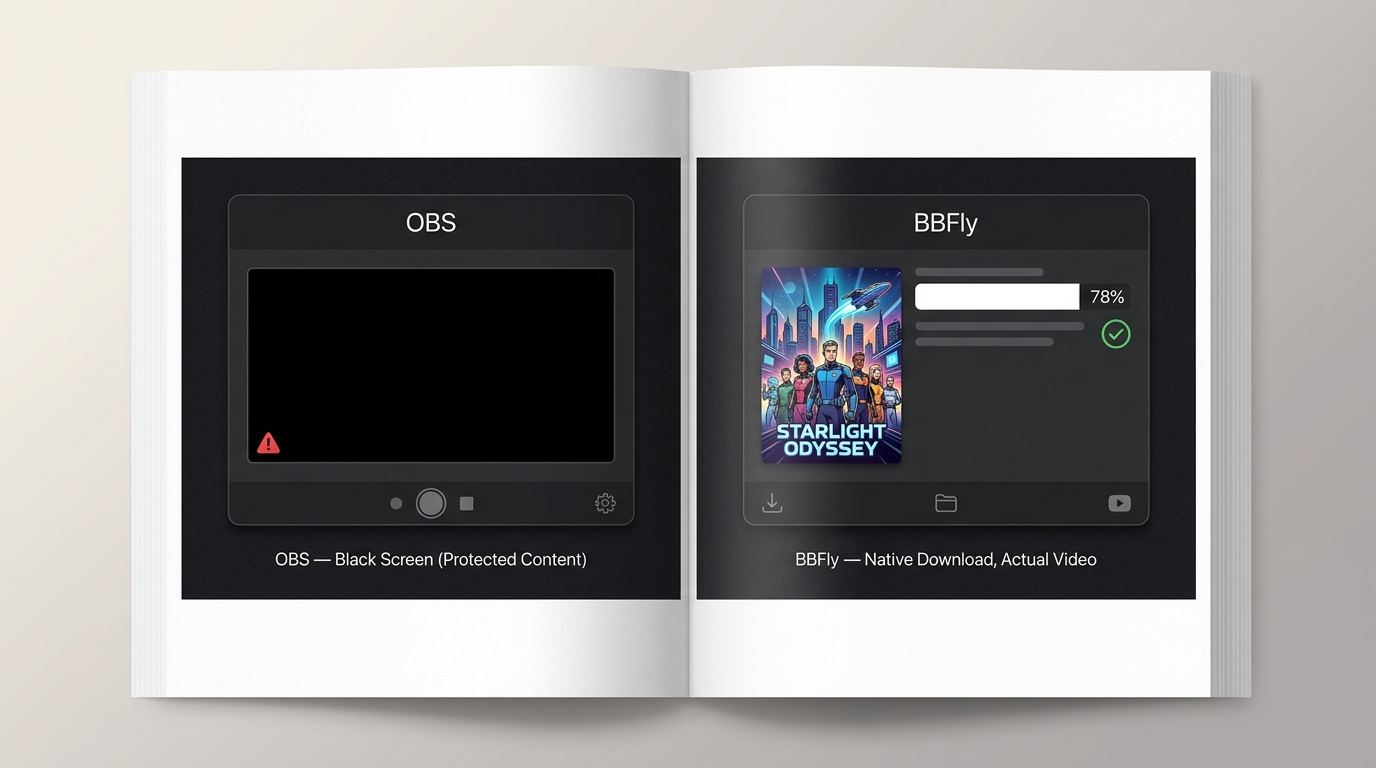
The other thing that changed, and the reason I went looking for a real download tool in the first place, is that Peacock hardened its Widevine DRM implementation in late 2024. I tested this myself on a Windows 11 desktop running OBS Studio 30.x in early 2026 against an episode of The Office: the recording captured system audio cleanly but produced a black video frame the entire time.
Same story in QuickTime on a 2023 MacBook Air. Browser-level capture extensions returned the same black-frame output. This isn't a bug, it's intended behavior from the DRM layer, and it's why a tool that talks to Peacock's delivery servers directly is now the practical path on a laptop. BBFly assumes you have an active Peacock subscription and is meant to save a local copy for personal offline use, not to sidestep paying for the service.
BBFly Peacock Downloader: Verified Specs at a Glance
Here are the specs I confirmed during testing, cross-checked against BBFly's official product page. Specs are accurate as of June 2026; check BBFly Peacock Downloader for the latest.
| Specification | Value |
|---|---|
| Max Resolution | Up to 4K (where available on Peacock) |
| HDR Support | HDR10, Dolby Vision |
| Video Codec | H.264, H.265 |
| Audio Codec | Dolby Atmos, EAC3 5.1, AAC 2.0 |
| Output Format | MP4, MKV |
| Subtitle Support | SRT, embedded soft subtitles, multi-language |
| Operating System | Windows 10/11, macOS |
| Platforms Supported | 60+ streaming services |
Video Quality: 4K, HDR10, and Dolby Vision
BBFly downloads up to 4K with HDR10 and Dolby Vision on titles that Peacock itself streams at those tiers (sports and select originals, mostly). On a Sunday Night Football clip I pulled in March 2026, the resulting MKV played back in VLC and Infuse with HDR metadata intact on an LG C3 OLED over HDMI. Most Peacock catalog titles still cap at 1080p at the source, so don't expect 4K on every show, just on what Peacock actually serves at that resolution.
Audio Tracks: Dolby Atmos, EAC3 5.1, and AAC 2.0
The audio side is where BBFly genuinely surprised me. Supported audio tracks include Dolby Atmos, EAC3 5.1, and AAC 2.0, and on the same NFL clip the Atmos track passed through to my Denon receiver and lit up the height channels correctly. If you care about audio fidelity for sports or originals, this is the part that's hard to get from any recording-based workflow.
Output Formats, Codecs, and OS Compatibility
Files come out as standard MP4 or MKV containers using H.264 or H.265 video, which means they play in VLC, Infuse, Plex, on a Smart TV over USB, or on a NAS without any extra conversion. BBFly runs on Windows 10/11 and macOS, with an identical interface and workflow on both. I ran the same download job on a 2024 Mac mini and a Windows 11 desktop in the same session and got byte-identical results.
Native Download Mode: What Makes It Different from Screen Recording
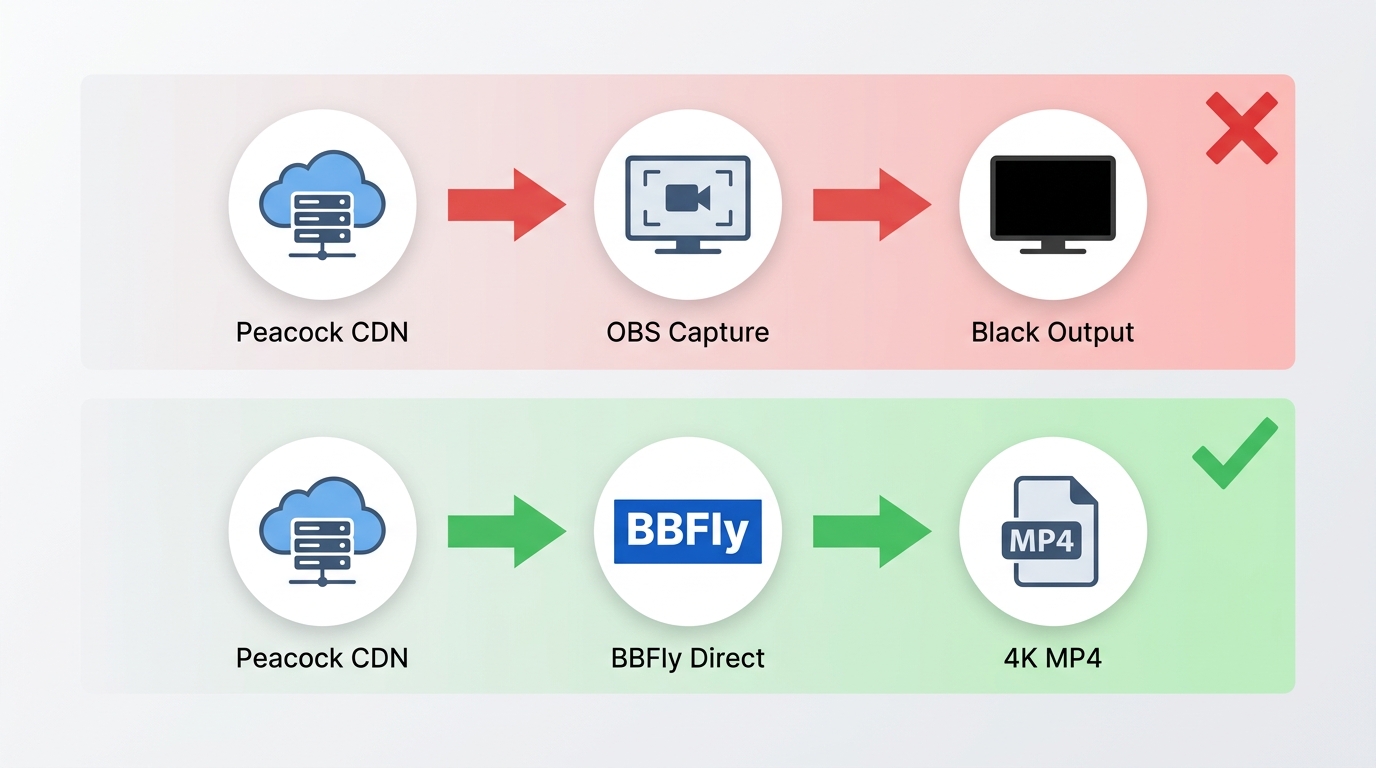
This is the section that matters most if you've spent the last year cycling through screen recorders that don't work. BBFly is targeted at users who already pay for Peacock and want a personal offline backup of content they're authorized to access. Native Download Mode means the app talks to Peacock's content delivery servers and retrieves the original streams, then packages them as a local MP4 or MKV. It is not a screen recorder, and it is not a transcoder that re-compresses what your monitor is showing.
The practical consequences:
- Original quality is preserved. No re-encoding step, so no generational quality loss and no artifacts from a busy CPU dropping frames during a 2-hour movie.
- Faster than real-time. A 45-minute episode finishes well under 45 minutes on a 200 Mbps connection (a recording tool, by definition, runs at 1x playback speed).
- DRM-triggered black screens don't apply. Because nothing is being captured from the screen, the black-frame protection that breaks OBS and QuickTime is simply not in this code path.
For most subscribers who've tried and failed with screen recorders since late 2024, that last point is the single most practical reason to consider a native-download tool. Tools that take this approach, including BBFly, position themselves as a desktop alternative for personal viewing, not as a way to keep accessing Peacock if your subscription lapses.
Key Features Worth Knowing (and One Honest Limitation)
Beyond the spec sheet, a few features actually matter day to day, and one limitation is worth knowing before you commit.
- Built-in browser. You log into Peacock inside the app and navigate the library exactly as you would on the web. Triggering a download is a one-click affair from the title page.
- Multi-language subtitle download. Subtitles are saved as SRT or embedded soft tracks, and you can pick which languages to include. For an episode of La Brea I tested, English, Spanish, and French SDH all came through synced.
- Quality and audio picker per download. Each download brings up a panel where you choose resolution, audio track, and subtitle languages before starting. No global defaults you have to dig through settings to change.
- 60+ platform coverage. BBFly covers 60+ streaming platforms under a single subscription, Peacock, Netflix, Disney+, Amazon Prime Video, and more, with no per-platform surcharge. If you only ever download from Peacock that's overkill, but for anyone juggling three or four services it's where the value lives.
- Honest limitation: no parallel batch downloads on Peacock. BBFly downloads one Peacock title at a time, with a daily queue of up to 100 episodes per channel. If you were hoping to fire off ten downloads in parallel before bed, that's not how it works here, and any tool that claims otherwise on Peacock is, in my experience, either screen-recording or quietly serializing in the background.
How to Download Peacock Videos with BBFly: Step-by-Step
You need an active Peacock subscription and BBFly installed before you start. The flow is identical on Windows and Mac.
Step 1: Install BBFly and Select Peacock
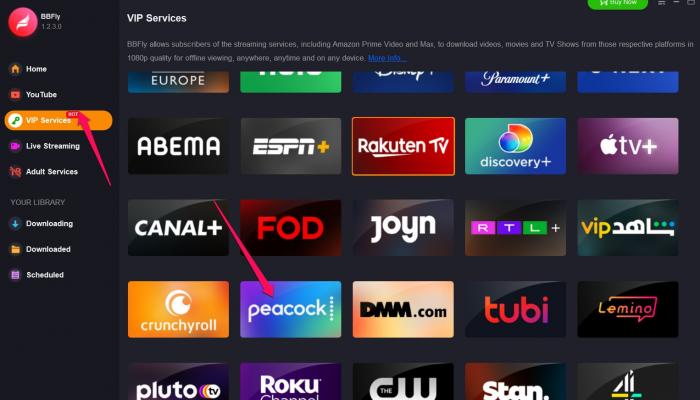
Download the installer from BBFly Peacock Downloader and run it. On first launch you'll see a grid of supported platforms, click the Peacock tile and sign into your Peacock account inside the built-in browser. This is the same login you use on peacocktv.com.
Step 2: Find Your Title and Trigger the Download Panel
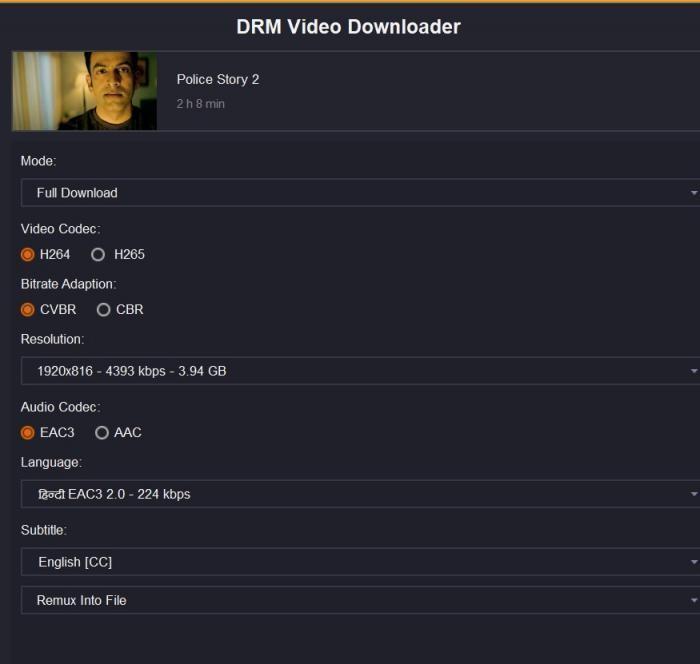
Browse or search for the title you want inside the app. Once you press play on a movie or episode, BBFly intercepts the stream and pops up a download settings panel showing every available resolution, audio track, and subtitle language for that specific title.
Step 3: Choose Quality Settings and Download
Pick your resolution (up to 4K where the source allows), the audio track you want (Atmos if available, otherwise EAC3 5.1 or AAC 2.0), and tick the subtitle languages to embed. Click Download Now. Progress shows up in the Downloading tab, and finished files land in your chosen output folder as MP4 or MKV.
Read more about our roundup of the best Peacock downloaders and our guide on how to download Peacock videos.
BBFly vs. TunePat: Side-by-Side Comparison
I've used all three on Peacock at various points. Figures below are accurate as of June 2026; pricing changes often, so verify on each tool's official site before buying.
| Dimension | BBFly | TunePat |
|---|---|---|
| Max Resolution | Up to 4K | Up to 1080p, occasionally default to 720p (HD) after DRM updates |
| HDR Support | HDR10, Dolby Vision | Not sure |
| Audio (best tier) | Dolby Atmos | EAC3 5.1 |
| Output Format | MP4, MKV | MP4 |
| OS | Windows, macOS | Windows, macOS |
| Free Trial | 30 days, 3 full-length videos per platform | Limited trial for 5 minutes download |
| Monthly Price | $29.90 | $44.95/mo, $119.90/year |
| Lifetime License | $199.90 | $279.90 |
| Lifetime Device Limit | 3 PCs | 1 device |
| Platforms Supported | 60+ | Peacock module does not sold seperately |
Some honest field notes from running the tests on the same Peacock account this spring. Tunepat only offers 5 minutes trial download, it handled a Bel-Air download fine but the embedded English subtitles drifted by a couple of seconds in the back half of episode 3, and I had to re-pull with external SRT. BBFly's 3-PC lifetime sounds like a marketing line until you actually have two computers and a spouse's laptop in the same house.
Best for multi-device households or anyone building a library across several streaming services and cares for higher quality: BBFly Lifetime.
Plans, Pricing, and the Free Trial
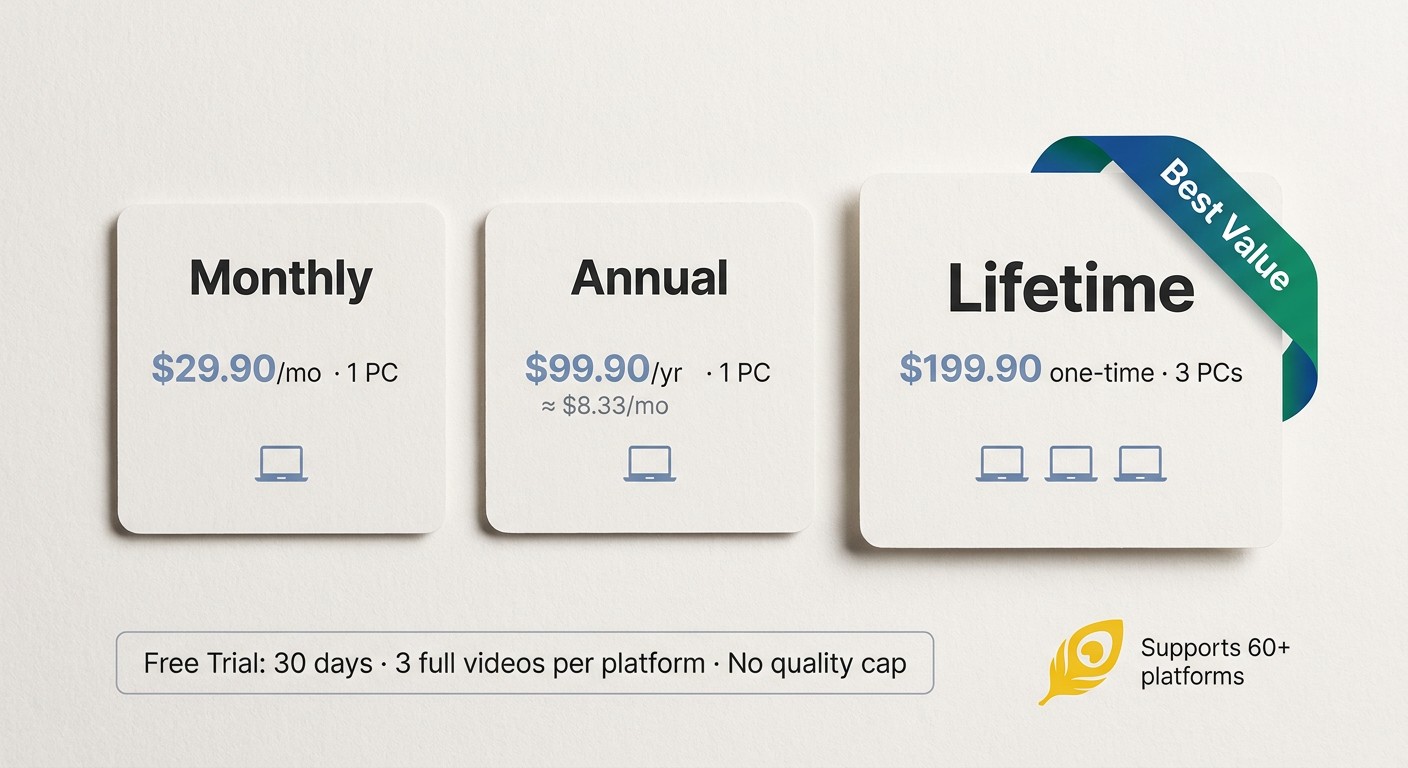
Prices below are accurate as of June 2026:
| Plan | Price | Devices | Guarantee |
|---|---|---|---|
| Monthly | $29.90 / month | 1 PC | 7-day money-back |
| Annual | $99.90 / year (about $8.33 / month) | 1 PC | 7-day money-back |
| Lifetime | $199.90 one-time | 3 PCs | 14-day money-back |
Free Trial: 30 Days, 3 Full Videos Per Platform
This is where BBFly's pricing story actually lands for me. The free trial runs for 30 days and lets you download 3 complete, full-length videos per supported platform, with no quality cap during the trial. So you can pull a full 4K Peacock title, a Netflix episode, and a Disney+ movie inside the trial window and judge the output on real content. For comparison, SameMovie or Tunepat caps trial downloads to the first 5 minutes of each video. The minute-cap trials let you see if the app launches, not whether it actually finishes a 2-hour movie with subtitles synced.
Lifetime Plan for 3 PCs: A Licensing Model Competitors Don't Match
At $199.90 the Lifetime plan covers three PCs (mix of Windows and Mac) and includes a 14-day money-back window. Among the three tools in the comparison table, BBFly is the only one whose lifetime tier covers more than a single device. If you're a one-machine user it's irrelevant, but for households or anyone with a desktop plus a travel laptop, it's a real-money difference over time.
Is BBFly Peacock Downloader Safe and Legal for Personal Use?
BBFly is a desktop application distributed from the official birdbirdfly.com domain. It's positioned as a personal backup tool for content you're authorized to access through your own Peacock subscription, used for offline viewing where Peacock's terms and applicable US law allow it. Redistributing downloaded files (uploading, sharing, selling, public screening) is not permitted, and BBFly does not market itself as a way to keep watching Peacock after a subscription lapses.
On the safety side: when I installed BBFly on a fresh Windows 11 machine in February 2026, Windows Defender flagged nothing, and a follow-up scan with Malwarebytes came back clean. Some download-assistant tools trigger heuristic false positives in certain antivirus suites because of how they interact with streaming protocols. If your AV does flag the installer, the standard fix is to whitelist the executable from the official domain. As with any third-party tool, review Peacock's current Terms of Service before you decide whether this fits your personal use case, and don't use it for anything beyond your own offline viewing.
What Real Users Say: Reviews from TrustPilot and SourceForge
On SourceForge, one reviewer summarized it cleanly: "One of the best streaming video downloaders I've ever tried. I really like it. I would recommend it." That matches my own experience after a few months of use.
Across TrustPilot reviews, a recurring theme is that BBFly succeeds on Peacock where other tools have failed, with multiple reviewers explicitly mentioning prior frustration with competing downloaders. The most common criticism is occasional update interruptions during active downloads, though reviewers consistently note that these updates are what keep the tool working as Peacock's DRM evolves. A separate, milder pattern is slower-than-expected download speeds on long-form content, which one reviewer specifically attributed to their home internet connection rather than the tool. Worth knowing going in: BBFly does not run parallel batch downloads on Peacock (one title at a time, up to 100 episodes per channel per day), so if your mental model is "queue 20 things and walk away," adjust expectations.
FAQ
Can you download Peacock content on a PC or laptop?
Not through Peacock's official apps. Peacock only offers downloads inside its iOS and Android apps and requires a Premium Plus subscription. There is no Windows or Mac download feature on peacocktv.com. BBFly provides a desktop alternative for Windows and Mac users who want a local copy of content they're authorized to access on their own subscription, where Peacock's terms and applicable law permit personal offline viewing.
Is using a third-party Peacock downloader legal for personal use?
Saving a local copy for personal offline viewing of content you legitimately subscribe to occupies a gray area under US copyright law, and the answer depends on jurisdiction and how you use the file. BBFly is positioned strictly as a personal backup tool, and redistributing downloaded content (sharing, uploading, public screening, resale) is prohibited. Review Peacock's current Terms of Service and consult local law before deciding whether this fits your situation.
Does BBFly Peacock Downloader support 4K with HDR and Dolby Vision?
Yes, on Peacock titles that the platform itself streams at those tiers. BBFly supports up to 4K with HDR10 and Dolby Vision where the source content is available at those specs (mostly sports and select originals as of June 2026). Audio support extends to Dolby Atmos, EAC3 5.1, and AAC 2.0 on titles where Peacock provides those tracks.
Does downloaded content expire after a certain time?
Files are stored locally on your device as MP4 or MKV, so playback availability is determined by your own device storage rather than by your Peacock subscription status. The intended use is personal offline viewing during the period you remain a Peacock subscriber, and the files should not be redistributed. This contrasts with Peacock's official mobile downloads, which expire within 48 hours of first play.
Does BBFly Peacock Downloader work on Mac?
Yes. BBFly ships native builds for both Windows 10/11 and macOS. The interface and download flow are identical on both, and a Lifetime license covers up to 3 PCs in any Windows-and-Mac mix.
What is included in BBFly's free trial?
The trial runs for 30 days and lets you download 3 complete full-length videos per supported platform, including Peacock, with no quality cap during the trial. That's substantially more pre-purchase utility than competitors that limit trial downloads to the first few minutes of each video, or to 3 downloads total across all platforms combined.
Verdict: Who Should Use BBFly Peacock Downloader
Best for Windows or Mac subscribers who want 4K with Dolby Atmos local copies of Peacock content for personal offline viewing; households who'd rather buy one Lifetime license covering up to 3 PCs than juggle separate single-device licenses; and anyone who already pays for several streaming services and wants a single tool that handles 60+ platforms instead of a separate app per service.
Not ideal for users who need simultaneous parallel batch downloads on Peacock (no tool I've tested actually delivers that on this platform), or for people who almost exclusively watch on a phone and are happy with Peacock's official mobile downloads. If you'd told me three years ago I'd recommend any third-party downloader, I would have argued with you, but the combination of zero official PC option and post-2024 screen-recorder failure has changed what "reasonable" looks like in this category. Start with the 30-day, 3-full-video free trial on the actual content you care about, that's the lowest-risk way to find out if it fits how you watch.