
Prime Video Not Working? Every Fix That Solves It in 2026
Table of Contents
Quick answer: When Prime Video stops working, fix it in this order — check whether Amazon itself is down (Downdetector), restart the device and force-quit the app, run a speed test against Amazon's thresholds (1 Mbps SD / 5 Mbps HD / 25 Mbps 4K), clear the app cache, update the app and firmware, sign out and back in, and disable any VPN or custom DNS. On Smart TVs, also turn off auto frame-rate matching and motion smoothing. On Chrome, error 7235 points to Widevine; error 7279 points to your HDMI chain.
Same TV, same Wi-Fi: Netflix plays a 4K stream without a hiccup, then Prime Video buffers on a 720p trailer. I've watched that happen on two different Samsungs and a Sony, and it's the cleanest signal you'll ever get that the problem isn't your network — it's app-side. The fix order below is what I actually run, in order, before I let myself believe anything more exotic is broken. The last section gets into the part Amazon's docs won't help you with: downloads that expire while you're still mid-subscription, and what to do if you've been burned by that once too often.
Is Prime Video Down Right Now, or Is the Problem on Your End?
Before troubleshooting anything on your own gear, find out whether you're chasing your tail. Outages on Amazon's side aren't rare — the Prime Video CDN and authentication service have separate failure modes from the rest of Amazon, and either can take playback down while everything else looks fine.
Step 1: Check Amazon's side first (Downdetector + status page)
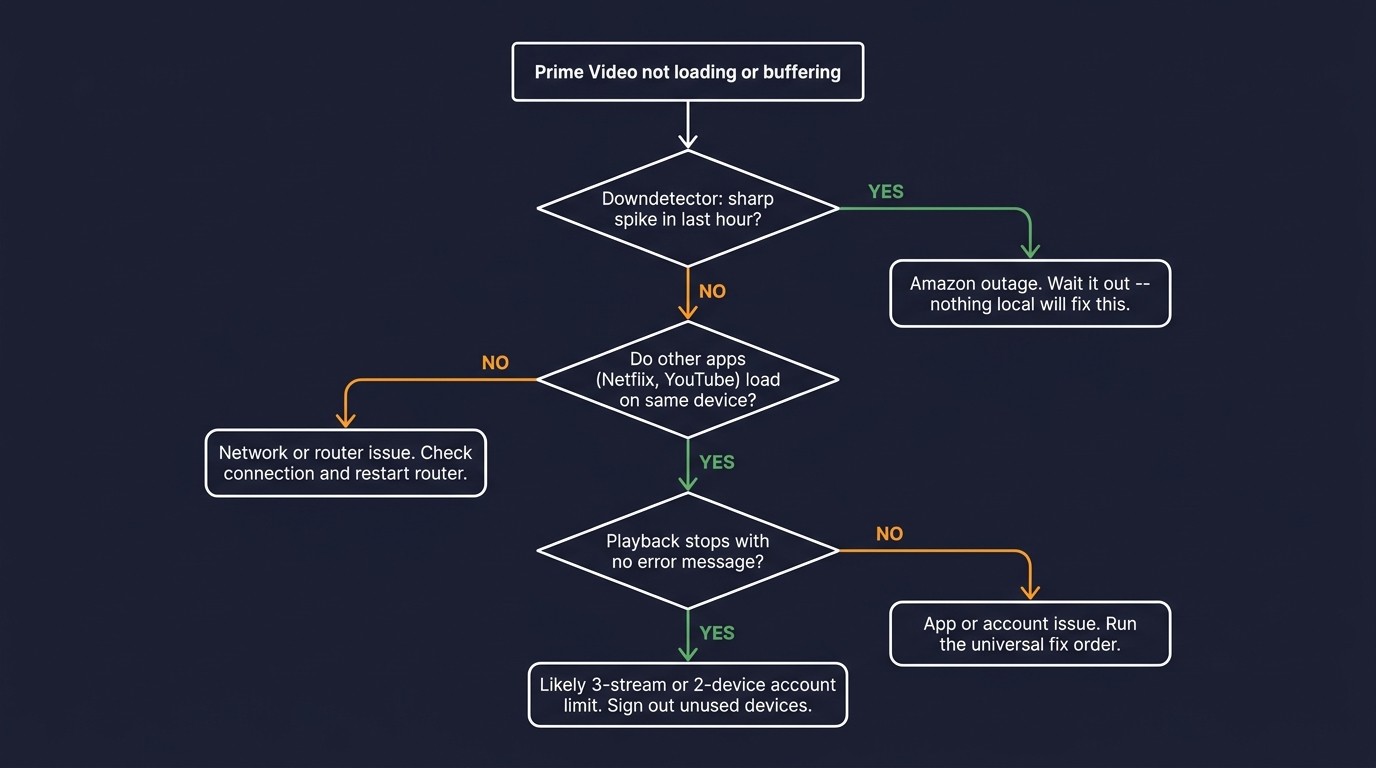
Open Downdetector and search for Prime Video. You're looking for a sharp vertical spike in the last hour — not a steady low-level baseline, which is just normal background noise. Cross-check with Amazon's own service status page and a quick search for "#PrimeVideo" on X. If three of those three light up at once, stop troubleshooting and go make coffee; nothing on your end will fix an Amazon-side outage.
Step 2: Confirm it's Prime Video specifically, not your whole network
On the same device, open Netflix, YouTube, or any browser. If those load and only Prime Video misbehaves, the fault is in the app or your account — not the ISP. This is the most common pattern I see reported in the Amazon and Reddit forums, and it's why "restart your router" so often goes nowhere: the router was never the problem.
Step 3: Confirm you're not hitting the 3-stream / 2-device limit
Per Amazon's Help Center, Prime Video allows up to three simultaneous streams per account, and the same title can only play on two devices at once. If playback stops without any visible error — especially in a household with multiple watchers — that limit is usually why. Sign out of devices you're not actively using under Your Account → Digital Services → Manage Your Devices.
The Universal Prime Video Fix Order (Works Across Devices)
These are the six steps that resolve the vast majority of "Prime Video not working" cases I've personally walked through, and they're the same six that show up across nearly every authoritative troubleshooting article. Run them in order. Don't skip to factory reset.
1. Restart the device and force-quit the Prime Video app
Always first. On a phone, swipe the app out of the recent-apps tray. On a Fire TV, hold the Home button and pick Force Stop under Settings → Applications. On a Samsung or LG TV, unplug the set from the wall for a full minute — not 10 seconds, a minute — to drain the residual state, then power it back on. On a Roku, the equivalent fix is to remove the Prime Video channel and re-add it from the Channel Store; Roku has no in-app cache controls.
2. Check your internet speed against Amazon's published thresholds
Amazon publishes these minimums: 1 Mbps for SD, 5 Mbps for HD, 25 Mbps for 4K UHD. Run fast.com on the same device that's having trouble. If your measured speed is within roughly 1.5× of the threshold for the quality you're watching, you're on the edge — switch to Ethernet if you can, or move closer to the router. Wi-Fi mesh nodes are a frequent culprit when one room streams perfectly and another buffers.
3. Clear app cache, then update the app and device firmware
These are two separate fixes that get conflated. Clearing the cache flushes corrupted local state; an update fixes outright incompatibilities — for example, a Widevine version mismatch after a Chrome release. On Android and Fire OS, go to Settings → Apps → Prime Video → Storage → Clear Cache. On iOS there's no cache toggle; delete the app and reinstall. Then check the device's system update screen too — TV firmware lags more often than the app does.
4. Sign out, sign back in, and disable VPN / proxy / custom DNS
Stale auth tokens cause the classic error 5004 sign-in failure, and Prime Video aggressively blocks streams when it can't match your IP to your account region. Sign out fully on the device, turn off any VPN, proxy, or custom DNS (including pi-hole and Cloudflare's 1.1.1.1 family-protection rules), then sign back in. If you genuinely need a VPN for privacy, switch it off only for Prime Video playback — the platform's geo-checks won't accept most VPN exit nodes.
Prime Video Not Working on Smart TV, Firestick, Roku, or Chrome?
Device-specific failures behave differently enough that a single universal fix list won't catch them. Two of the four below — the Smart TV frame-rate trap and the Chrome Widevine error — are the ones that most "12 fixes to try" articles miss entirely, and they're disproportionately what readers actually have.
Samsung / LG / Sony Smart TVs — the auto-frame-rate trap most articles miss
Smart TV users in community forums spent months collectively debugging persistent Prime Video buffering before settling on a fix that Amazon's own troubleshooting docs don't mention: turn off Auto Motion Plus, Motion Smoothing, or Match Frame Rate. On Samsung the setting is under Picture → Expert Settings; on LG it's TruMotion; on Sony it's Motionflow. Combine that with a Prime Video cache clear (Settings → Apps → Prime Video → Clear Cache) and a TV firmware update. I've seen this single change end weeks of buffering complaints on a Samsung Q80 — the stream wasn't the problem, the post-processing pipeline was.
Amazon Firestick — clear cache, reset network, factory-reset as last resort
On Fire TV, go to Settings → Applications → Manage Installed Applications → Prime Video → Clear Cache, then Clear Data. Power-cycle the stick by unplugging the USB power cable (not just standby) for 30 seconds; Firestick failures often trace to a corrupted update mid-install, and a real power cycle is the cheapest way to break that loop. If you're still stuck, reset the network under Settings → Network and re-pair. Factory reset is the last resort because it wipes everything else on the device.
Roku — remove the Prime Video channel and re-add it
Roku has no exposed cache control, so the supported fix is removal and reinstallation. Highlight the Prime Video channel on the home screen, press the asterisk button, choose Remove channel, then reinstall from the Channel Store. This is the standard fix for error cup-pcd-122 on Roku and it clears most stale-state bugs along with it. Sign in fresh after the reinstall.
Chrome / Edge — error 7235 (Widevine) and 7279 (content protection)
Error 7235 means Widevine — Chrome's DRM module — is out of date or disabled. Go to chrome://components, find Widevine Content Decryption Module, click Check for update, and restart the browser. Error 7279 is an HDCP-chain problem: pull any HDMI splitter, capture card, or non-HDCP-2.2 dongle out of the path between your machine and the display, and plug the source directly into the TV. Update your graphics drivers while you're there. The codes below cover the rest of the common ones — keep this table handy.
Prime Video error codes — what they mean and how to fix each
| Error code | What it means | Common trigger | Fix |
|---|---|---|---|
| 5004 | Sign-in / authentication failure | Stale auth token, account region mismatch, VPN | Sign out fully on the device, disable VPN, sign back in |
| 7235 | Widevine DRM module out of date (Chrome / Edge) | Browser not updated, Widevine component disabled |
chrome://components → Widevine Content Decryption Module → Check for Update; restart browser |
| 7279 | Content-protection / HDCP path failure | HDMI splitter, capture card, non-HDCP-2.2 display | Remove HDMI splitter/capture device; plug source directly into TV; update graphics drivers |
| 2063 | Payment / billing problem | Expired card, declined renewal | Amazon account → Payments → update card; re-attempt subscription renewal |
| 9068 | Concurrent stream limit reached | 3 simultaneous titles streaming on the account, or 2 devices on the same title | Sign out inactive devices in Amazon → Your Account → Digital Services → Manage Devices |
Codes and triggers compiled from Amazon's Help Center plus cross-referenced reporting on Android Authority and Reviews.org.
When Prime Video Downloads Fail: Errors, Stuck Queues, and Slow Speeds
Download problems are a different category from playback problems, and the SERP rarely treats them that way. Three failure modes account for almost everything readers ask about: the download won't start, the download stalls mid-way, or it crawls. Each has a distinct cause.
If you want a full walkthrough of every setting and workaround — quality presets, device limits, and which titles are available offline — our guide to download Amazon Prime Video for offline viewing covers the complete process.
Download won't start — missing button, licensing limits, account region
The most frequent reason is that the title simply isn't licensed for offline. Per Amazon's Help Center, not every title in the Prime catalog has download rights — the cue is a missing download icon on the title-detail page, with no error and no explanation. If the button is there but the download never queues, you've likely hit the download cap (15–25 titles per account depending on region, with the same title cap of two devices). Sign in to your Amazon account on the web and check Your Devices to see what's eating the slots. The third cause, region mismatch, surfaces as error 5004 — the download starts then fails on license validation.
Download stuck or pending (including "stuck at 99%")
Pause and resume from inside the app first; the queue check often recovers on its own. If it doesn't, sign out and sign back in to refresh the license handshake. Still stuck? Delete the partial download and re-queue. The "stuck at 99%" pattern is almost always the final-chunk license verification failing on a flaky connection — swap from Wi-Fi to wired Ethernet or LTE for the redownload and it usually goes through. If you've cycled all four steps and it still fails, the title's offline license has likely been revoked server-side and there's nothing client-side that will rescue it.
Why is my Prime Video download so slow?
Slow is a different problem from stuck. The most common cause is the Best quality preset pulling a higher bitrate than your link can sustain — drop it to Better or Good under Settings → Stream & Download in the mobile app and you'll usually see throughput double. Amazon's CDN also routes harder during US peak hours (roughly 7–11pm local); a 4 a.m. retry on the same network is a free benchmark. Background app refresh throttling on iOS and aggressive battery management on Fire OS will both pause downloads silently when the screen is off — disable battery optimization for Prime Video if you want it to keep going in the background.
Beyond the Fixes: Why Prime Video Downloads Expire (and How to Keep Them)
Please note: Third-party downloaders may conflict with Amazon's Terms of Use. Keep any saved copies for your own personal, offline viewing of content you actively subscribe to — don't redistribute or resell them. Where the official in-app download works for what you need, that path is the most worry-free.
Here's the part Amazon's troubleshooting docs won't tell you, because it isn't a bug they're going to fix: the official in-app download isn't a download in the way you might assume. It's a time-limited license cached on your device. I've been burned by this twice on long flights — once is forgivable, twice means the tool is wrong for the job.
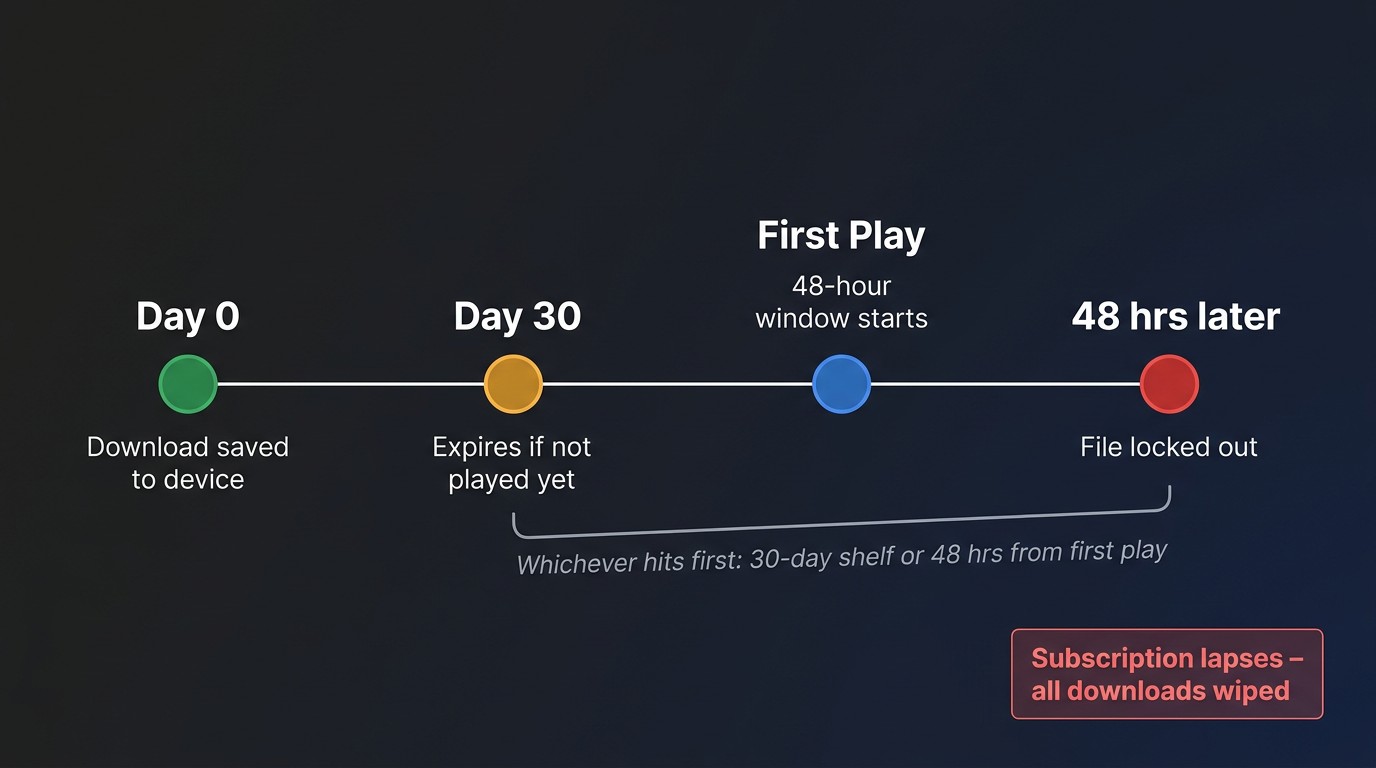
The DRM reality: 30-day shelf, 48-hour watch window, gone with your subscription
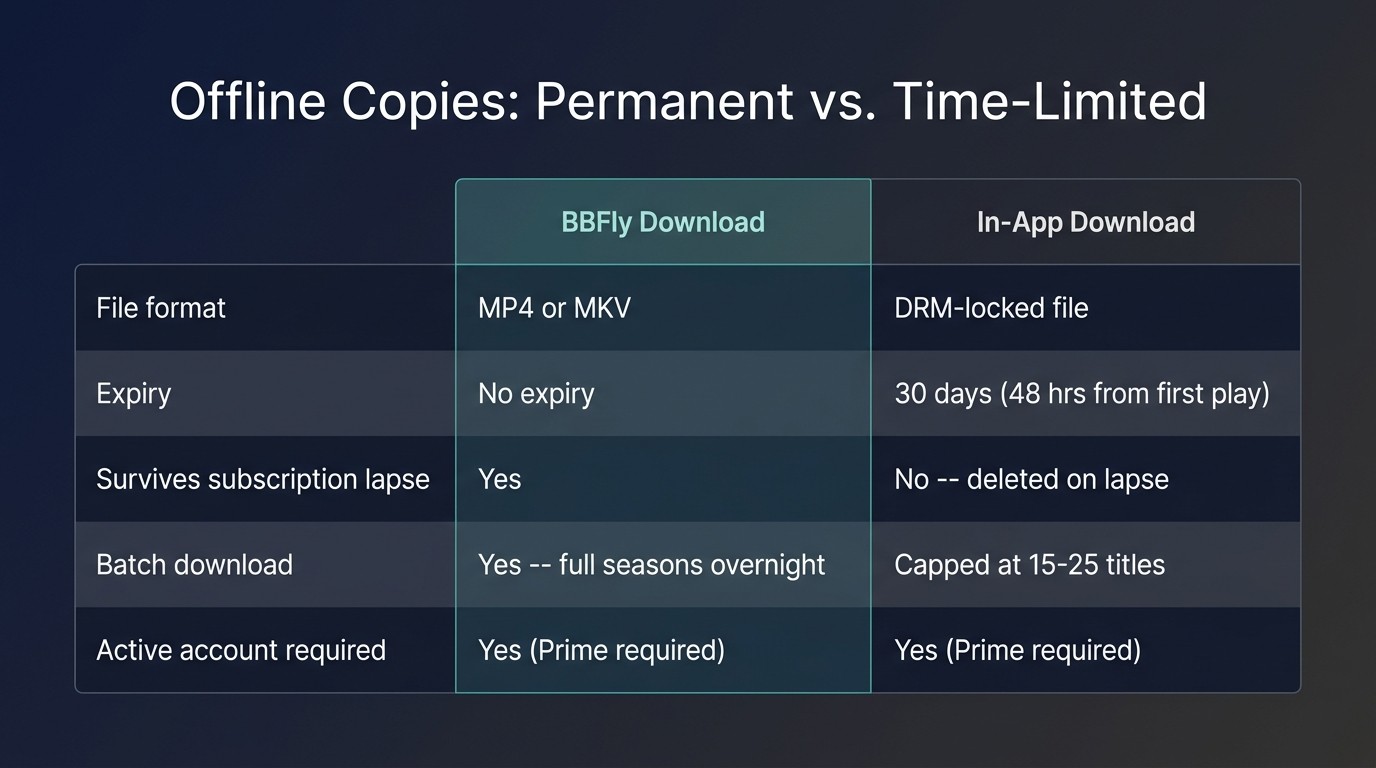
Per Amazon's Help Center, an in-app download expires 30 days after you save it, and the window collapses to 48 hours the moment you press play. Drop your subscription and every saved title vanishes the next time the app phones home. Even mid-subscription, when Amazon's licensing deal with a studio ends, those titles disappear from your offline library overnight. This is by architectural design, not a setting you can change.
BBFly Amazon Prime Video Downloader: 1080p MP4 / MKV that stays on your drive
For the specific case of wanting a personal offline copy that doesn't dissolve on a timer, BBFly's Amazon Prime Video Downloader is the tool I keep on hand. It saves Prime Video titles you have legitimate access to as plain 1080p MP4 or MKV files — no re-encode, no 30-day shelf, no 48-hour play timer. Practical features that matter in actual use: batch-queue a full season overnight, auto-skip intro/ad markers so the saved file starts at the episode, and a free-trial mode for testing a title before committing.
One honest limitation: these are personal-use files, not a subscription replacement — you still need an active Prime account to authorize each download, and the same legal caveat in the note above applies. For the long-haul flight problem, that's the trade I'll take.
Prime Video Not Working: Frequently Asked Questions
Is Prime Video down right now, or is it just me?
Check Downdetector for a sharp recent spike, then test whether Netflix or YouTube loads on the same device. If Downdetector is quiet and other apps work, the fault is local — start with the universal fix order above.
How long do Prime Video downloads last before they expire?
Per Amazon, 30 days from the moment you download, dropping to 48 hours once you start playback — whichever hits first. If you need offline copies that outlast that window, see the previous section.
Why did my Prime Video downloads disappear from my device?
Three causes, in order of frequency: the 30-day timer expired, your subscription lapsed (downloads expire with the sub), or Amazon's license for that specific title ended. Open the title's detail page in the app — if it's no longer marked as included with Prime, the third cause is yours.
Why is Prime Video not working on my Smart TV when my phone works fine?
Most likely the TV's auto frame-rate or motion-smoothing setting — Samsung's Auto Motion Plus, LG's TruMotion, Sony's Motionflow. Turn it off, clear the Prime Video app cache, update TV firmware. Details in the Smart TV section above.
Why does Prime Video say a title "isn't available to download"?
Licensing. Not every title in the catalog has offline rights; this is decided per studio deal, not per account. There's no setting that unlocks it — the signals are a missing download button and a footnote on the title-detail page.
Is it safe to sign into Prime Video inside a third-party downloader like BBFly?
For reputable tools with a published company, an established user base, and a real review trail — BBFly included — sign-in is handled inside an embedded official web view, so your password isn't exposed to the app itself. The caution worth taking seriously is with unbranded clones: no published company, no review history, no support address. Those are the ones to avoid, not third-party tools as a category.