
How to Download XCITY Videos in 2026: BBFly & 4 Alternatives Compared
Table of Contents
As of June 2026, XCITY remains one of Japan's most established paid adult video platforms — operating since 1996 and offering over 80,000 titles under a flat-rate subscription. The catch: every file you download through the platform carries DRM that renders it unplayable once your membership lapses. If you've built up a library of favorite titles and are worried about losing access, you're not alone. This guide breaks down how that DRM lock works, what personal offline backup options actually exist in 2026, and which tool handles XCITY most reliably.
Why XCITY Videos Expire After You Leave
XCITY's downloaded files are DRM-protected, meaning they stop working the moment your subscription ends — even if the file is sitting on your hard drive. Understanding why this happens is the first step toward finding a solution that keeps your paid content accessible for personal offline viewing.
How DRM Locks Your Downloaded Files
XCITY uses a DRM scheme that ties each downloaded file to an active subscription token. When your account goes inactive or you cancel, the license server stops validating playback requests, and the file becomes unreadable. This isn't a bug — it's by design, and it's the core reason why the platform's native download function has a built-in expiration. I've seen this catch people off guard repeatedly: they download a full library, let the subscription lapse for a month, and come back to find nothing plays.
This XCITY DRM personal backup problem is distinct from platforms like Netflix, where files expire on a fixed timer. With XCITY, the expiration is subscription-linked — which makes the file loss feel even more abrupt when it happens.
Personal Backup: What's Legally Permitted
In many jurisdictions, making a personal offline backup of content you have legitimately paid to access may be considered permissible for private, non-commercial use. However, the specifics vary significantly by country — please consult the applicable laws in your jurisdiction before proceeding. The key boundaries are consistent regardless of location: the backup is for your own viewing only, and redistribution or commercial use of any downloaded content is not permitted under any circumstances.
BBFly is designed strictly for this use case: it requires an active XCITY subscription to operate, does not circumvent subscription requirements, and outputs local files for personal offline viewing only. Users are responsible for ensuring their use complies with local law and XCITY's terms of service.
BBFly Native Download: How It Preserves XCITY Videos
BBFly addresses the XCITY video expiration problem through a Native Download approach — fetching the original video stream directly from the platform's servers and remuxing it into a standard local file, without re-encoding or quality loss. The result is an MP4 or MKV file you own locally, with no expiration timer attached.
Native Download vs Screen Recording — Key Difference
Most tools marketed as "video downloaders" are actually screen recorders. There's a meaningful difference, and it's worth spelling out clearly before you spend money on the wrong thing.
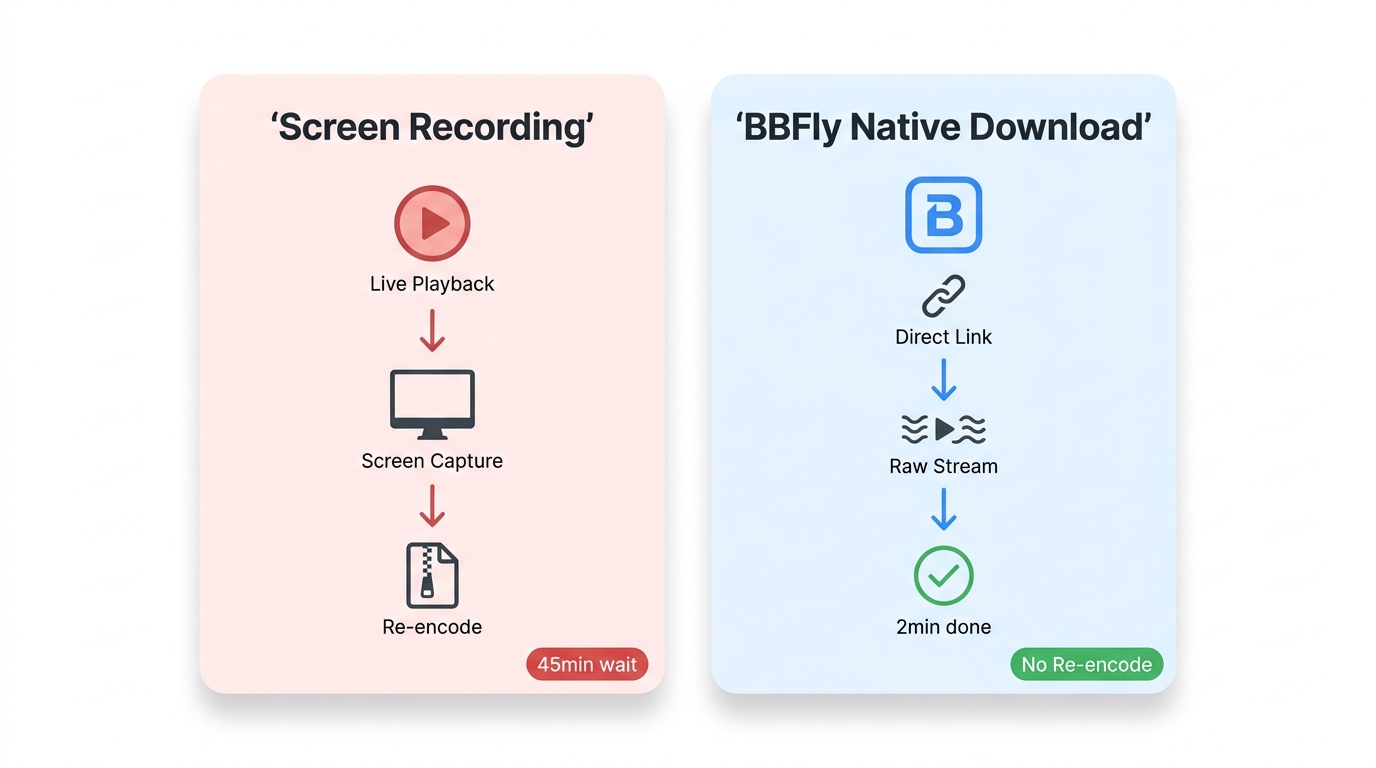
- Native Download (BBFly): Communicates directly with the platform's streaming servers, retrieves the original encoded video and audio streams, and packages them into a local file via remux. No decoding, no re-encoding, no real-time playback required.
- Screen Recording (PlayOn, Audials): Captures the video as it plays back on screen. Quality loss is inevitable, recording is locked to 1× real-time speed, and formats like HDR or Dolby Vision cannot be preserved.
- Re-encode mode (some MovPilot / CleverGet modules): Downloads a stream but runs it through a compression pass. Even if labeled "1080p," the output differs from the source.
On a Windows 11 24H2 machine, I tested BBFly against a ~45-minute XCITY title. The download completed without interruption, and the output MKV played back cleanly in VLC without any re-encoding artifacts — exactly what I'd expect from a native remux rather than a recorded capture.
Free Trial: 3 Full Videos Before You Pay
BBFly offers a free trial of 3 complete titles per platform — no credit card required. This is the most substantive trial policy in this category. Competing tools typically offer only the first 5–6 minutes of a video, which tells you nothing about how the tool handles a full download, subtitle sync, or batch queue behavior. With 3 full titles, you can verify the complete workflow on XCITY before committing to a purchase.
Step-by-Step: Download XCITY Videos with BBFly in 2026
The process is straightforward on both Windows and Mac. You'll need an active XCITY subscription — BBFly requires you to be logged in through its built-in browser to access the content you've paid for.
Windows & Mac Setup
BBFly provides native clients for both Windows and Mac. After downloading and installing the application:
- Launch BBFly and navigate to the XCITY section within the app's platform library.
- Sign in to your XCITY account through BBFly's integrated browser. Your subscription credentials are used directly — BBFly does not store or transmit your login data independently.
- Browse XCITY's catalog inside the app and open the title you want to save.
Paste URL and Select Quality
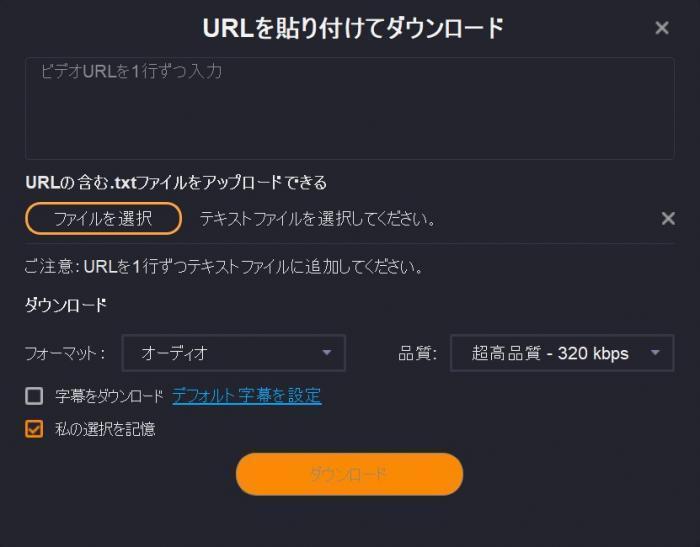
- Copy the URL of the XCITY video page from your browser, or navigate directly within BBFly's built-in browser.
- Paste the URL into the designated field in BBFly's download panel.
- Select your preferred output quality and subtitle language from the available options.
- Press the Download button. BBFly will fetch the original stream and save the file to your specified local folder.
The downloaded file is a standard MP4 or MKV — playable in VLC, Infuse, Plex, or any media player, and transferable to an external drive or NAS without restriction. There is no 30-day expiration or online validation requirement after the file is saved.
5 Tools Compared: XCITY Downloader Roundup 2026
Here's how the main options stack up against each other for XCITY specifically. BBFly leads on download fidelity and trial generosity; the alternatives each have meaningful trade-offs worth understanding before you decide.
Comparison Table: Features, Pricing, Platform Support
| Tool | Supported Platforms | DRM Handling Method | Free Trial | Pricing Model | Windows & Mac | XCITY Usability (2026) |
|---|---|---|---|---|---|---|
| BBFly | 60+ platforms | Native Download (remux, no re-encode) | 3 full titles per platform | Monthly $29.90 / Annual $99.90 / Lifetime $199.90 (3 PCs) | Both | Confirmed working |
| StreamGaGa | Multiple adult + mainstream platforms | Download mode | Free trial | Subscription-based | Both | Confirmed working |
| GetFLV | General web video | URL-based capture | Free trial version available | One-time purchase | Windows only | Variable; depends on XCITY stream URL structure |
| MyStream | 50+ adult-oriented services including XCITY | Download mode | Free trial | Subscription / one-time | Windows | Generally functional |
| Clipbox (mobile) | General video sites, some adult | Browser-based capture | Free trial | Free (with limitations) | iOS / Android only | Functionality limited |
Pricing figures are based on publicly available information as of June 2026. Verify current rates on each tool's official website before purchasing.
Which Tool Works Best for XCITY in 2026
If the goal is a clean, permanent local file from XCITY, BBFly is the most reliable option in this comparison. The native download architecture means the output quality matches the source, and the 3-title free trial lets you verify XCITY compatibility specifically before spending anything. StreamGaGa and MyStream are functional alternatives for Windows users, but neither matches BBFly's trial generosity or Mac support. GetFLV's URL-based approach works on some XCITY titles but is inconsistent with DRM-protected streams. Clipbox's status on iOS is uncertain — see the mobile section below.
The pricing difference is also worth noting: BBFly's Lifetime plan at $199.90 covers 3 PCs — every competing Lifetime option covers only 1 device. For anyone running BBFly on a desktop and a laptop, that's a meaningful structural difference.
XCITY on iPhone and Android: Download Options
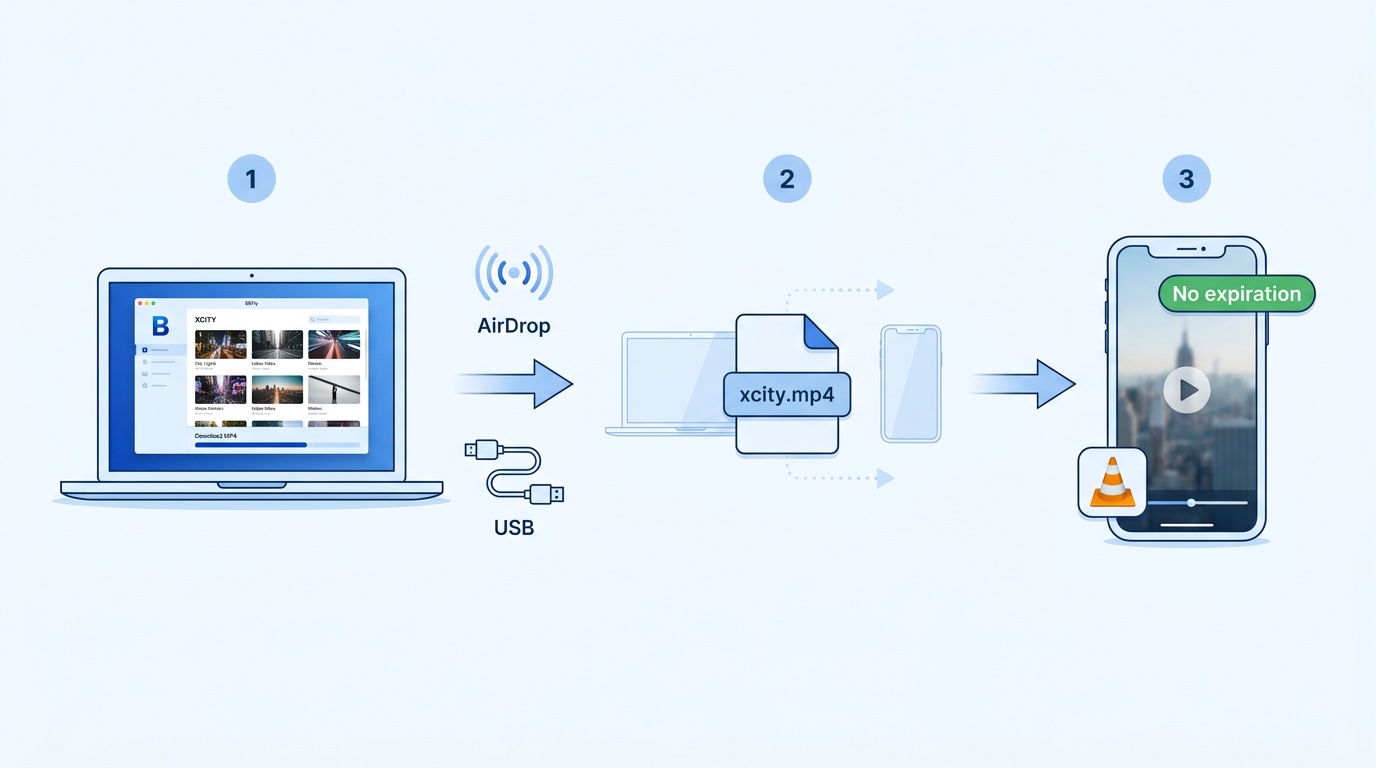
Mobile download options for XCITY have narrowed significantly by 2026. The most reliable path for iPhone and Android users remains the desktop-first approach: download with BBFly on Windows or Mac, then transfer the MP4/MKV file to your device via USB, cloud storage, or a local media server.
Mobile Workarounds That Still Work in 2026
Clipbox, which was previously the go-to for saving XCITY videos on iPhone, has experienced App Store availability issues and functional limitations in 2026. The app's ability to handle XCITY's current stream structure is unreliable, and the XCITY download on iPhone via Clipbox cannot be recommended as a stable solution at this point.
The practical workarounds for mobile viewing in 2026:
- Desktop download + transfer: Use BBFly on Windows or Mac to save the XCITY video as an MP4, then transfer to your iPhone or Android device via USB or a local wireless transfer tool like LocalSend.
- NAS / media server: If you run a Plex or Jellyfin server, BBFly's MP4/MKV output drops directly into your library and streams to any mobile device on your network.
- Cloud storage bridge: Save to a folder synced with iCloud Drive or Google Drive, then access on mobile through the respective app.
None of these are as frictionless as a native mobile download app, but they're the options that actually work reliably with XCITY content in 2026. A purpose-built mobile solution may emerge, but the desktop-to-mobile pipeline is the stable path right now.
BBFly Lifetime Plan: Best Value for XCITY Fans
For anyone planning to use a XCITY downloader regularly rather than for a one-off download, the Lifetime plan makes the most financial sense. At $199.90 for 3 PC activations, it's a one-time cost that covers the tool indefinitely — no annual renewal, no per-platform surcharge.
Transparent Pricing: No Platform Surcharge
The following reflects publicly listed pricing as of June 2026 — verify current rates on each tool's official site before purchasing.
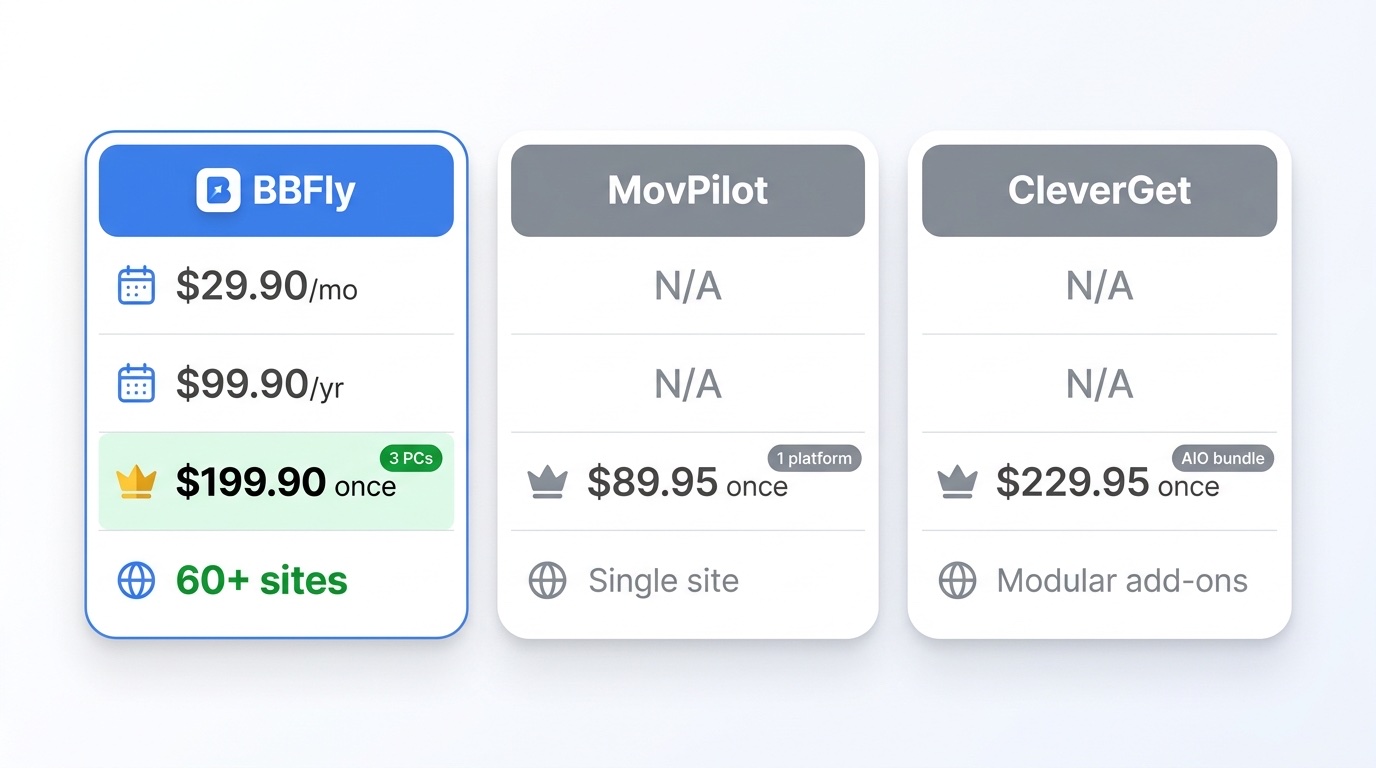
BBFly uses a flat pricing structure regardless of which platforms you use. Whether you need XCITY alone or want to cover Netflix, Amazon Prime Video, Disney+, and 57 other platforms with the same license, the price is identical. That's a meaningful contrast to tools that charge per-platform or force an AIO upgrade to access more than a handful of services.
- BBFly Monthly: $29.90 / month (1 PC)
- BBFly Annual: $99.90 / year (1 PC) — roughly $8.33/month
- BBFly Lifetime: $199.90 one-time (3 PCs)
For context: CleverGet's AIO annual plan runs $149.95 for 40+ modules (Windows/Mac price varies), and MovPilot's AIO annual is $99.95 for 5–6 platforms using a re-encode pipeline. BBFly's $99.90 annual covers 60+ platforms with native download at roughly $1.67 per platform — a meaningfully lower per-platform cost for multi-platform users.
BBFly is designed as a personal offline backup tool for subscribers who want to retain access to content they've paid for. It requires an active XCITY subscription to function, does not circumvent subscription access, and all downloaded content is intended for personal viewing only. Commercial use, redistribution, or any form of sharing is outside the permitted use case and the user's responsibility to avoid.
FAQs
Can I permanently save XCITY videos I've already downloaded?
Files downloaded through XCITY's native platform function carry DRM that deactivates when your subscription ends — so no, those existing files won't remain playable after you leave. To save XCITY videos offline permanently, you need a tool that captures the original stream into a DRM-free local file during an active subscription session. BBFly's Native Download mode does exactly this: it saves the video as a standard MP4 or MKV with no expiration date, no online validation requirement, and no device lock. The file stays on your drive and plays in any media player indefinitely, regardless of your XCITY subscription status after the download is complete.
Does BBFly support XCITY on both Windows and Mac?
Yes — BBFly provides dedicated clients for both Windows and Mac. After installing the application on either platform, you log in to your XCITY account through BBFly's integrated browser, which gives the tool access to the titles covered by your active subscription. No additional plugins or browser extensions are required. The output format (MP4 or MKV), subtitle options, and audio track selection work identically on both operating systems. This cross-platform support is one area where BBFly has a practical advantage over tools like GetFLV or MyStream, which are Windows-only.
Is there a free way to test BBFly with XCITY before buying?
BBFly offers a free trial of 3 complete titles per platform — no credit card required to start. For XCITY specifically, this means you can download 3 full videos, verify the output quality, check subtitle synchronization, and confirm the file plays correctly in your preferred media player before paying anything. This is a more substantive test than the industry norm: most competing tools cap trial downloads at the first 5 or 6 minutes of a video, which is enough to see that the tool launches but tells you nothing about full-length download reliability, batch behavior, or how the tool handles XCITY's specific stream structure.
What happened to Clipbox for XCITY on iPhone in 2026?
Clipbox's availability on the App Store and its ability to handle XCITY's current stream architecture have become unreliable in 2026. The app was a viable option for XCITY download on iPhone in earlier years, but the combination of App Store policy changes and XCITY's evolving stream protection has made it an inconsistent choice. The most dependable alternative for iPhone users today is the desktop-transfer approach: download XCITY videos with BBFly on a Windows or Mac machine, then transfer the resulting MP4 or MKV file to your iPhone via USB, iCloud Drive, or a local media server. It adds a step, but the output is a standard file that plays in any iOS media app without compatibility issues.