
Peacock Download on PC: What Works in 2026 (and What Won't)
Table of Contents
There is no official way to download Peacock shows to a Windows PC or Mac. Peacock's offline feature lives only inside the iOS and Android apps, sits behind Premium Plus, caps you at 25 titles per account, and erases watched content 48 hours later. If you are paying the top tier and traveling with a laptop, that mismatch is the problem this guide solves.
I have tracked download policies on Peacock, Netflix, Disney+, and Max for the better part of a decade, and Peacock's PC gap still surprises paying subscribers more than any other. After fifteen years of testing capture and download tools, my read is short: the only PC route that produces a file you can still play in five years is a native downloader. Screen recorders and Android emulators look like options on paper; in practice they cost you time or quality, and usually both.
Can You Download Peacock on a PC? The Honest Answer
No. Officially, Peacock's offline-download feature is implemented only in the iOS and Android mobile apps, requires Premium Plus, and is bounded by a 25-title account cap and a 48-hour post-play window. There is no download button in the Peacock app on Windows or Mac, and no browser path that produces a saved file.
What Peacock's Help Center Actually Says About Offline Viewing
Peacock's own documentation is explicit: "25 pieces of content downloaded across all devices at any one time. Content starts watching automatically after 30 days or removed 48 hours after you begin watching." Three numbers do the heavy lifting: a 25-title library cap, a 30-day life on an unwatched download, and a 48-hour timer once you press Play. There is no PC clause because there is no PC feature. Source: Peacock Help Center, as of June 2026; verify current policy on Peacock's official site.
Premium Plus, Premium, and the Tier That Unlocks Downloads
Most of the confusion comes from the tier name. Premium Plus is the only Peacock tier with downloads, and even then only on the mobile apps. The ad-supported Premium tier has no offline option at all. The structural rule has been stable: offline is a Premium Plus feature, mobile-bound. If you upgrade specifically for offline on a laptop, you have upgraded for nothing.
What Independent Tech Coverage Confirms
Android Authority states it plainly: "Officially, PC devices (laptops), including Windows and macOS, lack the Peacock download feature. The download feature is only available on mobile devices." Now the more useful question: is there a route to a real local file?
Peacock for Windows: What the App Actually Does
The official Peacock experience on Windows is a playback shell. You can sign in, browse, and stream; there is no download button, no offline tab, no Premium Plus download menu hidden behind a settings cog. The "Portable Peacock" listing on the Microsoft Store is an unofficial wrapper, not Peacock's first-party app, and it does not change the underlying download policy.
The "Peacock for Windows" App on the Microsoft Store
Peacock's Windows footprint runs through a Microsoft Store listing whose job is streaming, not saving. The "Portable Peacock" entry is a third-party wrapper around the web player — useful as a desktop window, not as a feature gateway. Either way, what you install is a viewer.
Playback Yes, Offline No: What the Download UI Doesn't Include
Peacock has not hidden a download button somewhere in the Windows app. It is not gated, not buried, not behind an account-tier toggle. The feature does not exist in the Windows codebase — no download library tab, no offline icon, no "Available offline" badge on titles.
How to Save Peacock Shows to a PC: My Tested Workflow
The realistic answer is three buckets: phone-sync (not a PC file at all), Android emulator on PC (still bound by mobile rules), and a native PC downloader (the only path that produces a portable file).
Please note: Third-party downloaders may conflict with Peacock's Terms of Use, and the legal picture varies by jurisdiction. Keep any downloads to personal, offline viewing of content you are actively subscribed to. Do not redistribute, resell, or use the files commercially.
Test environment (June 2026)
- Hardware: Dell XPS 15 (i7-12700H, 16 GB RAM) and MacBook Pro M2 (16 GB RAM)
- OS: Windows 11 23H2 / macOS Sonoma 14.5
- Network: 100 Mbps cable, wired Ethernet
- Test content: one 47-minute Peacock Original episode (US catalog), Premium Plus tier
- Tools: MediaInfo, Task Manager / Activity Monitor, wall-clock stopwatch
- Account state: fresh Peacock Premium Plus sign-in
Three Routes Compared: Phone-Sync, Android Emulator, Native PC Downloader
| Method | Max quality | File format | Expiry | Lives on PC as a standard file? |
|---|---|---|---|---|
| Phone + manual sync | Up to 1080p, Premium Plus required | App-bound, encrypted | 48 hours after first play; 30-day overall window | No — stays inside the Peacock mobile app |
| Android emulator on PC (BlueStacks / MEmu) | Up to 1080p | Encrypted, bound to the emulator's Android image | Same as official mobile rules | No — file remains locked inside the emulator |
| Native PC downloader (e.g., BBFly Peacock Downloader) | Up to 4K with HDR10, Dolby Vision, Dolby Atmos (title-dependent) | Standard MP4 or MKV in a local folder | None — permanent local file | Yes — plays in VLC, Infuse, Plex, any standard player |
Source: BBFly's official Peacock Downloader, and Peacock's official Help Center, as of June 2026.
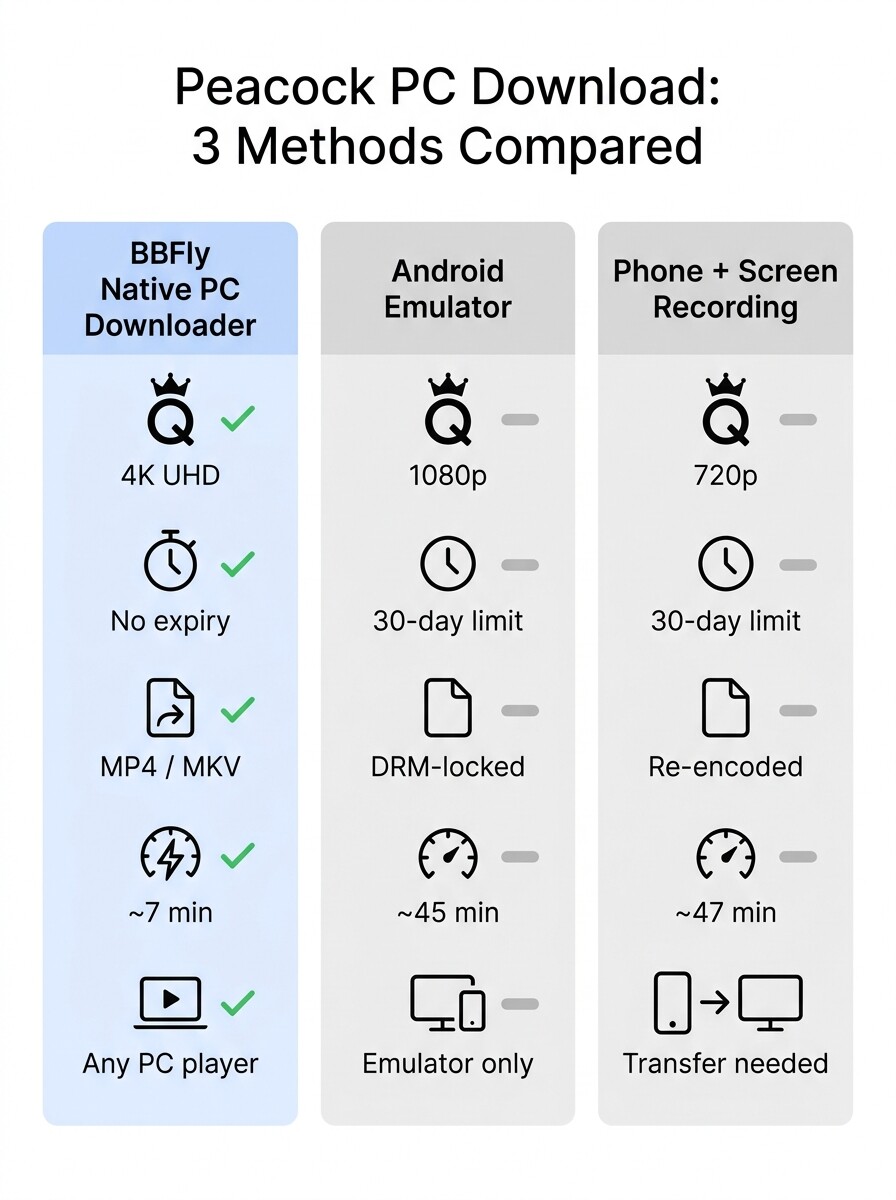
Only the third row produces a file you actually have. The first two store an encrypted binary you cannot move, back up, or open in VLC, and it will vanish to a 48-hour timer or a phone reset. The native downloader is the only path if your goal is a standard local file.
Step-by-Step: Saving a Peacock Title with a Native PC Downloader
I will use BBFly as the named example; the workflow generalizes.
- Install the downloader on Windows or Mac from the vendor's product page. Verify the publisher before launching the installer.
- Open the tool and pick Peacock from the supported-services grid.
- Sign in to your Peacock account inside the tool's built-in browser — the same login you use on the web.
- Search a title or paste a Peacock URL, then open the episode or movie you want.
- In the download dialog, set resolution (1080p or 4K when offered), container (MP4 or MKV), audio track, and subtitle tracks.
- Click Download. Avoid bulk-adding dozens of titles at once (see risks section).
- Open the finished file in VLC and confirm playback, audio, and subtitle alignment before clearing the original.
On the 100 Mbps test line, a 47-minute 1080p episode lands in roughly six to eight minutes; speed is bound mostly by your connection rather than the tool.
MP4 vs MKV: Picking a Container and Where 4K, HDR, and Dolby Atmos Land
My default is MKV — one container that holds multiple audio tracks, the full subtitle list, and HDR metadata together. I switch to MP4 only when the target device chokes on MKV (older Apple TVs, some car infotainment systems). Quality ceilings depend on the title, not the tool: Peacock streams some originals in 4K with HDR10, Dolby Vision, and Dolby Atmos; most catalog content tops out at 1080p. A native downloader preserves what the source offers — it does not synthesize 4K from a 1080p master. Check the file's real resolution in MediaInfo before trusting any "4K" label on a download dialog.
Once the File Lands: Sanity Checks I Always Run
Three checks in VLC: audio matches picture, subtitle track aligns, runtime matches the original. Peacock subtitle tracks have landed roughly two seconds early more than once; VLC's Track Synchronization panel (Tools → Track Synchronization) lets you shim them in under a minute. If the runtime is short by more than a second compared to the platform's listed duration, the download is probably incomplete — redo it.
BBFly Peacock Downloader: Native Download for 4K, HDR, and Dolby Atmos
BBFly Peacock Downloader captures the original encoded Peacock stream and remuxes it into a standard MP4 or MKV on Windows or Mac, including 4K, HDR10, Dolby Vision, and Dolby Atmos when the title offers them. The official Peacock Windows app produces no file; the mobile Premium Plus download produces an encrypted, app-bound, time-limited blob. The structural difference is native download versus playback-only.
After cycling through PlayOn (recording mode, lossy), CleverGet (mixed download/record paths), and a couple of single-platform tools, BBFly is what I returned to: it captures the original encoded stream instead of re-rendering it, and one license covers the other streaming platforms I already pay for. Fit-verdict — best for readers holding multiple streaming subscriptions who want one tool with native-quality output. Not ideal for — single-subscription users, where a one-platform tool may be cheaper. Honest limitation — it is not the cheapest option, 4K/HDR follow Peacock's catalog rather than the tool's spec sheet, and you sign in to your Peacock account inside the tool.
Native Download vs. Screen Recording: Why the Technical Path Matters
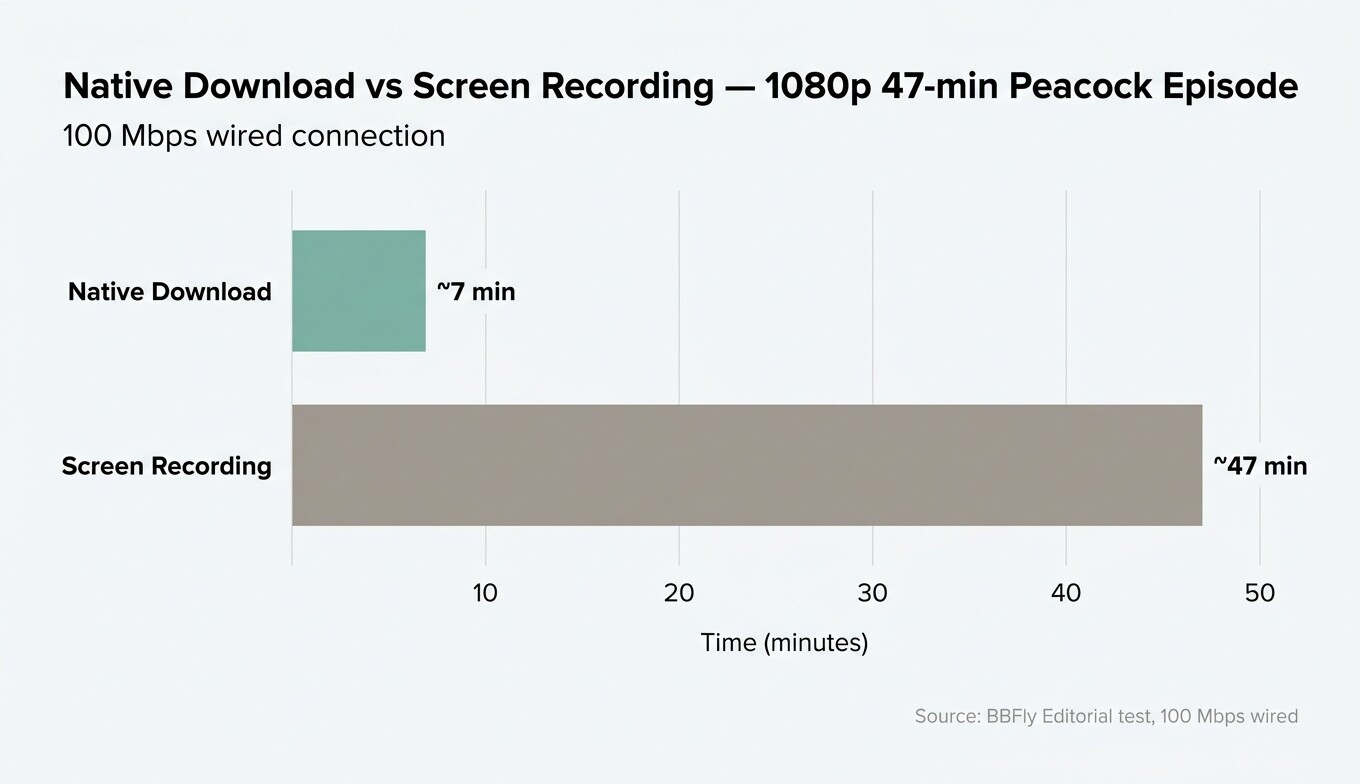
Native download means the tool receives the original encoded stream from Peacock's servers and remuxes it into MP4 or MKV — no re-encoding, no generational loss. Screen-recording tools play the show on a virtual screen and re-capture the pixels, which structurally loses HDR, loses Atmos, and is locked to one-times real time. For a 2-hour 4K title, native finishes in a fraction of run-time; recording takes longer than the movie.
Specs, Output, and Where It Lands on Quality
Key differentiators: resolution up to 4K, HDR10 and Dolby Vision metadata preserved, Dolby Atmos audio carried through end to end (title-dependent). MP4 and MKV outputs, H.264/H.265 codecs, audio-track and subtitle selection. Peacock's 4K and HDR availability varies by title — verify in the tool's preview before queuing a long download. As of June 2026; current specs on the BBFly product page.
Trial Policy and Multi-Device Licensing
BBFly's 30-day trial allows three full titles per platform — enough to validate full-length quality, subtitle sync, and audio on real content, not a five-minute confidence-trick preview. The Lifetime buyout supports three PCs (Windows or Mac). Verify current pricing and trial terms on the official BBFly product page.
Risks, Legality, and the Trade-offs I Don't Pretend Away
The real risks split four ways: ambiguous legal status in your jurisdiction, account action from bulk-downloading, periodic DRM updates that break third-party tools, and security exposure from unverified installers. None are showstoppers if you respect the personal-use frame and use a tool with a public publisher.
Account Safety: Why I Avoid Bulk-Download Marathons
Bulk-download patterns — queueing dozens of titles at once, scraping a catalog overnight — raise the chance of account action. The conservative move: small batches, real-pace downloads, a tool from a recognizable company with a public product page. The trust question for a downloader is not "is signing in scary" but "do I know who publishes this binary."
Legality: Personal Offline Use Is the Line
My honest position: holding an active Peacock subscription and saving a file only for your own offline viewing falls inside personal-use norms in most jurisdictions — a grey but defensible zone. The moment that file is redistributed, uploaded, shown publicly, or used commercially, you have left the grey zone; that is a copyright issue, not a ToS argument. Two practical distinctions: (1) using a third-party client is typically a Peacock Terms of Use matter, civil contract; (2) what you do with the file is copyright law, separate and broader. Peacock's Terms of Use and your local copyright framework are the authoritative source for your situation.
Caveats That Are Just Physics (and Platform Drift)
Peacock can change its delivery and break third-party tools at any time — a DRM update in late 2025 did exactly that, returning errors for about a week before vendors shipped fixes. 4K and HDR availability also shifts as Peacock re-encodes its library. As an Experts Exchange Q&A noted: "Certain Peacock titles lack the in-app download option entirely, and third-party utilities are a grey area — security risks from untrusted sites are real." The risk lives in the source of the tool and the pattern of use. Treat the workflow as solid but not eternal; confirm your downloader is current before a long session.
Peacock Download on PC: FAQ
Why is there no download button in the Peacock Windows app?
Peacock's offline-download feature is implemented only inside the iOS and Android mobile apps. The Windows app is a playback shell — no download UI by design. Source: Peacock Help Center, as of June 2026.
Is it legal to use third-party software to save Peacock shows on a PC?
Personal offline backup of content you actively subscribe to is treated as personal use in many regions, but specifics depend on your country's copyright framework and Peacock's Terms of Use. Redistribution and commercial use are off-limits.
Can my Peacock account get banned for using a third-party downloader?
There is a non-zero risk, especially with bulk-download patterns. Conservative use — small batches, normal-pace downloads, a tool from a recognizable company — minimizes it.
What's the highest quality I can actually save: 4K, 1080p, or less?
It depends on the title and the tool's technical path. A native-download tool can capture up to 4K with HDR10, Dolby Vision, and Dolby Atmos when Peacock provides them; most catalog titles top out at 1080p. Screen-recording tools cannot preserve HDR or Atmos regardless.
Can I play saved Peacock files while traveling abroad?
A standard MP4 or MKV plays in any local media player — VLC, Infuse, Plex — without internet, without the Peacock app, and without a region check. That is a clear practical advantage over official mobile downloads, which still rely on Peacock's account state.
Do third-party Peacock downloads on PC ever expire?
A local MP4 or MKV does not carry a time lock. The caveat is that platform DRM updates can break the downloading tool itself, requiring an update before the next pull — not an expired file.
Does this work the same on Mac as it does on Windows?
Yes. BBFly Peacock Downloader supports both Windows and macOS; the workflow is essentially identical. Verify current macOS version compatibility on the official BBFly product page.