Hulu on Android in 2026: Setup, Android TV & APK Sideload
Table of Contents
Hulu on Android is three setups, not one. On a Google-certified phone or tablet, install the com.hulu.plus app from the Play Store and sign in — the No Ads tier is the one that unlocks offline downloads. On a Google-certified Android TV (Sony, Hisense, Nvidia Shield), use the separate com.hulu.livingroomplus listing and activate at hulu.com/start/androidtv. On uncertified Android TV boxes or anywhere outside the United States, the Play Store hides Hulu — sideloading the APK is the workaround, with the caveats below.
I've installed Hulu across more living-room hardware than I care to count, and the pattern that keeps surprising me isn't on the mobile side — it's the Android TV app. On the same Hisense set, same Wi-Fi: Netflix, Disney+, Max, Paramount+, and Peacock all behave themselves, while Hulu sits at a 2.4-star Play Store rating with a recurring story of black screens and reinstall cycles. One reviewer of the Hulu for Android TV listing summed it up bluntly — they had "not a single problem with Netflix, Disney+, Max, Paramount, or Peacock" on the same device. That's the awkward truth: "Hulu on Android" isn't one question, it's three — phone, TV, and uncertified-box workaround — and I'll walk all three with the snags named, not papered over.
Hulu on Android Phones and Tablets in 2026
On a current Google-certified Android phone or tablet, getting Hulu running takes about three minutes. The Play Store search returns the official com.hulu.plus listing from Disney/Hulu LLC; install, sign in, pick a plan, you're streaming. The only setup decision that matters later is the plan tier — that's the one most newcomers miss.
Which Android phones and tablets Hulu actually supports
Per Hulu's Help Center, the official floor is Android 5.0+ to stream and Android 7.1+ to download offline, with a minimum 800×480 screen resolution. That covers nearly any phone or tablet released in the last six years. What it does not cover, and where I've seen people fall in: Fire OS phones (Amazon's Android fork), LineageOS builds without Google Mobile Services, KaiOS feature phones, and the cheaper "smart" handsets shipping with stripped-down Android forks. The Play Store won't show Hulu on any of those, and the app won't install via APK in a usable way either — the DRM check fails before you reach the sign-in screen.
Install Hulu from the Play Store and sign in
Open the Play Store, search "Hulu", and confirm the publisher reads Disney/Hulu LLC — clone listings piggybacking the name appear every couple of months. Tap Install, open the app, and either sign in or sign up via the in-app flow. One operational note that bites people years later: a subscription created through the Play Store is a real Hulu subscription, but it's billed via Google Play. If you ever want to cancel from hulu.com directly, you can't — you'll have to cancel through Google Play instead. Worth noting at signup so future-you remembers.
Pick the right plan: With Ads vs. No Ads (and what "available on Android" actually means)
Hulu's current tiers are With Ads at about $9.99/month, No Ads at $17.99/month, and Hulu + Live TV at about $89.99/month. The operational consequence on Android is what the marketing pages don't lead with: offline downloads are gated to the No Ads plan. Ad-supported plans get no downloads at all, regardless of Android version. So if "Hulu on Android" means "downloads for the flight tomorrow," the Android-version check is irrelevant — the plan tier is what's blocking you.
Day-one annoyances: forced logouts, mid-sentence ads, subtitle quality
A few things worth knowing before you sign your relatives up. Reviewers on the Play Store listing consistently complain about ads being placed "in the middle of a sentence" — even on the paid tier, Hulu inserts breaks inside live dialogue, not just at scene transitions. Another verbatim complaint that comes up repeatedly: "forced logouts, poor subtitle quality, and excessive ads even on paid tiers." These aren't setup errors on your end. The forced logouts in particular seem to follow token-refresh failures after long idle periods; the only real fix is signing back in. Subtitle quality (timing and translation accuracy) is what it is — Hulu's not Netflix on that front, and no amount of reinstall changes it.
Phone install is the easy half. If you're trying to put Hulu on a Sony or Hisense TV, that's a separate app with its own quirks.
Hulu on Android TV: The Separate App, Activation, and the 2.4★ Reality
The first thing to know is that the TV install is not the mobile install. There are two distinct Play Store listings, and putting the wrong one on the wrong device is how setup goes sideways at minute one. Once the right app is in place, activation happens off-device via a code; the harder part — the one I get asked about most — is what to do when the app starts black-screening a week later.
The Hulu for Android TV app is not the mobile app
The phone/tablet listing is com.hulu.plus. The Android TV listing is com.hulu.livingroomplus — separate codebase, separate version cycle, different remote-control UI. If you install the phone listing onto an Android TV (technically possible via sideload on some boxes), you'll get a touch-input layout that the remote can barely navigate. Don't. Search "Hulu" directly in the TV's Play Store and pick the one whose icon labels itself "for Android TV."
Install on Sony, Hisense, or generic Google-certified Android TVs
On any Google-certified Android TV running 4.4 or later — the Sony Bravia line, Hisense's Google TV models, Nvidia Shield, Chromecast with Google TV, TiVo Stream, and properly-certified Walmart onn. boxes — install is a Play Store search, an Install tap, and you're done. If the listing doesn't appear at all, the box is uncertified; skip to the next section.
Activate at hulu.com/start/androidtv (and the Hisense quirks)
Open the app, sign in, and Hulu shows a six-character activation code. Open hulu.com/start/androidtv on a phone or laptop, enter the code, and the TV signs in within a few seconds. On Hisense ULED sets running current Google TV firmware, the flow behaves exactly as documented. The older Hisense Android TV firmware (mostly pre-2022 sets with the Hisense-branded launcher) sometimes bounces activation back into a "preinstalled Hulu" stub rather than the real app — uninstall the stub, install Hulu for Android TV fresh from the Play Store, and the standard hulu.com/start/androidtv flow takes over. That's the Hisense quirk worth knowing; most of what's cargo-culted online about "hulu com start android tv hisense" failures comes down to people fighting that one stub.
The 2.4★ reality: black screens, freezes, and what to try before reinstalling
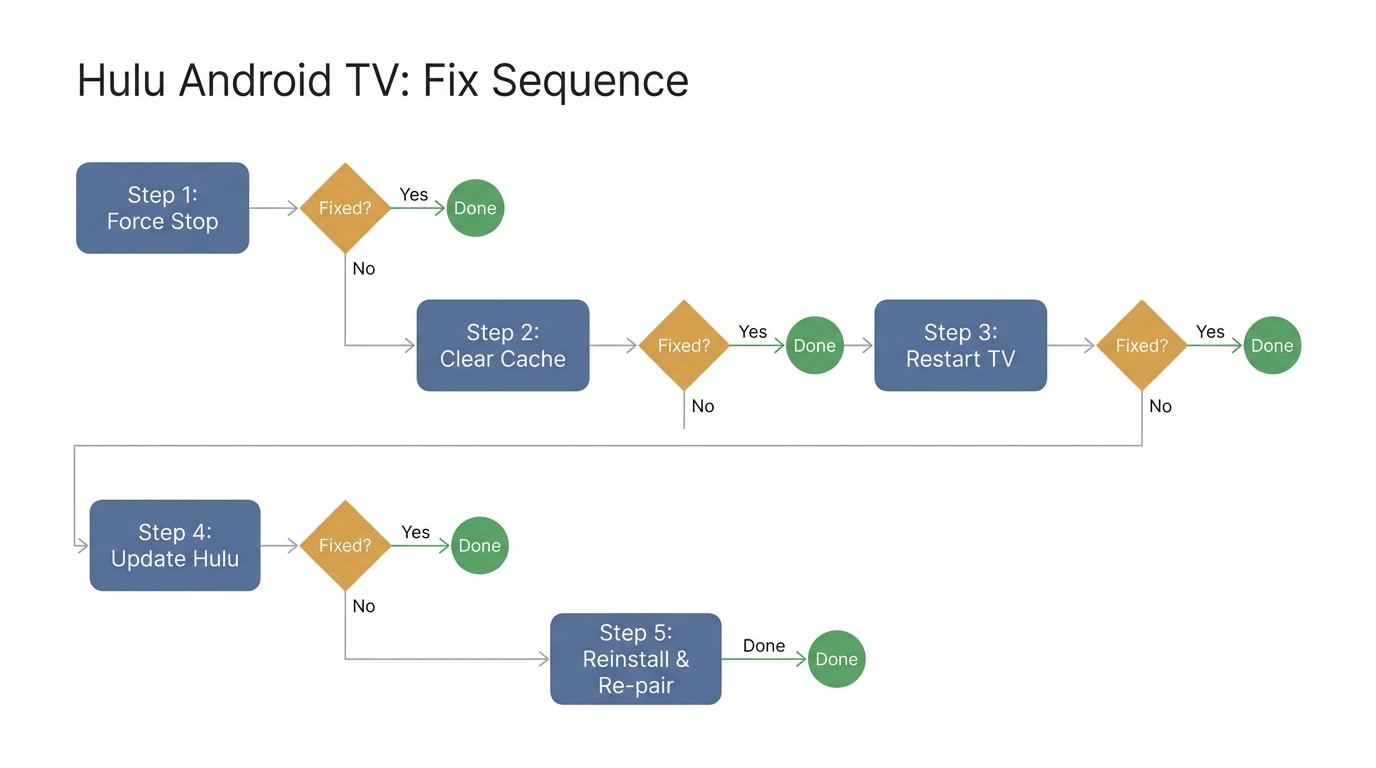
Now the unpleasant part. The Hulu for Android TV app sits at 2.4 stars on the Play Store, and the pattern in the reviews is consistent: a few days or weeks after an update, the app starts launching to a black screen, or freezes on the home rail, or quits during playback. My repair order, least-destructive first:
- Force-stop the app from Android TV's app-info screen. Free, and frequently enough.
- Clear cache (not data — data is your login). Cache corruption from a partial update is the most common cause.
- Restart the TV. Power-cycle, not standby. Several Android TV vendors don't fully re-init the streaming stack on standby exit.
- Update Hulu to the latest version. Sometimes the update is itself the fix.
- Reinstall and re-pair. Last, on purpose — re-pairing takes longer than people expect. You'll be back at hulu.com/start/androidtv entering a fresh code, and on some Hisense sets the launcher caches the old app's stub so the new install gets shadowed. Reinstall is the right answer about one time in five for this issue; defer it until the cheaper steps have failed.
If your box can't see Hulu in the Play Store at all, you're not in this section — you're in the next one.
Hulu APK Download: When the Play Store Doesn't Have Hulu
A quick note before the steps: this section assumes you already hold a valid Hulu subscription but your device or region hides the Play Store listing — it isn't a method to access Hulu without an account. Two situations make the listing disappear: you're outside the United States, or your Android box failed Google's certification check. The APK route solves discovery; it doesn't change either underlying condition.
Why Hulu disappears from your Play Store (US geofence + Google device certification)
There are two distinct causes here, worth keeping separate. The first is Hulu's geofence: as one Quora answer put it, "Hulu is geofenced: officially available only in the United States." Outside the US, the Play Store hides the listing and Hulu's signup flow rejects non-US billing details, so a VPN alone isn't enough. The second is Google's device-certification check: "Devices that fail Google certification...are blocked from some Play Store listings." That's the case on cheap "4K Android TV" sticks sold on Amazon and Walmart that copy the Google TV look without paying for certification, and on custom-ROM phones running LineageOS without Google Mobile Services. The listing isn't gone — your device just isn't on Google's allowlist.
Where to get a Hulu APK without burning your account
The reputable sources are APKMirror and Uptodown. Both publish the official, Disney-signed Hulu build — they verify the signing certificate against the Play Store binary, so you're installing the same APK Google would have served, just side-channel.
As of writing, Uptodown's listing (hulu.en.uptodown.com) shows version 6.30.0+, updated 2026-06-05. Between the two, APKMirror is the one I default to: its version history goes back further, its signature-mismatch warnings are louder, and the download path has fewer banner-ad detours. Uptodown is fine — arguably better for older devices because it keeps deeper archives of legacy versions — but the ad experience is heavier. Avoid every other APK aggregator. The bait-and-switch sites are how people end up with repackaged builds that exfiltrate session tokens; same icon, different code, none of it good.
Sideloading on an uncertified Android TV box, step by step
- Settings → Device Preferences → Security & restrictions → Unknown sources → ON (path varies slightly by vendor; on some Hisense sets it's nested under "Apps").
- Install a file-manager app from the Play Store. X-plore is one I keep coming back to.
- Download the APK on a PC, drop it on a USB stick, plug it in, and open it through the file manager. Or sideload via ADB if you've already got that set up.
- Install. Sign in.
Two honest caveats. First, app updates won't auto-arrive — without Play Store linkage, you're back on the same APK source every few months to pull a fresh build. Second, an uncertified box almost certainly doesn't carry Widevine L1, so even after the app installs and signs in, your effective playback ceiling is Widevine L3, which Hulu serves at 480p regardless of plan tier. The sideload solves discovery. It doesn't fix certification.
That covers the install side. The download side, even when it works, has limits that catch people out.
What 'Downloads' Really Mean on Hulu's Android App
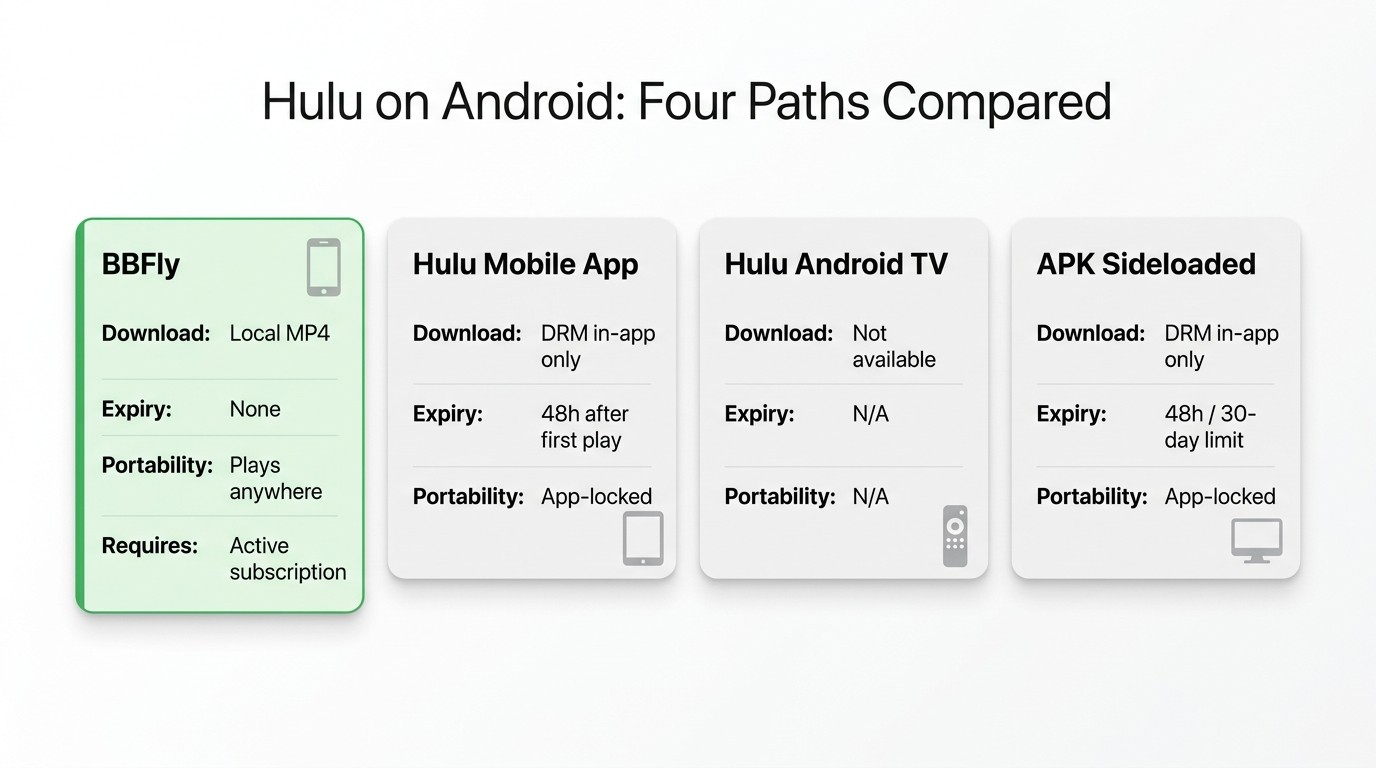
I'll put this plainly: Hulu's in-app downloads are short-term licenses, not files you own. They live on your phone, they're DRM-locked to the Hulu app, and they expire on a timer you can't pause. If you've spent any time downloading on Netflix, Disney+, or Prime Video, the rules will feel familiar — Hulu's are just a bit stricter at the edges, and they only work in one place.
Only the No Ads plan downloads — and only on Android phones and tablets
To repeat the gate from earlier in different words: ad-supported Hulu plans get zero offline downloads. The No Ads ($17.99/mo at time of writing) and No Ads + Live TV tiers are the only ones that show a download button at all. And the download feature exists only in the Android mobile app — not the Android TV app, not the web on a laptop, not Hulu on a Smart TV. If you ever wondered why your Sony Bravia has no download button after a successful Hulu install, that's why.
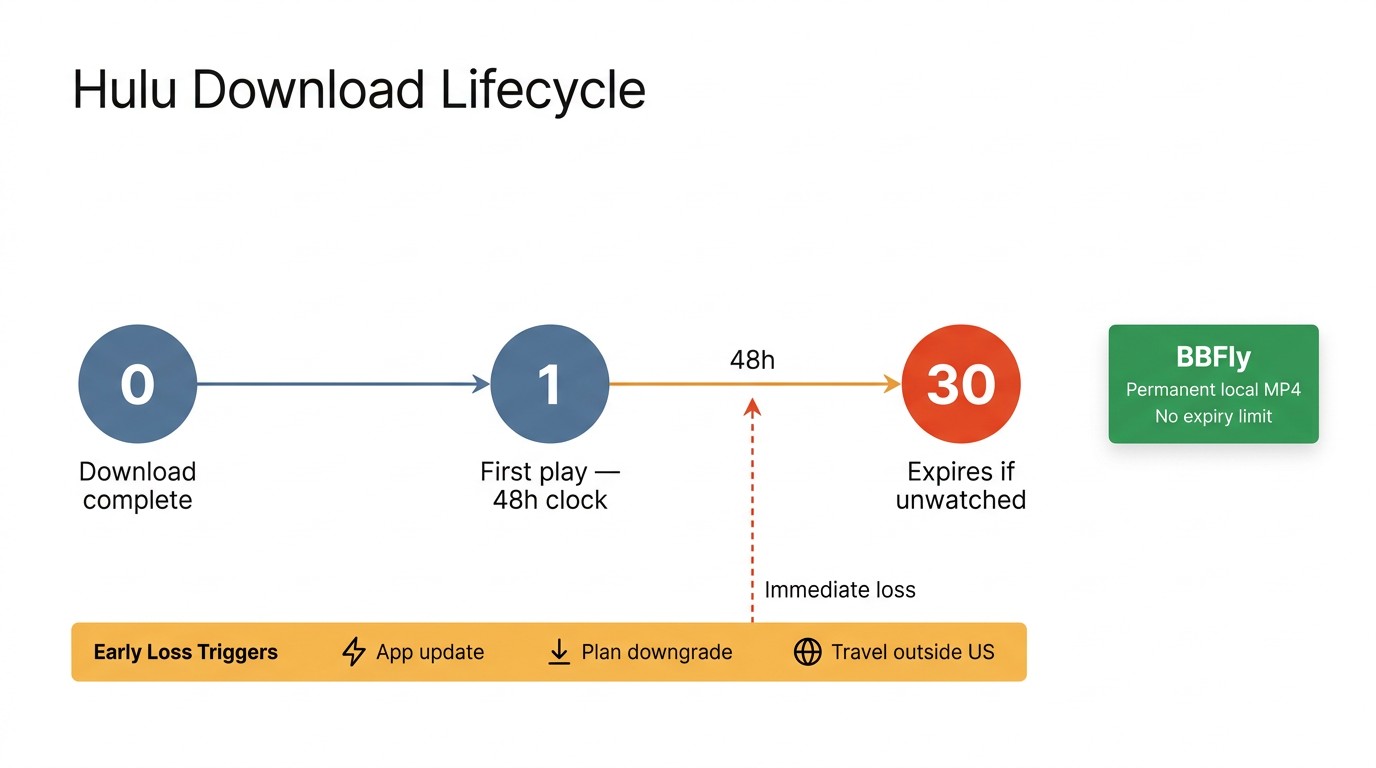
30-day shelf life, 48-hour playback window, and the 25 / 5 cap
Three timers, all running at once:
- A downloaded title expires 30 days after you save it if you don't press play.
- Once you press play, a 48-hour clock starts — the file stops after that, regardless of how much you've watched.
- You can hold at most 25 downloads across at most 5 devices at any time.
Hulu also doesn't batch — each episode is a separate manual tap, which on a 10-episode season is a real annoyance. The 48-hour window is the one that catches frequent travelers: a Sunday download is dead by Tuesday morning if you started watching on Sunday night. These aren't yours in any normal sense of the word — they're rentals dressed up as downloads.
When the downloads disappear: app updates, plan downgrades, leaving the US
Three failure modes the help docs don't headline. First, major Hulu app updates have historically wiped previously-downloaded content — not always, but often enough that I no longer trust a download to survive an app update on the eve of a trip. Second, downgrading from No Ads to an ad-supported plan deletes every download immediately. Third, the offline file still does an occasional license check, and that check fails outside the US — you can fly to Heathrow with a fully-downloaded movie and find it won't play when you open the app. Combined, these are why the "permanent local file" question keeps coming up among Hulu's heavier users.
Table — Hulu on Android: how each path actually behaves
| Path | Where it runs | Devices covered | Download mode available | File portability |
|---|---|---|---|---|
Hulu mobile app (com.hulu.plus) |
Android 5.0+ phone or tablet, US account | Most Google-certified Android phones and tablets | In-app DRM download (No Ads plan only) | None — file is DRM-locked to the Hulu app, expires 48h after first play or 30 days unwatched |
Hulu for Android TV (com.hulu.livingroomplus) |
Google-certified Android TV 4.4+ — Sony, Hisense, Nvidia Shield, etc. | Certified Android TVs only | No — download feature is mobile-only | N/A |
| Hulu APK sideloaded (APKMirror, Uptodown) | Uncertified Android TV boxes, or non-US Android devices | Devices the Play Store hides Hulu from | In-app DRM download if the APK authenticates; Widevine L1 not guaranteed (often falls back to L3 / 480p) | None — same DRM model as the official app |
| Third-party Hulu downloader on a paired PC/Mac | Windows or Mac, alongside an active Hulu subscription | Output plays anywhere — Android, iOS, Smart TV via USB, Plex, NAS | Permanent local MP4 or MKV; batch download by season; subtitle and audio language preserved | Yes — standard MP4 / MKV, no expiry, plays in VLC / Plex / Infuse / any media server |
Sources: Hulu Help Center (supported Android, supported Android TV, downloads); Google Play listings for com.hulu.plus and com.hulu.livingroomplus; Uptodown Hulu APK page; BBFly Hulu Downloader product specifications.
BBFly Hulu Downloader: Saving Hulu Episodes as Permanent Local MP4 Files for Personal Offline Viewing
Please note: Third-party downloaders sit outside Hulu's Terms of Use. Keep any files you save for your own personal, offline viewing of content you actively subscribe to, and don't redistribute or resell them. Where Hulu's in-app download works for your device and timeline, that's the most worry-free route.
The reason I bring up a desktop path at all is the table above. The 30-day shelf life, the 48-hour playback window, the no-batch one-by-one taps, and the lack of any way to move a file off the phone — those are the underlying problems for anyone using Hulu for Android downloads seriously.
BBFly Hulu Downloader is a Windows/Mac desktop tool that runs alongside an active Hulu subscription and produces a local MP4 or MKV file from that subscription. Mapped against the three pain points from the previous section: the file doesn't expire (the 30-day and 48-hour clocks are gone), batch downloading by season turns a 10-episode tap-fest into one queue, and a plain MP4 plays in VLC, Plex, Infuse, on a Smart TV via USB, or copied to a NAS. Subtitle tracks, audio-language tracks, EAC3 5.1 audio, and the title's metadata are preserved.
It's not an Android app, and it doesn't replace your subscription — it sits on the desktop next to it. BBFly's free trial covers three complete titles per platform, so you can verify the full download quality and subtitle sync on a real episode before paying anything.
FAQ: Hulu on Android
Is Hulu available on Android outside the United States?
Officially, no — Hulu is geofenced to the US at signup and at the IP layer, and the Play Store hides the listing outside the country. A VPN can route around the listing block, but Hulu's account-creation flow still requires US billing details, so the practical answer for non-US readers is "not without a US subscription you already have." Sideloading the APK and routing your traffic through a US connection works if you already pay for Hulu and you're traveling; it doesn't get a non-subscriber in.
Why are my Hulu downloads not working on Android?
Three causes account for almost every case: plan tier (the ad-supported tier cannot download anything), Android version (the download feature needs Android 7.1 or newer), or the 25-download / 5-device cap (deleting older downloads frees the slot). If none apply, clear the app cache, update Hulu, and restart the phone — Hulu's own troubleshooting order. A persistent failure after that is almost always a license-check failure; signing out and back in clears it.
How long do Hulu downloads last on Android, and what happens if I cancel?
A download expires 30 days after you save it if you never press play, and 48 hours after the first press regardless of how much you've watched. If you cancel your Hulu subscription, the downloads on your phone stop playing within about 24 hours — the offline file checks back in periodically, and the check fails once the subscription lapses. There is no grace period beyond that.
Can I watch Hulu downloads on an airplane?
Yes, if three conditions hold: you pre-downloaded on the Android mobile app while connected, you're still inside the 48-hour playback window from the first press, and Airplane Mode doesn't trigger an unscheduled license re-check (it usually doesn't, but I've seen it happen after a Hulu app update the day before a flight). For predictable long-haul viewing where a re-check could end the trip, a permanent local file on a laptop or tablet is the path that doesn't depend on Hulu's license server being reachable mid-flight.
Does Hulu work on Amazon Fire TV or non-Android streaming boxes?
Yes for Amazon Fire TV — Hulu publishes a dedicated Fire TV app in the Amazon Appstore, separate from both Android Play Store listings, and it's the cleanest non-Android-TV path for living-room Hulu. Roku, Apple TV, Xbox, and PlayStation all have native Hulu apps as well, separate from Hulu for Android TV. Generic "4K Android TV" boxes branded to look like Fire or Roku clones aren't covered by any of those — those are sideload territory; see the APK section above.
Is it safe to log into Hulu inside a third-party downloader?
It depends on the tool, and the honest answer is: not all of them — but the reputable ones are fine. My filter, after years of testing this category: I want a published company entity I can look up, a privacy policy I can actually read, and a signed binary that Windows or macOS doesn't quarantine on first launch. That filter alone rules out about ninety percent of "Hulu downloader" forum links — the cracked builds, the unsigned executables on no-name file hosts, the ones with no company information anywhere on the site. The established desktop tools handle sign-in the way a normal app does: token-based session, no plaintext password on disk. The risk that matters here isn't the category. It's the bottom of the category.