
Download Amazon Prime Movies to PC: BBFly Downloader is the Effective Way
Table of Contents
Direct answer: Yes — through the official Prime Video for Windows app from the Microsoft Store. The browser player has no download button, the Mac app is fragile, and every official download expires within 30 days (48 hours once you press Play) and is locked inside Amazon's DRM container.
The most upvoted Quora answer to this question still reads: "Amazon does not permit Prime Videos to be downloaded to a PC." It's wrong, but I understand why people believe it. The download button does not live on primevideo.com — it lives in a separate Windows app Amazon does not surface from its main site. There is a path. There are three catches the help page buries. For anyone who wants files they actually keep, there is a workaround.
Downloading Amazon Prime content to a PC is possible — but the official path has three time-locked catches most users discover only after the fact.
Quick Answer: Yes, You Can — But There Are Three Catches
Can you download Amazon Prime movies and shows to a computer? Yes, on Windows, using the official Prime Video for Windows app from the Microsoft Store. The web player at primevideo.com has no download option. Mac, browser, and Linux users have no first-party download path.
Three catches define the official route:
- Expiration. A downloaded title gives you 30 days to press Play. Once you do, 48 hours before it stops playing — even with Wi-Fi on the whole time.
- DRM. The saved file is wrapped in Amazon's proprietary container. VLC will not open it. Copying it to a USB stick or another laptop produces a file that refuses to play.
- Mac silent failures. The macOS Prime Video app exists, but the most-cited forum thread on the subject is full of users whose downloads produce a 0-byte file with no error. As one Quora answer notes: "On macOS there is no native Prime Video downloader; the official offline option is limited."
If those constraints are tolerable, the Windows app does the job. Otherwise, skip to the workaround section.
If you also stream on phones, tablets, or a Fire Stick, our complete guide to downloading Amazon Prime Video to any device covers every platform in one place.
Setting Up Prime Video for Windows from the Microsoft Store
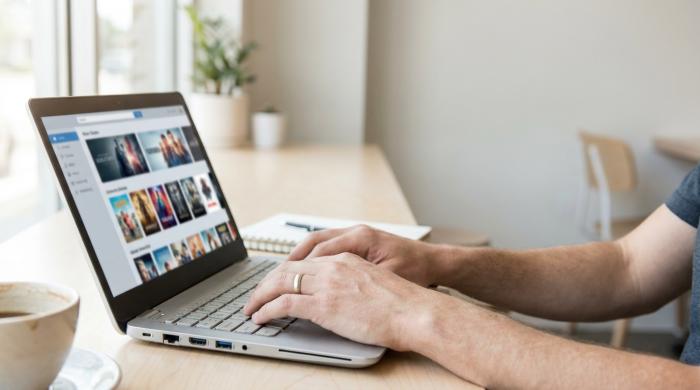
The download button lives in the Microsoft Store app, not the Prime Video website — and it only works on Windows.
How do I install the Prime Video app on my Windows PC? Open the Microsoft Store, search for "Prime Video for Windows," and click Install. Per the Microsoft Store listing, the app is published by Amazon Mobile LLC and runs on Windows 10 build 17134 or later.
The trip-up is which app you actually install. Searching Amazon's own site for "download to PC" sends you to a Help page that describes the Windows app but does not link to it. The clean route is the Microsoft Store listing — confirm the publisher reads "Amazon Mobile LLC" and the title is "Prime Video for Windows." Anything else with a similar name is a third-party shell.
After install:
- Launch the app from the Start Menu.
- Sign in with the same Amazon account you use for Prime. Watchlist and playback progress sync across devices.
- Under Settings → Country, confirm the catalog you want (titles vary by region).
- Grant the app the Movies & TV Videos library permission — this is what lets it register downloads with the OS.
That last step is what separates a working install from one that silently refuses to start downloads. The Microsoft Store installer handles it automatically; sideloaded builds sometimes leave it unset, producing the symptom users mistake for a "broken app."
How to Download Amazon Prime Movies and Shows on Your PC: Step-by-Step
How do I download a movie or show in the Prime Video Windows app step by step? Sign in, open a title's detail page, click the download arrow, and pick Good, Better, or Best. The file queues into the app's Downloads section. You cannot choose a destination folder, and what you end up with is not a video file in the usual sense.
Step-by-Step: From Microsoft Store to Saved Title
- Launch the app and confirm the profile icon (top right) — download caps are charged per account.
- Find the title through search or your watchlist. The download arrow only appears on a title's detail page.
- Open the title page. For shows, grab a whole season (pick the season, then "Download Season") or download episodes one at a time.
- Click the download arrow next to "Watch Now."
- Pick a quality tier — Good, Better, or Best — and confirm.
- Watch the queue in the Downloads sidebar. Sleep does not abort an in-progress download; closing the app does.
According to Amazon's Help Center, Prime accounts carry a cap on simultaneous offline titles, typically 15–25 depending on title rights. Hitting the cap returns an error rather than a queue.
Good / Better / Best: What the Three Quality Tiers Actually Deliver
Amazon does not publish a public spec sheet for these tiers, and the numbers shift across app versions. The closest reliable figures come from community measurements:
| Tier | Approx. resolution | File size / hour | Audio / subtitle | Best for |
|---|---|---|---|---|
| Good (Datasaver) | ~360p | ~0.36 GB | 1 audio, 1 subtitle | Metered internet, small drives |
| Better | ~480p | ~0.50 GB | 1 audio, 1 subtitle | Laptop offline viewing |
| Best (Highest) | 720p–1080p, capped | ~1.86 GB | 1 audio, 1 subtitle | External display, archive |
Source: from community measurements, Amazon's Help Center confirms only the tier names. Worth knowing: "Best" is not "1080p." The Windows app caps Best per-title, and many catalog titles never reach true 1080p offline — the resolution you watch during streaming is often higher than the download stores.
Where the Windows App Hides Your Downloads
The Windows app writes to its sandboxed package storage, roughly:
C:\Users\
The package identifier changes per app version. The folder opens, but the files inside are encrypted blobs, not video files. VLC, MPC-HC, and PotPlayer all refuse them. Copying one to another folder, account, or machine produces an unplayable file — the decryption key lives in the app's local profile, tied to the signed-in account on that install.
Three Catches the Help Page Buries: Expiration, DRM, and Mac's Silent Fail
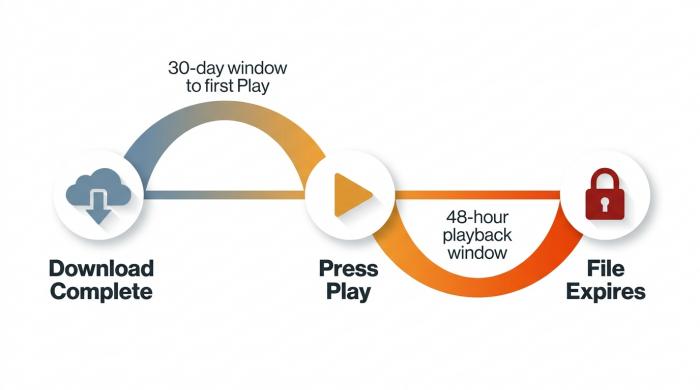
Two clocks run in sequence: 30 days to press Play, then 48 hours before offline access ends — whichever runs out first wins.
Why do Amazon Prime downloads expire and refuse to play outside the app? Amazon's content licensing requires time-bound offline access and encrypted storage. The 30-day / 48-hour clock satisfies the license; the DRM satisfies the studios. None of it appears prominently in the Help Center, but each catch is deliberate.
The 30-Day Start Window and 48-Hour Playback Clock
Per Amazon's Help Center, a downloaded file is valid for 30 days from the moment the download completes. The moment you press Play, a second clock starts: 48 hours. After that, the file refuses to start regardless of whether you finished. Re-downloading the same title against the same account does not reset the clock. This dual-timer is what makes the Windows app unsuitable for archival — not unreliable, just not designed to keep anything.
DRM Lock: Why a Downloaded File Is Not a Video File
A Quora answer puts it bluntly: "files are not accessible as normal video files." That is precise. The blob is a proprietary container with a Widevine-class DRM layer. The Windows app reads it; nothing else does. You cannot copy the file to a phone, burn it to a disc, or hand it to a TV's USB port. Backups are worthless — restored to a different machine, the same file will not play.
Mac Reality: macOS 11.4+, 0-Byte Downloads, and Hidden Storage
Mac is the worst-supported computer for Prime Video downloads. The macOS app exists, but every part of it is fragile.
The canonical reference is a long-running thread on the macpowerusers forum. The original poster: "all videos fail to download on my Mac (0 bytes)." A reply confirmed the cross-device weirdness: "The same videos download fine on my iPad on the same network." The pain is sharper because Mac users are already on a larger screen — one wrote, "I'd rather watch them on the 16\" screen of my MacBook Pro than the 10,5\" screen." Amazon's implicit workaround is "use an iPad instead."
Requirements: macOS 11.4 or later. Downloaded files live in a sandboxed Application Support folder that is not user-browsable. When downloads silently fail, the only known recovery is to uninstall, clear the sandbox, and reinstall — and even then, forum-reported success rates run well under half.
Building a Permanent Local Library: The Third-Party MP4 Workaround
How do I keep Amazon Prime downloads permanently as MP4 files I actually own? The official app cannot do it. A third-party streaming downloader records the playable stream from your authenticated session and saves it as a plain MP4 or MKV — no expiration timer, no app-locked container. (Personal use only — keep these files for your own offline viewing; redistributing or hosting them publicly violates Amazon's terms.)
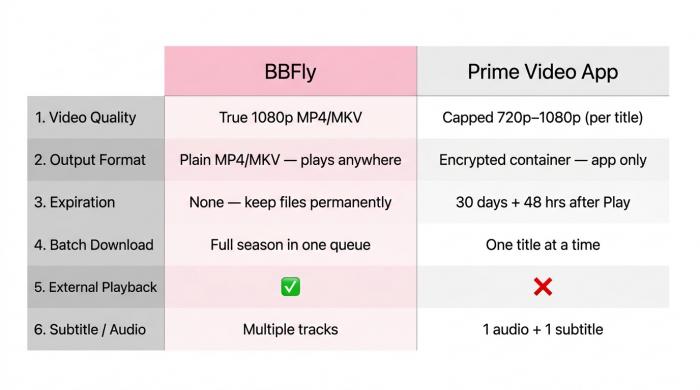
Six criteria where the official Windows app and BBFly diverge — the four right-column gaps are the reasons third-party tools exist.
What a Third-Party Downloader Adds That the Official App Cannot
The four gaps in the official path map to four features:
- True 1080p MP4 or MKV output, instead of the per-title-capped Best tier.
- Batch download of a full season or watchlist in one queue, instead of one click per episode.
- No expiration timer. The output is a plain file. It plays in VLC, on a phone, on a TV's USB port.
- Multiple subtitle tracks and audio languages preserved, which the Windows app collapses to one of each.
BBFly Amazon Downloader is the streaming downloader I keep installed for this. Its job is narrow: produce a plain MP4 or MKV from Netflix, Disney+, and Amazon Prime sessions the user is logged into, with batch queues and ad-skipping built in. The honest framing: this is a workaround for viewers who want to keep what they have lawful access to. It does not replace a Prime subscription, and it does not unlock content the account cannot already stream. For anyone tired of the 48-hour clock, it is the only category of tool that solves the actual problem.
FAQ: Mac, Permanent Downloads, and Subscription Cancellation
The most common questions cluster around Mac support, expiration, and what happens after you cancel. Short answers below.
Can I download Amazon Prime Video to my Mac permanently?
Not with the official app. The macOS app is documented to produce 0-byte downloads with no error, and even when it works, the files inherit the same 30-day / 48-hour clock as Windows. A permanent Mac copy requires a third-party MP4 path, used personally.
For a full walkthrough of the Mac-specific steps and third-party options, see our dedicated guide on how to download Prime Video to Mac.
How long do Amazon Prime Video downloads last before they expire?
Per Amazon's Help Center: 30 days from download completion to first Play, then 48 hours once Play is pressed. Whichever clock runs out first ends offline access. Re-downloading does not reset the timer.
How can I keep Amazon Prime downloads permanently without expiration?
The official app cannot. A third-party streaming downloader produces a plain MP4 or MKV outside the app's DRM container, with no expiration timer. Keep these files for personal offline viewing only.
Where are Amazon Prime Video downloads stored on a PC?
Inside the Windows app's sandboxed package at roughly C:\Users\. The ID changes by version. Files are encrypted and will not open in VLC or play if copied off.
What happens to Amazon Prime downloads if my subscription ends?
Active downloads stop playing the moment Prime lapses, even if the 30-day window has not expired. Titles purchased outright can also lose offline access if Amazon's catalog rights change — the file stays on disk, but the app refuses to decrypt it.
How many videos can I download on Amazon Prime?
The Help Center notes a per-account cap, typically 15–25 simultaneous offline titles depending on rights and region. Once you hit it, the app refuses new downloads until you delete or finish existing ones.