
Disney Plus to MP4 in 2026: Official Limits vs Tested Ways
Table of Contents
Disney+ does not let you export an MP4 directly. The official app keeps every download encrypted inside the iOS, Android or Fire OS client, caps an account at 25 titles, and expires the files after 30 idle days. To produce a standard .mp4 or .mkv from a Disney+ title you have an active subscription to — one that plays in VLC, lives in Plex, or survives a USB jump to a Smart TV — you need a third-party desktop tool.
I've spent fifteen years moving a personal film collection between formats — DVD rips, Blu-ray remuxes, a Synology running Plex with Infuse on the living-room TV. When Disney+ launched, the first thing I tried was the obvious move: download an episode in the app, drop it into Plex. There is nothing to drop in. The official Disney+ download isn't a file — it's a 30-day rental glued to a phone, and Disney can deactivate it the moment they lose the licensing deal. The shortcuts the internet suggests — OBS, QuickTime, online converter pages, browser extensions — I've put each one against Disney+, and the polite version of what they hand back is a black rectangle with clean system audio on top.
Disney Plus to MP4: The Short Answer in 2026
No — not from inside the official Disney+ app. In-app downloads run on iOS, Android, and Fire OS only; the files stay encrypted inside the app, expire after 30 idle days or 48 hours of first play, and never appear on disk as a regular MP4. To end up with a standard .mp4 or .mkv — one that plays in VLC, indexes into Plex, and survives Disney pulling the show from the catalog — you have to download through a desktop tool on Windows or macOS while signed in with your own active subscription. Everything else either fails outright on Disney+'s protected playback or hands back a degraded copy of whatever leaks past.
Why Disney+ Won't Give You an MP4 — Official Limits and the Workarounds That Fail
Disney+ deliberately ships no PC or Mac download path. The official client treats downloads as a managed, encrypted offline cache — not a file you own — and the mobile rules are restrictive enough that the desktop absence reads as a design choice, not an oversight.
Official Downloads: Mobile-Only, App-Locked, and on a 30-Day Leash
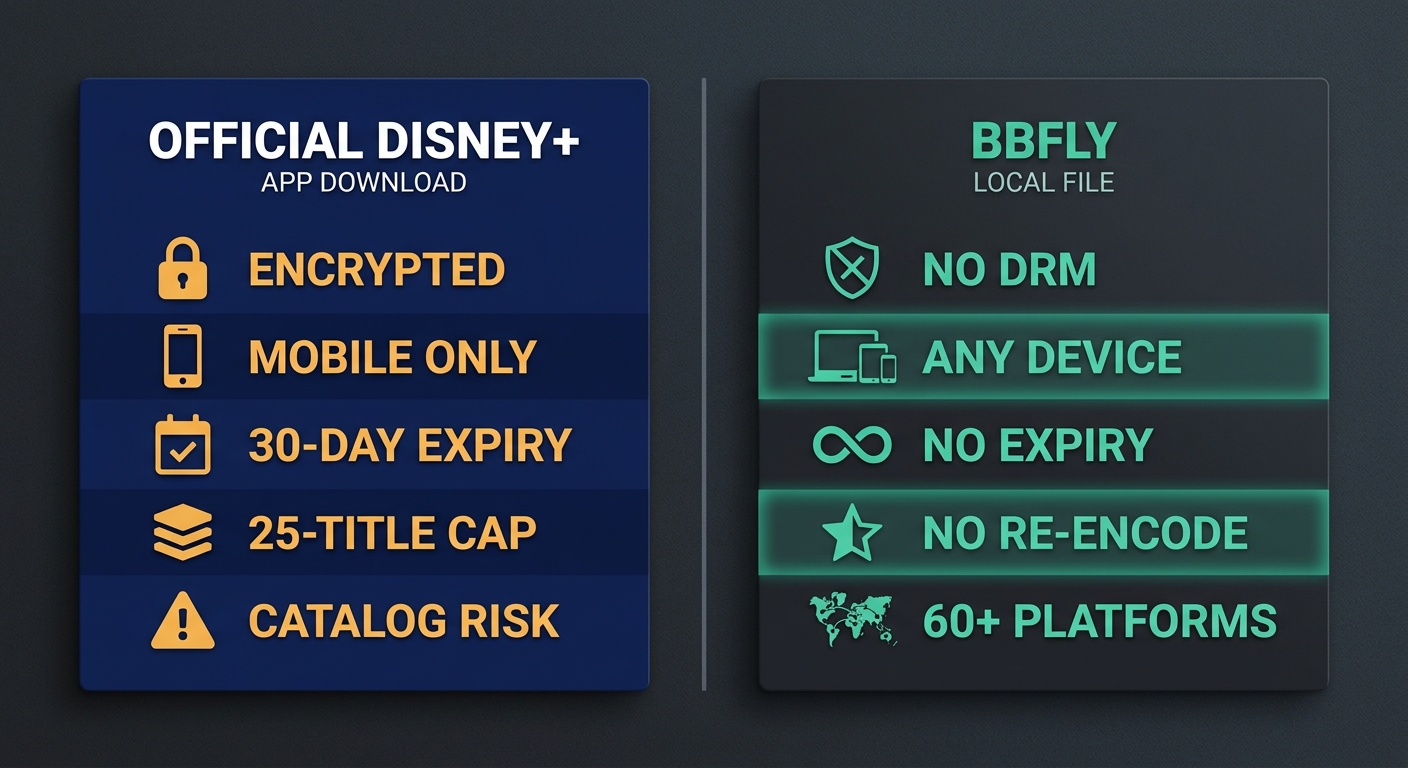
Per Disney+'s Help Center, in-app downloads run on iOS, Android, and Fire OS only — no Windows, no macOS, no smart-TV path. Downloads are gated to the Premium (ad-free) tier; the Standard with Ads plan can't download at all. Each account is capped at 25 titles across up to 10 mobile devices, files expire 30 days from download or 48 hours from first play, and the device has to check in online at least every 30 days or the file deactivates. If Disney drops a title from the catalog, your downloaded copy stops playing within hours.
The first time I tried to lift an official Disney+ download out of an Android tablet and into Plex on my Synology, I learned what most NAS users learn: there is no file to copy. The downloaded blob lives inside the app's sandbox and isn't a container any external player can read — Plex won't index it, Infuse won't open it, a USB transfer to a Smart TV does nothing. Verify current rules on the official Disney+ help page before relying on any of the above; Disney has tightened them more than once.
Why Screen Recording, Online Converters, and Browser Extensions Don't Produce a Real MP4
Every Disney+ player target runs through a protected playback path. OBS on Windows and QuickTime's screen recording on macOS both capture a black frame where Disney+ is playing, while system audio keeps recording — a uniquely useless artifact. I have a folder of those from 2023: ninety minutes of clean dialogue over a black rectangle. The "paste your Disney+ URL into our converter" sites never had access to the encrypted stream, so they hand back either a low-resolution trailer scraped from elsewhere or a .mp4 shortcut that redirects to their installer. Browser extensions get blocked at the player layer the same way screen recorders do. None of these produce a working MP4 of the actual title.
Official Disney+ Downloads vs Local MP4/MKV Files — Side by Side
| Dimension | Official Disney+ download | Local MP4 / MKV file |
|---|---|---|
| Platforms supported | iOS / Android / Fire OS only (no PC/Mac) | Windows + macOS desktop |
| Plan eligibility | Premium only; Standard with Ads locked out | Any active Disney+ subscription |
| File location | Encrypted, inside the app sandbox | Standard .mp4 / .mkv on disk |
| Expiry | 30 days idle / 48 hours after first play | Does not expire (personal-use file) |
| Online check-in | At least every 30 days | Not required to play |
| Title cap | 25 titles across all devices | No software-imposed cap |
| Catalog removal | File deactivates when Disney pulls the title | File unaffected |
| Output containers | None (no exportable file) | MP4 / MKV |
| Maximum resolution | Up to 1080p, mobile-only, varies per title | Up to 4K with HDR10 / Dolby Vision where the source supports it |
Sources: Disney+ Help Center as of June 2026, BBFly's published Disney+ specs. Per-title 4K/HDR availability follows Disney's catalog and may change.
How BBFly Saves Disney+ Titles to MP4 for Personal Offline Viewing
Please note: A third-party Disney+ downloader is intended for personal, offline viewing of titles you have an active Disney+ subscription to. Keep the files for your own use, don't redistribute or upload them, and check your local copyright rules — the legal frame for personal offline copies varies by jurisdiction. Where Disney's official mobile download fits, that's the most worry-free route.
BBFly Disney Downloader is the desktop tool I keep going back to for Disney+, because it produces a standard MP4 or MKV — not a re-encoded screen recording — and runs on Windows and macOS, exactly where the official client doesn't.
Four-Step Workflow
- Install BBFly for Windows or Mac and sign into Disney+ inside its built-in browser with your own account.
- Pick a title and choose output: MP4 or MKV, the resolution offered for that title, the audio track, the subtitle languages.
- Queue a single episode, a full season, or a batch of titles.
- The file lands on disk as a standard
.mp4or.mkv— VLC plays it, Plex indexes it, an external drive carries it to a TV.
What This Workflow Is — and Isn't
This is an offline-backup tool for someone who already pays Disney+ and wants the resulting file to behave like the rest of their media library. It is not a way around the subscription itself; you sign in with your own account, and a lapsed subscription means no new downloads. BBFly's 30-day trial lets you keep 3 full titles per platform so you can verify real content — not a five-minute clip — before paying.
Disney Plus to MKV or MP4: Which Container Should You Pick?
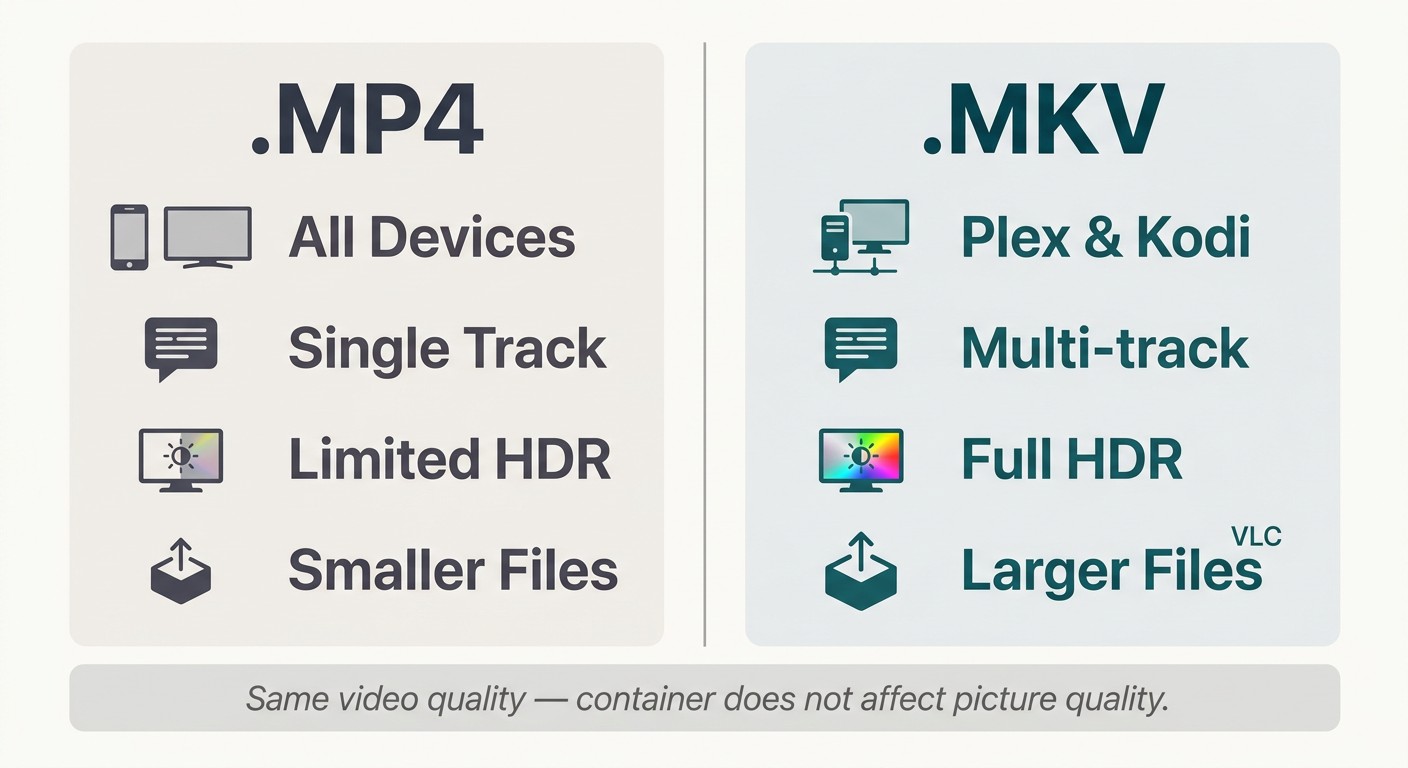
MKV if you keep your own library, MP4 if you're handing the file to someone else's device. Both can hold the same H.264 or H.265 video stream — choosing between them is about subtitle tracks, audio tracks, and metadata, not picture quality.
Pick MP4 When…
MP4 plays directly on iOS and Android without extra apps, on Apple TV via AirPlay, on Smart TVs through USB, and in nearly every browser. Hand a file to a parent's iPad, drop one on a thumb drive for the living-room TV, AirDrop one to a stock macOS user — MP4 won't make them install anything. Stick with MP4 when you only need one audio track and one subtitle stream.
Pick MKV When…
MKV is the container I run my own Disney+ archive in. It carries multiple audio tracks, every subtitle language Disney offers for the title, and chapter markers — all in one file, no sidecars to keep in sync. Plex, Infuse, Kodi, and VLC all read MKV cleanly; NAS metadata scrapers prefer its embedded language tags. My main library on the Synology is MKV without exception — the only files I export as MP4 are the ones I'm about to hand to someone outside my household. If storage is tight, H.265 (HEVC) runs inside either container; the size savings at the same visible quality are real.
FAQ: Disney+ Downloads, MP4 Output, and Personal-Use Boundaries
Can I download Disney+ on a laptop or PC?
Short answer: no — not in any official sense. Per the Disney+ Help Center, downloads are limited to iOS, Android, and Fire OS, and only on the Premium ad-free tier; there is no Windows or macOS path. On Windows and macOS, the only way to end up with a local file is a third-party desktop tool like BBFly.
Is it legal to download Disney+ to MP4 for personal use in the US?
I won't give you a yes-or-no, and you should be cautious of anyone who does. US copyright law generally permits personal, non-commercial offline viewing of content you have legitimately subscribed to; it does not permit redistribution, resale, public showings, or uploads. Separately, downloading outside the official app may conflict with Disney+'s Terms of Service — a contract issue between you and Disney, not a criminal one. For a definitive answer, read Disney+'s current Terms of Use and consult current US copyright guidance. My working assumption after fifteen years of personal NAS use: a single offline copy for my own viewing — fine; redistribution, public showing, resale — never.
How long do my downloaded MP4 / MKV files last?
Official Disney+ in-app downloads expire after 30 idle days, 48 hours after first play, and require a license check at least every 30 days. A local .mp4 or .mkv on disk does not expire — it's a standard file on your storage. That permanence is the real reason most people search for this: a file that outlasts a renewal slip, a catalog removal, or a phone switch.
Can BBFly download Disney+ in 4K with Dolby Atmos and HDR?
Short answer: yes — but only for the catalog titles Disney actually masters that way, which isn't all of them. Per BBFly's published Disney+ specs, output goes up to 4K with HDR and the original surround audio track preserved; the full codec, subtitle, and metadata support list lives on BBFly's Disney+ specs page. The real ceiling is on Disney's side: not every title is mastered in 4K HDR, and per-title availability follows their catalog and can change. Whichever tool you use, verify the actual resolution of any output file in MediaInfo before assuming the label is real.
Can I play these files in Plex, on a Smart TV, or off an external drive?
Yes — that's the structural difference. A .mp4 or .mkv on disk plays in VLC, Infuse, Plex, Kodi, and on most Smart TVs via USB; the official app's encrypted download cannot. For Plex and NAS users I'd default to MKV with metadata write on; for a single TV via thumb drive, MP4 is usually less trouble.
Does this work with Disney+ Hotstar (India, Indonesia, Japan)?
Short answer: yes — BBFly explicitly lists Disney+ Hotstar in its supported services. Regional Disney+ coverage shifts more than the main catalog does, so verify Hotstar support on whichever tool's specs page you're checking before you commit.