
Prime Video Download Offline: Limits & Workarounds (2026)
Table of Contents
Quick answer: Yes — Prime Video lets you download titles for offline viewing on iOS, Android, Fire Tablet, the Windows Microsoft Store app, and the Apple Silicon macOS app. Browsers, smart TVs, and Apple TV cannot download. Official downloads expire on a 30-day unstarted clock and a 48-hour post-playback clock, and the account cap is 25 titles. For permanent 1080p MP4 copies with no expiry, a third-party downloader is the only route.
Prime Video's offline mode works — within limits most viewers only discover after the timer runs out.
Two clocks start the moment you tap that download icon. One you can see — the 30-day timer until the file disappears unstarted. One you can't — the 48 hours that begin the instant you press Play. Most viewers only learn about the second clock the morning they sit down to finish what they started two evenings ago, and find that the file refuses to play. The Prime Video offline experience is a feature built for one short trip; it was never built for keeping anything.
What Counts as "Prime Video Offline" — and What Doesn't
Yes, you can watch Amazon Prime Video offline — within limits. The official feature lets you save a copy of most titles to your device's local storage so the Prime Video app can play them without a live network. That is what "offline" means here: a file held inside the app on your phone, tablet, or laptop, sealed by DRM, played by Prime Video itself. It does not mean an exportable MP4. It does not mean a file you can email, sideload, or move to a USB stick. It does not mean a copy that survives the next app update or the next DRM check-in. So can I watch Prime Video offline? Yes — on the right device, inside the app, until the licensing clock runs out. Can I watch Amazon Prime offline outside the app or after the timer? Not without a different tool.
Where Prime Video Downloads Actually Work (and Where They Don't)
Amazon Prime offline viewing is supported in exactly five official clients: iOS, Android, Amazon Fire Tablet, the Windows app from the Microsoft Store, and the macOS app on Apple Silicon. Outside those five there is no download path — no browser, no smart TV, no Apple TV, no Chromecast, no Roku. The Prime Video offline viewing surface stops at the app boundary.
The Five Apps Where Downloads Are Allowed
The desktop story traps the most readers. As one Quora user put it to a confused Windows 10 owner: "Amazon Prime Video is now available on Windows 10 — just search for it in the Microsoft Store." Open primevideo.com in Chrome or Edge and you will not find a download icon — the browser experience is read-only by design. macOS works the same way: browser read-only, the Apple Silicon native app from the Mac App Store is where downloads live. Intel Macs predate that native app — the only offline route there is to download on an iPhone, iPad, or Fire Tablet.
Why Some Titles Have No Download Icon
Not every Prime Video title is downloadable. Studios license downloads separately from streaming, so many third-party catalog titles ship streaming-only. Amazon's free ad-supported tier inside Prime Video also excludes downloads. Per Amazon's help center, the presence of the download icon is the only reliable signal — there is no master list of which titles can be saved. If the arrow is missing, the rights are not there.
How to Download Prime Video for Offline Viewing on Every Device
The mechanics of a prime video download offline are nearly identical across devices: find the title, tap the downward-arrow icon, wait for the bar to fill. The differences are setup — which app to install, where the saved files live, and what quality you actually get. (Personal use only: keep downloaded files for your own offline viewing; redistributing, reselling, or hosting them publicly violates Amazon's terms.)
For a deeper look at every method and tool available, our complete guide to how to download Amazon Prime Video covers the full picture beyond the official app. download Amazon Prime Video to any device
On iPhone and iPad
Open the Prime Video app, search for the title, and tap the downward-arrow icon below the play button. For TV shows, you download episodes one at a time — there is no season-level batch button. Manage saved content under My Stuff → Downloads. Default quality lives at Profile → Settings → Stream & Download → Download Quality (Good, Better, Best). Best is the ceiling, and as we will see, not a 4K promise.
On Android Phones and Tablets
The Android workflow mirrors iOS — same icon, same Downloads page, same three-tier quality picker. Android adds one feature iOS cannot match: you can route downloads to an external SD card under Settings → Stream & Download → Download to SD card. Useful when internal storage is tight.
On an Amazon Fire Tablet (the Easiest Path)
Fire OS treats Prime Video downloads as a first-class feature. The download icon behaves like Android, but offline titles also surface in the device's main library by default, not just inside the app. If you keep a Fire HD or Fire Max around for travel, this is the device the offline workflow was built around.
On Windows 10/11 via the Microsoft Store App
The browser path is a dead end. Install the Prime Video app from the Microsoft Store (search "Prime Video"; publisher is Amazon Mobile LLC), sign in, find a title, click the download arrow. Saved content lives under My Stuff → Downloads. Windows 10 and 11 both supported, no version difference.
On macOS via the Apple Silicon Native App
Apple Silicon Macs — M1 and later — get a native Prime Video app through the Mac App Store. Same download icon, same My Stuff → Downloads. Intel Macs do not have access to this app; Amazon never shipped an Intel build. On an Intel MacBook or iMac, the browser cannot download — the honest workaround is to use an iPhone, iPad, or Fire Tablet instead.
The Fine Print: 25 Titles, 30 Days, 48 Hours, and the Quality Ceiling
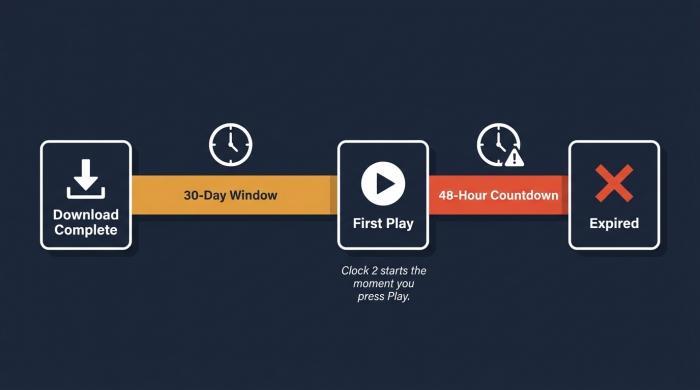
Two clocks start running the moment you download. The second one — 48 hours — starts only when you press Play.
The Amazon prime video download limit is not one ceiling but four stacked on top of each other: 25 titles per account, 30 days before an unstarted file is deleted, 48 hours to finish once playback begins, and a "Best" quality setting that rarely delivers a true 1080p, let alone 4K. Together they describe the user the feature was built for: someone with a single trip in front of them, not someone keeping a library.
The 25-Title Account Cap (and How Auto-Next-Episode Silently Eats It)
The 25-title cap is account-wide, not per-device — switching phones does not reset it. Each episode of a series counts as one title, so a single thirteen-episode season eats more than half the quota in one session. Newer app versions ship with auto-download-next-episode on by default, silently queuing the next few episodes after each one finishes. If you have ever opened Downloads and wondered where the extra episodes came from, that is why. Turn auto-download off under Settings → Stream & Download.
The 30-Day Window and the 48-Hour Playback Clock
The dual countdown is what catches people. As one Quora explanation puts it cleanly: "you'll have 30 days to watch it before it gets deleted… 48 hours to complete it before it expires — and once it expires, you may need to re-download if it's still available." The thirty-day clock starts when the download completes. The forty-eight-hour clock starts the instant playback begins — and it is the one that draws blood. Pause a movie at minute thirty on Monday morning, sit back down Wednesday evening, and the file refuses to play. The DRM license is dead, and only an online check-in can revive it.
The Quality Ceiling: Why "Best" Still Isn't 4K
Amazon prime download quality is the question almost nobody answers plainly. The app exposes Good, Better, and Best — but Best is not 4K. Per Amazon's help documentation, downloaded titles top out at roughly 720p to 1080p, varying with device, HDCP support, title licensing, and subscription tier. A 4K HDR title that streams in 4K HDR does not download in 4K HDR. Calling the top tier "Best" is generous: in practice, what arrives on disk is the result of a chain of conditions the app never surfaces, and you only find out what you got by inspecting the file.
When 30 Days Isn't Enough: BBFly for Permanent 1080p Offline Copies
Inside the official app, the 30-day and 48-hour DRM timers cannot be turned off. For a private library, the official downloads are structurally the wrong tool — they were built for one trip, not for keeping.
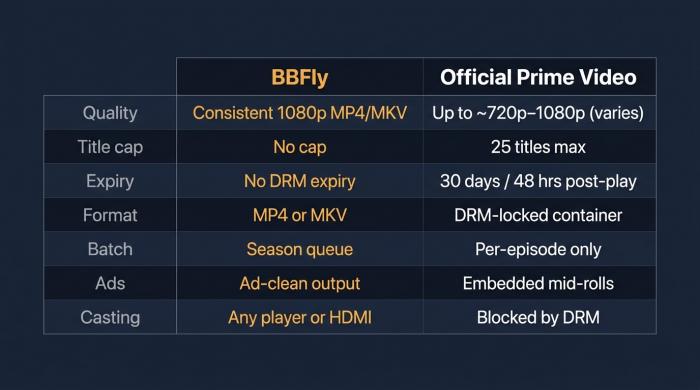
Seven dimensions where the official app's design constraints show up — and where BBFly fills the gap.
What You Actually Get: 1080p MP4 / MKV, Batch Queue, Ad-Clean Output
BBFly Amazon Downloader is a Windows / macOS desktop application that downloads the Prime Video playback stream from titles you have legitimate access to and saves a plain MP4 or MKV. It maps to the four official-app gaps above: consistent 1080p instead of the variable "Best" cap; season-level batch queue instead of per-episode tapping; ad-clean output instead of embedded mid-rolls; and no DRM expiry — the file persists as long as the disk does. (Personal use only.)
Official Prime Video downloads vs. BBFly: feature-by-feature comparison
| Feature | Official Prime Video | BBFly |
|---|---|---|
| Maximum quality | Up to ~720p–1080p (Best setting; device/HDCP-dependent; no 4K) | Consistent 1080p MP4 / MKV |
| Account-wide title cap | 25 titles (episodes count individually) | No platform-imposed cap |
| Expiry after download | 30 days to start; 48 hours to finish once playback begins | No DRM expiry — files persist as long as the disk holds them |
| Output format | DRM-locked app container; not exportable | MP4 or MKV — plays in VLC, on TVs via HDMI, on any media player |
| Batch downloading | Per-episode tap; no season-queue | Season / watchlist queue in a single job |
| Ads in output | Embedded mid-rolls remain in downloaded file (ad-tier titles) | Auto-skip ads during capture — clean output |
| Plays via Chromecast / AirPlay | Blocked — downloads cannot cast | Plays in any local player → cast via standard system tools or HDMI |
Source: Amazon help center; BBFly published specs.
Where BBFly Fits in Your Offline Workflow
BBFly is not a replacement for the official app — it is an extension. Use Prime Video inside its limits; reach for BBFly the moment a constraint — the clock, the 25-title cap, the missing 4K, the locked container — becomes what decides whether you can watch.
Prime Video Offline Downloads: FAQ
Why doesn't the download button appear on every Prime Video title?
Licensing. Studios license downloads separately from streaming, and many third-party titles ship streaming-only. Free ad-supported titles inside Prime Video also exclude downloads. The download icon is the only reliable signal — Amazon does not publish a list, and if the icon is missing, the rights are not there.
Can I cast a downloaded Prime Video file to my TV via Chromecast or AirPlay?
No — DRM blocks casting from downloaded files. The practical workaround is wired HDMI: connect the laptop or phone to the TV with an HDMI or USB-C-to-HDMI cable and play locally. The TV does not care that the source is offline.
What's the maximum download quality, and what does "Best" actually deliver?
No 4K. "Best" caps at roughly 720p to 1080p depending on device, HDCP support, title licensing, and subscription tier. A 4K HDR title that streams in 4K becomes a sub-1080p file once you download it inside the official app.
My downloaded Prime Video expired before I watched it — what happened?
One of two timers ran out — the 30-day unstarted clock or the 48-hour post-playback clock. Re-downloading usually works when the title is still in the Prime catalog, but the timers reset; they do not extend.
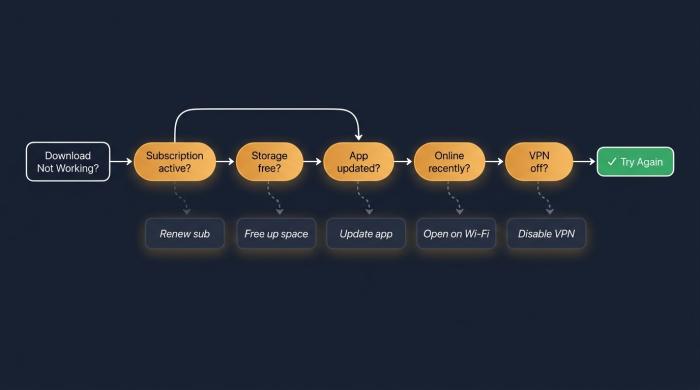
Five checks explain most Prime Video download failures. The VPN check is the most commonly missed silent failure mode.
My Prime Video download isn't working — what to check first
Five checks: subscription active, device storage free, app updated, app opened online recently to refresh the DRM license, and any active VPN turned off. The VPN check is the most common silent failure mode — a VPN session can fail DRM validation on a file that played fine the day before, and the error rarely names it.
Can I prepare Prime Video downloads for a flight with no Wi-Fi?
Yes. Download within the 30-day window, open the app once on Wi-Fi to refresh the DRM license, then verify playback in airplane mode before you board. Leave storage headroom for one extra title, and remember every episode counts against your 25.
Can I keep Amazon Prime Video downloads permanently without them expiring?
Not inside the official app — the 30-day and 48-hour timers are DRM-enforced and have no off switch. The only route to a permanent offline copy is a third-party downloader like BBFly, which records the playable stream and saves a plain MP4 with no expiry. Personal use only.
Final Words
The official Prime Video app is built for one specific use case: download a few titles, watch them within a month, finish what you start within two days. Inside those rails it works fine. The trouble is that not every offline viewing scenario fits — long trips, archiving favorites, watching on devices the official app does not cover, or simply wanting to keep what you have paid to watch. When the official downloads are not enough, the move is to add a tool that fills the gap rather than fight the app. BBFly is what that next step looks like.