
How to Record Pachi-Tele on PC: 3 Practical Options
 By Kenji Arata
Table of Contents
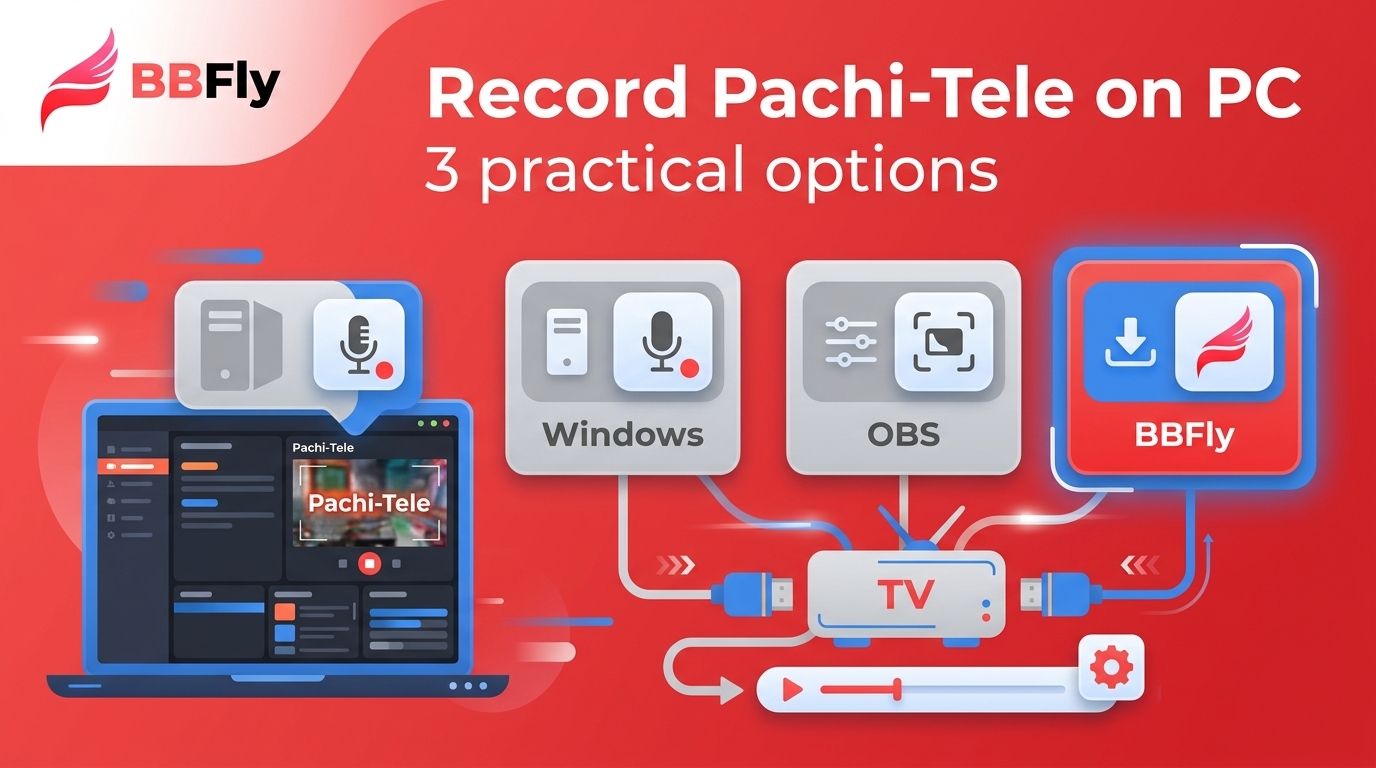
Recording Pachi-Tele on a PC can work, but the result depends on desktop audio capture, current playback behavior, and service restrictions. In short, test compatibility before a long program: this guide compares built-in Windows capture, OBS Studio recording, and a guided desktop workflow.

Pachi-Tele Today: Service and Availability
As of July 2026, the official Pachi-Tele app listing describes an on-demand catalog with more than 6,000 videos and about 70 new programs added each month. Availability can vary, so use the service itself to find current programs.
Pachi-Tele combines pachinko and pachislot programming, machine information, and entertainment shows. For Pachi-Tele recording, the first question is not which recorder has the longest feature list, but whether the program plays normally and produces usable video and sound in a short test.
Choose a Recording Method for Pachi-Tele
PC users can choose a built-in Windows screen recorder, OBS Studio recording, or a guided desktop workflow such as BBFly. The practical choice depends on how much setup you want to manage, how much control you need over desktop audio capture, and whether the current Pachi-Tele playback environment supports the workflow.
Built-In Recorder, OBS, or BBFly?
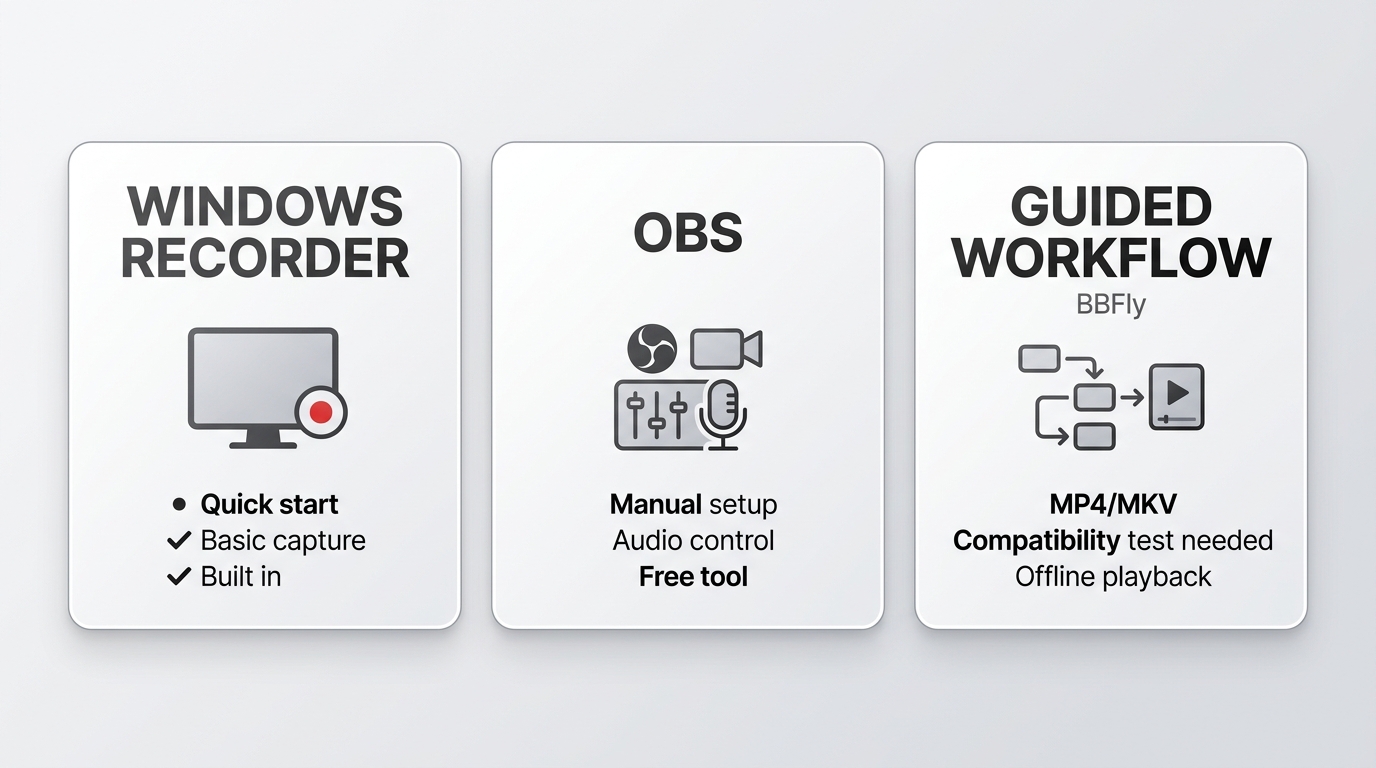
| Option | Best fit | Setup effort | Desktop audio control | Output workflow | Cost model | Important limitation |
|---|---|---|---|---|---|---|
| Built-in Windows recorder | Quick, basic captures | Low | Limited | Save a standard screen-capture file | Included with Windows | May not capture every app, browser, or playback mode |
| OBS Studio | Manual control over sources and settings | Moderate | High | Configure recording sources and save locally | Free | Requires more setup and a test recording |
| BBFly Downloader | Readers who prefer a guided local-file workflow | Low to moderate | Managed within supported workflows | Save supported streams as MP4 or MKV | Free trial and paid plans | Compatibility depends on the current service environment; it is not the right fit for a free, fully manual setup |
When BBFly Fits This Task
BBFly Downloader is a Windows and Mac desktop app that saves supported streams as MP4 or MKV, with selectable audio and subtitle tracks. It uses a native download workflow for supported services rather than conventional screen recording. If I wanted a guided path to a local file and the current Pachi-Tele environment supported it, I would consider this route; if I needed a free tool with fully manual controls, I would start with OBS instead.
For supported services, BBFly covers more than 60 streaming video services and offers a 30-day trial with three full titles per service. Those details do not remove the need for a short compatibility test with Pachi-Tele before you commit to recording a full program.
Record Pachi-Tele on a PC
- Confirm that you have an active account, are authorized to access the program, and can play it normally in the browser or app you plan to use.
- Install and open your chosen recorder, then open Pachi-Tele in the supported browser or app.
- Select desktop audio, choose a sensible quality setting, and make sure the save location has enough free storage for the program.
- Record a short 20- to 30-second sample. Play it back before continuing, because this is the quickest way to catch black video, audio-only output, or missing sound.
- If the sample works, start the full recording and avoid changing playback Windows or audio devices while it runs.
- Stop the recording, locate the saved file, and play it back to verify both picture and sound.
The illustration below shows the type of desktop workflow to expect. Keep the program page open, select the appropriate audio source before starting, and use the short sample as your compatibility check.
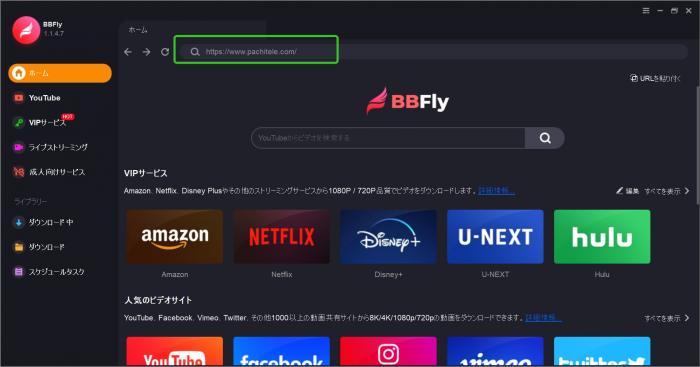
Do not assume that a working player means a working capture. A stream can display normally yet produce a blank picture or sound-only file, which is why I treat the short sample as part of the setup rather than an optional extra.
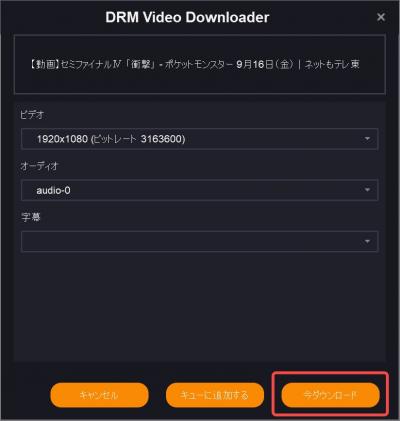
Check Audio, Quality, and Storage
For desktop audio capture, select the system or desktop audio source rather than microphone input unless you specifically need commentary. Start with a quality setting your computer can sustain, then use the test file to judge picture quality and sync. MP4 is a practical choice for broad playback, while available storage should cover the program length with room to spare.
Fix Black Screens or Missing Audio
A black screen recording usually points to a capture conflict, browser or app behavior, protected playback, or a service restriction. Audio-only output means the audio source worked while video capture did not. If desktop sound is missing, reselect the system audio device, close competing apps that may control it, and repeat the short test. If the stream still fails after basic checks, do not try to defeat technical protections; current playback behavior may not permit capture.
Record Responsibly and Respect Service Terms
For content you are authorized to access, where permitted by platform terms and applicable law, a recorder can save a local copy for personal offline viewing. Respect copyright, account rules, and any recording restrictions, and do not share or redistribute the result.
FAQ
Can I use a free recorder for Pachi-Tele?
Yes, a built-in Windows recorder or OBS Studio may work for ordinary capture. Free options usually require more manual setup for audio routing, output settings, and troubleshooting, and no recorder should be assumed to work with every Pachi-Tele playback mode.
Will a streaming DVR work with Pachi-Tele?
Streaming DVR support is service-specific, so it should not be assumed for Pachi-Tele. This guide focuses on a PC workflow because it gives you a clearer way to test playback, audio, and output before attempting a full program.
Can I record Pachi-Tele directly on a smart TV?
Smart TV apps commonly do not include general recording controls. Check your device and Pachi-Tele rules first; for content you are authorized to access, a PC workflow is generally easier to test and manage.
Which Recording Option Fits You?
Choose a built-in tool for a quick basic capture, OBS Studio for detailed manual control, or BBFly for a guided desktop workflow when it supports the current Pachi-Tele playback environment. If it were my recording, I would run the short test before a long program every time. It is less glamorous than losing an entire show to a black screen.
Related resources:
Record ASOBISTAGE Live Streaming for Permanent Preservation! For PC
Kenji Arata
Kenji covers Japanese TV for viewers inside and outside Japan.