
How to Download Disney+ Movies on iPhone: Official App & 3rd-Party Downloader Tested
Table of Contents
Most iPhone download problems on Disney+ don't begin with a broken app. They begin in the Account screen. A paying Disney+ subscriber on Apple Discussions captured the frustration plainly: "I can't download any movies I'm paying the $11.99 a month" (Apple Discussions, thread 254488341). Nine times out of ten, the issue isn't the iPhone, the iOS version, or the network — it's that paying does not equal downloadable on this platform. The download switch is wired to plan tier, OS version, a 30-day clock, and a 48-hour clock, and the app does almost nothing to surface which of those bit you.
Disney+ movies can be downloaded on iPhone, but only on the Premium tier, only on iOS 16 or later, and only inside the Disney+ app itself. The app caps each account at 25 titles total, holds resolution to 1080p (no 4K downloads on mobile), and expires files after 30 days idle or 48 hours from the first play press. Standard with Ads gets zero download rights.
Disney+ Downloads on iPhone in 2026: What You Can and Can't Save Offline
Downloads do work on iPhone, but the official app boxes you in on five fronts at once. You need Premium (ad-free) — Standard with Ads is blocked from downloading anything. You need iOS 16 or later; older iPhones stuck on iOS 15 will not see the icon.
The account is capped at 25 titles total across up to 10 mobile devices, the resolution ceiling is 1080p, and downloaded files expire — 30 days untouched, or 48 hours after first play. Files live in the Disney+ app sandbox and cannot be copied out. (Per Disney+'s Help Center, as of 2026-06; verify current values on disneyplus.com.)
If all five of those boxes don't check out, the download button isn't broken — the plan is.
How to Download Disney+ Movies on iPhone in the Official App
Once the prerequisites line up, the procedure itself is simple. Most "it doesn't work" cases are actually plan-tier or OS-version problems in disguise.
Before you tap download: plan, OS, and storage check
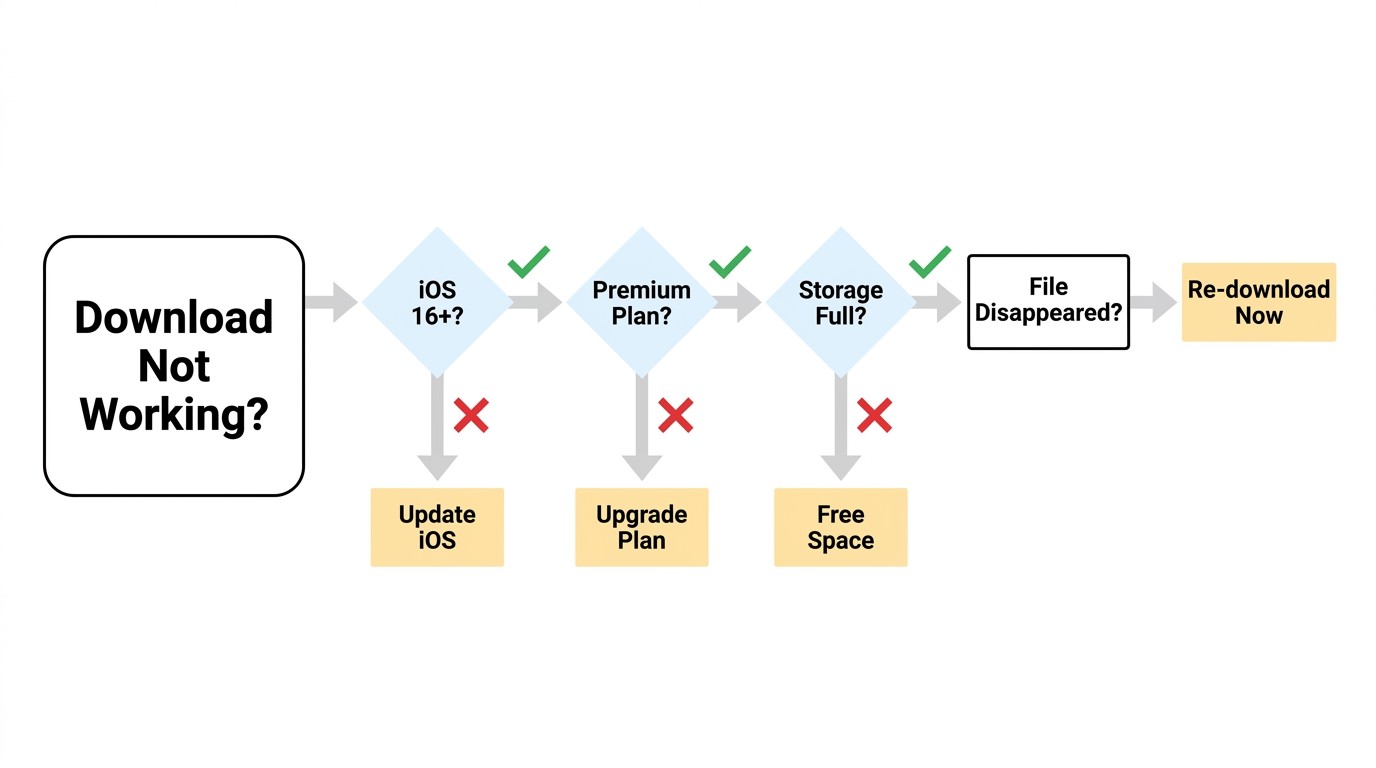
Three preconditions, in the order they bite.
- Plan: Disney+ Premium is required ($13.99/month as of 2026-06; verify on disneyplus.com). Standard with Ads has no download rights at any price point.
- OS: iOS 16 or later on iPhone, iPadOS 16 or later on iPad — older devices stuck on iOS 15 simply do not show the icon.
- Storage: budget roughly 1 GB per hour at the High quality setting; a two-hour film lands around 2 GB. If iPhone Storage is under a few gigabytes free, the download will pause silently rather than warn you.
Step-by-step: how to download a Disney+ movie on iPhone
- Open the Disney+ app and sign in with your Premium account.
- Search for, or browse to, the movie or show you want.
- On the title page, tap the small down-arrow download icon under the metadata (for series, the icon sits on each episode row).
- The first time you download anything, the app asks you to pick a quality — Standard, Medium, or High. Pick High for the best on-iPhone playback; the choice is remembered.
- Tap the icon. A progress ring replaces the arrow. Stay on Wi-Fi unless you've enabled cellular downloads in Settings.
- When it finishes, the icon turns into a checkmark. Open the Downloads tab (bottom-right on current builds) to play offline.
Where your downloads live (and how to delete them)
Downloads live inside the Disney+ app sandbox, reachable only via the in-app Downloads tab — not via iOS Files, Photos, or iCloud Drive. A long-running Apple Discussions thread frames the question collectors always ask first ("can't find downloaded disney plus movies on iPhone XR", thread 251542757): can these files be transferred to another device? They cannot. To delete a single title, swipe its row and tap the trash icon; to clear everything, use the Downloads tab's overflow menu and pick Remove All Downloads. Deletions free local storage and return the slot to your 25-title budget.
Disney+ Download Limits on iPhone: 25 Titles, 30 Days, 1080p Ceiling
This is the section that catches most paying subscribers off guard. The Disney+ app's download rules look generous on paper, then turn out to be the strictest among the major streamers I've used long-term. (All figures per Disney+'s Help Center, as of 2026-06.)
The 30-day check-in and the 48-hour playback timer
Two clocks, frequently confused. Clock one: an untouched download is valid for 30 days from save, and the device must check in online with Disney+ within that window or the file expires automatically. Clock two: the moment you press Play for the first time, a separate 48-hour timer starts; when it runs out, the file becomes unwatchable until you re-download.
I burned a transatlantic flight on the second clock once — pressed play in the boarding area to confirm the audio track was right, the 48-hour countdown ran out somewhere over Greenland, and the rewatch on the return leg was a "this download has expired" screen instead of a third act. My standing rule since: never "test play" a movie a few days before a trip. The day you tap play is the day the 48-hour countdown begins — Wi-Fi or seat 22B makes no difference.
The 25-title cap (one season can blow it)
Account-wide ceiling: 25 titles total, across up to 10 mobile devices. Every episode of a series counts as one title. Two 12-episode seasons of The Mandalorian — 24 titles — leave room for exactly one movie before you see the "maximum number of downloads" message. Netflix has historically allowed 100 titles per device, which is one reason Disney+ downloads feel tight for a service priced in the same range. I treat 25 as a hard rule, not a guideline.
Quality tiers, blocked tiers, and blocked devices
The app exposes three quality settings, with roughly these storage costs: Standard at ~0.6 GB/hour (≈480p), Medium at ~1.0 GB/hour (≈720p), High at ~2.5 GB/hour (≈1080p).
4K is streaming-only on Disney+, no 4K download path through the official iPhone app, even on titles that stream in 4K Dolby Vision at home. If a product page promises "4K Disney+ downloads on iPhone," it is describing something the official app does not do. Standard with Ads (around $9.99/month as of 2026-06; verify on disneyplus.com) has zero download rights at any quality, the icon is hidden rather than greyed out, so it's easy to miss why a friend on the same iOS version can save a film and you can't. PC, Mac, and TV apps have never supported official Disney+ downloads at any tier; the feature is mobile-only (iOS, iPadOS, Android, Fire OS). Laptops are streaming devices on this platform, by Disney's design.
iPad and Android Phones: Same Steps, Where They Diverge
Disney+ uses essentially the same client on every mobile platform, so the iPhone instructions port cleanly with two small differences worth knowing.
iPad: identical workflow, more storage headroom
Same iOS app, same download icon, same Premium / iOS 16+ rules, same 30-day and 48-hour clocks. The 25-title cap is account-wide: downloads on your iPhone and your iPad share one budget — not two pools of 25. iPadOS 16 or later is required. Storage is the real reason to download to iPad: a 256 GB iPad comfortably holds the full 25-title cap at High quality, where a 128 GB iPhone often cannot.
Android phones: near-identical app, small path differences
The download icon sits in the same place. Settings live under Profile → App Settings rather than the iOS Profile menu. Plan, quality, and expiry rules are identical. Fire OS shares the Android lineage and behaves the same way. As on iPhone, the file is sandboxed inside the Disney+ app — not exposed in the Android file manager, not copyable to a microSD card.
Disney+ Won't Download on iPhone? Troubleshooting the Usual Suspects
When the official app refuses to download, it almost always comes back to one of four causes — and Disney+ rarely tells you which. Walk this list in order; I have yet to see a "broken" download that wasn't one of these.
iOS 15 or older: the download button is simply gone
The iOS 16+ requirement is hard, not advisory. An Apple Discussions thread captures the failure mode: "I have iOS 15.7.3 and I can't download Disney [Plus]" (Apple Discussions thread 254504899). Older iPhones — the 6s, the original SE, the 7 — top out at iOS 15 and will not show the icon under any condition. The fix is either an iPhone that can run iOS 16+, or moving the offline workflow off the phone.
Wrong plan: Standard with Ads is silently blocked
The most common "I'm paying but it doesn't work" failure. Standard with Ads has no download rights, and the app shows no in-app error explaining why — the icon just isn't there. I've walked friends through this five or six times in the past year; every single time it came back to a billing screen that read "Standard with Ads," usually because they signed up through a bundled promo and never noticed the tier. Confirm under Profile → Account → Subscription: if it reads "Standard with Ads," upgrading to Premium enables the icon on the next app launch.
Out of space, paused downloads, and the cache cure
iPhone Storage approaching full will pause downloads quietly. Check Settings → General → iPhone Storage and free a few gigabytes of headroom. If downloads stall after that: force-quit the Disney+ app, restart the iPhone, retry. Clearing the in-app cache via Profile → App Settings does not delete completed downloads — only temporary data — and is safe to try on stuck in-progress downloads.
When a downloaded file disappears overnight
Two causes look identical from the user's side: the 30-day idle expiry quietly fired (device didn't check in online), or Disney lost the distribution rights and pulled the title from your device with no notice. The second is real and recurring — library churn means content can vanish from downloads as well as from streaming, with no in-app fix for either case. That cluster of constraints (25-title cap, two expiry clocks, 1080p ceiling, disappearing-titles risk) is the reason serious offline viewers eventually look at the desktop side of the problem.
Beyond the App: How BBFly Saves Disney+ as Permanent Local MP4 Files
Please note: A desktop downloader is a third-party tool, and its use may be governed by Disney+'s Terms of Service in addition to copyright law in your country. Keep any local copies for your own personal, offline viewing of content you actively subscribe to — do not redistribute, resell, or share them. Where the official Disney+ app can save the title for you, that is still the most worry-free path.
Where a desktop downloader fits (and where it doesn't)
A desktop downloader is one option for personal offline backup when the official app's limits genuinely hurt — frequent travelers who outlast the 30-day check-in, ad-tier subscribers who get nothing at all, families that blow past 25 titles on the second season, viewers who want a specific film on a NAS or external drive instead of locked inside an app sandbox. It is not, and I want to be plain about this, a way around a Disney+ subscription. You sign into the tool with your own active Disney+ account; the tool saves the content your subscription has paid for, into a standard local file. Cancel the subscription, and the tool has nothing to fetch.
What BBFly produces on Disney+: a permanent MP4 with no expiry clock
I lean on BBFly Disney Plus Downloader for one core reason: the output is a standard local MP4 or MKV with no 30-day check-in and no 48-hour playback clock — once the file lands, it behaves like any other video on your drive, playable in VLC, Infuse, or Plex, copyable to a NAS or USB stick into a Smart TV. On titles that ship with a 4K master, that file also retains the original 4K and Dolby Atmos track that the iPhone app flattens to 1080p stereo. I've used it to archive a handful of 4K Dolby Vision titles into my Plex library; on the same TV, the gap against the iPhone download version is obvious within the first dark scene.
That said, this is a niche tool, not a default. If your download needs sit under 25 titles and 30 days, the official Disney+ app is already enough — no third-party tool needed.
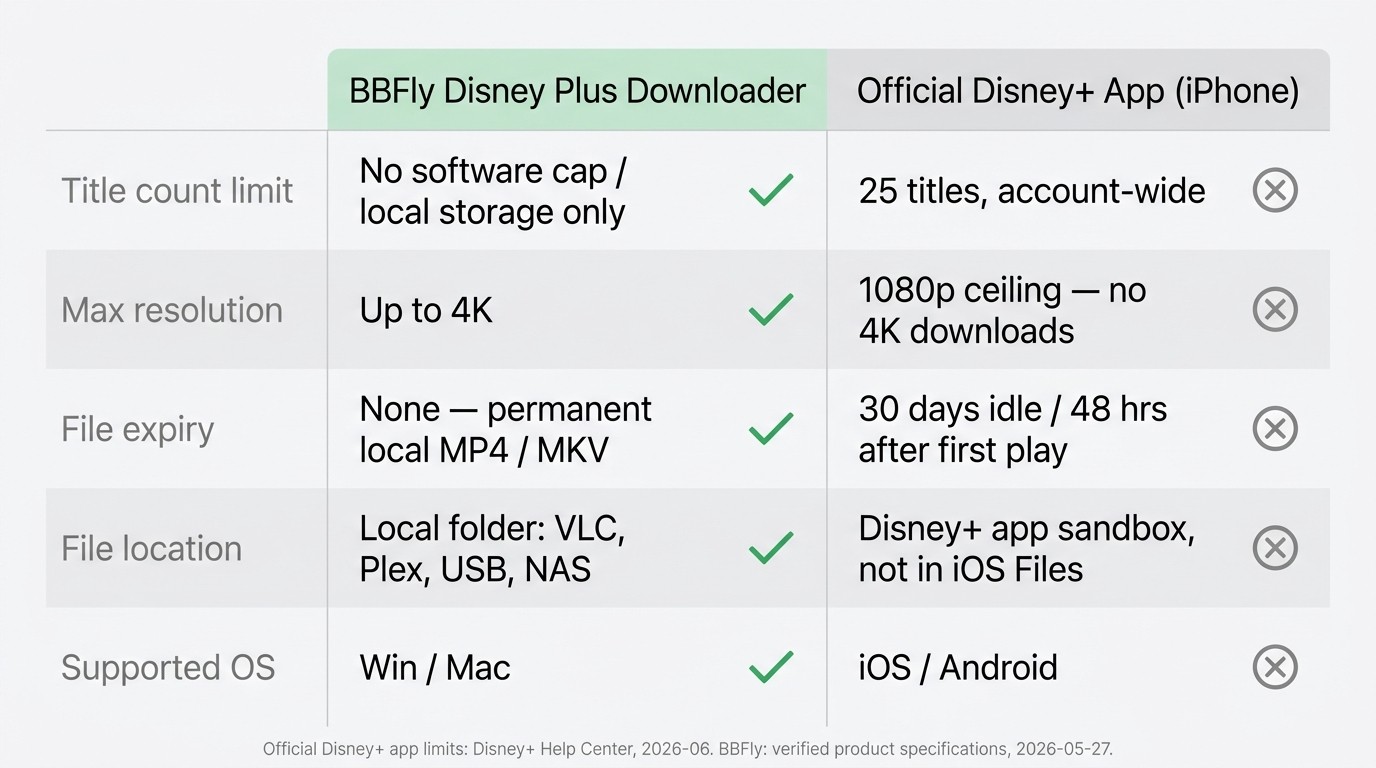
Where the workaround actually changes things — the four limits that bite
| Dimension | Official iPhone app | Desktop workaround (BBFly) |
|---|---|---|
| Title count limit | 25 titles total, account-wide. | No software cap. Bound by local storage. |
| Max video resolution | 1080p (High setting). 4K is streaming-only. | Up to 4K when the source title supports it (1080p / 720p fallback). |
| Expiry | 30 days idle. 48 hours after first play. | None. Standard MP4 / MKV file. |
| File location | Inside the Disney+ app sandbox. Not exposed in Files. | Local folder. Playable in VLC, Infuse, Plex, Smart TVs via USB. |
Sources — Official iPhone limits: Disney+ Help Center and BBFly Disney Plus Downloader verified product specifications, current as of June, 2026.
Pricing (as of June, 2026): $29.90/month, $99.90/year, or $199.90 one-time lifetime (up to 3 PCs); 30-day trial covers three full-length titles per platform. Current values on bbfly.com.
Disney+ iPhone Download FAQ
How long do Disney+ downloads last on iPhone?
Two clocks run in parallel: 30 days idle (the file expires if the iPhone has not checked in online within 30 days of saving) and 48 hours after first play (once you press Play, you have 48 hours to finish). Per Disney+'s Help Center, as of 2026-06; rules may change.
How many Disney+ movies can I download on iPhone?
25 titles total, account-wide, across up to 10 mobile devices. Every episode of a series counts as one title — two seasons of an episodic show can exhaust the budget on their own. Source: Disney+ Help Center, as of 2026-06.
Why can't I download Disney+ movies even though I'm a paying subscriber?
Three causes, in the order I see them play out: (1) you are on Standard with Ads, which has no download rights; (2) the iPhone is on iOS 15 or older, below the iOS 16+ requirement; (3) the region or account profile does not match the title's licensing window. Check the plan first under Profile → Account → Subscription — that's the answer nine times out of ten.
Can I download Disney+ in 4K on iPhone?
No. The official Disney+ iPhone app caps download quality at 1080p, even on titles that stream in 4K Dolby Vision. If keeping a 4K copy of a specific film is the goal, the desktop workaround section above covers the realistic path.
Can I download Disney+ to a PC or Mac officially?
No. Disney+ has no official download feature on Windows, macOS, or any TV platform — only iOS, iPadOS, Android, and Fire OS. The Disney+ desktop and web client is stream-only.
Where are my Disney+ downloads stored on iPhone?
Inside the Disney+ app sandbox, reachable only via the in-app Downloads tab. They are not visible in iOS Files, cannot be AirDropped, cannot be copied via iCloud Drive, and cannot be transferred over USB to a Mac. Delete the Disney+ app and the downloads go with it.
Is downloading Disney+ content with a third-party tool legal in the US?
Not a yes/no question — two separate layers. Disney+'s Terms of Service govern the platform-account side: what counts as an authorized client, what can suspend an account. Copyright law is a different category and covers what you do with the file after you save it: redistribution, resale, and public performance sit in a different risk class than a personal offline copy. My working line is the one from the section above: subscription active, viewing personal, file not shared. Go past that and the document with controlling language is Disney+'s current Terms on disneyplus.com, not this article.