
How to Download Peacock on MacBook: What Actually Works in 2026
Table of Contents
You opened Peacock on your MacBook expecting a download button somewhere, and it is not there. As of June 2026, Peacock does not ship a native Mac app, and the peacocktv.com browser stream cannot be downloaded. Official offline downloads exist only on the iOS, iPadOS, and Android apps with a Premium Plus subscription, not on macOS. Everything else is a workaround.
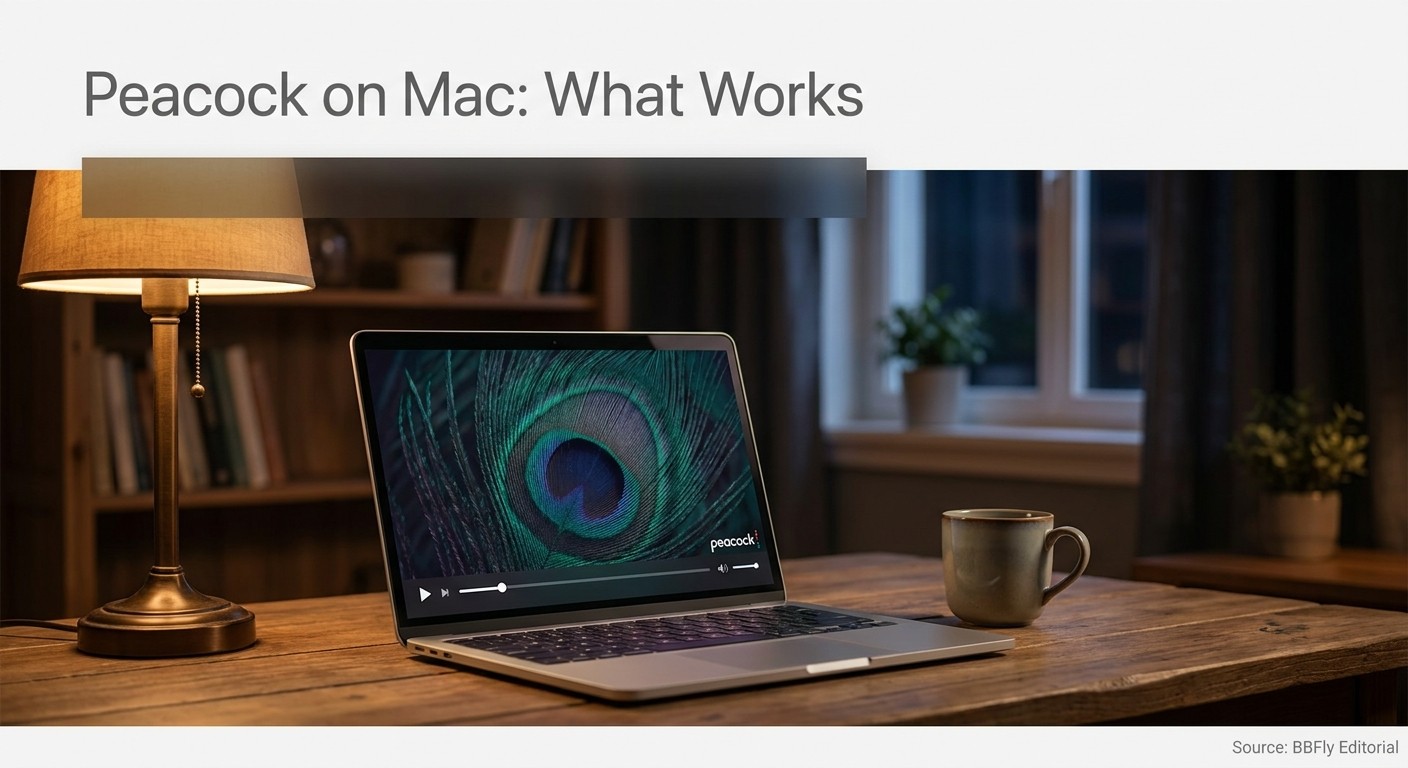
I have been following streaming-platform download policy for fifteen years, from the DVD-ripping era through Plex builds and into today's DRM-fenced clients. The Peacock-on-Mac dead end is not an oversight; it is the shape of the product. Apple Silicon nominally runs iOS apps on macOS, which is why Reddit and Apple Discussions threads keep asking why the Peacock download button is grayed out on M1, M2, and M3 hardware.
The honest answer is that running the iOS binary on a Mac is not the same as running it on an iPhone, and the Peacock client treats the Mac context as out-of-scope. Below I walk through what the three official paths actually deliver, where Peacock's 48-hour rental clock kicks in, and what an active subscriber can do if they want an MP4 that lives on the MacBook itself.
Why Your MacBook Has No Native Peacock App in 2026
Peacock has no native Mac app in 2026. NBC restricts official downloads to its iOS, iPadOS, and Android apps with a Premium Plus subscription; on macOS the only official entry point is the browser at peacocktv.com, and the browser stream is not downloadable. Verify the current device list on Peacock's Help Center, because supported platforms do shift.
The short answer (and why it keeps changing)
Peacock's published policy, as of June 2026, is that downloads belong to Premium Plus subscribers on iOS, iPadOS, and Android. There is no Mac client to install, no Microsoft Store-style desktop app, and no "Download" option anywhere in the macOS browser experience. Peacock has rewritten which devices and tiers can download multiple times since launch, so when in doubt, check "Can I watch Peacock content offline?" on Peacock's Help Center for the current word. A Help Center entry beats anything written in a third-party article, including this one.
What Peacock does support on a Mac
Streaming through Safari, Chrome, Firefox, or Edge on macOS works fine on any Peacock plan. What you do not get is an offline cache, even as a Premium Plus subscriber paying for download access. There is a separate, much-asked workaround: macOS 11 and later on Apple Silicon Macs can install iOS apps from the Mac App Store, and the Peacock iOS app does appear there. The catch is what happens when you try to actually download a title in that context, covered next.
Three Realistic Ways to Watch (or Save) Peacock on a MacBook
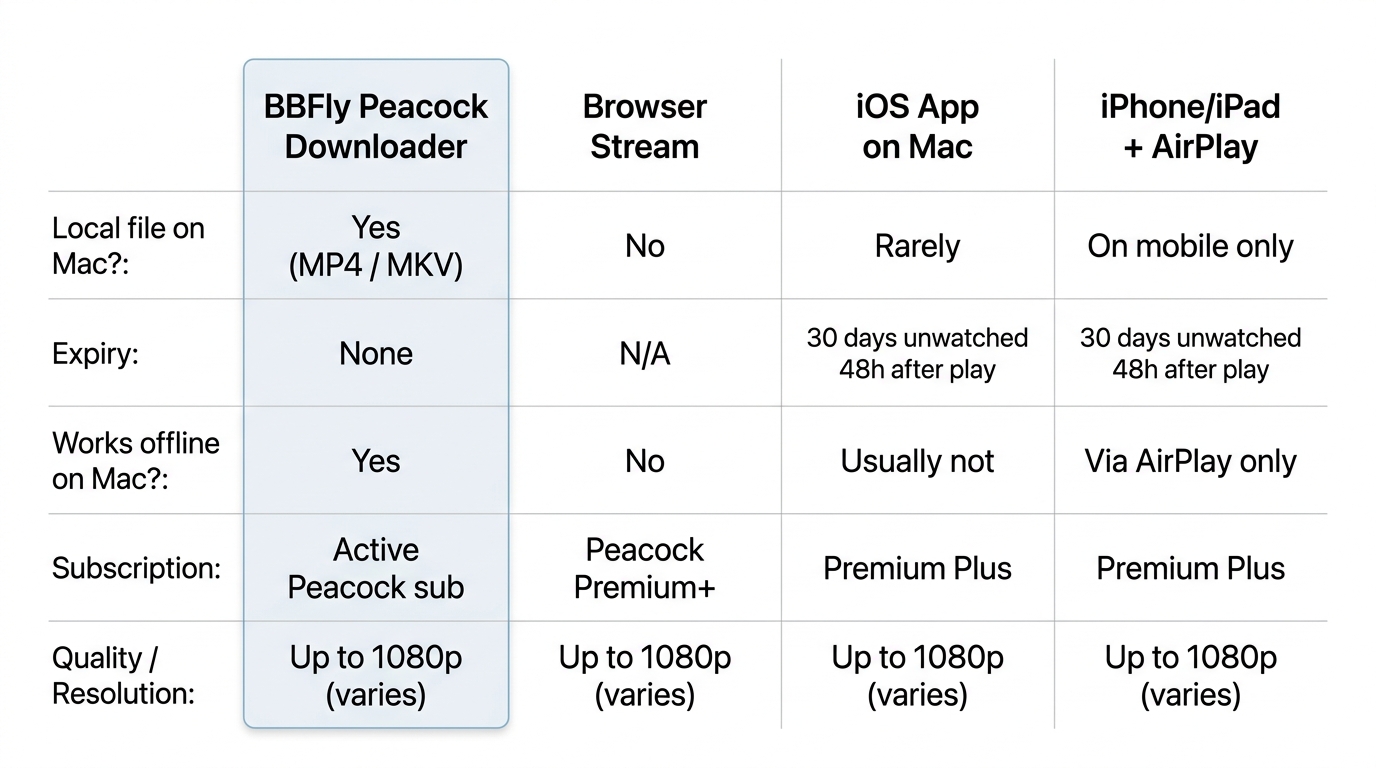
Three paths exist for a Mac owner in 2026: stream in a browser, sideload the Peacock iOS app on an Apple Silicon Mac, or download on an iPhone or iPad and mirror playback to the Mac screen. Only the first reliably produces a working session; only the third reliably produces a real offline file, and that file lives on the phone, not on the Mac itself. I have tried all three over the past year, and the iOS-on-Mac route, by far the most-asked, is also the most disappointing.
| Route | Produces a local file? | Resolution cap | Expiry | Subscription | Works offline |
|---|---|---|---|---|---|
| Browser stream (Safari / Chrome) | No | Up to 1080p, varies by tier and DRM | N/A, streaming only | Peacock Premium or Premium Plus | No |
| iOS Peacock app on Apple Silicon Mac | Rarely; download button widely reported as inactive on Mac | Per iOS UI when it works | If a download succeeds: 30 days unwatched / 48 hours after playback | Peacock Premium Plus | Only if the download actually completes, usually not |
| Download on iPhone / iPad, then AirPlay to Mac | Yes, on the mobile device, not the Mac | Per mobile app | 30 days unwatched / 48 hours after playback | Peacock Premium Plus | Yes (on the mobile device) |
| BBFly Peacock Downloader on Mac | Yes, MP4 or MKV in your chosen folder | Up to 4K with HDR10 / Dolby Vision (per BBFly's verified specs) | None, local file (personal offline viewing) | Active Peacock subscription (no bypass) | Yes |
Source: BBFly's official product page and Peacock's official Help Center, as of June 2026. Specs change; confirm current figures first.
Route 1 — Stream in Safari or Chrome (no offline save)
The fully supported path. Open peacocktv.com, sign in, stream. Premium gets you the catalog with ads; Premium Plus removes ads on most on-demand content and unlocks downloads where they exist (not here). Browser resolution depends on plan tier, the DRM negotiation, and your account region; Peacock's Help Center is the source of truth on what is offered where. No local cache survives the session. Best for steady connectivity and any subscriber who just wants to watch.
Route 2 — The Peacock iOS app on an Apple Silicon Mac (M1 / M2 / M3)
On macOS 11 or later with Apple Silicon, the Mac App Store will let you install iOS apps that the developer has opted into Mac compatibility for, and Peacock TV is one of them. The install works. The honest finding is what happens after: many subscribers report that the download icon either does not appear or stays inactive once the app is running on Mac, even with Premium Plus. Sign-in has a separate edge case. Apple Discussions thread 253584734 documents users whose Peacock subscription was not recognized inside the Mac-installed iOS app and who were eventually told to cancel the App Store route and re-subscribe through Peacock directly. I would not budget a flight around this route working. Best for curiosity, not for plans.
Route 3 — Download on an iPhone or iPad first, then watch on your Mac
This is the cleanest official path for a short trip. Work through these in order:
- Sign in to the Peacock iOS app on an iPhone or iPad with Premium Plus.
- Open a download-eligible title and tap the download icon.
- Watch on the mobile device offline, or AirPlay / Sidecar the playback to your MacBook for a bigger screen.
- Plan the trip around the expiry windows covered in the next section.
The file itself never lands on the Mac; you are mirroring playback from a phone. That is fine for a flight if you are flying with both devices, less useful if the MacBook is your only travel screen. Best for short trips where you already carry both devices; not ideal when the MacBook is the primary or only screen.
Official route 3 looks workable until you run into Peacock's expiry clock, which is where things get genuinely frustrating.
Peacock's Official Download Limits: 25 Titles, 30 Days, 48 Hours
Per Peacock's Help Center as of June 2026, Premium Plus downloads carry four caps: a maximum of 25 titles per account, a 30-day expiry from the download date for titles you have not started, a 48-hour expiry once playback begins, and a per-title download limit of 10. These are official figures and they can change; check Peacock's "Can I watch Peacock content offline?" page for the current rules.
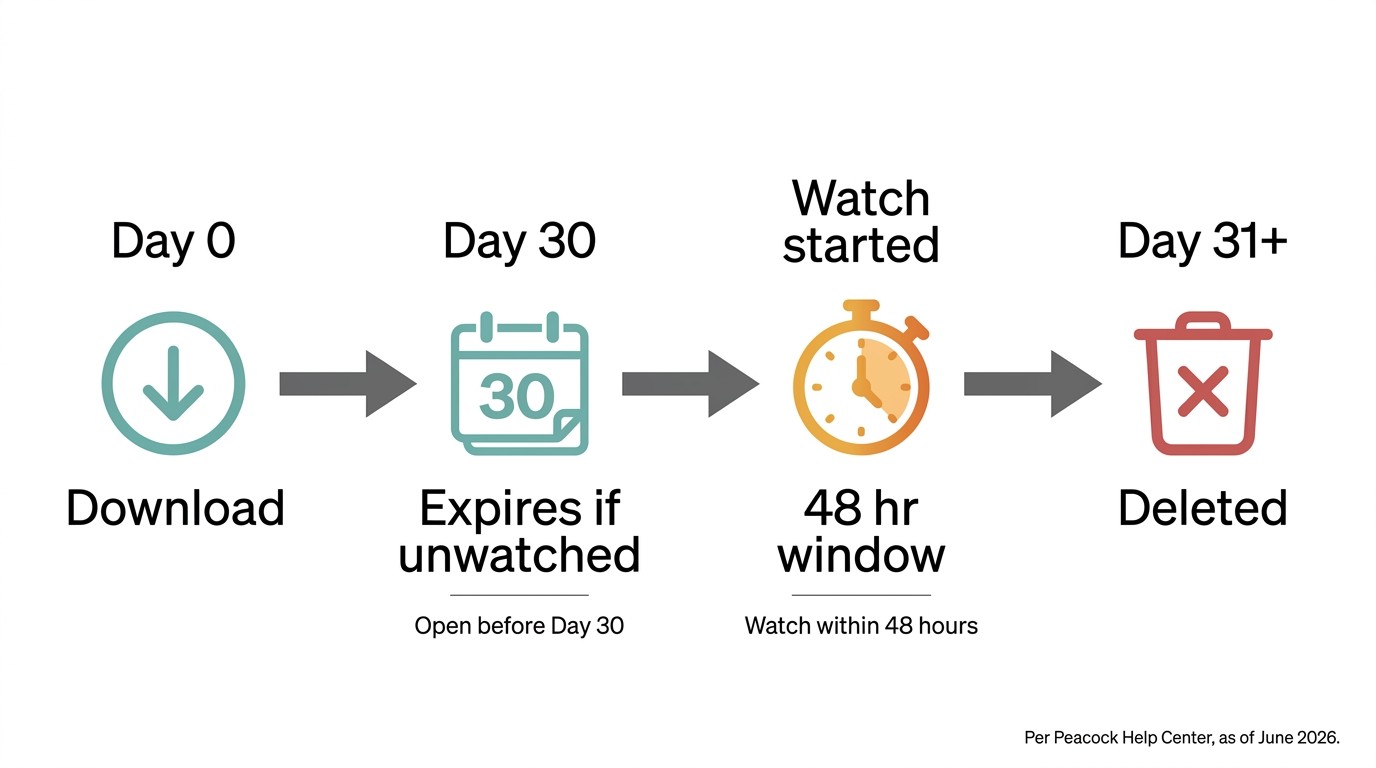
The four numbers Premium Plus subscribers should know
Memorize the shape, not just the digits:
- 25 titles per account — across every device on that Peacock login, total.
- 30 days unwatched — once downloaded, you have a month to press Play before the file expires.
- 48 hours after playback starts — the moment the credits roll on first view, a two-day countdown begins. After that the file is unplayable until you re-download.
- 10 downloads per title, maximum — popular series stop being re-downloadable past that count.
All four are as of June 2026; verify on Peacock Help, because the cap and clock have shifted before.
What these limits actually feel like in use
A movie you saved for a Monday flight and watched on the way out is unplayable by Wednesday evening. Start the playback Monday morning and the 48-hour clock kills the file before you board Wednesday night. A weekend binge on an iPad means re-downloading each episode the next month if you are slow to watch. There is also a quieter limitation: not every Peacock title is download-eligible even with Premium Plus. One subscriber on Experts Exchange put it plainly: "The content that I'm looking to download from Peacock doesn't have the download option available." Anyone who travels often, commutes through patchy connectivity, or wants a personal library will hit at least one of these walls. The official offline feature is built for short, near-term displacement; it is not built for a media collection.
Permanent Local MP4 Files with BBFly Peacock Downloader
Please note: A third-party downloader may sit outside Peacock's Terms of Use depending on your jurisdiction and how you use it. Keep any saved files for your own personal offline viewing of content you actively subscribe to; do not redistribute or resell. Where Peacock's own download path on iPhone or iPad covers your trip, use that first.
For a Mac user who wants a real local file, one that does not expire, plays in QuickTime or VLC, and lives in a folder of your choosing, a third-party downloader is the only path that delivers that. BBFly Peacock Downloader is one such tool. It requires an active Peacock subscription and does not bypass authentication; it saves what your account is already allowed to play, in an MP4 or MKV container, for personal offline viewing.
What it changes for a Mac user
The practical difference is the clock. The Peacock iOS download is a 30-day-or-48-hour borrowed file; the BBFly output is a regular MP4 or MKV sitting in the folder you picked, playable in QuickTime, VLC, or Infuse, and copyable to a USB drive or NAS for later. Per BBFly's verified specs, the Peacock module supports up to 4K with HDR10 and Dolby Vision where Peacock offers them, retains EAC3 5.1 or Dolby Atmos where the master carries it, and lets you pick the subtitle track at download time. For my own use, the bigger reason to choose this path is that the file is mine to organize for personal viewing, not a temporary cache Peacock can revoke after a future policy change.
Subscription, trial, and personal-use scope
BBFly does not work around the subscription; you sign in with the Peacock account you already pay for, the same way you would in the browser. The trial policy at the time of writing is three full-length titles per platform inside a 30-day window, then paid plans at $29.90 monthly, $99.90 yearly, or $199.90 lifetime covering 3 PCs. Verify the current numbers on BBFly's product page before buying, since pricing and trial terms can change. Keep saved files for personal offline viewing; redistribution is outside what this category of tool is for. Best for Mac-primary subscribers who want a permanent personal copy; not ideal for users who only need a single weekend trip covered, where the iPhone download path is simpler.
FAQ: Downloading Peacock on a MacBook
Does Peacock have a Mac app?
No, not in 2026. Peacock ships iOS, iPadOS, Android, and TV-platform clients plus the browser experience at peacocktv.com. The iOS app can be installed on Apple Silicon Macs but does not function as a real Mac download client (see Q3). Check Peacock Help for any change.
Why can't I download Peacock on my laptop?
Two reasons stacked. Peacock reserves official downloads for Premium Plus on mobile apps; no desktop client gets that feature. And on Apple Silicon Macs running the iOS app, the download UI is widely reported as inactive. Even on supported mobile devices, not every Peacock title is download-eligible.
Can I run the Peacock iOS app on an M1, M2, or M3 Mac and download offline?
I get this question constantly, so here is what actually matters. The install works on macOS 11+ with Apple Silicon. The download function does not reliably work in that context; the icon is missing or grayed out for many subscribers, and subscription recognition can also fail (Apple Discussions thread 253584734 collects user reports). Plan as if the route does not deliver an offline file.
Do Peacock downloads expire after 30 days?
Yes, and the second clock is shorter. Per Peacock Help (as of June 2026), unwatched downloads expire 30 days from the download date; once playback begins, a 48-hour window starts.
Can I download Peacock in 4K HDR on a Mac?
Officially, no; Peacock downloads happen only on mobile and are not delivered in 4K HDR there either. Through a third-party downloader, BBFly's verified specs include 4K with HDR10 and Dolby Vision for its Peacock module, but per-title availability depends on what Peacock actually streams in 4K HDR for that title. Confirm on BBFly's product page first.
Is it legal to use a third-party Peacock downloader?
This is the question I get pushed on most, and the honest answer has two parts. Personal offline viewing of content you actively subscribe to is, in many jurisdictions, treated separately from redistribution; what it means under Peacock's Terms of Service specifically is a different question and varies by region. This article is not legal advice. Read Peacock's ToS and your country's copyright provisions, and keep saved files for personal viewing only.
Is it safe to log into my Peacock account inside a third-party downloader?
Depends on the vendor. A reputable downloader with a transparent product page, a published privacy posture, and a real refund or trial window is a different category from a no-name installer found through a search ad. One Experts Exchange subscriber put it well: "3rd party utilities are a grey area... Such tools when downloaded from less trustworthy sites can be a security risk." Turn on Peacock's two-factor sign-in either way.
How many Peacock titles can I keep downloaded at once?
Officially, 25 titles per account and up to 10 downloads per title (Peacock Help, as of June 2026). With a third-party downloader producing local MP4 files, the only cap is your disk space.
Bottom Line: What I'd Actually Do for Offline Peacock on a Mac
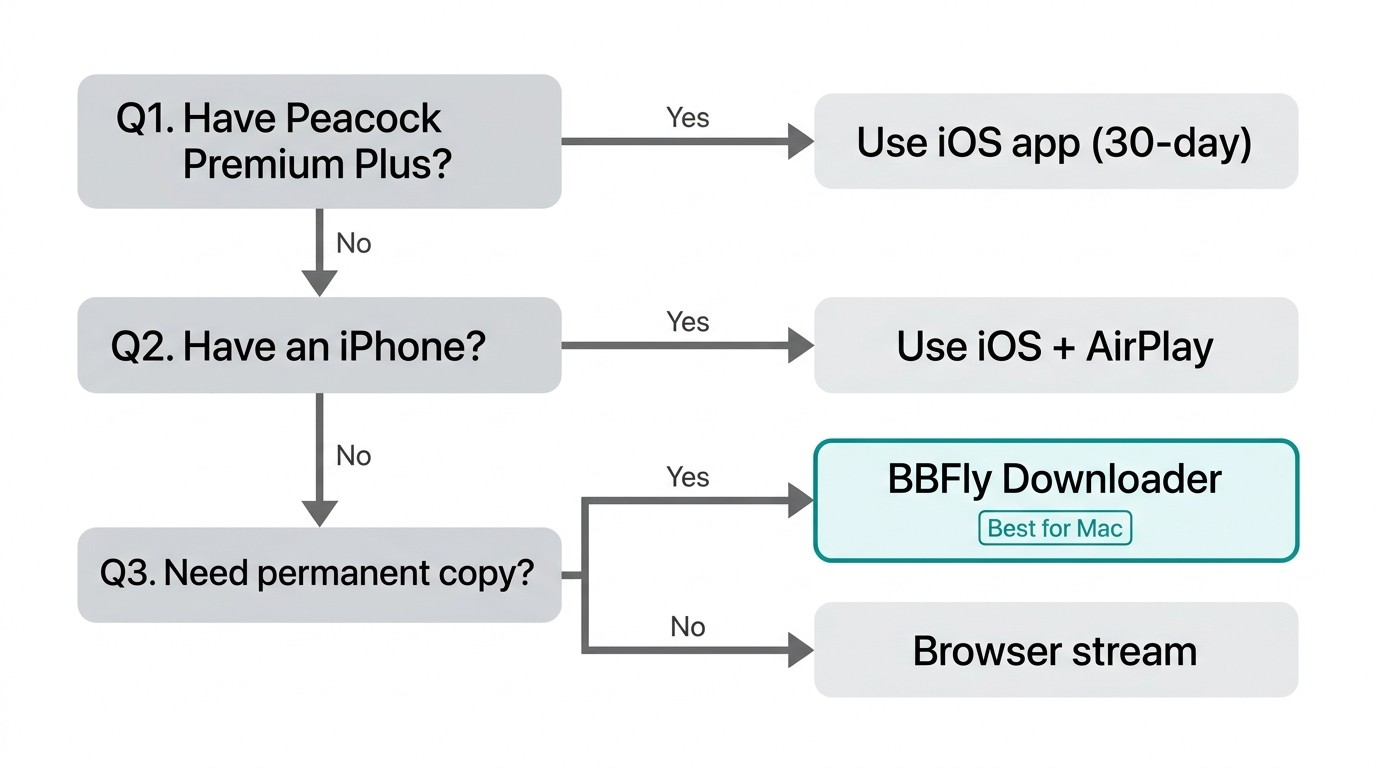
The verdict in one sentence: if Peacock's mobile downloads cover your trip, use them; otherwise, only a third-party tool produces an offline file that lives on the MacBook itself.
In prose terms: streaming in Safari or Chrome fits anyone with steady connectivity and no offline need. The mobile-companion path (download on iPhone or iPad, AirPlay to the Mac) fits short trips when you already carry both devices and the 48-hour clock does not collide with your travel schedule. The iOS app on an Apple Silicon Mac fits no one reliably; treat it as a curiosity, not a plan. A third-party downloader fits anyone who wants the file on the Mac itself, plays in VLC, and is willing to maintain an active Peacock subscription.
For me, a file that disappears 48 hours after I press Play is not really a download; it is a timed rental in disguise. Fifteen years of watching platforms tighten their offline clocks has not changed which side I land on. If the MacBook is your primary screen, that distinction matters.