
How to Download on Hulu on iPhone (2026): Limits + Workarounds
Table of Contents
To download Hulu shows on iPhone in 2026 you need three things: an ad-free Hulu plan (Hulu No Ads, Hulu+Live TV with No Ads, or the ad-free Disney Bundle), the official Hulu iOS app on a current-iOS iPhone or iPad, and a tap on the download icon next to an eligible title. Files stay locked inside the Hulu app, expire after 30 days unwatched or 48 hours once playback starts, and never leave the device. For anything beyond that — a portable file, a PC or Mac copy, no expiry — the iPhone app is not the answer.

I've spent fifteen years building and rebuilding home media libraries: DVD rips into Plex, then a NAS, now offline copies from too many streaming subscriptions. Last winter I queued a few Hulu episodes on the iPad before a long Amtrak ride, then tried to drop them onto the NAS so my partner could finish them on the TV the same night. There was nothing to drop. The episode wasn't a file; it was an entry in the Hulu app's encrypted cache, playable only on that iPad, only until the 48-hour countdown ran out. The official path works fine for a flight. It is not the path for anyone who treats a download like a file they actually own.
The Quick Take: Downloading Hulu Shows on iPhone in 2026
What you actually need to download Hulu shows on iPhone in 2026 is straightforward: a paid Hulu plan that includes the ad-free tier, the Hulu iOS app on an iPhone or iPad, and enough free storage. The ad-supported plan does not unlock downloads — that's the single biggest gotcha — and downloads only live inside the Hulu app itself.
The short list:
- Plan: Hulu (No Ads), Hulu+Live TV with No Ads, or the ad-free Disney Bundle. The ad-supported tier cannot download.
- Device: iPhone or iPad. No Mac, no PC, no Apple TV, no smart TV.
- Limits: 25 titles across 5 devices, account-wide. 30 days unwatched. 48 hours once you press play.
- Settings worth knowing: cellular downloading is off by default; the quality toggle is buried under Downloads → Settings.
- The real catch: files never leave the Hulu app. If portability matters, plan for that before you start downloading.
What You Need First: Plan, Compatible Device, and iOS Version
You need an ad-free Hulu plan, an iPhone or iPad (no Mac or PC), and an iOS version Hulu still officially supports. Skipping any of the three is the most common reason a missing download button turns into a frustrating 20-minute support session.
Hulu's No Ads paywall: which plans actually unlock downloads
Per Hulu's Help Center, the ad-supported plan does not include downloads — only the ad-free tiers do: Hulu (No Ads), Hulu+Live TV with No Ads, or the ad-free Disney Bundle. The ad-supported plan saves a few dollars per month and is fine for at-home streaming, but it walls off offline viewing entirely. Live TV and Premium add-on channels (HBO Max content through Hulu, for example) stay off-limits even on a paying plan that otherwise allows downloads. The recurring r/hulu and r/cordcutters question of whether ad-plan subscribers can unlock downloads some other way inside the iPhone app has one consistent answer: no.
iPhone, iPad — but no Mac, PC, or smart TV
The download feature lives inside the Hulu iOS app. iPhones and iPads are supported; on other platforms Android phones and Fire tablets work too. What does not get downloads: macOS browsers, Windows browsers, the Apple TV app, Roku, Fire TV, and smart-TV apps. The desktop and TV experience is stream-only — which is the actual ceiling here, and the reason a desktop workaround is even a topic. I'll come back to it.
iOS version floor and free-space sanity check
Hulu's iOS minimum tracks the App Store build of the app — in practice, anything older than the latest two major iOS releases drifts out of support. The classic case is the iPhone 6, which stalls at iOS 12.5.3 and can no longer install the current Hulu app. If you're on hardware that old, the download conversation ends here. Before queuing several episodes, check Settings → General → iPhone Storage: a 45-minute episode at High quality runs in the 1.0–1.5 GB neighborhood, and a couple of seasons can sink a 64 GB phone fast.
How to Download Hulu Shows on iPhone, Step by Step
Open the Hulu iOS app, find a title that shows a download icon, tap it, and play it later from the Downloads tab. The full walkthrough is short — but a few details (where the icon hides, what happens with a full season, how to confirm it actually finished) trip people up.
Step 1 — Find downloadable content
Tap the magnifying-glass icon in the bottom nav, then search a title or open the Downloads filter Hulu puts under the search results header. The filter is the fastest way to browse only what's eligible — without it you'll waste taps on titles that turn out to be stream-only. On a title page, look for the small downward-arrow icon next to a movie's play button, or beside each episode in a series. No icon means the show isn't downloadable on your plan or in your region — a licensing decision by Hulu, not a bug.
Step 2 — Tap the download icon and queue the file
For a movie, one tap on the icon starts the download. For a series, tap the icon next to a single episode, or open the season's page and tap the season-level download button to queue every available episode at once. Hulu pulls them one at a time; you can multitask in the app while it downloads.
A detail I've been burned by: cellular downloads are disabled by default. If you're not on Wi-Fi, the queue silently pauses. Flip the toggle under Downloads → Settings → Cellular Downloads first, or you'll think the download is broken.
Step 3 — Open and play from the Downloads tab
Tap Downloads in the bottom nav. Completed items show a file-size readout; in-progress items show a progress ring. Tap any completed item to play it — Hulu doesn't need a live connection to play a downloaded file inside its license window. I habitually toggle Airplane mode on before a flight to verify offline behavior, after one too many "ready to watch" failures over hotel Wi-Fi. If a download stalls or finishes with an error, delete it from the Downloads tab and re-queue. That is, candidly, the only "fix" the app exposes — there is no resume-from-failed.
Settings, Limits, and Renewals on the Hulu iPhone App
A handful of in-app settings decide how Hulu downloads behave on iPhone: the quality toggle, cellular permission, the 25-titles / 5-devices ceiling, and two expiry clocks (30 days and 48 hours) that catch people every time. Knowing all four turns "downloads don't work" into "downloads work the way Hulu defines work."
Choose your download quality (Standard vs. High)
Hulu exposes a Standard / High quality toggle under Downloads → Settings → Video Quality. Standard is the default; High pulls a larger file at a closer-to-stream bitrate, at roughly 2× the storage cost. Per Digital Trends, this is one of the most-missed settings on the iPhone app — Hulu doesn't surface it during the first download, so most users find it after wondering why a downloaded episode looks softer than the streamed version. For a small phone screen, Standard is fine; for an iPad held a foot from your face, switch to High before queuing.
Turn on cellular downloads (it's off by default)
Hulu ships with cellular downloads disabled. Go to Downloads → Settings → Cellular Downloads to flip it on. Digital Trends is the only mainstream guide that calls this out explicitly, which matches my own confusion the first time I tried to top up a season on an airport train and nothing happened. Once enabled, the app continues downloads over LTE/5G; until then the queue pauses the moment you drop Wi-Fi. Worth fixing the moment you install the app, not the moment you need it.
The 25-titles / 5-devices cap and how it counts
Per the Hulu Help Center, downloads are capped at 25 titles across 5 devices, counted at the account level — not per profile. Hit either limit and the next attempt fails with a "remove a download to continue" prompt. The cap counts a single TV episode as one title, so a 10-episode season is 10 of your 25. For movie-heavy viewers, generous; for series binge-downloaders, tight. If you share an account, decide ahead of time who queues large drops — there's no per-profile budget.
Expiry timers: 30 days unwatched, 48 hours after pressing play
Two clocks. A download you never touch expires 30 days after it finishes. The moment you tap play, a 48-hour countdown starts, and the file goes invalid when the timer ends regardless of whether you finished the episode. The playback timer doesn't pause when you close the app, and it doesn't reset if you re-download.
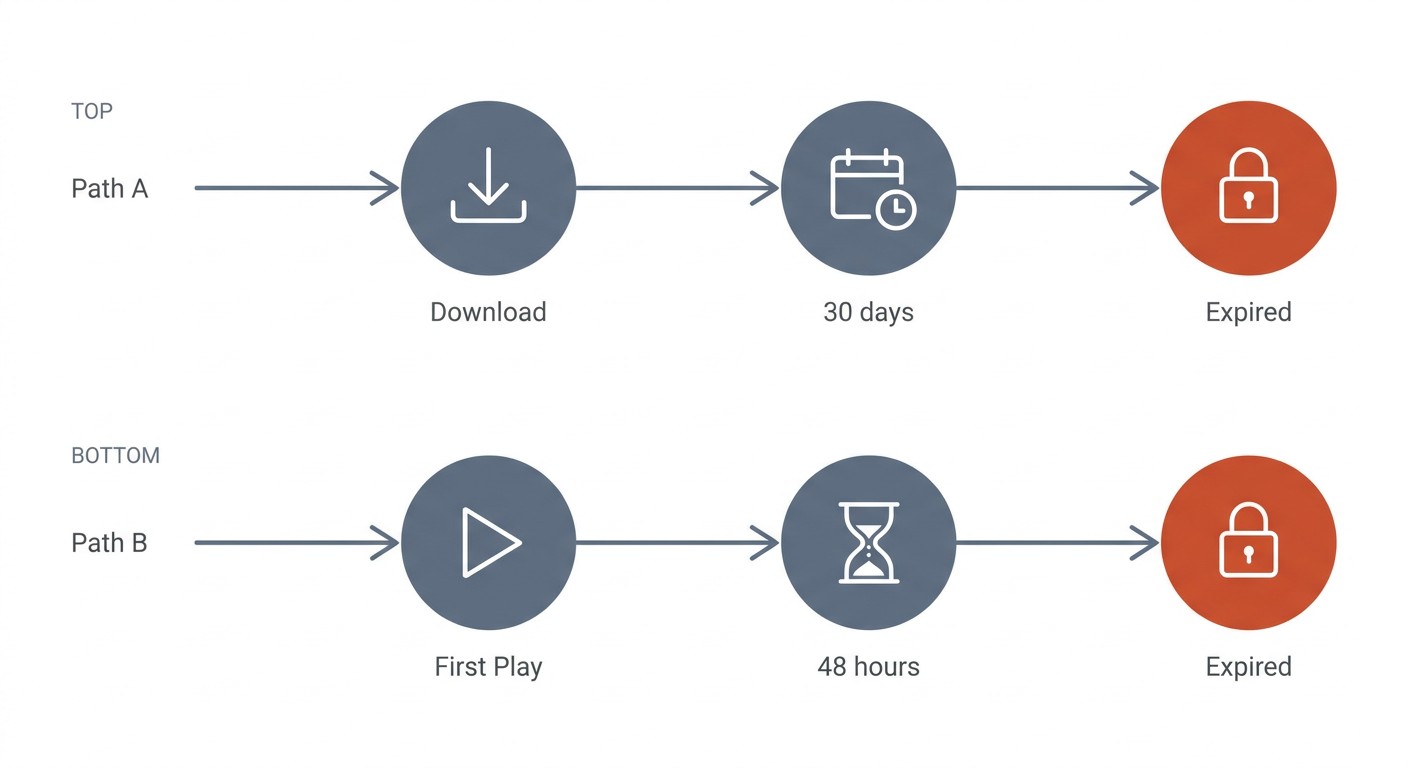
This is the perennial r/hulu complaint, and it has tripped me up too: downloads "vanish" mid-trip because the 48-hour clock started on a 30-second preview tap days earlier. One thing that sometimes buys margin — leave the device in airplane mode after starting playback, since a live connection can let Hulu's DRM refresh revoke the license early. It is not a fix; it is a delay.
Renewing an expired download — and why some shows have no download button
To renew, open the expired download while connected; Hulu offers to re-download if the title is still on your plan. If the show has rotated off, or shifted to Premium add-on or Live TV, the renewal fails — and that's also the answer for titles that show no download button to begin with. The "no button" cases follow a predictable order in my experience: check your plan tier first (ad-supported is the most common reason), check whether the title is Live TV or a Premium add-on, then assume it simply isn't licensed for offline at the moment.
Beyond the Hulu iPhone App: BBFly Hulu Downloader for Permanent Local Files
For Hulu shows you want as actual files — playable on a PC, a Mac, a media-server NAS, or a smart TV without the Hulu app — the in-app download isn't the route. A desktop tool that pulls a local MP4 from your already-paid Hulu subscription is. BBFly Hulu Downloader is the option I've been testing for this on Windows and macOS.
Please note: Third-party downloaders can conflict with Hulu's Terms of Use. Any files you save should be for your own personal, offline viewing of content you actively subscribe to — never for redistribution or resale. Where Hulu's own iPhone download covers your need, the official path is the most worry-free route.
Where the Hulu iPhone app falls short for keepers
The Hulu iPhone app's hard limits are by design: iPhone/iPad only, encrypted in-app cache, 30-day / 48-hour expiry, 25-title account cap, and the ad-free-plan paywall. For a flight, none of that matters. For a Plex/NAS library, an external drive, or a partner's iPad that isn't on your Hulu account — every one of those limits is a wall. The episodes I lost to the 48-hour timer on that Amtrak trip were not lost because anything technically broke; they were lost because the app expired the only copy I had access to.
What BBFly Hulu Downloader does differently
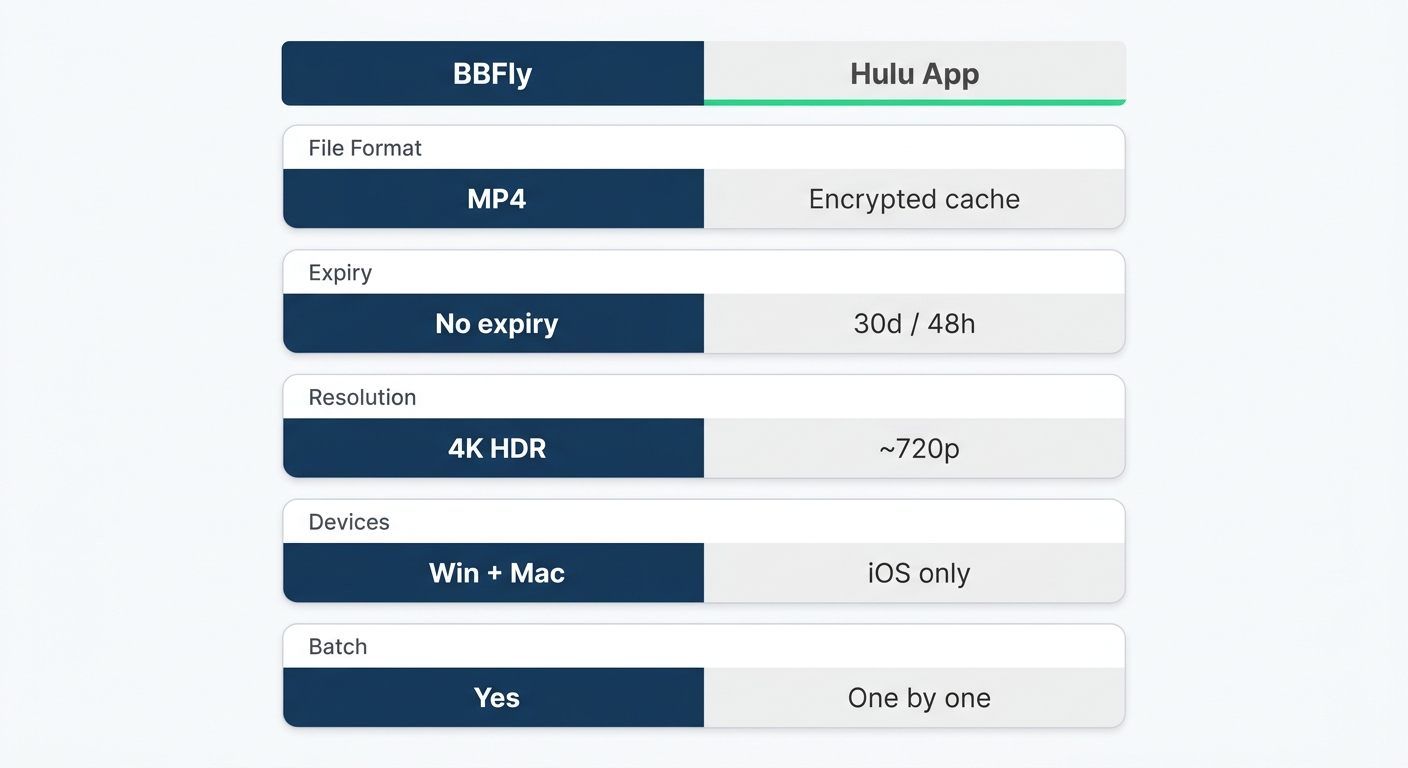
BBFly runs on Windows and macOS, signs into a Hulu subscription you already pay for, and saves what plays back as a plain MP4 or MKV on disk — your file, your folder, no expiry on the local copy. Three differences matter day-to-day: the output is a portable file (it moves to a NAS, an external drive, a Plex server), there is no 30-day or 48-hour clock once the file is on your machine, and batch download lets you queue a season without per-episode taps. The comparison table below carries the full spec sheet so I don't have to inventory it here.
When the desktop route is the right call
Three scenarios where I reach for the desktop tool instead of the iPhone app, each assuming an active Hulu subscription is already in place:
- PC and Mac viewers. Hulu offers zero official download path on macOS or Windows browsers. If your primary device is a laptop, the iPhone app isn't an option at all.
- Subscribers who want a portable local file. Anyone who already pays for Hulu and wants the same content as a movable file on a desktop — for Plex, for an external drive, for a partner's device that isn't on your Hulu account.
- Long-term collectors and frequent travelers. Two-week trips that run past the 30-day shelf life, or series watchers brushing up against the 25-title cap, turn the iPhone path into a constant re-download loop. A local file is one queue and done.
Hulu iPhone Downloads vs. Permanent Desktop Backup — Side by Side
| Dimension | Hulu iPhone (official) | BBFly Hulu Downloader (desktop) |
|---|---|---|
| Devices supported | iPhone, iPad, Android, Fire tablet — no Mac, PC, smart TV | Windows, macOS |
| Maximum resolution | In-app Standard / High toggle (≈720p ceiling on mobile in practice) | Up to 4K |
| File format | Encrypted in-app cache — not a portable file | MP4 or MKV |
| Expiry / renewal | 30 days unwatched, 48 hours once playback starts | No expiry on the local file (personal offline use) |
| Concurrency cap | 25 titles across 5 devices, account-level | No platform-imposed cap |
| Plan requirement | Hulu (No Ads) / Hulu+Live TV No Ads / ad-free Disney Bundle | Any active Hulu subscription you already pay for |
| Subtitles | App caption track (single language at a time) | Multi-language subtitle download |
| Audio | Mobile stereo mix | EAC3 5.1, AAC 2.0 |
| Batch / series tracking | Manual per episode in-app | Batch download + series subscription tracking |
| Ad-removed file | Depends on plan tier | Yes |
| Cellular setup | Disabled by default — must opt in | N/A — downloads on PC/Mac |
Source: Hulu Help Center, Digital Trends as well as BBFly verified product specs.
Hulu iPhone Downloads: Frequently Asked Questions
Which Hulu plan do I need to download shows on iPhone?
The ad-supported plan can't download — that's the trap most people hit first. You need Hulu (No Ads), Hulu+Live TV with No Ads, or the ad-free Disney Bundle. My read after years on the paying side: if you commute or travel, the upgrade pays for itself in two weeks; if you're a couch-only viewer, it doesn't.
How long do Hulu downloads last on iPhone?
30 days untouched, 48 hours after you press play, whichever expires first — both clocks are non-negotiable inside the app. I've been burned more than once by the 48-hour window starting on a casual preview tap days before the trip I actually wanted the file for. Save playback for the flight or commute itself.
Can I download Hulu shows on a PC or Mac too?
Officially, no — Hulu's download feature is iOS, Android, and Fire-tablet only. There's no download button in the web app, and no Hulu desktop client. A desktop downloader (covered above) is the workaround for users who need a local file, and it still requires an active Hulu subscription.
Why is there no download button on some Hulu shows?
Four common reasons, in the order I've seen them on r/hulu: you're on the ad-supported plan; the title is Live TV or a Premium add-on channel (HBO Max through Hulu, for instance); the licensing window for that title doesn't include offline rights at the moment; or the title is flagged stream-only in your region. "I had this downloaded last week and now I can't" almost always traces to licensing rotation.
What happens to my Hulu downloads if I cancel my subscription?
They stop working. Hulu's downloads need a periodic license check against an active subscription — cancel, and the next refresh invalidates the files. The download is conditional, not permanent. Worth knowing if you assumed otherwise.
Can you skip Hulu ads on iPhone?
Inside the app, the only ad-skip that actually works is the ad-free plan itself. Mute, picture-in-picture, fast-forward — none of them skip pre-rolls. Files saved on a PC or Mac via the desktop downloader path are produced without the in-stream ads embedded.
Is it safe to log into Hulu inside a third-party downloader?
It depends entirely on the vendor. A reputable downloader with a clear product page, a real company behind it, and a known credential-handling approach is reasonable risk for personal use — BBFly fits that profile. Before typing a streaming password into anything that isn't the platform's own app, I check three things: a traceable vendor identity, a refund policy you can actually exercise, and reviews that pre-date the current page. If two of those are missing, I close the tab.
Bottom Line: Which Hulu Download Path Fits You?
For a flight, a commute, or any "I just need this for the next 48 hours" use, the Hulu iPhone app is fine — it's what it's built for, and once you understand the expiry clocks and the plan paywall it does its job. For anything that needs to behave like a real file — moves between devices, doesn't expire, plays on a TV without the Hulu app — the iPhone path is a dead end by design, and a desktop downloader like BBFly is built for that side of the use case. Pick the one that matches how you actually watch.