
Can You Record on Peacock? Limits & What Works in 2026
Table of Contents
Short version: no, Peacock has no DVR, no in-app recording button, and most screen recorders return a black frame when you try. The one official "keep it" path is Peacock Premium Plus's mobile downloads, and even those expire on a 30-day / 48-hour timer. Live sports cannot be recorded at all. If you want a permanent local file that plays on your laptop, you have to leave the platform.
Peacock's "no recording" stance is a licensing decision, not a software gap, so the practical options split into two camps: the official mobile download (limited but clean) and a native desktop downloader (the higher-quality route that survives Peacock's expiry timers). Both have real trade-offs, and the rest of this piece walks them, device by device.
Why Peacock Has No DVR: The DRM Black Screen Explained
Peacock has no DVR feature and no in-app recording. The platform's player is wrapped in Widevine DRM, which is why most screen recorders return a black frame when you press record. That is intentional on the licensing side, not a setting you missed.
No Cloud DVR, No In-App Recording Button
There is no record button in the Peacock app on any platform, no cloud DVR like YouTube TV or Hulu + Live TV, and no save-for-later that produces a file you own. Peacock's only retention features are the watchlist (a pointer, not a file) and the Premium Plus mobile download covered in the next section. NBCUniversal's licensing across NBC, Bravo, USA, and sports rights does not include DVR rights for the streamer.
The DRM Black Screen When You Try a Screen Recorder
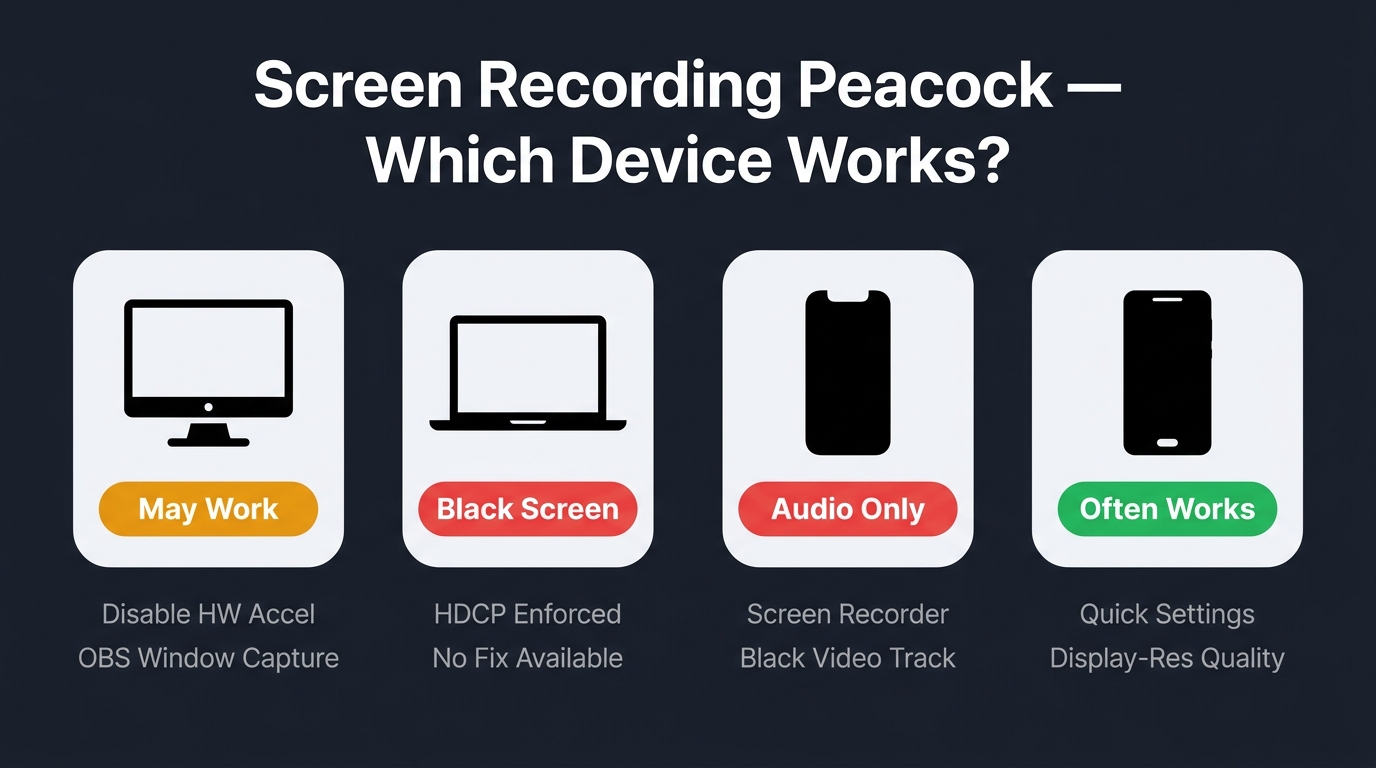
Open OBS or QuickTime, press record on a Peacock stream, and you end up with a perfectly captured black rectangle plus audio. The cause is HDCP enforcement on the protected playback path. On Windows, disabling browser hardware acceleration sometimes drops playback to a software path the recorder can grab. On macOS and iOS, the hooks run deeper and there is no clean stock fix. My verdict: do not burn hours hunting a Mac workaround that won't hold up across player updates.
What Peacock Premium Plus Lets You Download Officially (and What It Won't)
Peacock Premium Plus has an official download feature, but it is mobile-only, capped at 25 titles per device, and the file expires on a 30-day / 48-hour timer. Live programming and some studio-restricted titles are excluded, and the free/ad-supported plan cannot download at all. Source: Peacock's Help Center, as of June 2026.
Premium Plus Downloads Are iOS / Android Only
The download button lives only inside the Peacock app on iOS and Android. There is no PC client, no Mac client, no Chromebook support, no Smart TV download, and no browser-based "save offline." This is the part that catches paying Premium Plus subscribers off guard: you upgrade, sit down at your laptop, and find the download feature doesn't exist on the device you actually use.
The 25-Title Cap, 30-Day Shelf Life, and 48-Hour Play Window
Three limits stack on every Premium Plus download. You can keep up to 25 titles stored on one device at once. An unwatched download expires 30 days after you save it. Once you press play, a 48-hour window opens — and that clock keeps ticking even when the device is offline, which catches people on long international flights. Source: Peacock's Help Center, as of June 2026.
What's Excluded: Live Programming, Some Movies, and the Ad-Supported Tier
Live channels and almost all live sports cannot be downloaded. A subset of studio-restricted titles is quietly missing from the download list, with no obvious flag until you tap the button and it isn't there. The free and ad-supported tier gets no download access at all.
Recording Peacock Live Sports and Events: What Actually Works
No, you cannot record live sports or games on Peacock, on any device. There is no cloud DVR, no Roku-side recording, no scheduled-record feature, and the Premium Plus download path explicitly excludes live programming. The only "keep it" option on Peacock's side is the 24-hour replay window for certain events, after which the file disappears.
Why Peacock Locks Out Live DVR Across Every Device
Live sports rights — including NFL Sunday Night Football, Premier League matches, and WWE Premium Live Events — come from rights-holders who attach no-DVR clauses to streaming licenses. Peacock cannot offer cloud DVR for content it doesn't have DVR rights to, and device makers cannot offer a workaround because the Peacock app doesn't expose a record API. The block is on the rights side, not the software side.
Catch-Up Replays vs. a Permanent Recording
Peacock makes on-demand replay available for many events, usually inside a 24-hour window and sometimes up to 30 days for select competitions. That covers missing Sunday Night Football and watching it Monday morning. It does not cover the midweek Premier League match gone by Friday, condensed replays that drop postgame analysis, or niche events Peacock never adds to on-demand. For readers who watch on delay or rewatch full matches, the replay window fails often enough that it is not a substitute for a permanent recording.
How to Screen Record Peacock on Windows, Mac, iPhone, and Android
Screen recording works on Android, sometimes on Windows with hardware acceleration disabled, and is mostly a dead end on Mac and iOS. The ceiling is whatever your display shows: never higher than that, often messier, with ads baked into the file and audio captured from the system mix.
Please note: Screen-recording streaming services can run into the platform's Terms of Use. Keep any captures for your own personal, offline viewing of content you currently subscribe to, and don't redistribute or resell them. Where an official Peacock download path exists for your device, that is the cleaner route.
Windows: OBS Studio with Hardware Acceleration Disabled
- Open Chrome or Edge, go to Settings → System, turn Hardware acceleration off, then relaunch the browser.
- Install OBS Studio (free) and add a Window Capture source pointing at the Peacock browser tab.
- Set audio to Desktop Audio so the soundtrack is captured.
- Press record in OBS, then play on Peacock. Expect display-resolution output, ads burned in, and a stereo mix instead of a discrete audio track.
Best for: casual time-shifting where quality is not the point. Not ideal for an archive copy at original quality.
Mac: QuickTime, the HDCP Wall, and Why Most Mac Recordings Black Out
QuickTime's screen recording triggers HDCP on the Peacock player and returns a black frame for protected content. There is no stock-macOS fix. External Thunderbolt capture rigs sometimes work around it, but the gear cost isn't worth a recording you can't scrub cleanly. Use the Premium Plus mobile download or a desktop downloader instead.
Best for: nothing reliable on stock macOS.
iPhone: The Built-In Screen Recorder Stops at the Same Wall
- Open Control Center, long-press Screen Recording, and leave Microphone Audio off.
- Start recording, then play on Peacock.
In most runs the iOS DRM hook returns audio without video — a usable soundtrack and a black video track, which is not a usable file.
Best for: capturing audio-only if that's actually what you need. Not ideal where you want the picture.
Android: The One Place Screen Recording Often Works
- On Android 11 or newer, swipe down for Quick Settings → Screen Record.
- Choose Record audio: device audio so the soundtrack is captured.
- Open Peacock and press play.
Android's DRM enforcement varies by manufacturer, so this path succeeds on a meaningful share of devices, particularly mid-tier models. Quality is still capped at the display, audio is the system mix, and any ads in the session become part of the file.
Best for: a quick, free Android capture when display-quality output is acceptable. Not ideal for playback on a 4K TV.
How BBFly Saves Peacock as Permanent Local MP4 Files for Personal Offline Viewing
If you want a Peacock title that survives catalog rotations, expiry timers, and device migrations, you need a permanent local file. The only way to produce one without quality loss is a desktop native-download tool that pulls the original stream instead of recording the screen. BBFly is the one I run on Windows and Mac for Peacock.
Native Download vs. Recording: Why the Output Differs
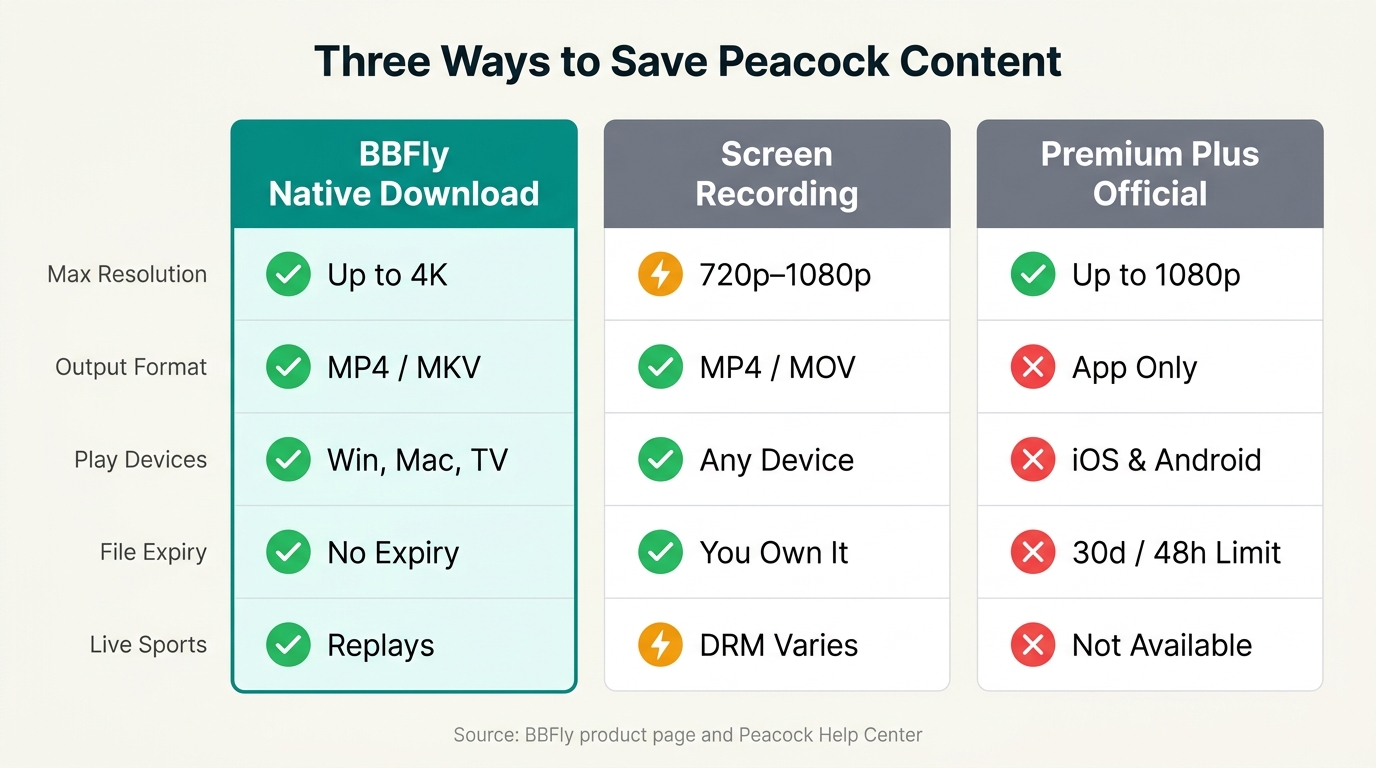
A screen recorder captures what your display shows, then re-encodes it. The ceiling is your monitor's resolution, ads bake into the file, and HDCP can blank the frame entirely. A native download skips the screen — it requests the same stream the Peacock player would, then remuxes it into a standard MP4 or MKV. No transcoding step means no quality degradation; no screen capture means HDCP never triggers.
What BBFly Peacock Downloader Captures And Where It Doesn't Reach
I keep BBFly Peacock Downloader on the Peacock list for three specific reasons. It runs on Windows and Mac, covering the desktop gap Premium Plus doesn't. It preserves up to 4K on titles where the source is 4K (per verified specs). And the output is a permanent local MP4 or MKV that doesn't expire, for personal offline viewing of content you actively subscribe to. Honest limits: it is not a live-event tool (Peacock's live streams aren't capturable in real time on this path), and per the current spec sheet the Peacock module is not a batch downloader. A 30-day trial covers 3 full titles per platform before paying.
Native Download vs. Screen Recording vs. Peacock Premium Plus Official Download
| Feature | Native download (BBFly) | Screen recording | Premium Plus official |
|---|---|---|---|
| Max resolution captured | Up to 4K, where the title is available in 4K (per verified specs) | Display-limited; typically 720p–1080p | Up to 1080p, varies by title |
| Output file format | MP4 or MKV; plays in any media player | MP4 or MOV from the recorder | Encrypted DRM container, Peacock app only |
| Original audio (Dolby Atmos / 5.1) | Discrete tracks preserved (Dolby Atmos / EAC3 5.1 / AAC 2.0) | Mixed down to system audio output | Plays through the app; varies by title |
| Subtitle languages | All available subtitle tracks saved | Burned-in overlay only | In-app subtitle selection only |
| Playback devices | Any (Windows / Mac / NAS / Smart TV via USB) | Any (you own the file) | iOS / Android only |
| File expiry | Permanent local file (subscription required to download) | Permanent (file you recorded) | 30 days unwatched / 48 hours once started |
| Live sports & events | Replays only, after catch-up file is available | Live capture where DRM permits | Not downloadable |
| Ad-supported plan content | Ads skipped automatically per verified specs | Ads captured in the recording | Free / ad-supported tier cannot download |
Source: BBFly's official product page and Peacock's official Help Center, as of June 2026. Specs change; confirm current figures before relying on them.
Recording Peacock TV: FAQ
Does Peacock have a cloud DVR like YouTube TV?
No. YouTube TV and Hulu + Live TV include a cloud DVR with their live-TV bundles; Peacock does not. Peacock's live channels are a streaming feed with no scheduled-record toggle in the app.
How long do Peacock Premium Plus downloads last before expiring?
30 days unwatched. Once you start playing, a 48-hour window opens. That clock keeps counting down even when the device is offline, so a slow-start movie on a long trip can expire mid-watch.
Can I watch Peacock downloads on a PC, laptop, or Smart TV?
The official Premium Plus download is mobile-only and stays inside an encrypted DRM container that only the Peacock app can open. A standard MP4 (the kind a native-download tool like BBFly produces) plays anywhere — laptop, NAS, Smart TV via USB — but it is a separate file produced on the desktop side, not the Premium Plus download moved around.
Is recording Peacock for personal offline viewing legal in the United States?
For US viewers, personal offline viewing of content you currently subscribe to sits in the gray area where personal-use copying typically lives. Redistribution, public performance, and resale do not. This is informational, not legal advice. Keep an active Peacock subscription as the baseline and check Peacock's terms and your local law.
Is it safe to log into Peacock inside a third-party downloader?
A reputable desktop downloader signs you in the same way the official app does, by handing your credentials to Peacock's own auth server. The real risk is with no-name "free downloader" tools that have no published product page or support address. Stick to established named tools with a public site.
Can you keep Peacock downloads after canceling your subscription?
The official Premium Plus download stops playing as soon as the account loses Premium Plus access, because the DRM check fails the next time you open the file. A permanent local MP4 saved from a desktop tool is a different artifact, produced while you were a paid subscriber for personal offline viewing. Keep the subscription active so you can keep adding to the library rather than treating one round of downloads as a way out of paying.