
Amazon Prime Error Code Fixes — Plus Permanent Workaround
Table of Contents
An Amazon Prime Video error code identifies where playback broke: the network layer (0.60, 7131, 7031), the app cache (7136), the account (5004), the HDCP/HDMI chain (5051), the device's DRM module (1061), or a blocked app update (8056). Most resolve with the same six universal fixes; the rest need code-specific steps below. For the chronic cases that software can't fix — typically 1061 and persistent 5051 — there's a local-file workaround at the end.
Netflix plays. Disney+ plays. Max plays. Then Prime throws another 0.60. I've spent fifteen years migrating a home library off DVDs and Blu-rays into a Plex/NAS setup, and along the way I've tested more than a dozen streaming clients — Amazon's error-code density is the highest of any major service I've used. The reason isn't bad engineering. Amazon enforces stricter HDCP, Widevine, and device-auth checks than its peers, so more layers can fail, and each failure gets its own number. The numbers are diagnostic — which is good news, because each one has a specific fix.
Amazon Prime Error Codes at a Glance: Causes & Quick Reference
The most common Amazon Prime Video error codes are 0.60 (connection/auth/HDCP handshake), 7136 (corrupted app cache), 7131 (mid-playback network drop), 5004 (sign-in), 5051 (HDCP mismatch), 1061 (device DRM), and 8056 (app update blocked). Each maps to a specific layer of the playback pipeline, which is why generic "restart your device" advice clears some but not others.
Why Prime Video Errors Out When Other Streamers Don't
Amazon's checks are tighter than Netflix's or Disney+'s. HDCP enforcement is stricter, Widevine licensing is rechecked more often, and the auth gate drops harder on VPN, proxy, and unusual device clocks. Same hardware that breezes through Netflix can fail one of Amazon's gates — which is why generic "restart your device" advice misses on Prime more than on its peers, and specific codes deserve specific fixes.
Quick-Reference Table: 10 Error Codes, 10 First Fixes
| Code | Most Likely Cause | First Fix | Devices Affected |
|---|---|---|---|
| 0.60 / 0.6 | Connection / auth / HDCP handshake failure | Auto-sync device clock, reboot router + device, disable VPN | Fire TV Stick, PS4, Smart TV |
| 7136 | Corrupted app cache / outdated app version | Force Stop → Clear Data → reinstall app | Fire TV, Smart TV |
| 7131 | Network interrupt during playback | Reboot router, switch to wired or 5 GHz Wi-Fi, retry | All platforms |
| 7031 | "Video Unavailable" — server / network / VPN | Disable VPN/proxy, retry from a different network | All platforms |
| 5004 | Sign-in / auth failure | Sign out everywhere, reset password, disable VPN | All platforms |
| 5051 | HDCP / display-protection mismatch | Remove splitter/capture card, use HDMI 2.0+ cable directly | Smart TV via HDMI chain |
| 1061 | Device lacks required hardware DRM (Widevine L1 / PlayReady) | Update firmware, switch browser, or switch device | Older Android, PC browsers |
| 8056 | Prime Video app update blocked / required | Unblock Amazon update endpoints, force update, or sideload current APK | Fire TV (debloated) |
| 0.28 | Generic connectivity drop | Run the six first-aid steps | All platforms |
| DEFAULT | Catch-all when no specific layer identified | Run the six first-aid steps | All platforms |
Compiled from Amazon's Prime Video Help Center pages for each code and the cluster descriptions in the underlying error taxonomy.
First-Aid Steps That Resolve Most Amazon Prime Errors
Before chasing a specific code, run six universal first-aid steps: hard-restart the device, confirm internet speed, clear the Prime Video cache, update the app and OS, sign out and back in, and disable any VPN/proxy/custom DNS. Most codes clear after one of these. I kept hitting 0.60 on a Fire TV Stick once and assumed VPN; the actual root cause was a DHCP lease conflict between the Fire TV and a smart plug, which only surfaced after a router reboot. The steps below would have caught it without me ever looking up "0.60".
The Six Fixes to Try Before Looking Up Your Code
- Hard-restart the device. Clears stale memory state. For Fire TV / Fire Stick, pull power for 30 seconds — a soft restart doesn't always release the DRM session.
- Confirm internet speed. Per Amazon's published minimums: 1 Mbps for SD, 5 Mbps for HD, 25 Mbps for 4K. On Wi-Fi, prefer 5 GHz when both bands are available.
-
Clear the Prime Video cache. On Fire TV and Android: Settings → Apps → Prime Video → Clear Cache. On a browser: clear cookies for
primevideo.com. - Update the Prime Video app and device OS. Older builds frequently lose their DRM license handshake — a quiet cause of 7136 and intermittent 1061.
-
Sign out everywhere and sign back in. Refreshes the account-device binding. Use
amazon.com/devicesto deauthorize old or unrecognized devices. - Disable VPN, proxy, or custom DNS. Amazon flags these more aggressively than Netflix or Disney+; many "no idea why this broke" reports trace back here.
If Your Code Is DEFAULT, 0.28, 9345, 5001, or 5014
DEFAULT is Amazon's catch-all — no specific layer identified, run all six steps. 0.28 is a generic connectivity drop, fixes #2 and #6 usually clear it. 9345 is server-side or regional; retry later and confirm fix #6. 5001 is an account-auth slip, fix #5. 5014 is a profile-PIN or auth path issue, also fix #5.
How to Fix Each Amazon Prime Error Code (Step-by-Step)
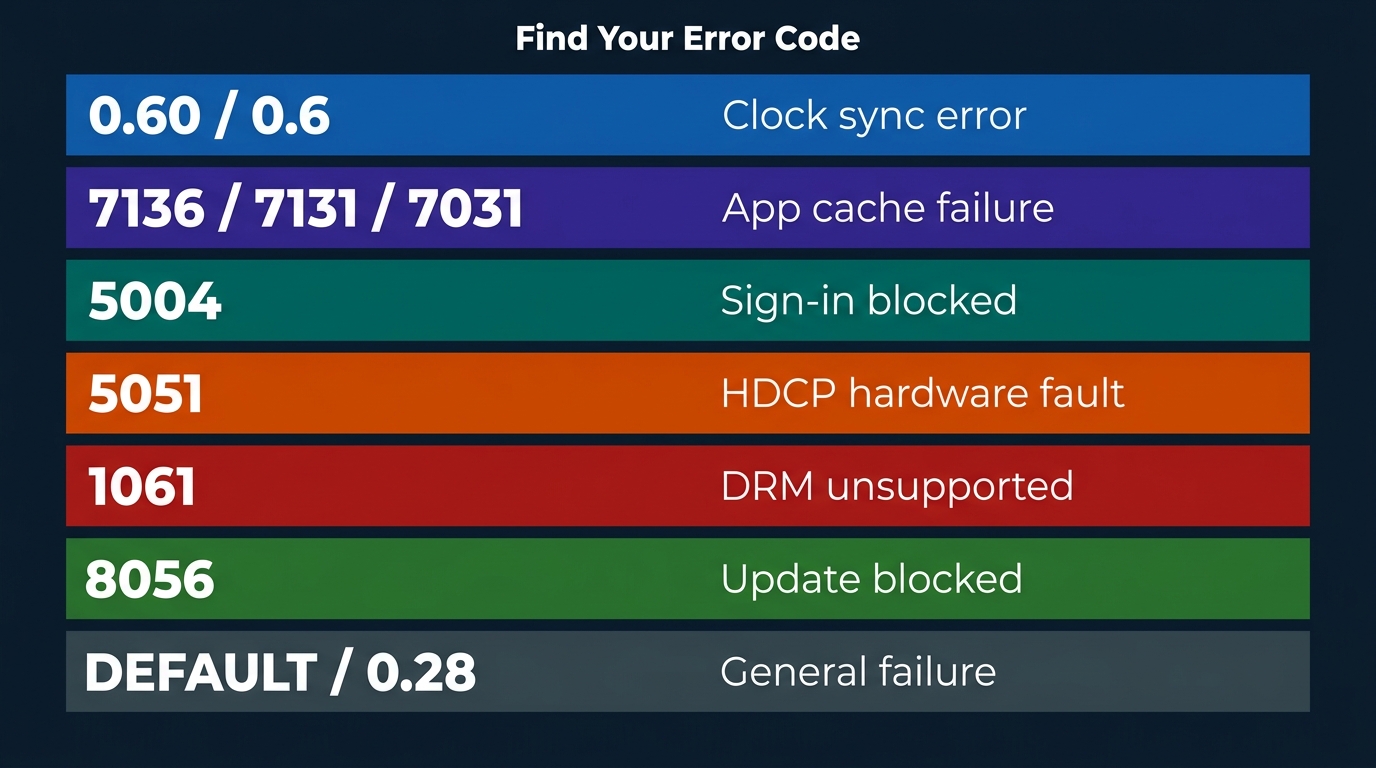
Each specific code maps to a distinct layer of the playback pipeline. 0.60 = handshake/auth/HDCP. 7136 = corrupted cache. 7131 = mid-playback network drop. 5004 = sign-in. 5051 = HDCP/HDMI chain. 1061 = device DRM. 8056 = app update blocked. The fix path differs accordingly — don't reach for the cable when the problem is the cache.
Error 0.6 / 0.60 — Connection, Auth & Device-Clock Issues
The biggest cluster of searches lands here. The cause is a handshake failure between your device and Amazon's auth servers, with four common roots: a wrong device clock (very common right after a factory reset or a power outage), an unstable network, an HDCP mismatch somewhere in the display chain, or a VPN on the auth gate.
Fix order:
- (1) turn automatic date/time back on,
- (2) reboot router and playback device,
- (3) disable VPN/proxy/DNS overrides,
- (4) reseat the HDMI cable and try a different TV input.
- Out of dozens of 0.60s I've chased, clock and router account for nearly all of them.
Errors 7136, 7131 & 7031 — Streaming Connection Drops
All three are mid-playback streaming failures with different triggers.
- 7136 is corrupted cache or an outdated app — most often on Fire TV and Smart TVs that haven't seen an OTA update in months.
- 7131 is a network interrupt during playback.
- 7031, "Video Unavailable," is frequently the same upstream cause as 7136 but surfaced through the player.
Fix: Force Stop → Clear Data → reinstall the app.
If 7131 keeps recurring on the same title, switch to wired Ethernet or 5 GHz Wi-Fi. If 7031 persists across networks, the title may be in temporary licensing limbo on Amazon's side; try again in a few hours.
Error 5004 — Sign-In / Authentication Failure
A credential or account-state failure.
Fix order:
- (1) confirm the Prime subscription is active,
- (2) sign out everywhere at
amazon.com/devices, - (3) reset the password if it was changed recently,
- (4) disable VPN/proxy — Amazon blocks these at the auth layer faster than at the playback layer,
- (5) clear browser cookies.
If 5004 only reappears on one device, suspect a corrupted token; reinstall the app there.
Error 5051 — HDCP / Display Protection Mismatch
A non-HDCP-compliant link in the display chain. Common culprits: an HDMI 1.4 cable that doesn't carry HDCP 2.2, a passive splitter, a capture card between source and display, or a phone-to-TV cast path that drops protection. Remove everything between the player and the TV — no splitter, skip AVR pass-through where you can — and use a single HDMI 2.0+ cable into an HDCP 2.2-compatible input. Hardware-layer failure; software steps won't solve it.
The first five codes above are software-fixable. The last two often aren't — and that's where the math changes.
Error 1061 — Device DRM (Widevine / PlayReady) Limitation
The device lacks the hardware DRM module Amazon's checks require — Widevine L1 vs L3, or PlayReady on Windows. Options are narrow: update the player's firmware; on PC, switch browsers (Edge tends to handle PlayReady most reliably). If the device truly doesn't have hardware DRM, no software fix exists. This is one of the cases the workaround section is for.
Error 8056 — App Update Required (or Blocked)
Almost exclusively a Fire TV problem. The Prime Video app needs an OTA update, but the update is blocked by AdGuard, Pi-hole, or a debloat tool filtering Amazon's update endpoints. Fix: temporarily unblock the relevant Amazon update domains, force the update from Settings → Applications, then restore the blocks. Sideloading the current APK is the fallback.
If the Errors Persist: Save Prime Video Titles as Permanent Local Files
Before going further: this approach still requires an active Prime Video subscription. "Permanent" here means the file on your disk doesn't expire after 48 hours — not that the workaround replaces a subscription.
Please note: Third-party downloaders may conflict with Amazon's Terms of Use. Keep any saved files for your own personal, offline viewing of content you subscribe to — no redistribution, no resale. Where Amazon's own in-app download covers your title and device, that's the most worry-free route.
In cases where a code can't be fixed (typically 1061 device-DRM failures and persistent 5051 HDCP mismatches), a third-party native-download tool can save the title as a local MP4 or MKV, which takes the streaming pipeline out of the loop. The Prime subscription requirement doesn't change.
If you're new to that workflow, our guide to downloading Amazon Prime Video covers the full process — including which devices support offline playback and how expiry limits work. download Amazon Prime Video to a local file
Why Chronic 1061 / 5051 / 7031 Errors Often Don't Have a Fix
When the failure is hardware-layer — the device's DRM module, the HDCP chain — software troubleshooting can't move it. A TV without HDCP 2.2 will keep failing Amazon's checks no matter how many cables you swap. Same logic for 7031 when it persists across networks and devices: the streaming pipeline itself is the failure point. Saving the title locally takes that pipeline out of the loop; playback then depends only on the local player — VLC, Infuse, Plex.
BBFly Amazon Downloader — A Local-File Path for Personal Offline Viewing
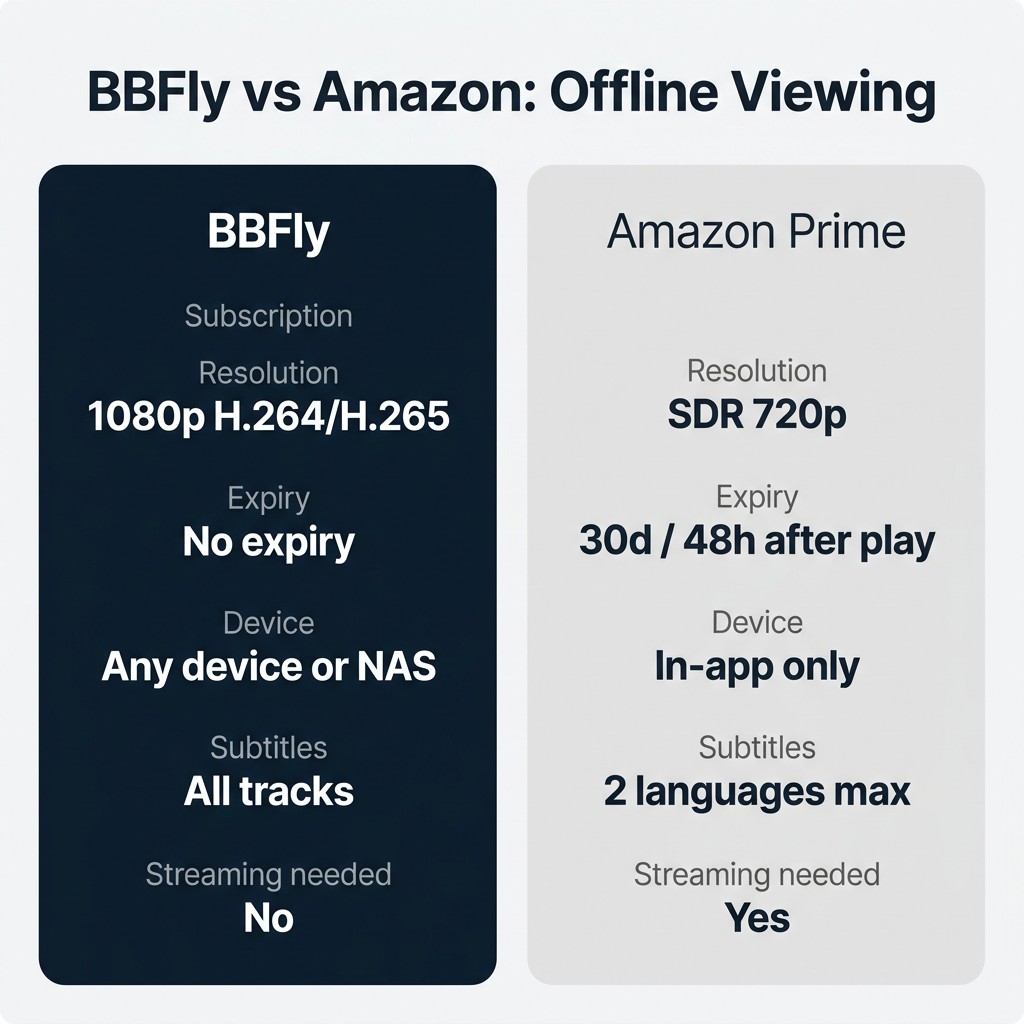
For someone running a local media library, an MP4 that just plays beats the most elegant streaming fix. BBFly Amazon Downloader is the tool I'd use, and the case for it on Amazon comes down to three things:
- The file doesn't expire. Amazon's own in-app downloads expire 30 days unwatched and 48 hours after play, and they can't leave the app (per Amazon's Help Center). BBFly outputs a standard MP4 or MKV with no expiry — external drive, NAS, the same Plex library that holds my DVD rips.
- It doesn't depend on the streaming pipeline throwing your errors. Native download pulls and remuxes the stream rather than re-encoding through a recorder.
- It keeps the subtitle tracks (verified spec sheet: 1080p H.264/H.265, EAC3 5.1 / AAC 2.0, MP4/MKV, batch download). Amazon's official app caps at two subtitle languages.
Honest ceiling: BBFly's Amazon output tops out at 1080p — the Widevine L3 path ceiling that every third-party Amazon downloader I've tested hits. Amazon's own 4K HDR stream is still better on paper. But Amazon's official download is locked to SDR 720p inside the app, expires, and can't move.
Rental titles add another wrinkle — if you're wondering whether you can download Amazon Prime Video rental content offline, the short answer is that the same expiry constraints apply, with additional rental-window limits on top.
For a chronic-error user who already lives in a local library, an unencumbered 1080p MP4 is the trade I'd make. The free trial is three full-length titles per platform — not five-minute clips — so you can verify the result on a real movie before paying.
Amazon Prime Error Codes: FAQ
What does Amazon Prime Video error code 0.60 mean?
A handshake or auth failure between your device and Amazon's servers. Most often: clock drift on the device (after a factory reset or power outage), network instability, or an HDCP mismatch. The fix order is in the 0.60 section above. From my own count, the root cause is almost always clock or router — VPN is much further down the list than people assume.
Why do I get error codes on Prime Video when Netflix and Disney+ work fine?
Amazon's checks are stricter. HDCP is tighter, Widevine licensing is rechecked more often, and Amazon drops on VPN, proxy, and unusual device-clock states more aggressively. Same hardware that passes Netflix can fail one of Amazon's gates. It's not a stability story; it's a tolerance story.
What does Prime Video error code DEFAULT mean?
DEFAULT is Amazon's catch-all when no specific layer is identified — generic streaming or network failure. Run the six first-aid steps in order. If it doesn't clear, treat it like a 0.60 and check device clock and router first.
What causes the HDCP error (5051) on Prime Video?
A non-HDCP-compliant link in the HDMI display chain — an old HDMI 1.4 cable, a passive splitter, a capture card between source and display, or a phone-to-TV cast path. Hardware fix, not software.
Can I download Prime Video content offline to avoid error codes?
Yes — Amazon's own app supports limited offline (SDR 720p, locked in-app, 30 days unplayed / 48 hours after play, files can't be moved). For chronic-error users who want a file that just plays anywhere, a third-party native-download tool produces a standard MP4 or MKV for personal offline viewing. Prime subscription still required.
How long do Prime Video downloads stay available before expiring?
Amazon's official downloads: 30 days if unplayed, 48 hours once you press play (per Amazon's Help Center). Files saved through a native-download tool are standard MP4/MKV with no expiry — the Prime subscription is still required to make the download.
Is it safe to log into Prime Video through a third-party downloader?
It depends on the tool. The ones I trust route sign-in through Amazon's own web view, so credentials go into Amazon's page, not a form the downloader controls — BBFly's flow does this. The caution that matters is no-name tools with no public track record; with an established vendor, the login itself isn't where the risk lives. I still open amazon.com/devices every couple of months and remove any session I don't recognize.