
Can You Watch Peacock Offline? What Works, Device by Device
Table of Contents
Yes, but only on iPhone or Android, and only with a Peacock Premium Plus subscription. The mobile apps are the only place an official download button exists. Laptop, Mac browser, Smart TV, Xbox, PlayStation: streaming only. No download path, no workaround inside the official app on those devices.
I've watched this script play out across every major streaming service for the better part of a decade now: the offline mode that looks generous in the marketing copy turns out to be one platform, one device class, one expiry clock you didn't know about. Peacock fits the pattern. The official answer is straightforward; the part that catches people is what happens after the download finishes, and what your options are on the devices that don't even get to start. The pages below walk it device by device, then cover the workaround when official downloads aren't on the menu.
How to Download Peacock Shows on iPhone or Android
You need three things: a Peacock Premium Plus subscription, the official Peacock app on iPhone or Android, and a title the app marks as downloadable. Open the title, tap the download icon, and the file lands inside the Downloads tab in the app. If you're on the ad-supported Premium tier or the free tier, the download icon never appears, by design rather than a bug.
What you need before you tap download
Premium Plus is non-negotiable; it's the only Peacock tier that unlocks the download icon. The app needs to be the current version from the App Store or Google Play, and you need to be signed in on the device you actually plan to watch on. Side note from too many bad airport hotel rooms: queue your downloads on Wi-Fi, not a metered cellular plan. A 1080p hour-long episode runs comfortably north of 1 GB, and you'll burn a data cap fast.
Find the download icon, tap, wait
- Open Peacock on iPhone or Android.
- Open the title (movie or series) you want to save.
- For a movie, look for the downward-arrow icon next to the Play button. For a series, the same icon sits on each individual episode row.
- Tap it. Progress shows beside the icon.
- When the icon flips to a filled state, the file is on the device.
Multiple episodes queue from a series page; the app manages the queue itself with no per-file progress bar.
Where your downloads live (and quietly disappear from)
Downloads sit inside the Peacock app under the Downloads tab. Tap a title to play, swipe or long-press to delete and free the slot. The files don't show up in Photos or the iOS Files app; the download lives inside the Peacock app's sandbox with DRM that only the Peacock app can play back. That's why you can't AirDrop or copy a Peacock download to another device, and it's the start of the fine print I'll cover next.
Peacock's Download Fine Print: 25 Titles, 30 Days, 48 Hours
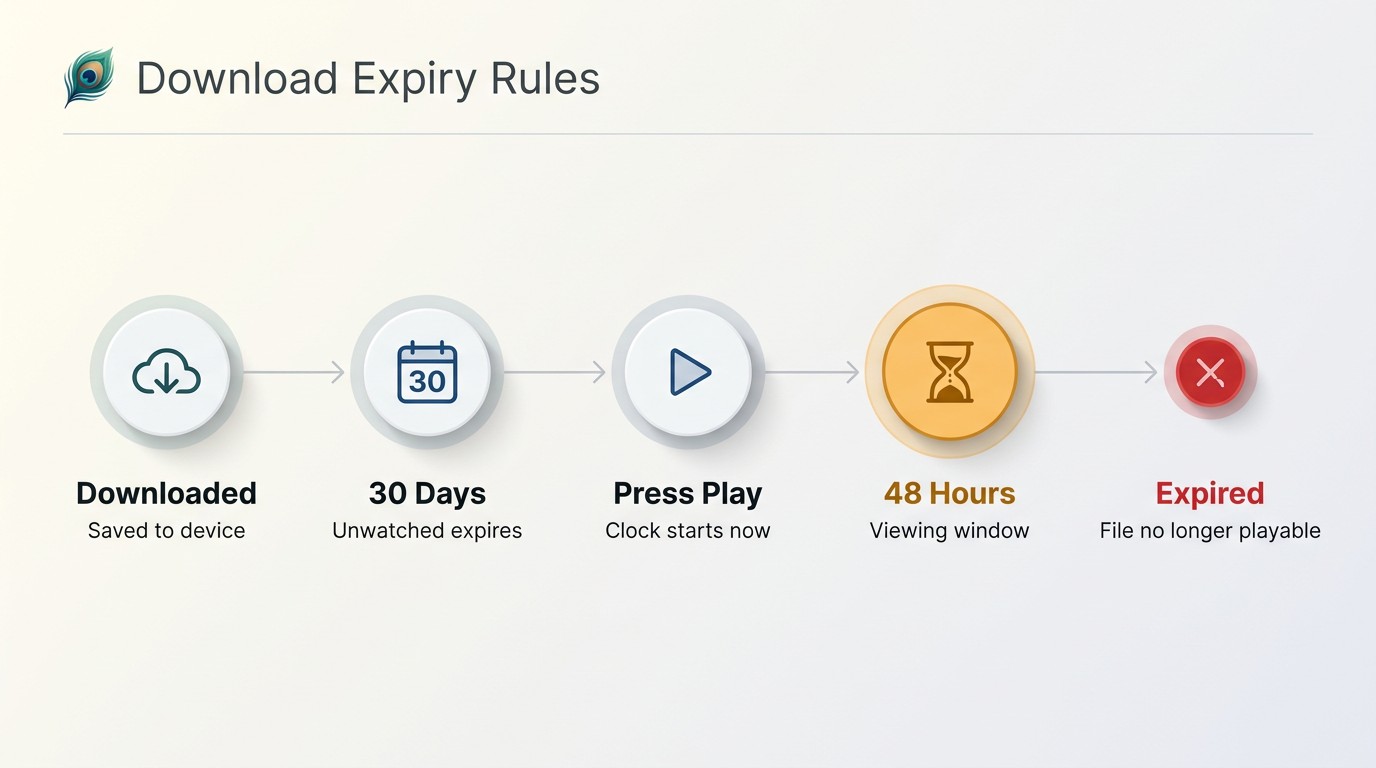
The numbers Peacock doesn't put on the marketing page: 25 titles maximum across your registered devices, 30 days before an unwatched download expires, and 48 hours after you press Play. I hit the 48-hour rule on a transatlantic flight the first time and assumed the app had broken: half-watched on the way out, opened it on the way back, the file was already dead. The clock starts the moment you tap Play, not the moment you land. Per Peacock's Help Center, that's the policy across all eligible titles, not just sports.
The numbers in plain English: 25, 30, 48
Twenty-five titles is the cap pooled across every device on your account, not per phone. Thirty days is the unwatched window: if you never press Play, the file self-destructs on day 31. Forty-eight hours is the one that bites travelers; once you open the file, you have two days to finish, no matter how much time is left on the 30-day clock. For a binge on a long-haul flight, the 48-hour clock is the rule that ends offline viewing the next afternoon.
When the download button isn't there: licensing, not a bug
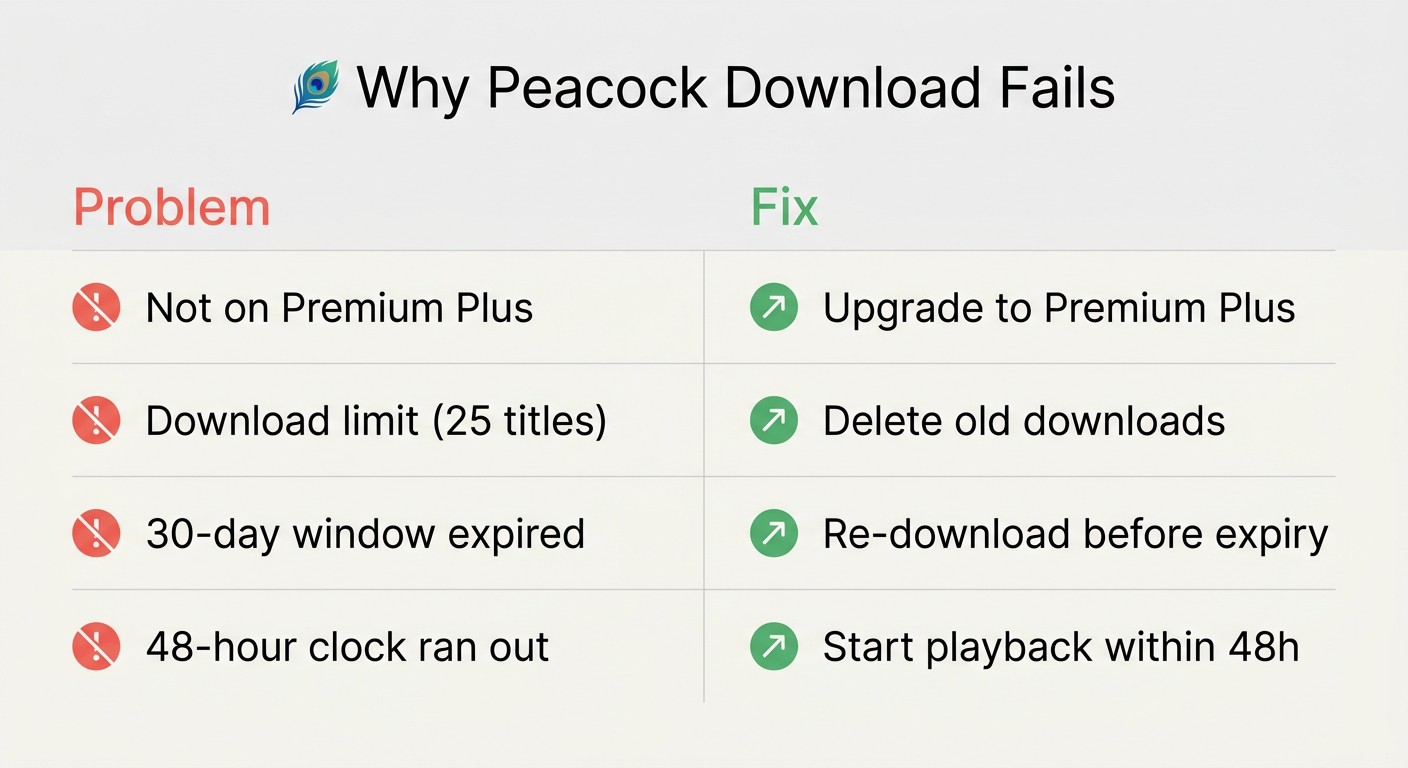
A meaningful slice of Peacock's catalog can't be downloaded. Live sports replays are the most common offender, but plenty of licensed films and some series carry studio terms that disable the icon. Per Peacock's Help Center, this is set by content licensing, not by your account or device. No app setting unblocks it; reinstalling won't surface a button that licensing has hidden. For those titles, plan on streaming, not offline.
When the app says 'Downloading…' and stalls: the actual fixes
When a download hangs or won't start, walk this short list before you reinstall anything:
- Storage on the device, Peacock won't download if free space is low.
- Premium Plus status, if the subscription lapsed or downgraded to ad-supported Premium, all download capability is revoked.
- Device count, if you've registered more devices than the account permits, sign out of an old one before retrying.
- Network drop mid-download, pause and resume from the Downloads tab, or delete and restart the title from the show page.
- Region, downloads work only inside supported regions on a US Peacock account.
If all five are clear and the icon still hangs on "Downloading…", that's the point at which a reinstall actually helps. Otherwise, you're chasing nothing.
Watching Peacock Offline on Laptop, Mac, or Smart TV: What Actually Works
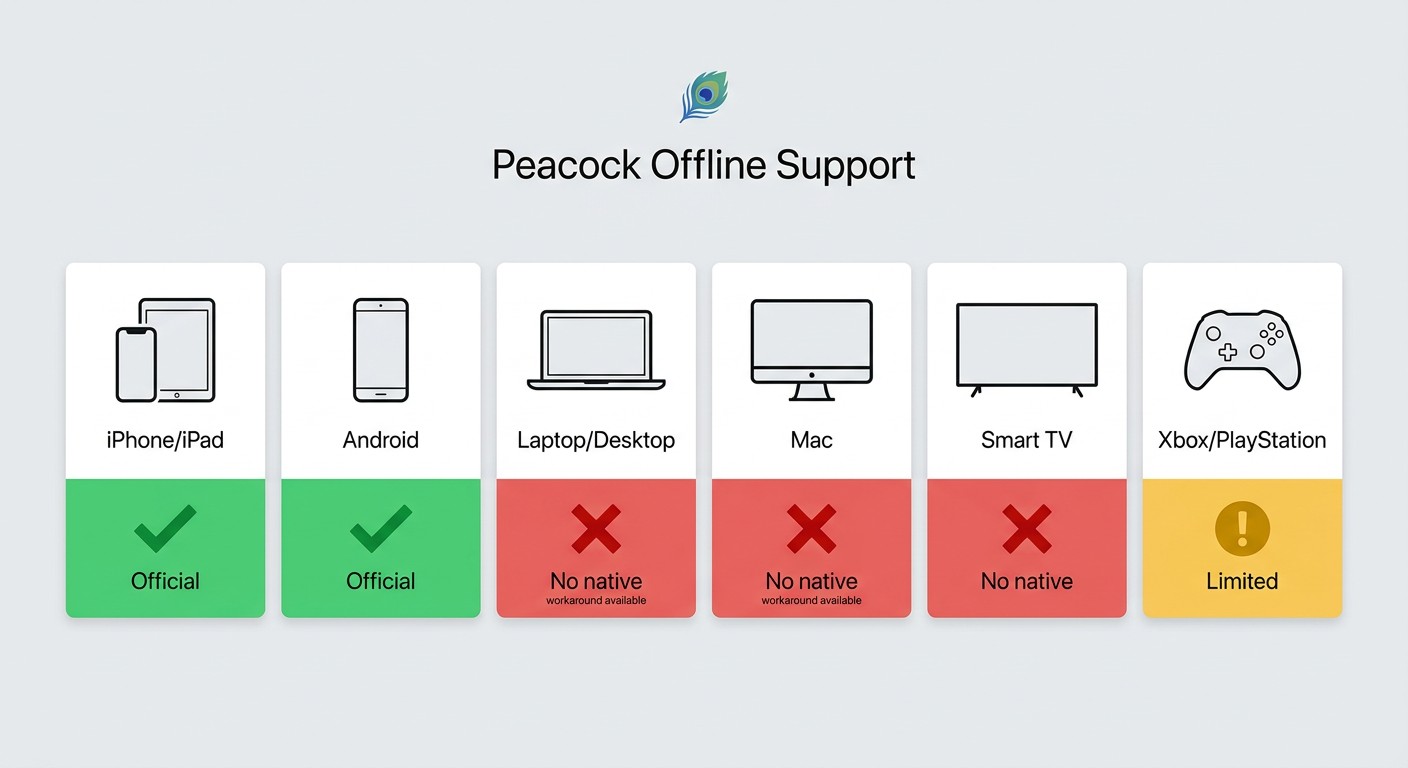
There is no native Peacock download on Laptop, Mac, browser, or Smart TV. Open peacocktv.com on a desktop browser and you'll find a Play button, never a download button. Per Peacock's Help Center, the official download capability is restricted to the iOS and Android apps. If you want a file you can actually play offline on a laptop or push to a Smart TV, you're leaving Peacock's official path. That puts you in third-party desktop downloader territory, and not all of them are worth trusting.
Please note: Third-party downloaders may conflict with Peacock's Terms of Use. Keep any downloads strictly for your own personal, offline viewing of content you actively subscribe to, and don't redistribute or resell them. Where an official download path exists on your device (iPhone, Android), that's the most worry-free route.
Peacock offline downloads at a glance — device support matrix
| Device | Official download | Offline playback | Caveats |
|---|---|---|---|
| iPhone / iPad | Yes (Premium Plus only) | Yes, inside the Peacock app | 25-title cap; 30-day unwatched expiry; 48-hour expiry after playback begins; not all titles eligible |
| Android phones & tablets (incl. Fire Tablet) | Yes (Premium Plus only) | Yes, inside the Peacock app | Same as iOS; Fire Tablet users report occasional stuck "Downloading…" state |
| Laptop / Desktop browser (peacocktv.com) | No | No | Streaming only; no download button anywhere on the desktop site |
| Mac (Safari / Chrome) | No | No | Same as desktop browser, streaming only |
| Smart TV | No | No | App supports streaming only; for offline use, transfer a file saved on PC/Mac via USB or Plex / Jellyfin |
| Xbox / PlayStation | No | No | Console apps are streaming-only with no offline mode |
Source: Peacock's official Help Center, as of June 2026. Peacock revisits its download policy periodically; confirm current eligibility on peacocktv.com before relying on it.
Laptop & Mac: the official site streams only, here's the realistic workaround
On a laptop or Mac, peacocktv.com plays Peacock in the browser and stops there. No download menu, no extension that legitimately adds one. The realistic path is a desktop downloader that saves the title locally as a standalone file. The category divides cleanly: native-download tools capture the platform's actual video stream and remux it to a file; screen-recording tools record playback in real time the way a screen capture records a video call. A native-download tool's output is an independent file that no longer depends on the app it came from. Screen-recording is locked to 1× playback speed and loses quality with every re-encode.
Smart TV: no native offline mode, playback via USB or local network
No Smart TV app for Peacock supports downloads. Not Samsung, LG, Roku, Fire TV, or Apple TV. Save the file on a PC or Mac with a desktop downloader, then play it on the TV one of two ways: copy it to a USB stick and plug it into the TV directly, or run it from a Plex or Jellyfin server on the local network. Most modern Smart TVs handle MP4 from USB without trouble; H.264 1080p is the safest combination for cross-brand compatibility.
Vetting a desktop downloader: the four things that matter
I've installed enough of these over the years to have opinions, and most of the bad ones fail on the same four checks:
- Installer reputation. Download only from the vendor's own domain. Forum re-uploads and "cracked" installers are the most common malware vector in this category.
- Native download vs. screen-recording. Native producers retain the original bitrate and finish faster than real-time playback. Screen-recorders are pinned to 1× speed and re-encode the audio and video, which costs quality.
- Account safety. You will have to sign into your real Peacock account inside the tool. Stay with established brands that have a public company, a published privacy policy, and a multi-year install base. The risk isn't signing in; the risk is signing in inside something you found on a forum link.
- Output format. A real MP4 or MKV file you can move to any device and play in VLC. If the file only opens inside the tool's own player, that's a soft cage in another form.
How BBFly Saves Peacock Episodes as Permanent Local MP4 Files for PC & Mac
BBFly Peacock Downloader is the tool I've stayed on for personal Peacock archiving on a PC or Mac. The file I get out of it opens in VLC on the same desktop, copies cleanly to a USB stick for the living-room TV, and the subtitle tracks are still on it when I check in MediaInfo. That's the practical test for me, and it's why I keep going back to native-download tools over the screen-recording category.
Native download vs. screen-recording, and why it shows up in the file
Per BBFly's product page, the Peacock module captures the platform's original video and audio stream and writes it to MP4 or MKV with no re-encode. Compared with a screen-recorder running at 1× playback speed, the file finishes faster and keeps the original bitrate intact. On the audio side, that means Dolby Atmos and EAC3 5.1 tracks survive when they're part of the source: a screen recording downmixes those to stereo by definition.
What you get from the file itself
A standard MP4 or MKV in a folder on your drive. It plays in VLC, Infuse, or any media player. It plays from a USB stick on a Smart TV. Subtitle tracks come along when Peacock offers them, so the foreign-language-audio-plus-English-captions case works on the file the same way it works in the app. The file stays playable whether or not my Peacock subscription is active that month, on the personal-use framework: an active Peacock subscription, your own offline viewing, no redistribution. Source: BBFly's official Peacock Downloader product page and Peacock's official Help Center, as of June 2026. Specs change; confirm current figures first.
Peacock Offline FAQ
Can you download Peacock on Xbox or PlayStation?
No. The Peacock apps on Xbox and PlayStation support streaming only; there is no offline mode on either console. For offline on a console screen, save the file on a PC or Mac and play it through a media-server app on the console (Plex on Xbox), or via USB on a connected TV.
Can you watch Peacock offline without Premium Plus?
No. Downloads are gated behind the Premium Plus tier. The ad-supported Premium tier and any free tier have no download icon anywhere in the app, on any device.
Can I keep Peacock downloads after canceling my subscription?
No. In-app downloads check subscription status when you press Play, so cancelling Premium Plus invalidates the file even though it's still on your phone. As a contrast of fact: a file that doesn't depend on subscription status wouldn't have this problem, but that's a question about what produced the file, not anything Peacock's own app exposes.
Is it safe to log into Peacock inside a third-party downloader?
Established downloader brands with a public company, a published privacy policy, and a multi-year install base are the trustworthy bucket. The risky territory is no-name installers from forum links and pirated builds. The sign-in itself isn't the problem; where the installer came from is.
Is downloading Peacock with a third-party tool legal?
Personal offline viewing of content you have an active Peacock subscription to is the operating framework. Redistribution, public showing, or resale is not. The exact legal status varies by jurisdiction; consult Peacock's terms and your local law for definitive answers.
Can I watch Peacock offline on a flight with no WiFi?
Yes, on mobile, with one caveat. Download titles before you board, while you still have Wi-Fi. Don't press Play until you actually want to start watching, because the 48-hour clock begins the moment you tap Play. Airplane mode is fine; Peacock doesn't re-check connectivity to play already-downloaded files within the window.
Can I download Peacock live sports replays for offline viewing?
Often no. Live sports replays and same-day game replays frequently lack the download icon due to broadcast-rights licensing. Episodic series and on-demand films fare better. If a sports title's download button is missing, that's licensing, not something you can troubleshoot.
Is Peacock Premium Plus worth it just for the download feature?
For a desktop or living-room-TV viewer: no. Downloads only work on phones, and the 48-hour Play clock burns through any travel scenario past two days. If your main screen is a laptop, Mac, or Smart TV, paying the Premium Plus uplift specifically for the download feature is hard to justify. For an iPhone-primary viewer already on the tier to skip ads, the download is a fine add-on for short flights and commutes.
Bottom Line: Pick Your Path by the Device in Your Hand
If your main screen is iPhone or Android and your travel windows are short, the Peacock Premium Plus app covers offline viewing without leaving the official path. If your main screen is a PC, Mac, or living-room TV, the official answer is no, and a desktop downloader is the realistic route to a file you can actually move and play. If you're hoping Peacock will roll out an official desktop offline mode soon, I wouldn't hold the trip for it.