
How to Download Disney+ Movies on Mac: Limits + Workarounds
Table of Contents
Quick answer: Disney+ does not offer downloads on Mac (or any computer) in 2026. Official downloads are limited to the iPhone, iPad, Android, and Fire OS apps, and only on the Premium tier — and those files expire after 48 hours of playback. To save Disney+ titles to your Mac you need a workaround: iPhone Mirroring on macOS Sequoia, PlayCover on Apple Silicon, an Android emulator, or a dedicated desktop downloader that writes a standard MP4 or MKV. Only the last option produces a permanent local file for personal offline viewing on an active Disney+ subscription.
I've spent fifteen years watching streaming services rewrite their download rules, usually toward less control for the people paying. Disney+ has been one of the more cautious on Mac: even when you do everything right inside the official app, the file lives on your phone — never your laptop — and the clock starts the moment you press play. The question I get most often is "Why can't I just save a Disney+ movie to my MacBook for the flight?" The honest answer is that you can, but not the way Disney+ intends. Here's what actually works on a Mac in 2026.
Can You Actually Download Disney+ Movies on a Mac? (Honest 2026 Answer)
So can you download Disney+ movies on a Mac? No — Disney+ has never shipped a Mac app, and the web player at disneyplus.com has no Download button — by design. As of June 2026, the only platforms with an official Disney+ download feature are iPhone, iPad, Android, and Fire OS, and only Premium subscribers see the button at all. Anything you read about a "Mac download" path is either a workaround running a phone or Android app on your Mac, or a third-party desktop tool. (Verify the current support list at the Disney+ Help Center.)
Mobile-only by design — and what the "Add to Dock" PWA does not give you
The most-shared bad advice here is the Safari "File → Add to Dock" trick. It creates a Progressive Web App — a Safari shortcut wrapped in a dock icon — but no offline storage, no Download button, no behavior change. Per the Disney+ Help Center, the supported-downloads list as of June 2026 is iPhone, iPad, Android, and Fire OS. Mac, Windows, Apple TV, and Vision Pro are not on it, and there is no public roadmap to add them. Downloads belong to mobile devices, period.
The ad-tier cliff: Standard with Ads removes the Download button entirely
Disney+ Standard with Ads (around $9.99/month as of June 2026 — verify at disneyplus.com) strips the Download button on every device, including iPhones and iPads. Only Premium (around $15.99/month) keeps the download feature, and only on the mobile devices listed above.
Even on Premium, downloads come with strings: 30-day reconnect, 48-hour playback, 25-title cap
Per the Disney+ Help Center (as of June 2026): each account is capped at 25 active downloaded titles across up to 10 mobile devices; downloads expire 30 days after saving unless you reconnect online; once you press play, the playback window narrows to 48 hours; and if Disney loses the license on a title, your downloaded copy disappears without warning. Those rules apply on iPhone and iPad — there is no Mac downloader to apply them to, because there is no Mac download path. That gap is why a permanent local file produced outside the app is a meaningfully different artifact.
How to Download Disney+ Movies on Mac in 2026: 4 Methods I Tested
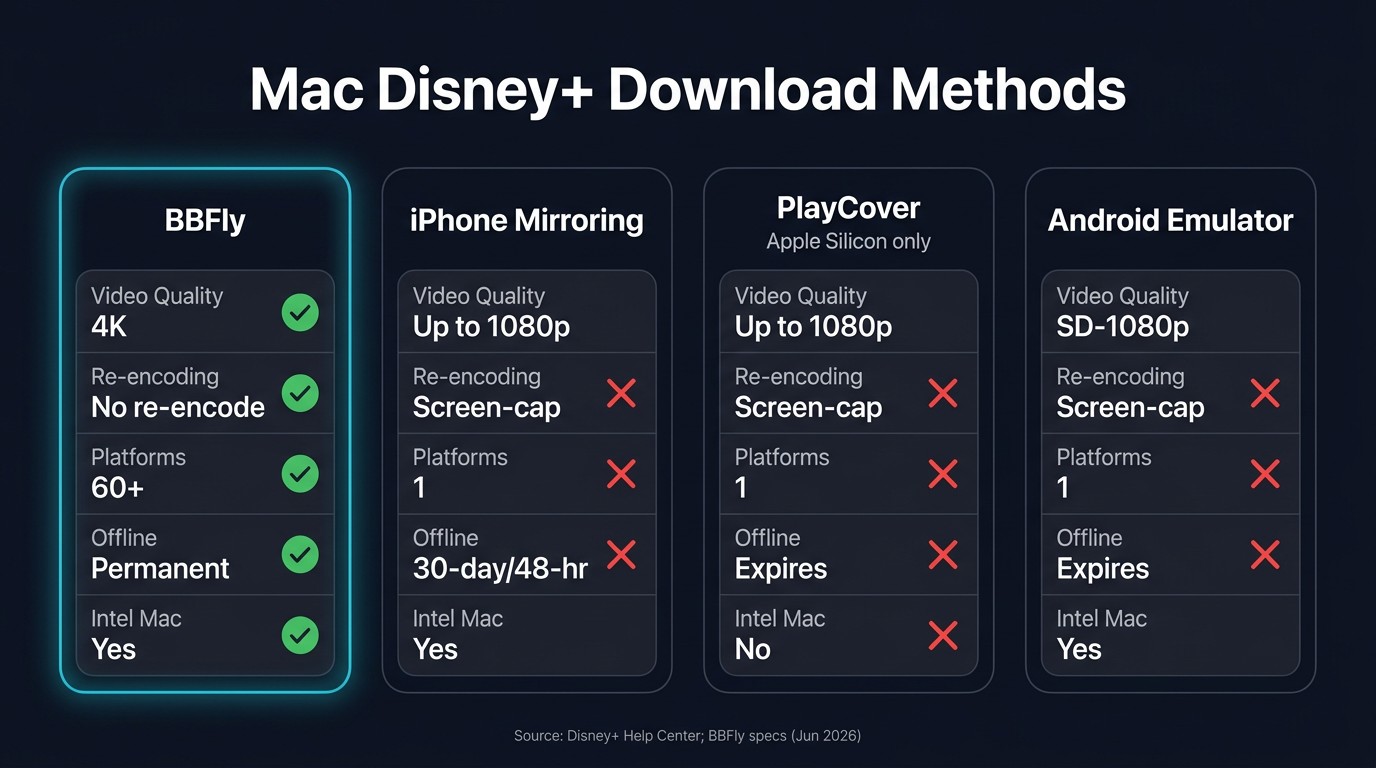
Four paths actually work, with different trade-offs in quality, friction, and where the file ends up.
Please note: Third-party downloaders and emulator workarounds are not endorsed by Disney+ and may conflict with the Disney+ Subscriber Agreement. Use them only for personal, offline viewing of content you already subscribe to — never to redistribute or share publicly. Where an official download path exists on your iPhone or iPad, that's the most worry-free route.
Test environment (June 2026)
- Hardware: MacBook Pro 14" (Apple Silicon M2, 16 GB RAM) and MacBook Pro 13" (Intel i7, 16 GB RAM)
- OS: macOS Sequoia 15.4 (M2); macOS Sonoma 14.6 (Intel)
- Network: 500 Mbps fiber, Wi-Fi 6
- Test content: one ~110-minute Disney+ original feature, US catalog (Premium tier), advertised as 4K HDR
- Account state: active Disney+ Premium, signed-in profile, no cached downloads
- Tools: MediaInfo, Activity Monitor, wall-clock stopwatch
Method 1 — iPhone Mirroring on macOS Sequoia (the closest thing to an official path)
Apple's iPhone Mirroring, which arrived with macOS Sequoia and iOS 18, lets you drive your iPhone from a window on your Mac — including the Disney+ iOS app's Download button. You are not downloading to your Mac; the file still lives inside the Disney+ app on the iPhone.
Right answer for one use case: you own an iPhone, have Premium, and only need to watch on the phone later. All Premium expiry rules still apply — 30-day reconnect, 48-hour playback, 25-title cap. You cannot move the file to a Mac drive, external SSD, or media server.
Method 2 — PlayCover on Apple Silicon: running the iOS Disney+ app natively
PlayCover sideloads ARM iOS apps onto M-series Macs. The Disney+ iOS app sideloaded through PlayCover exposes the official Download button, and the resulting file is the same DRM-bound file the iPhone gets — stored in PlayCover's sandbox instead of on a phone.
Technically elegant; high-friction in practice. You need to source a clean .ipa, set up signing, and accept that the app routinely breaks for a few days after each Disney+ release. I first set it up in late 2024 the week before a red-eye to LAX; the signing certificate quietly expired three days in, the app refused to open at the gate, and I watched the in-flight TV instead. After that I stopped treating it as a daily driver. PlayCover only runs on Apple Silicon — Intel owners are out. The file still lives inside Disney+'s DRM container and cannot move to VLC, a NAS, or a Smart TV.
Method 3 — Android emulator (BlueStacks, NoxPlayer, MuMu): the old-school path
An Android emulator on the Mac with the Disney+ Android app installed works in the literal sense that files arrive. I'd skip it. The install footprint is large; performance on Apple Silicon ranges from mediocre to bad; and the file is locked inside emulator storage, so extracting it involves re-encoding and losing quality.
Method 4 — A dedicated downloader for Mac, and why screen recording isn't a fifth option
The fourth path is a dedicated tool that signs into Disney+ through its own built-in browser, fetches the original stream, and writes a standard MP4 or MKV to your drive. The distinction worth holding: native download (pulls the original stream and remuxes it — no decode/encode) versus record-and-re-encode (a virtual camcorder at playback speed with a fresh compression pass). More on that below.
One method I won't list as a fifth option: QuickTime screen recording. Disney+ enforces HDCP on its web player, producing a black rectangle in Safari, Chrome, and Edge. Firefox occasionally yields a recording but is unstable across catalog updates, and you capture at screen resolution — the worst-case quality outcome.
Side-by-side: what these four paths actually give you
| Method | Max resolution | HDR / Dolby Vision | Dolby Atmos | Where the file lives | Expires? | Intel Mac? |
|---|---|---|---|---|---|---|
| iPhone Mirroring | Up to 1080p (mobile-app cap) | No | No | Disney+ iOS app on iPhone | 30-day reconnect + 48-hour playback | Yes (where Sequoia is supported) |
| PlayCover (Apple Silicon only) | Up to ~1080p (iOS app cap) | No | No | PlayCover sandbox on Mac (DRM-bound) | Inherits Disney+ expiry rules | No |
| Android emulator (BlueStacks / MuMu) | Variable, SD–1080p | No | No | Emulator-internal storage on Mac | Inherits Disney+ Android-app rules | Yes |
| BBFly (native-download desktop tool) | Up to 4K (BBFly verified specs, June 2026) | HDR10 + Dolby Vision preserved | Dolby Atmos / EAC3 5.1 / AAC 2.0 selectable | Standard MP4 / MKV on local drive, NAS, or external SSD | Local file does not expire (personal offline viewing on an active subscription) | Yes |
Sources: Disney+ Help Center; BBFly verified specs; Apple developer documentation; PlayCover GitHub; hands-on testing on M2 and Intel i7 Macs above. (as of June 2026)
Why I Default to BBFly for Disney+ Downloads on Mac
Of the four paths above, native download is the only one that preserves what you paid for on Disney+ Premium — the 4K master where it exists, Dolby Vision, and the original Atmos track. The iOS-app paths cap at 1080p SDR; the emulator path produces a file you can't easily use. That's why BBFly Disney Downloader is the tool I open when I want a Disney+ title on my own drive.
What "native download" actually means (vs. record-and-re-encode)
A native download fetches the original encrypted stream, decrypts it once using your subscription's credentials, and remuxes the tracks into an MP4 or MKV — no re-encode. Recording-mode tools point a virtual capture device at the video player: that class is capped at real-time playback and generally cannot carry HDR10, Dolby Vision, or Atmos. Re-encode tools fetch the stream but transcode before writing, so even a UI labeling output "1080p" is a fresh compression of a 1080p source. The thread at forum.videohelp.com/threads/414419 has a useful cross-section of users discovering, after purchase, that the "downloader" they bought is one of these other categories.
What the original stream actually contains — and why the mobile app can't give you all of it
Disney's 4K HDR catalog is real, but the mobile app — the only official download surface — caps at 1080p SDR, no Dolby Vision, no Atmos. A native-download desktop tool can reach up to 4K with HDR10 or Dolby Vision and the Atmos track intact on titles Disney+ publishes in those formats (BBFly verified specs, June 2026; per-title 4K HDR availability depends on the Disney+ catalog — What's on Disney Plus is a useful tracker). BBFly runs on both Intel and Apple Silicon, closing the gap PlayCover leaves on the Intel side. Honest limits: you sign into Disney+ through its built-in browser, the local file is for personal offline viewing on an active subscription, and reach is bounded by what Disney masters in 4K HDR.
Disney+ Download FAQ: Mac, iPad, and Account Safety
Can you download Disney+ movies on an iPad?
Yes — on the Disney+ iPadOS app, on Premium. Standard with Ads strips the Download button on iPad as on iPhone. The same rules apply: up to 25 active titles across 10 mobile devices, 30-day reconnect, 48-hour playback window. Downloads stay inside the Disney+ app and cannot transfer to a Mac, external drive, or any other player. (As of June 2026; verify at the Disney+ Help Center.)
Is it safe to log into Disney+ inside a third-party downloader?
Any downloader needs your Disney+ sign-in because DRM is keyed to your subscription. The risk isn't logging in — it's logging in to software from an unverifiable publisher. My rule: check for a real corporate identity, a readable privacy policy, a working support channel, and a track record older than the latest viral listicle. Reputable tools like BBFly handle sign-in the way a normal browser does. The caution is no-name tools, not the act of signing in itself — that's the only check that matters here.
Do these workarounds work on both Intel and Apple Silicon MacBooks?
Mostly. iPhone Mirroring needs macOS Sequoia, supported on most 2018-and-later MacBooks regardless of architecture. PlayCover is Apple Silicon only. Android emulators run on both but worse on Apple Silicon. A native-download tool like BBFly runs on both — the path I'd point any Intel-Mac reader toward.
Does PlayCover still work with Disney+ on Apple Silicon in 2026?
Yes — the PlayCover project is still maintained as of mid-2026 and the Disney+ iOS app sideloads. The caveat: it breaks for a few days after major Disney+ app updates and requires periodic re-signing of your .ipa. Hobbyist option, not a daily driver.
Will Disney+ ever release a native Mac app with offline downloads?
No public roadmap as of June 2026. Disney has shipped Apple TV and Vision Pro apps while pointedly skipping macOS for years, which reads as platform policy rather than a gap waiting to be closed. Watch the Disney+ corporate press room if you want to be sure — I'd treat the question as settled until that room says otherwise.
Can I get 4K downloads of Disney+ on a Mac?
Only via a native-download desktop tool, and only on titles Disney+ has mastered in 4K HDR. Official mobile-app downloads cap at 1080p SDR; iPhone Mirroring and PlayCover both inherit that ceiling. BBFly's verified specs (June 2026) list 4K with HDR10 and Dolby Vision support — per-title availability is a Disney+ catalog matter, so check a tracker like What's on Disney Plus first. (BBFly pricing as of June 2026, verify at bbfly.com: $29.90/month, $99.90/year, or $199.90 Lifetime for up to 3 PCs.)
My Disney+ official download disappeared — why?
Three usual suspects: you went 30+ days without opening the Disney+ app online (license expired); you started playback and the 48-hour window ran out; or Disney lost the license on the title and pulled your copy without warning. The third is the most frustrating, and it's the biggest reason readers eventually move to a permanent-local-file workflow.
Where can I check the rules for saving Disney+ content locally?
The authoritative sources: the Disney+ Subscriber Agreement and Disney+ Help Center for platform terms; U.S. copyright law (Title 17) and the DMCA for the federal legal framework; your state attorney general's pages for jurisdiction-specific rights. A locally saved file is for personal offline viewing on an active subscription — not for use independent of subscription status. The short version: save for yourself, watch on your own devices, don't share the file — that's the line this workflow stays on the right side of.