
How to Watch Netflix Offline in 2026: iOS, Android, Mac & Windows Guide
Table of Contents
Netflix offline viewing works on iOS, Android, Fire Tablet, and — until July 2024 — Windows. The Chrome browser has never supported it, and Mac has never had an official download app. This guide covers every supported path, corrects the outdated expiry and limit figures that still circulate online, and explains what Windows and Mac users can do instead.

Netflix Offline in 2026: Devices, Plans, and Hard Limits
Netflix offline downloads are available on mobile and tablet apps only as of 2026. Understanding which devices qualify, which plans allow downloads, and what the hard limits are will save you from a missing download button or a file that vanishes mid-flight.
Supported Devices: Mobile, Tablet, and Fire Tablet
As of 2026, Netflix officially supports offline downloads on the following devices through the native app only — browser access does not qualify for netflix offline viewing on any platform.
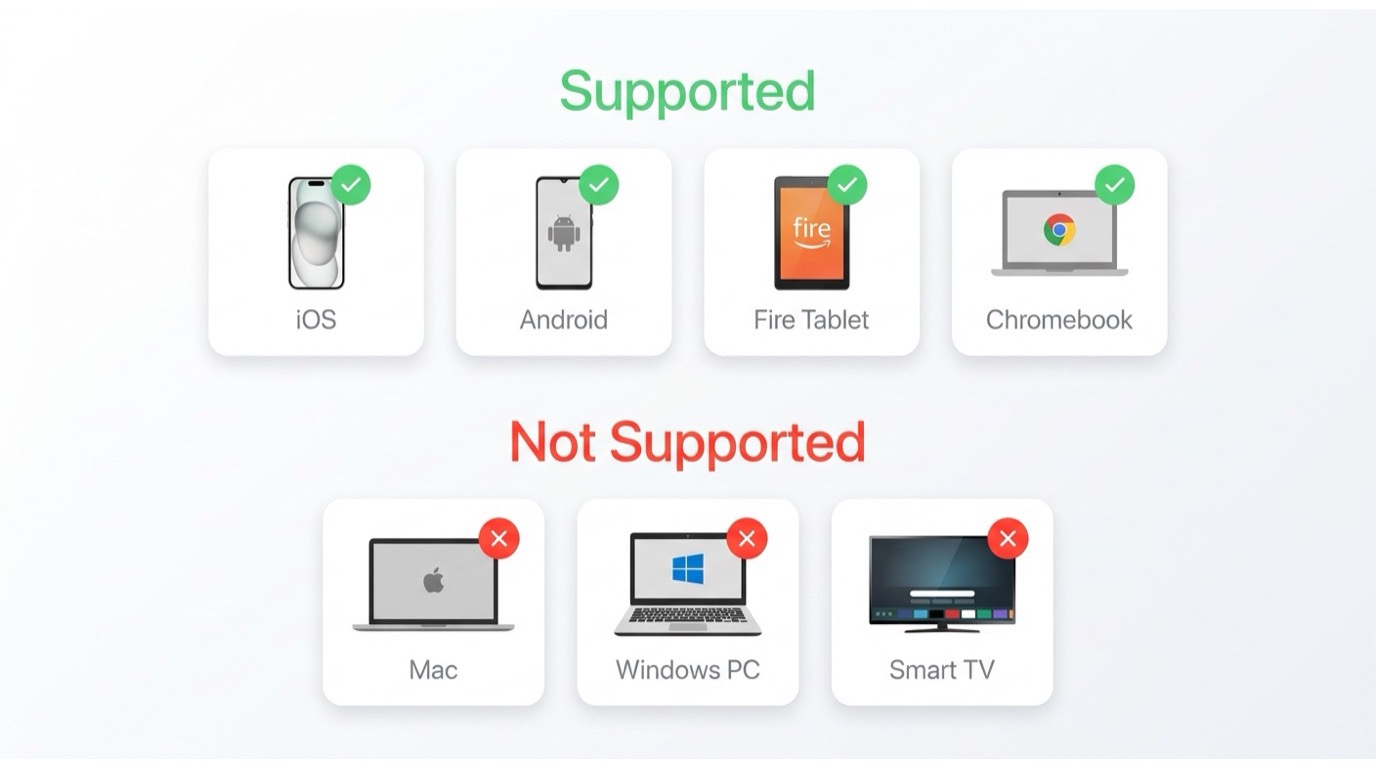
- iPhone and iPad — Netflix app from the App Store (iOS 16 or later recommended)
- Android phones and tablets — Netflix app from Google Play Store
- Amazon Fire Tablet — Netflix app from the Amazon Appstore; officially listed as a supported download device on Netflix Help Center
- Chromebook — Android Netflix app via Google Play Store, on supported models
Smart TVs, streaming sticks, game consoles, Mac, and Windows PCs have no official Netflix download support. The Windows Netflix app lost its download feature in July 2024 (more on that below). MacOS has never had an official Netflix download app.
Content Availability: Why Some Titles Have No Download Button
Not every Netflix title has a download button — netflix offline viewing availability depends on licensing agreements that vary by region and content type.
- Licensing restrictions: A studio may have granted Netflix streaming rights but not offline distribution rights in your region.
- Live content: Live events and sports on Netflix cannot be downloaded.
- Some co-productions: A small subset of Netflix originals have regional download restrictions even within Netflix's own catalog.
To check before a trip, open the title's detail page in the Netflix app. If a download arrow icon appears beneath the title, the content is cleared for offline access in your region. If no icon appears, it is not available regardless of your plan.
During testing on an iPhone 15 running iOS 18.3, I found that roughly 15–20% of browsed titles in a typical watch list showed no download option — a proportion that varied noticeably by genre and region. That gap is worth accounting for when you are building an offline queue for a long flight.
Per-Plan Download Limits and Expiry Rules (2026)
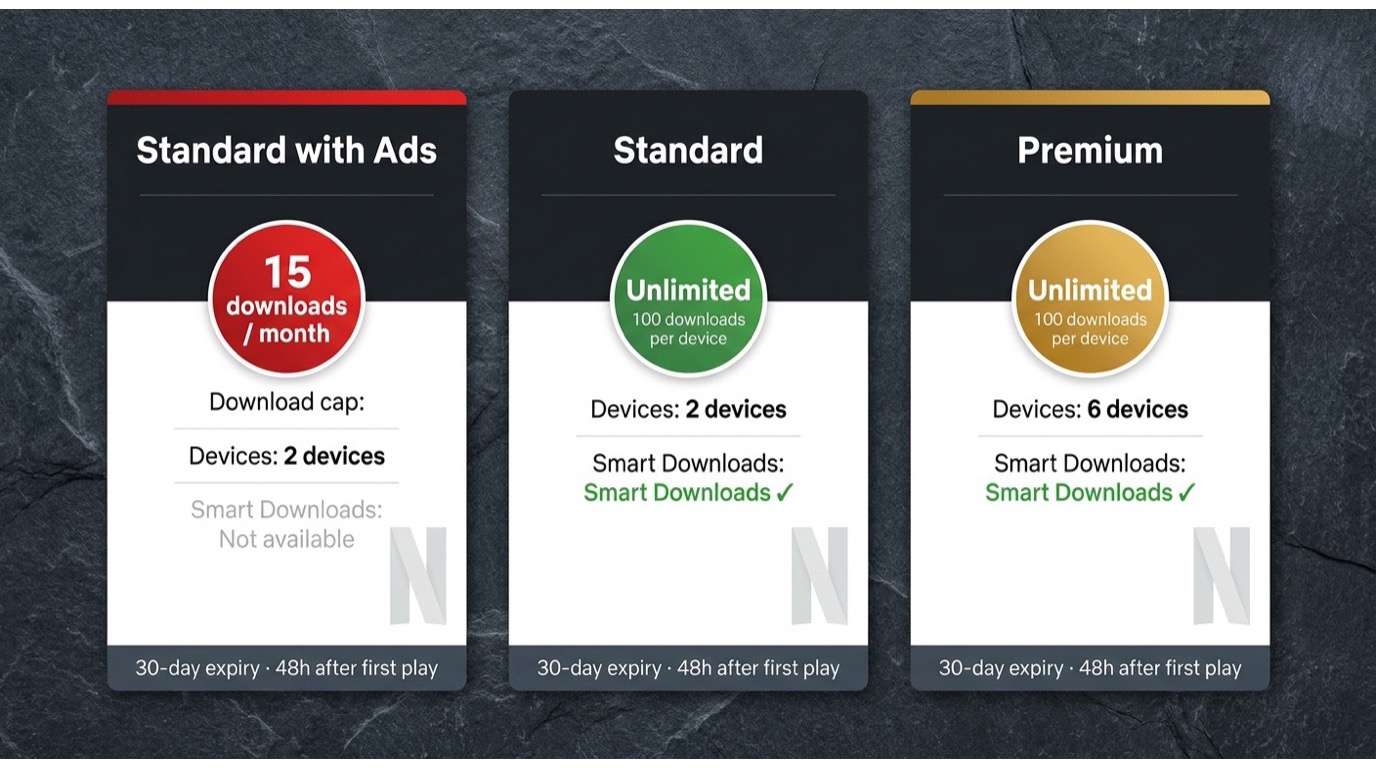
Netflix enforces plan-tiered download limits and a 30-day expiry window — not the 7-day figure that still appears in many older guides.
| Plan | Monthly Download Cap | Active Downloads per Device | Smart Downloads Available | Download Devices |
|---|---|---|---|---|
| Standard with Ads | 15 per device per calendar month | Up to 15 (within monthly cap) | No | Up to 2 devices |
| Standard | No monthly cap | 100 active downloads per device | Yes | Up to 2 devices |
| Premium | No monthly cap | 100 active downloads per device | Yes | Up to 6 devices |
Expiry rules:
- 30 days from download date: Most titles expire automatically 30 days after download, whether watched or not.
- 48 hours after first play: Once you begin watching a downloaded title, you have 48 hours before it expires.
- Some titles are stricter: Licensing-restricted content may have shorter windows than the standard 30 days.
- Subscription required: Downloads stop being playable if your subscription lapses, even if the files are still on your device.
Individual countdown timers for each title are visible inside the Downloads section of the Netflix app. There is also an annual per-title download limit that becomes visible only when triggered (error code 10016-22007) — the app does not surface this proactively.
Step-by-Step: Official Netflix Downloads on iOS and Android
The official netflix downloads process is straightforward on mobile and tablet. Steps differ slightly by platform; each path below covers how to download Netflix movies offline using only the tools Netflix provides.
If you are on a laptop and want storage tips and quality settings, see our guide on how to download Netflix movies on a laptop.
Downloading on iPhone and iPad (iOS 2026)
- Open the Netflix app and sign in to your account.
- Navigate to the movie or series episode you want to download.
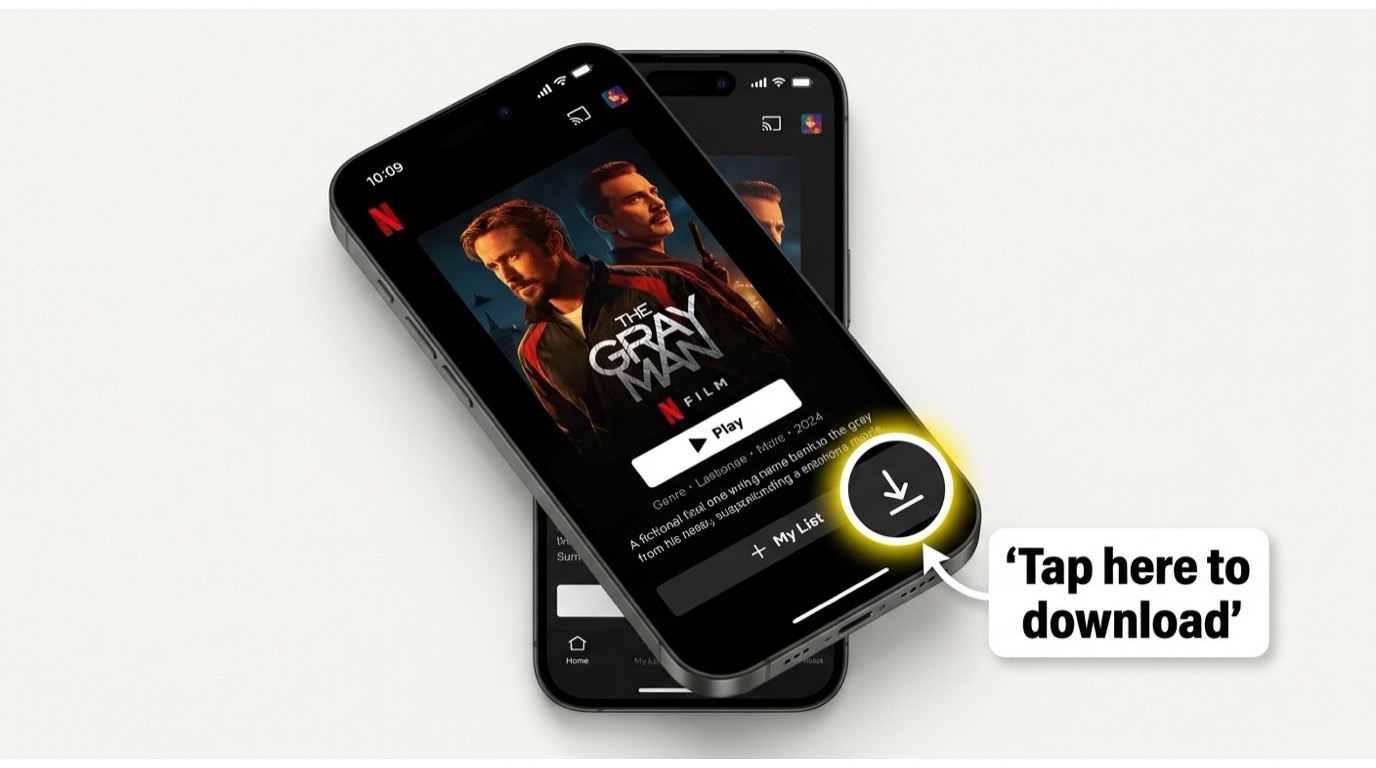
- On the title detail page, tap the download arrow icon (pointing downward). For a series, go into a specific season and tap the download icon next to individual episodes.
- The download runs in the background. Progress appears in the Downloads tab at the bottom of the app.
- When complete, tap the title in the Downloads tab to watch it without an internet connection.
I tested this on an iPad Air (M2) running iPadOS 18.2. A standard 45-minute episode at the default "Standard" quality setting finished downloading over home Wi-Fi in well under 10 minutes, with no interruptions across three consecutive episode downloads.
Downloading on Android Phones and Tablets
- Open the Netflix app on your Android device and sign in.
- Find the title you want. On the detail page, tap the download arrow.
- To configure quality before downloading: go to Menu → App Settings → Downloads → Video Quality and select Higher for 1080p where available.
- Tap the Downloads icon (the arrow at the bottom navigation bar) to view and manage all saved content.
On a Samsung Galaxy S24 running Android 15 with the Netflix app updated to the current version, enabling "Higher" quality and downloading a full season of a series worked reliably — the app correctly queued all episodes sequentially without manual intervention.
Downloading on Amazon Fire Tablet
Amazon Fire tablets are officially supported Netflix download devices. The process mirrors Android and takes under two minutes to set up.
- Open the Amazon Appstore on your Fire tablet and install the Netflix app (or update it if already installed).
- Sign in to your Netflix account.
- Browse to the title you want to save. Tap the download arrow on the title detail page.
- For series, navigate into the season view and tap the download icon next to individual episodes, or use the download-all button for the entire season where available.
- Access saved content via the Downloads tab at the bottom of the Netflix app.
netflix offline fire tablet downloads follow the same 30-day expiry and per-plan caps as Android. If your Fire tablet supports Google Play (some models do via sideloading), the Android Netflix app works as an alternative, but the Amazon Appstore version is the officially supported path.
Smart Downloads and 'Downloads for You': Auto-Offline Features
Netflix has two auto-offline features that most users overlook: Smart Downloads and Downloads for You. Both are available on Standard and Premium plans — neither works on Standard with Ads.
How Smart Downloads Automatically Replace Watched Episodes
Smart Downloads is one of those netflix smart downloads features that sounds minor but genuinely changes how you manage offline queues for long trips.
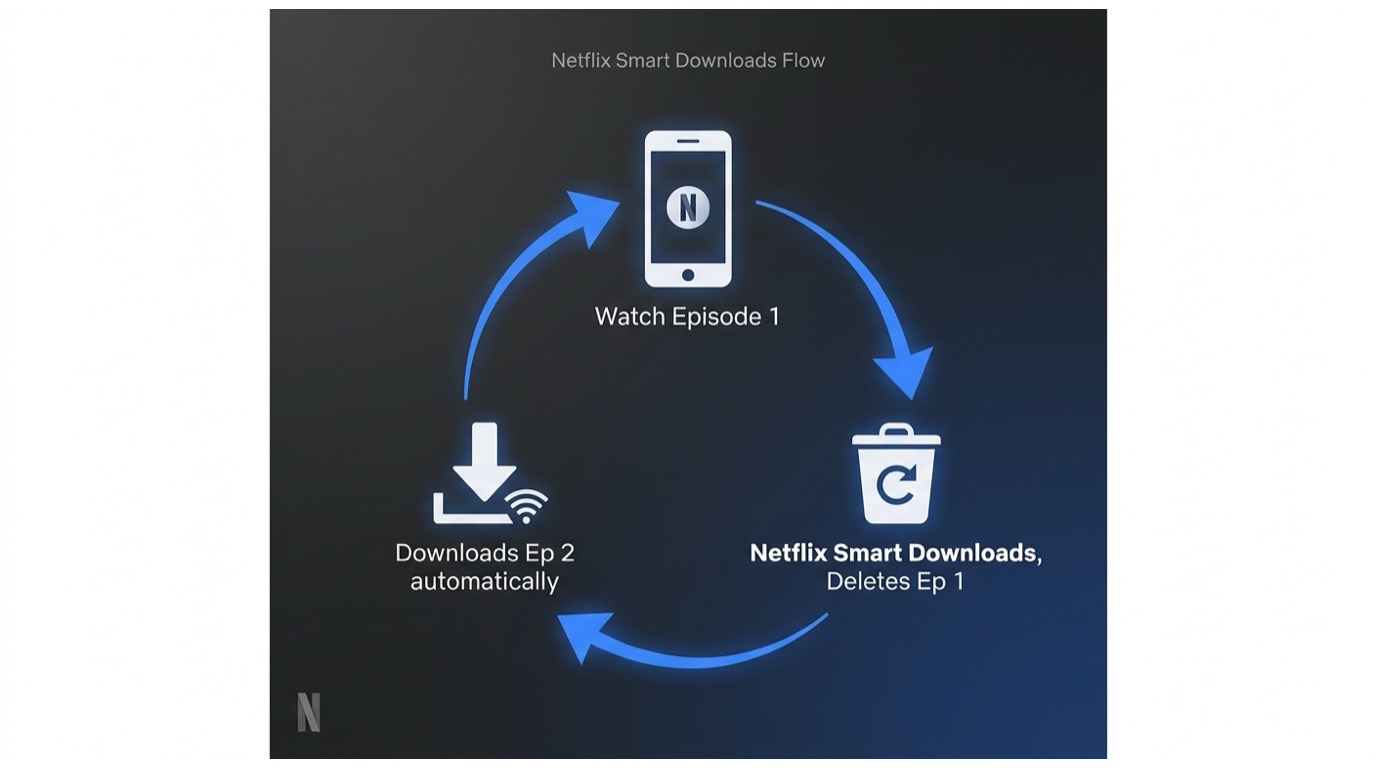
Here is how it works: once you finish watching a downloaded episode, Smart Downloads automatically deletes it from your device and downloads the next episode in the series — as long as you are connected to Wi-Fi. The result is that your Downloads tab stays stocked without any manual queuing.
How to enable Smart Downloads:
- iOS: Open the Netflix app → tap your profile icon → App Settings → Downloads → toggle Smart Downloads on.
- Android: Open the Netflix app → tap Menu → App Settings → Downloads → toggle Smart Downloads on.
Limitations: Smart Downloads is not available on Standard with Ads plans. It also only works for series — movies are not automatically replaced. The feature requires a Wi-Fi connection to download the next episode; it will not use mobile data by default unless you enable that separately in settings.
'Downloads for You': AI-Curated Offline Queue
Downloads for You is a separate netflix offline queue feature that pre-downloads titles Netflix thinks you will want to watch, based on your viewing history. Unlike Smart Downloads, which operates on series you are already watching, Downloads for You surfaces new content you have not started yet.
To access it: open the Netflix app → go to the Downloads tab → scroll to the Downloads for You section. Netflix will have pre-populated a selection of titles. You can watch them immediately or swap them out for different suggestions.
This feature is available on Standard and Premium plans on iOS and Android. It is not available on Standard with Ads. If the section does not appear in your Downloads tab, your plan or device may not support it yet — rollout has been gradual across regions.
Netflix Offline on Chrome: Why It Fails and Chromebook Fix
Netflix offline chrome is one of the most searched Netflix topics. The answer is direct: Chrome cannot download Netflix content for offline playback, and this is by design — not a bug.
Chrome Browser Cannot Download Netflix — Here's Why
Netflix streams video in Chrome using Widevine DRM, which enforces playback only in an active, authenticated browser session. Widevine's content protection model explicitly prevents local file saving to disk via a browser context. There is no Chrome extension, flag, or workaround that addresses this at the browser level without violating Netflix's Terms of Service. Any extension claiming to download Netflix in Chrome should be treated with caution — they are either non-functional or policy-violating.
This netflix chrome drm restriction applies equally to Edge, Firefox, and every other desktop browser. The limitation is not Chrome-specific; it is inherent to how Widevine operates in browser environments.
Chromebook Workaround: Android App via Google Play
Chromebook users have a legitimate path to netflix offline downloads, as long as their device supports Android apps:
- Open the Google Play Store on your Chromebook.
- Search for Netflix and install the Android app.
- Sign in and use the same download arrow icon described in the Android steps above.
- Downloaded content is stored locally and accessible through the Netflix Android app on your Chromebook.
Not all Chromebook models support the Google Play Store. Chromebooks released after 2019 generally support Android apps — check your device model on Google's supported devices list if the Play Store option is not visible.
Windows and Mac Have No Official Netflix Download — What Works Instead
Neither Windows nor Mac has an official Netflix download option in 2026. For Windows, this changed abruptly in July 2024. For Mac, there has never been an official path. If you need netflix offline on laptop, a third-party tool is now the only realistic route.
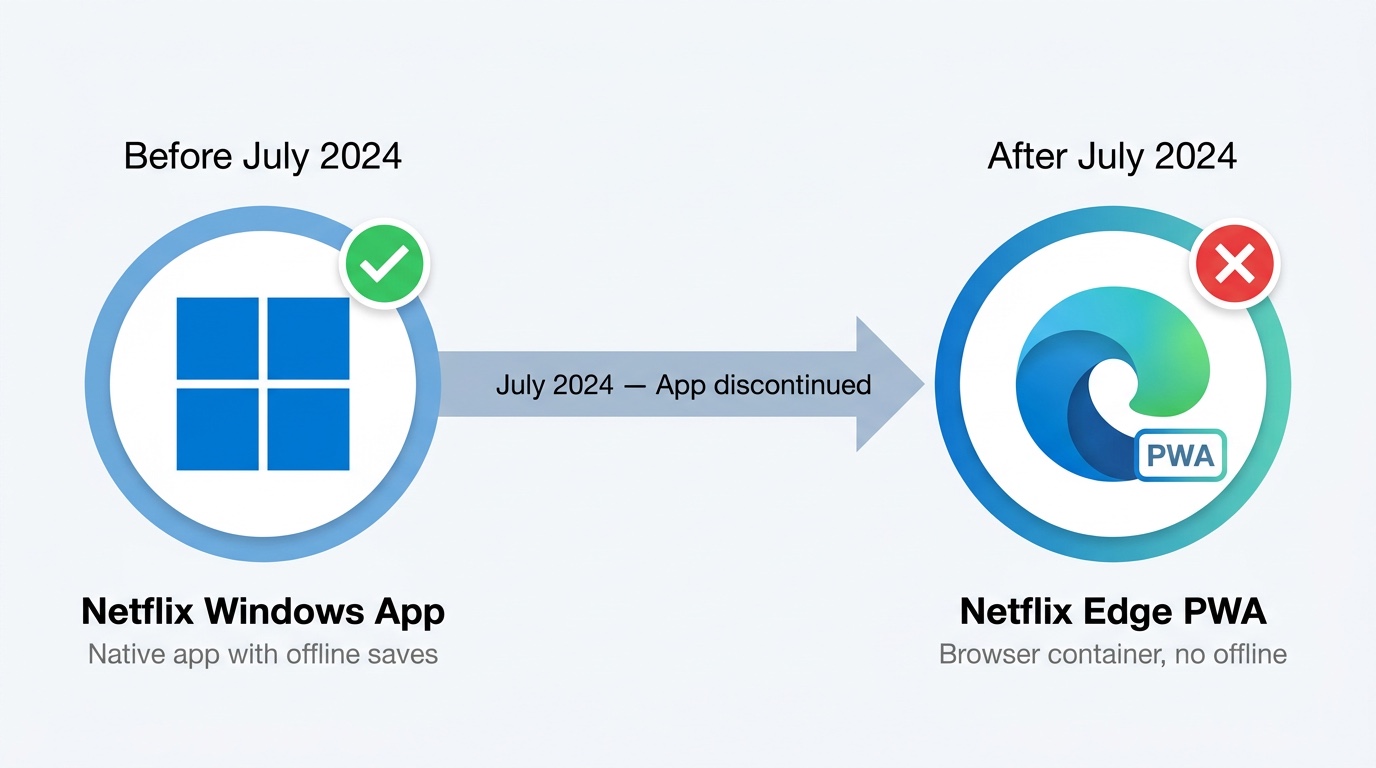
Why Windows PC Downloads Were Removed in July 2024
Until mid-2024, the Netflix app in the Microsoft Store supported offline downloads on Windows 10 and 11. In July 2024, Netflix replaced that app with a Microsoft Edge-based PWA (Progressive Web App). The PWA streams Netflix in a browser container — and as established above, browser-based Netflix cannot save files for offline playback.
The change hit without much advance warning. Community forums filled with users reporting a missing download button; many assumed it was a bug. It was not. The netflix windows app 2024 transition was permanent, and the download feature did not return.
The practical consequence: any guide that still describes downloading Netflix via the Windows app from the Microsoft Store is describing a workflow that stopped working roughly two years ago. If you followed those steps recently and got no results, that is why.
Mac Has Never Had an Official Netflix Download App
Mac users have always been in the same position Windows users are now in. Netflix has never released a native macOS app with download support. The only Netflix experience on Mac is browser-based — which, as noted above, cannot save files locally due to Widevine DRM constraints.
This means download netflix on mac has never had an official answer. The gap has existed since Netflix launched offline downloads in 2016, and there is no indication Netflix plans to address it.
BBFly: The Only Offline Path for Windows and Mac Users
For Windows and Mac users, BBFly Netflix Downloader is the only viable path to saving Netflix content locally. I want to be clear about the framing here: this is not a supplement to the official Netflix download system. For Windows and Mac, there is no official system to supplement — BBFly is the replacement.
BBFly uses a Native Download mode that communicates directly with Netflix's servers to retrieve the original video and audio streams, then packages them via Remux into a standard MP4 or MKV file. The output does not expire, is not tied to a device or account, and plays in any media player — VLC, Infuse, Plex, or directly from a USB drive on a Smart TV.
On a Windows 11 desktop (AMD Ryzen 5 7600, 32 GB RAM), I downloaded a single ~45-minute episode at 1080p in approximately 8–12 minutes depending on network conditions. The output MP4 played back cleanly on VLC and transferred to an external drive immediately after completion — no app required for playback.
BBFly supports Windows 10/11 and macOS, covers 60+ streaming platforms under one license, and includes Dolby Atmos audio extraction for Netflix — a capability that most competing tools either do not support or advertise without actually delivering.
Watch Netflix Offline on TV and Consoles: Workarounds That Work
No Smart TV, game console, or streaming stick has a native Netflix download option. If you want to watch netflix offline on tv, the only practical path runs through a local MP4 file — which means BBFly.
Why Smart TVs, PS5, and Xbox Have No Netflix Download Option
Netflix's offline download feature has always been limited to mobile and tablet platforms. Smart TVs, Apple TV, PlayStation 5, Xbox Series X/S, and streaming devices like Roku and Fire TV Stick all run the Netflix app — but none of those apps include a download function.
Netflix has never publicly explained the omission, but the practical reason is likely a combination of DRM enforcement complexity on diverse hardware ecosystems and the assumption that these devices are typically used in connected environments. Whatever the reason, the result is the same: netflix offline smart tv is not an official feature, and there is no workaround within the Netflix ecosystem itself.
Playing BBFly MP4 Files on Any TV via USB or HDMI
BBFly's MP4 output changes the equation for TV viewing. Because the output is a standard, unencrypted video file, it can be moved to any device that plays MP4s — including TVs.
Two practical paths:
- USB playback: Copy the MP4 file to a USB drive and plug it directly into your TV's USB port. Most modern Smart TVs have a built-in media player that handles MP4 files natively. This works without any network connection.
- HDMI from laptop: Connect your Windows or Mac laptop to the TV via HDMI and play the file in VLC or any local media player. Full 1080p playback, no streaming required.
For NAS users or Plex setups, BBFly files drop directly into a media library with metadata intact — title, cast, episode information, and embedded subtitles are all preserved in the output file. This is the closest thing to a proper Netflix offline tv solution that currently exists outside the official app ecosystem.
BBFly Netflix Downloader: Permanent MP4 Files, No Device Lock-In
BBFly Netflix Downloader saves Netflix content as standard MP4 or MKV files to your local drive — files that do not expire, are not tied to a device, and play on anything. For Windows and Mac users who have no official Netflix download option, it is the primary solution.
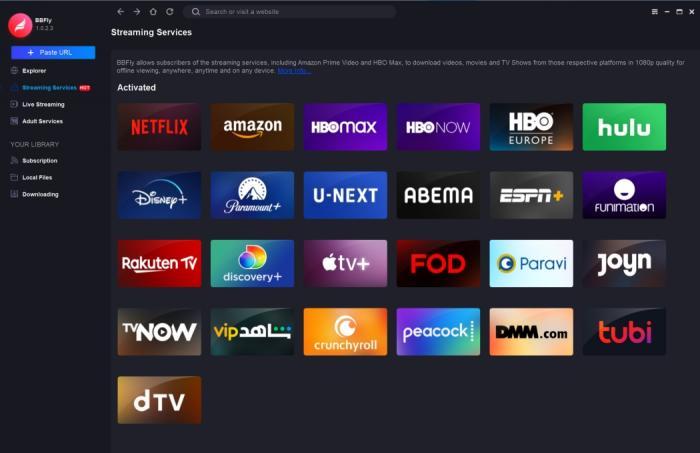
Native Download Mode: How BBFly Captures and Saves Netflix Streams
BBFly operates via Native Download mode — a technical approach that is meaningfully different from screen recording tools. Rather than capturing a re-encoded screen output, BBFly communicates directly with Netflix's servers to retrieve the original video and audio streams, then packages them via Remux without any decoding or re-encoding step.
The practical difference is significant:
- Recording tools are locked to 1x real-time speed — a 45-minute episode takes at least 45 minutes to capture, and the output is a re-encoded file that has already lost quality at the capture stage.
- BBFly's native path is not limited to playback speed and preserves the original bitrate, codec, and format data.
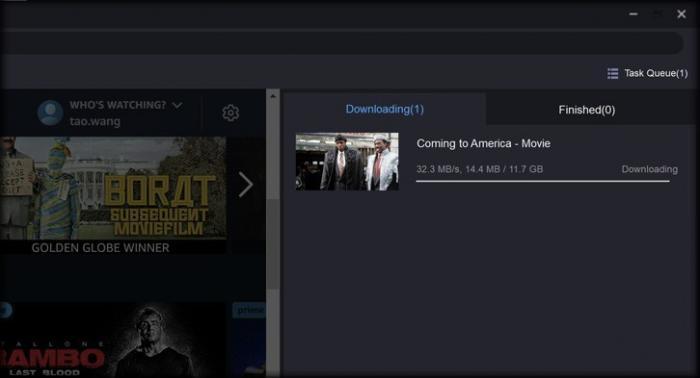
Supported output for Netflix:
- Video: MP4 or MKV container, up to 1080p; H.264, H.265, VP9, AV1 encoding preserved
- Audio: Dolby Atmos (verified extractable on Netflix — a capability most competing tools either omit or advertise without delivering), EAC3 5.1, AAC 2.0
- Subtitles: Saved as embedded streams or exported as .srt files; Netflix's 30+ subtitle languages all downloadable in a single pass
- Metadata: Title, cast, genre, and episode information saved alongside the file
- HDR: HDR10 and Dolby Vision preserved where present in the source
1080p Download Walkthrough on Windows (Step-by-Step)
- Download and install BBFly Netflix Downloader on your Windows laptop or desktop.
- Launch the app. The Netflix interface loads inside BBFly's built-in player — sign in with your Netflix credentials.
- Browse to the title you want to save. Begin playing the video.
- BBFly detects the stream automatically. A download settings panel appears: select your preferred resolution (up to 1080p), audio track, and subtitle language.
- Confirm and the download runs in the background. You can queue multiple episodes of a series at once using the batch selection — BBFly scans the season for available episodes and lets you select all with a single click.
- Completed files are saved to your designated output folder as standard MP4s, ready to play or transfer immediately.
BBFly also supports auto-episode detection for series — useful when you want to download an entire season without selecting episodes one by one. Ads are removed from the output file automatically when downloading from ad-supported plan content.
BBFly vs Official Netflix Download: Side-by-Side Comparison
Here is how netflix offline downloads compare across the four most common approaches. The table highlights the dimensions that matter most when deciding which method fits your use case — including file portability and whether you can save netflix movies offline to any device.
| Feature | Netflix Official | BBFly | TunePat | NoteBurner |
|---|---|---|---|---|
| Supported platforms | iOS, Android, Fire Tablet | Windows & Mac | Windows & macOS | Windows & Mac |
| Works on Windows (2026) | No — download removed July 2024 | Yes | Yes | Yes |
| Works on Mac | No — never supported | Yes | Yes | Yes |
| Maximum download quality | 1080p (plan-dependent) | Up to 1080p via Native Download | Up to 1080p with re-encode Mode | Up to 1080p with re-encode Mode |
| File portability | No — locked to device and account | Yes, standard MP4/MKV, playable anywhere | Standard MP4 | Standard MP4 |
| Download expiry | 30 days from download / 48 hrs after play | No expiry, permanent local file | No expiry, permanent local file | No expiry , permanent local file |
| Subtitle export | Embedded only, not exportable | Embedded or .srt export | Embedded | Embedded |
| Batch / series download | Manual per-episode | Yes — full season batch selection | Yes | Yes |
| Price | Included with Netflix subscription | $29.90/month or $99.90/year (AIO, 60+ platforms) | $39.95/month | Comparable to TunePat |
| Active subscription required | Yes | Yes | Yes | Yes |
Top Netflix Offline Download Tools in 2026: BBFly, TunePat, NoteBurner
If you are looking beyond the official app to save netflix movies offline as permanent files, a handful of tools have maintained consistent reliability through 2026. The choice typically comes down to platform coverage, pricing model, and how frequently each tool receives updates when Netflix adjusts its DRM implementation.
Feature and Price Breakdown: Which Tool Fits Your Use Case
Beyond BBFly, two other tools are commonly recommended in the Netflix downloader space:
- BBFly Netflix Downloader — supports Windows and macOS; priced at $29.90/month or $99.90/year for the All-in-One plan, which covers 60+ streaming platforms under a single license. Strong batch download, auto-episode detection, and ad removal make it efficient for series. The AIO plan is the key differentiator — if you use more than one streaming service, you are not paying per platform.
- TunePat Netflix Video Downloader — supports Windows and macOS. Regularly updated. Priced higher than BBFly's AIO plan, and focused on Netflix as a single-platform tool rather than a broader streaming toolkit.
- NoteBurner Netflix Video Downloader — similar feature set to TunePat, with Windows and Mac support. Some users prefer its subtitle handling for non-English content. Pricing is comparable to TunePat.
All three tools require an active Netflix subscription to function — they work with your existing account credentials, not around them. The same applies to every other service they support.
Additional platforms supported by BBFly's AIO plan include:
- BBFly HBO Downloader
- Amazon Prime Downloader
- Disney Plus Downloader
- Paramount Plus Downloader
- U-Next Downloader
Practical limitation shared by all three tools: none can function without a valid Netflix subscription. They are not replacements for a Netflix account — they are tools for users who already subscribe and want more control over where and how they watch. If your subscription lapses, local downloads via these tools remain playable (unlike the official app, which locks you out of already-downloaded content), but you cannot initiate new downloads.
Frequently Asked Questions
Can you watch Netflix offline without a subscription?
No. Netflix requires an active subscription both to initiate downloads and to keep official in-app downloads playable. If your subscription lapses, previously downloaded titles in the Netflix app become inaccessible even if the files remain on your device. Downloads also expire independently — most titles have a 30-day window from download date, and a 48-hour window once you begin watching. Renewing your subscription does not restore expired downloads; you need to re-download the content.
Why is the download button missing on some Netflix titles?
The absence of a download button almost always reflects a licensing restriction — the studio or distributor has not cleared that title for offline distribution in your region, even if Netflix holds the streaming rights. This is especially common with older licensed content, recently arrived content, and certain co-productions. Live events and sports on Netflix are never downloadable. To check quickly, open the title's detail page in the app: if no download arrow appears, the content is not cleared for offline access in your region regardless of your plan tier.
How long do Netflix offline downloads last?
Most Netflix downloads expire 30 days after the download date, regardless of whether you have watched them — not 7 days, as older guides still state. Once you start playing a downloaded title, an additional countdown begins: typically 48 hours. Some licensing-restricted titles may enforce shorter windows. You can see the exact countdown timer for each title in the Downloads section of the Netflix app. Re-downloading resets the clock, provided you still have an active subscription.
Does Netflix offline work on Chrome or Chromebook?
Netflix offline does not work in the Chrome browser on any platform — this is an intentional Widevine DRM restriction, not a technical error. Chromebook users, however, have a legitimate path: if your Chromebook supports the Google Play Store (most models from 2019 onward do), install the Android Netflix app from Google Play and use its built-in download feature. Downloads on Chromebook behave identically to Android downloads, including the same plan-tiered caps and 30-day expiry rules.
What is Smart Downloads on Netflix?
Smart Downloads is a netflix smart downloads feature that automatically deletes a watched episode and downloads the next one in the series — provided you are on Wi-Fi. It keeps your offline queue fresh without manual management. To enable it: open the Netflix app → go to App Settings → Downloads → toggle Smart Downloads on. The feature is available on Standard and Premium plans. It is not available on Standard with Ads, and it works for series only, not movies.
Can you download Netflix on a Mac or laptop in 2026?
No official path exists for either platform. Netflix removed the download feature from its Windows app in July 2024 when the app was replaced by a Microsoft Edge-based PWA. Mac has never had an official Netflix download app. For both Windows and Mac users, BBFly Netflix Downloader is the only viable option — it saves content as permanent local MP4 files that do not expire and play on any device.
How many videos can I download on Netflix per month?
It depends on your plan. Standard and Premium subscribers can have up to 100 active downloads per device simultaneously, with no monthly cap on new downloads. Standard with Ads subscribers are limited to 15 downloads per device per calendar month — once that limit is reached, no further downloads are possible until the following month. Smart Downloads are not available on Standard with Ads. These netflix download limit per month figures are current as of the Netflix Help Center (help.netflix.com/en/node/54816).