
BBFly Netflix Downloader: Save Netflix Offline Without Expiry (2026)
Table of Contents
TL;DR (as of May 2026):
- BBFly downloads Netflix content at up to 4K resolution.
- Downloaded files are saved locally as MP4 — no expiry date applies.
- Chrome browser cannot download Netflix natively; BBFly's desktop client works as a direct PC-based solution for Chrome users.
- A valid Netflix subscription is required; BBFly is intended for personal offline use only.
Netflix Offline Downloads: 3 Methods Compared (2026)
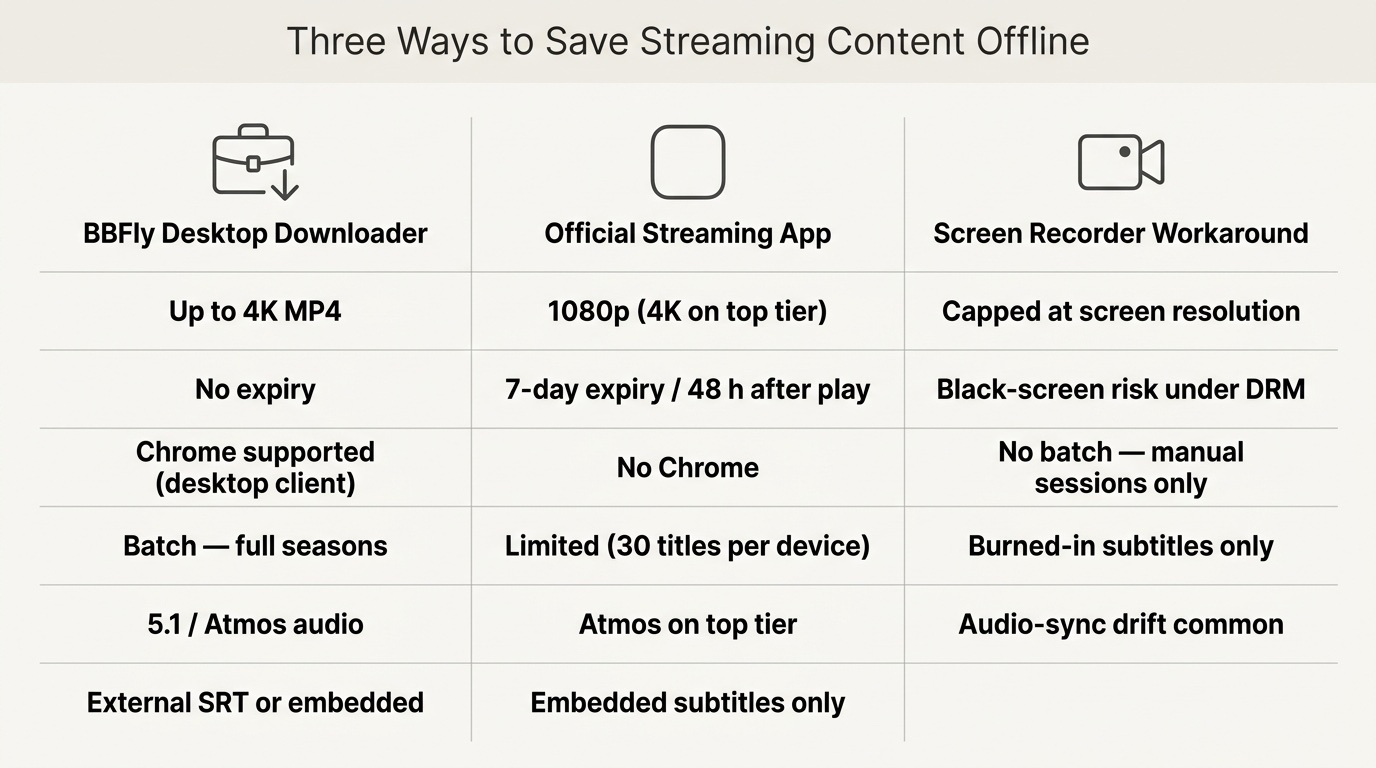
There are three practical ways to save Netflix content for offline viewing in 2026: the official Netflix app download, screen recording tools, and a dedicated desktop downloader like BBFly. Each has a distinct set of trade-offs worth understanding before choosing.
Official Netflix Download: Limits You Must Know
Netflix's built-in download feature covers a wide range of titles but comes with firm restrictions on netflix offline viewing availability. Downloads expire after 7 days from the time you save them, and once you start watching a downloaded title, you have 48 hours to finish it. The feature is available only through the Netflix app on Windows, iOS, and Android — not through any web browser.
- Expiry: 7 days after download; 48 hours after first play.
- Supported plans: Standard and Premium only (Standard with Ads does not include downloads as of May 2026).
- Download cap: Up to 30 titles per device on Standard; up to 30 titles on Premium across more simultaneous screens.
- Not available: Chrome browser, Firefox, or any web-based Netflix interface.
- Content gaps: Some licensed titles are stream-only and cannot be downloaded even on supported plans.
For viewers who want to keep content long-term or use a laptop without the Windows Store app, these limits become a practical barrier.
Screen Recorder Workaround: Quality Trade-offs
Screen recording tools such as OBS or the Windows built-in Game Bar can capture Netflix playback, but the result is rarely clean. Netflix's DRM layer actively suppresses screen capture on most setups, often producing a black screen instead of video. Even when a recording succeeds, audio sync issues and capped output quality are common. The resulting file also contains no embedded subtitle track.
- Black screen risk: High, depending on GPU driver and DRM enforcement.
- Output quality: Limited by screen resolution and encoder settings; rarely reaches stable 1080p.
- Subtitles: Burned into the image if visible at all; no separate SRT file.
- Effort: Requires manual session monitoring; no batch download support.
This method is unreliable enough that most users abandon it after one attempt.
BBFly Netflix Downloader: No Expiry, Full 1080p
BBFly operates as a desktop client that intercepts the Netflix stream at the system level, then saves it as a local MP4 file. Because the file sits on your drive with no DRM wrapper, there is no expiry date and no dependency on the Netflix app being installed. Netflix offline downloads via BBFly support up to 4K resolution on eligible titles, with 5.1 audio and external SRT subtitle files available.
- Max resolution: Up to 4K on Premium-tier eligible content.
- Audio: Up to 5.1 channel; Dolby Atmos support on compatible titles.
- Subtitles: Saved as separate SRT files or embedded, selectable before download.
- Expiry: None — files remain accessible as standard MP4 on your device.
- Batch download: Supported; full seasons can be queued in one session.
- Requirement: An active Netflix subscription is required to sign in and access content.
Side-by-Side Comparison (May 2026)
| Method | Max Resolution | 5.1 / Dolby Atmos | Subtitle Format | Download Expiry | Chrome Support | Batch Download | File Format | Required Plan |
|---|---|---|---|---|---|---|---|---|
| Netflix Official App (Windows / iOS / Android) | 1080p (4K on Premium) | Dolby Atmos on Premium | Embedded only | 7 days / 48 h after play | No | Limited (30 titles) | Proprietary (locked) | Standard or Premium |
| Screen Recorder (OBS / Windows Game Bar) | Up to screen resolution; often degraded | No | Burned-in image only | None (but black screen risk is high) | Yes (capture only) | No | MP4 / MKV | Any (captures screen) |
| BBFly Netflix Downloader (Desktop Client) | Up to 4K | Yes (5.1 and Atmos) | External SRT or embedded | None | Yes (via desktop client) | Yes (full seasons) | MP4 | Standard or Premium |
Download Netflix Offline on PC: Step-by-Step (2026)
Using BBFly to download Netflix movies or episodes to your PC takes three steps. The process works on Windows without requiring the Microsoft Store version of Netflix. As of May 2026, the following walkthrough reflects the current BBFly desktop client interface.
Install BBFly and Sign In to Netflix
Follow the netflix offline download instructions below to get started.
- Download and install the BBFly desktop client from the official site.
- Launch the application and select Netflix Video Downloader from the service menu on the main interface.
- A Netflix sign-in window will appear inside the client. Enter your Netflix account credentials to authenticate.
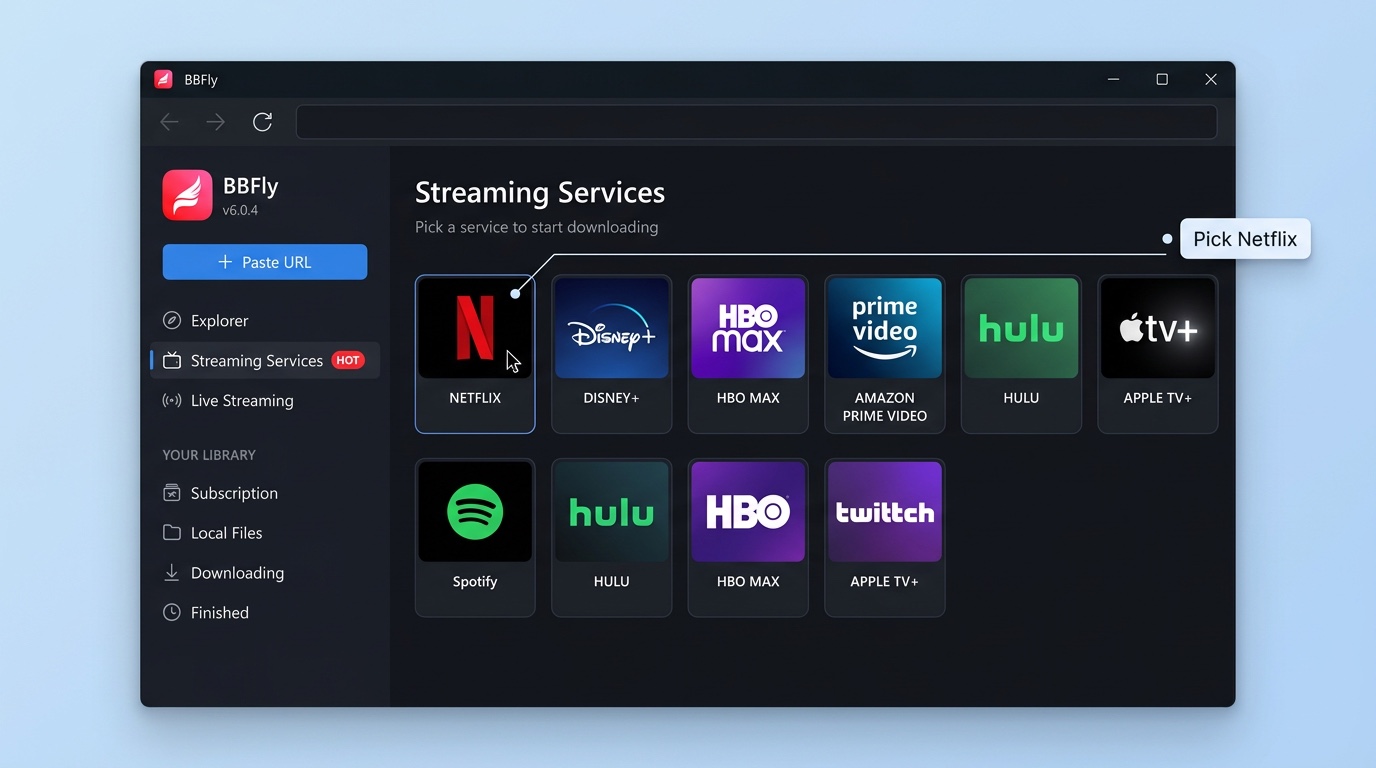
An active Netflix subscription (Standard or Premium) is required at this step. BBFly does not bypass authentication.
Select Video Quality, Subtitles, and Episodes
Once signed in, browse or search for the title you want to save offline. For series, you can select individual episodes or queue an entire season for batch download.
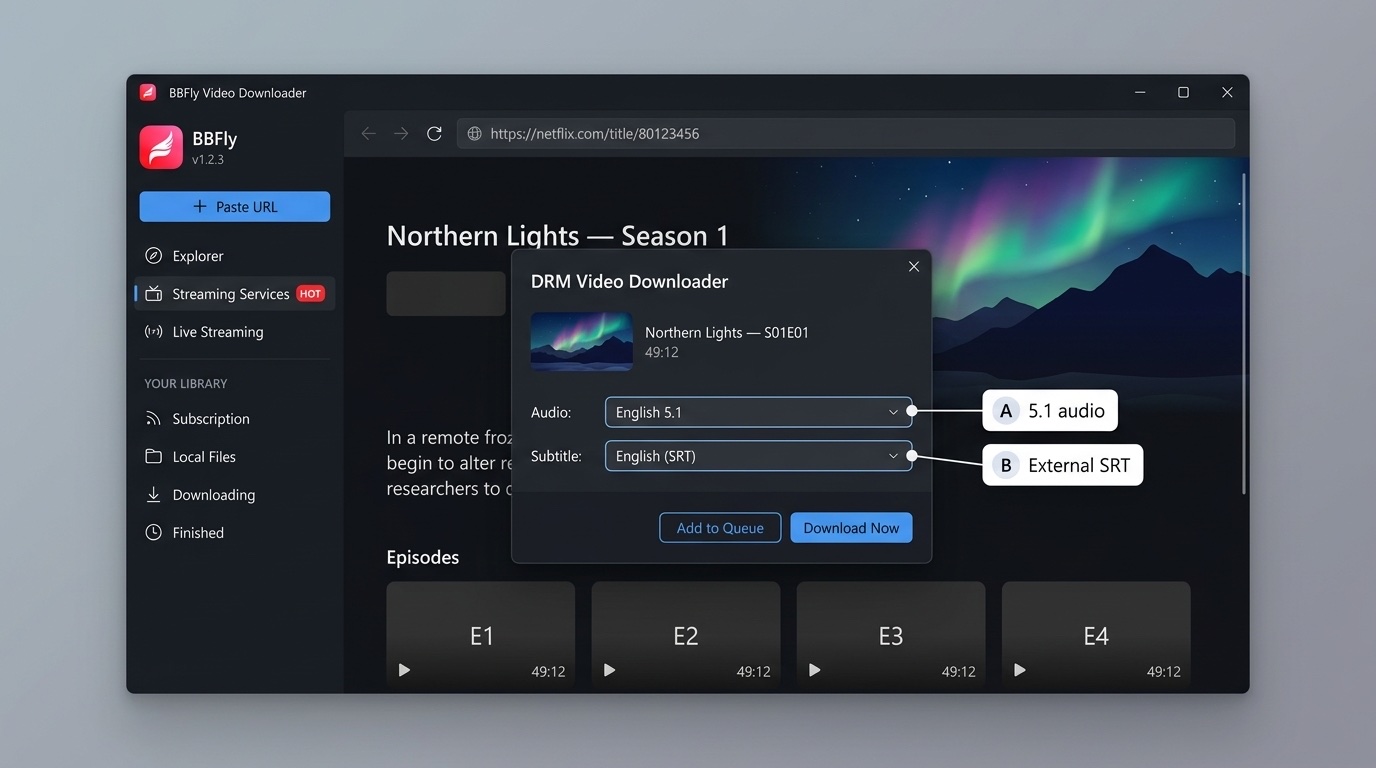
- Open the title's detail page within the BBFly Netflix interface.
- Click the download icon or select episodes from the episode list.
- A settings panel opens: choose your preferred resolution (720p, 1080p, or 4K where available), audio language, and subtitle language.
- Subtitles can be saved as a separate SRT file or embedded directly in the output MP4.
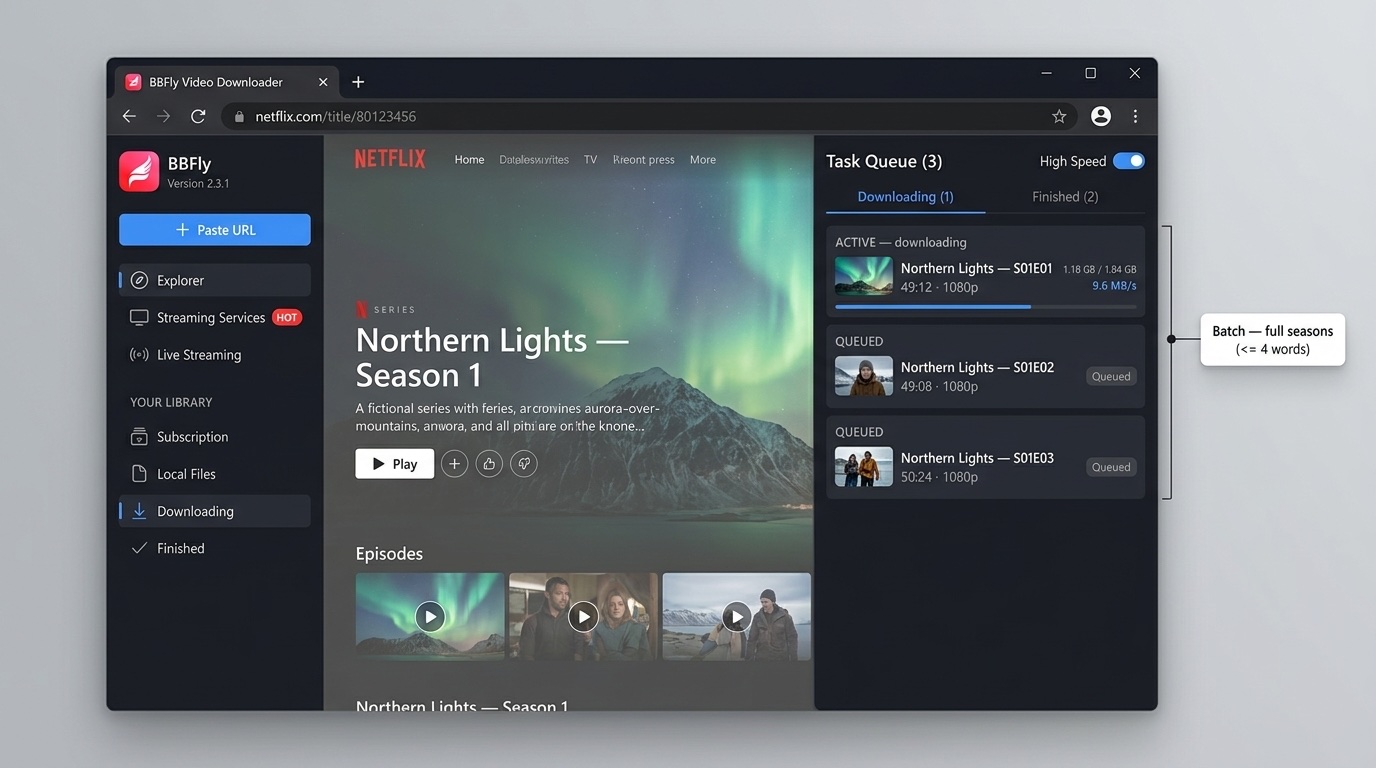
On a 100 Mbps connection, a standard 45-minute episode at 1080p typically completes in the background without interruption. A single 1080p episode runs roughly 1.5–2.5 GB; a 4K episode ranges from 4–8 GB depending on the title's encoding.
Start Download and Verify the Saved File
After confirming settings, click Download. The progress tracker in the BBFly queue panel shows download status per episode. Once complete:
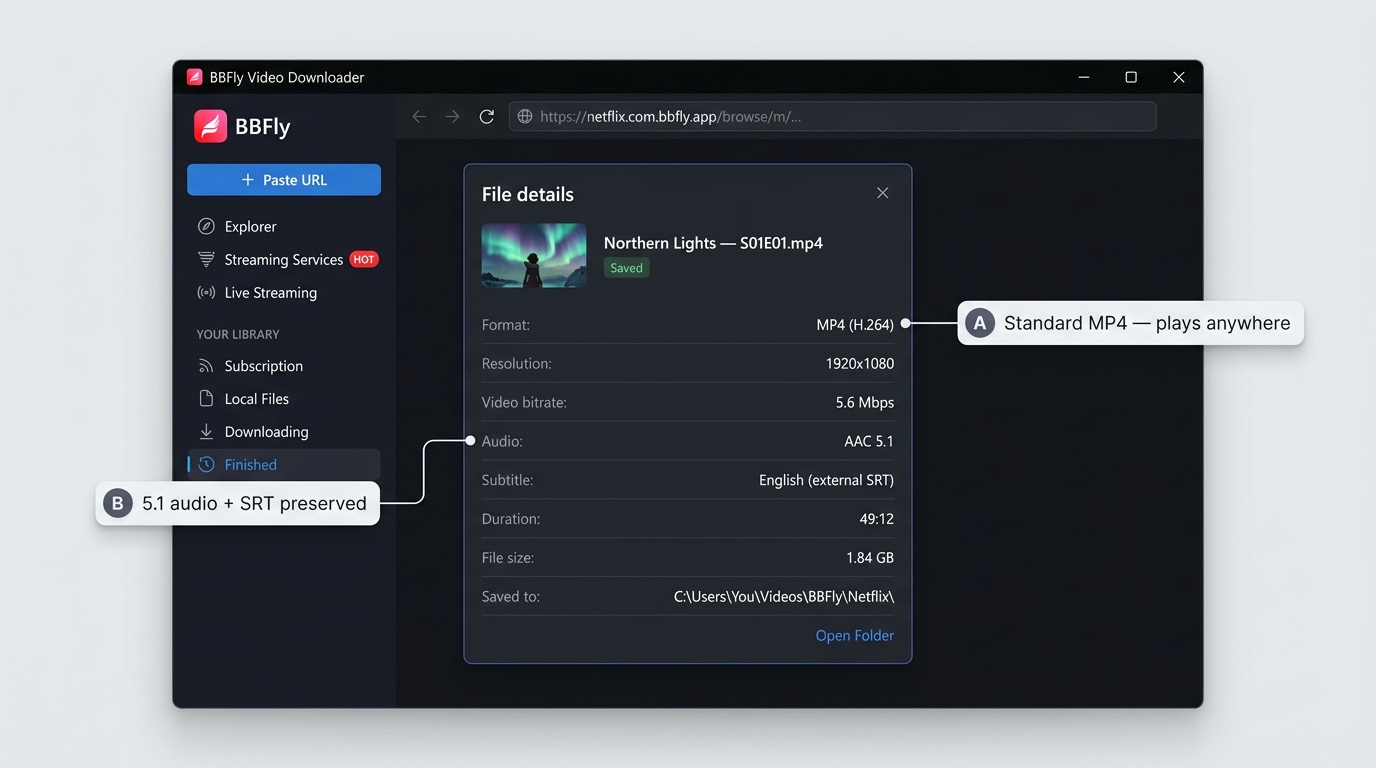
- Files are saved to the local output folder you specified during setup.
- Open the folder to confirm the MP4 file is present and playable in any standard media player (VLC, Windows Media Player, etc.).
- No Netflix app connection is needed to play the saved file — it plays offline with no expiry check.
Netflix Offline on Chrome: Why the Browser Blocks Downloads
Chrome users searching for netflix offline chrome options consistently hit the same wall: the browser simply does not support Netflix's offline download feature, and no browser extension can change that.
Chrome's DRM Restriction Explained
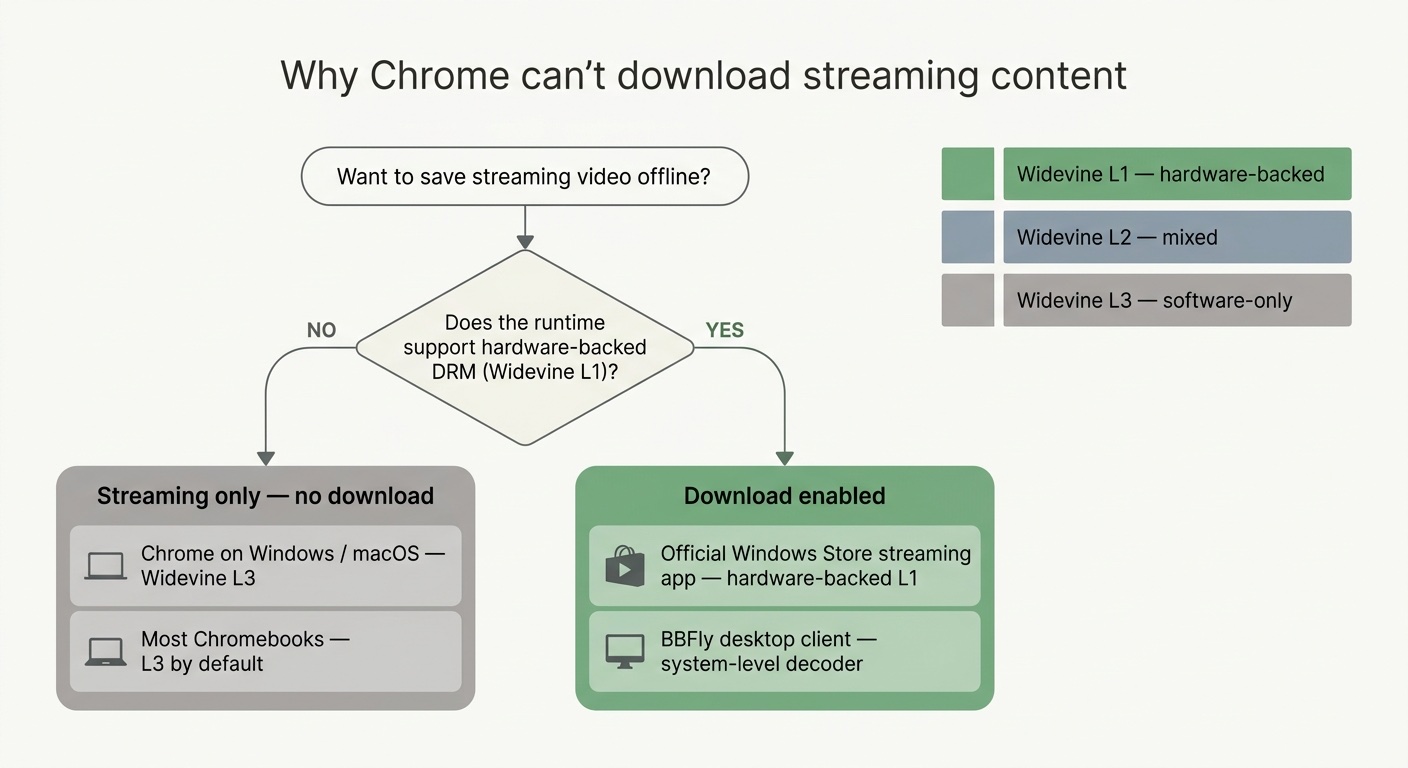
Netflix uses Widevine DRM to protect its content. Widevine operates at three security levels: L1, L2, and L3. Offline downloads require Widevine L1, which relies on hardware-level content protection. Chrome on Windows and macOS runs only Widevine L3 — a software-only implementation that Netflix does not authorize for download functionality. This is not a Chrome settings issue or a Netflix account restriction; it is a deliberate DRM architecture decision.
- The official Netflix Windows app (installed via the Microsoft Store) has access to L1 hardware DRM, which is why it supports downloads while Chrome does not.
- Chromebook users face the same L1 limitation on most hardware configurations.
- No browser extension or plugin can elevate Chrome from L3 to L1 — the gap is hardware-enforced.
BBFly as the PC-Based Alternative for Chrome Users
BBFly's desktop client operates outside the browser entirely. It authenticates with Netflix at the system level, processes the stream through its own decoder, and writes the output as a local MP4 file. This means Chrome users who do not have — or do not want — the Windows Store Netflix app can still save Netflix content offline on their PC.
- No Microsoft Store account required.
- No browser extension involved.
- Can you download shows on netflix to watch offline without the official app? With BBFly, yes — the desktop client handles the full download process independently.
Which Netflix Content Is Available for Offline Viewing?
Netflix offline viewing availability depends on two factors: the content type and your subscription plan. Not every title on Netflix can be downloaded, regardless of which method you use.
Titles That Support Download vs. Stream-Only Titles
As of May 2026, the following content categories are generally downloadable through Netflix or BBFly:
- Netflix Originals: Most Netflix-produced series, films, and documentaries support download. These titles are available in all regions where Netflix operates.
- Licensed series and films: Download availability varies by region and licensing agreement. A title downloadable in the US may be stream-only in another country.
- Documentaries: Typically downloadable when Netflix holds broad distribution rights.
- Stream-only titles: Some recently licensed content, live events, and certain regional exclusives are restricted to streaming only — the download icon will not appear for these titles in the official app.
When using BBFly, the same content availability rules apply: if a title cannot be accessed through your Netflix subscription, BBFly cannot download it. The tool requires an active sign-in and only accesses content your plan authorizes.
Download Limits by Subscription Plan in 2026
Netflix offline access differs significantly by plan. Here is the current state as of May 2026:
- Standard with Ads: Does not include download functionality. Offline viewing is not available on this plan through the official app or any Netflix-authorized method.
- Standard: Supports downloads on up to 2 devices simultaneously; up to 30 downloaded titles stored per device; maximum download quality is 1080p.
- Premium: Supports downloads on up to 6 devices; 4K download quality available on eligible titles; same 30-title device cap applies.
If Netflix updates its plan structure after May 2026, these figures may change — check the Netflix Help Center for the most current limits. BBFly's download quality ceiling (4K) aligns with the Premium plan; using it on a Standard plan subscription caps output at that plan's authorized resolution.
BBFly's desktop client covers several major streaming platforms beyond Netflix. If you use multiple services, You can go with BBFly as it supports 60+ Streaming Services.
FAQs
Can you download Netflix shows to watch offline on a laptop?
On a Windows laptop, the official Netflix app from the Microsoft Store supports downloads — but only on Windows 10 and Windows 11, and only through the Store version, not through Chrome or any other browser. If you use Chrome as your primary browser or do not have the Windows Store app installed, BBFly's desktop client provides a direct alternative: it downloads titles to your local drive as MP4 files without requiring the Store app, and supports batch downloading of full seasons.
How long do Netflix offline downloads last before they expire?
Official Netflix downloads expire 7 days after you save them. Once you start playing a downloaded title, you have 48 hours to finish watching before it becomes unavailable. Files downloaded via BBFly are saved as standard MP4 files on your device with no expiry mechanism — they remain playable indefinitely without an internet connection or Netflix app.
Why can't I use Netflix offline on Chrome browser?
Chrome supports only Widevine L3, a software-level DRM implementation. Netflix's offline download feature requires Widevine L1, which relies on hardware-level content protection. Chrome does not have access to L1 on standard Windows or macOS hardware, so the download option is simply not available in any browser-based Netflix interface. The official Netflix Windows Store app has L1 access, which is why it works. BBFly's desktop client processes downloads at the system level — outside Chrome — which is why it can save Netflix content offline on the same machine where Chrome cannot.
Does BBFly support downloading Netflix mobile games offline?
No. BBFly is designed specifically for video content — series, films, and documentaries available through the Netflix streaming library. Netflix mobile games are distributed as standalone apps through the iOS App Store and Google Play, and are entirely separate from the video streaming platform. They are not within BBFly's current supported content scope.