
How to Download Peacock on TV: Install, Limits, and Offline Files
Table of Contents
"Download Peacock on TV" is two questions wearing the same shirt. Either you want the Peacock streaming app on a Samsung, LG, Roku, Apple TV, Fire TV, Vizio, Hisense, or Android TV — install it from that TV's app store and you're done. Or you want an actual file you can play offline on that TV, which Peacock's own download feature doesn't deliver: it runs on iOS and Android only, and the files never leave the phone.
I see this query confuse people every week. The frustration shows up in the same shape: someone subscribes, opens Peacock on the TV, hunts for a download button, doesn't find one, and assumes their TV is broken. It isn't. Peacock built the download button for phones, with a 48-hour playback window and a roughly 25-title cap, and never extended it to TVs. That's a design choice, not an oversight. Below I'll walk both paths — installing the app on the major TV platforms, and the desktop-file workaround for the genuine offline-on-TV use case — and tell you which one matches the question you're actually asking.
What "Download Peacock on TV" Actually Means — One Search, Two Different Goals
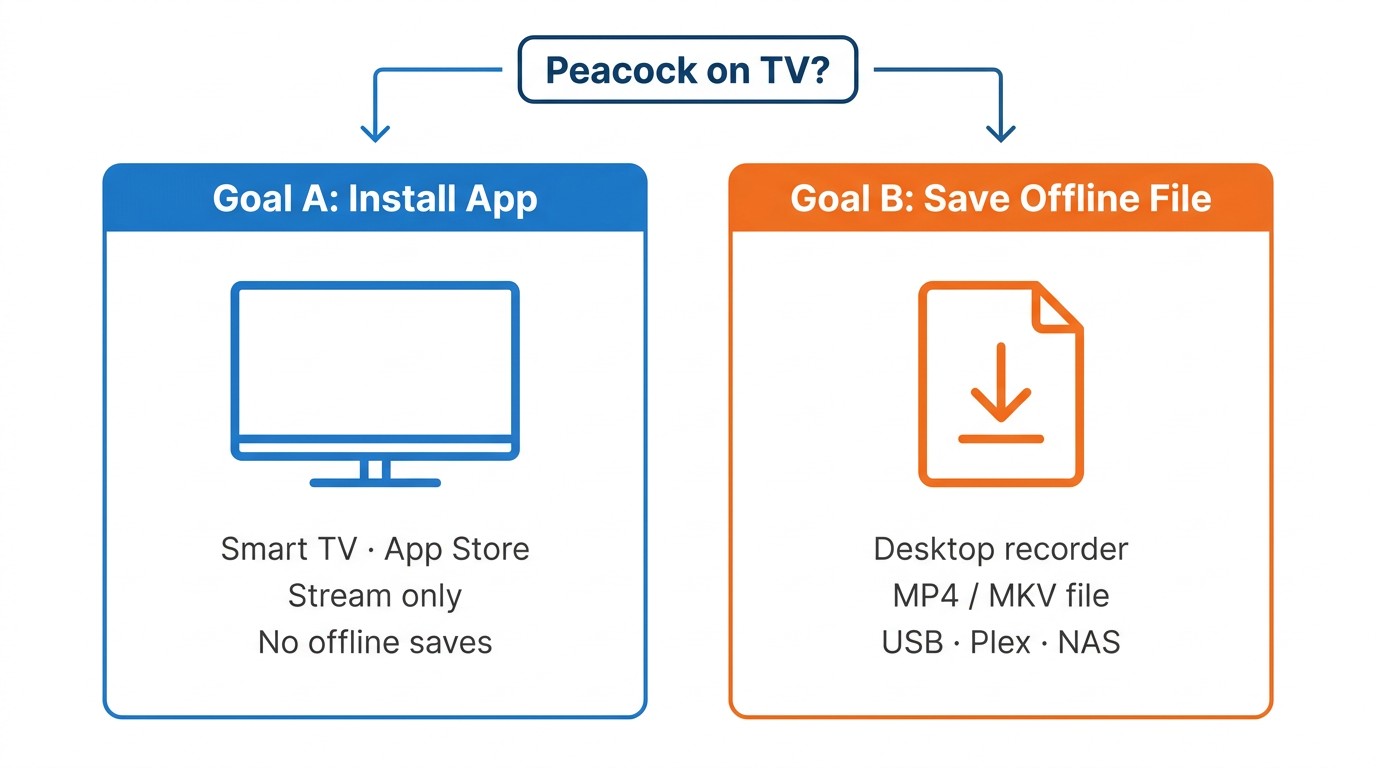
The phrase splits cleanly once you know what to listen for. Intent A: you pay for Peacock, you want the app on the TV, you're calling installation "download" because that's the verb your app store uses. Intent B: you want a copy of an episode that plays on the TV without a network — a real file, a USB stick, the way you'd watch a Blu-ray rip. Different answers, different tools.
Intent A: installing the Peacock app on a smart TV
If you already have a Peacock account and just want the app on a Samsung, LG, Roku, Apple TV, Fire TV, Vizio, Hisense, or Android TV, this is a plain app-store install. The next sections walk through the three highest-volume platforms in detail.
Intent B: saving Peacock episodes for offline TV playback
If you want a file you can keep — for a flight, a cabin with no Wi-Fi, a Plex library on a NAS — Peacock's in-app download won't get you there. The feature exists, but only on phones and tablets, and the files stay locked inside the Peacock app with hard expiry. Skip ahead to Section 7 for the desktop path.
Where the Peacock App Runs — and Why the Download Button Is Mobile-Only
The Peacock app runs on most current smart TVs and streaming sticks, but the in-app Download button doesn't show up on any of them. It only appears on iOS and Android, only for Premium Plus subscribers, and only for titles Peacock has cleared for offline. That's the boundary; the table below shows where it lands across the devices people actually own.
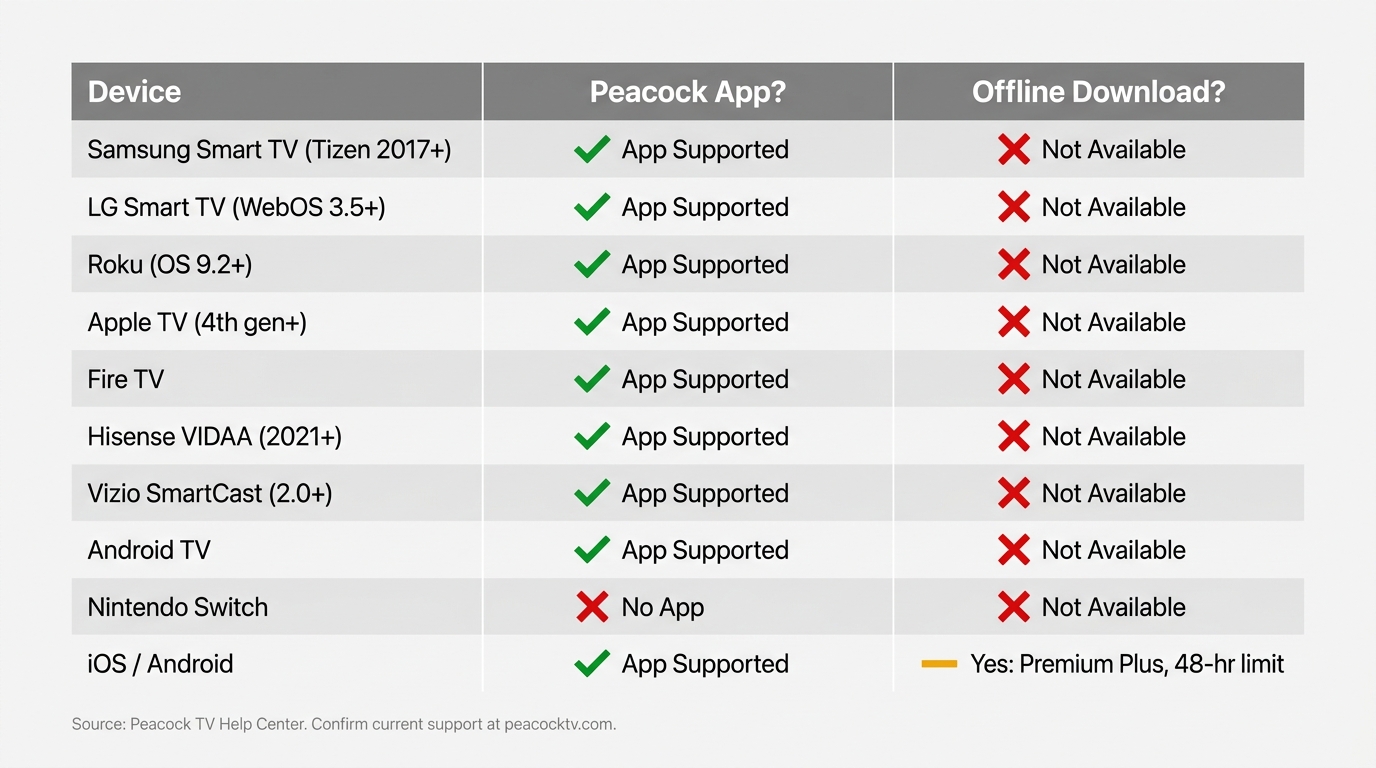
Peacock device support and offline-download availability (as of June 2026)
| Device | App supported? | Official offline download? | Notes |
|---|---|---|---|
| Samsung Smart TV | Yes (Tizen, 2017+ models) | No — Peacock download is mobile-only | Pre-2017 sets need a Roku / Fire TV / Apple TV stick |
| LG Smart TV | Yes (WebOS 3.5+, broadly 2016+ models) | No | WebOS 2.x and older need an external streaming stick |
| Roku (most models) | Yes (Roku OS 9.2+) | No | Channel installs via Roku Channel Store |
| Apple TV | Yes (Apple TV 4th gen+, tvOS 15+) | No | App Store install |
| Fire TV | Yes on most current models | No | Older Fire TV hardware sometimes lacks a native build |
| Hisense VIDAA | Yes (VIDAA 2021+) | No | Older VIDAA versions: use an external stick |
| Vizio SmartCast | Yes (SmartCast 2.0+) | No | AirPlay 2 / Chromecast also work as a fallback |
| Android TV (Sony Bravia, NVIDIA Shield 5.1+) | Yes | No | Google Play Store install |
| Nintendo Switch | No native app | No | No public timeline from Nintendo |
| iOS / Android phone or tablet | Yes | Yes — Premium Plus only, 48-hour playback / 30-day unwatched / ~25-title cap | This is the only place Peacock's in-app Download button appears |
Source: Peacock TV's official Help Center, as of June 2026. Device support and download limits change, confirm current figures on Peacock's official site.
Devices that run the native Peacock app
The supported list covers the mainstream: Samsung Tizen TVs from 2017 onward, LG WebOS sets from roughly 2016, Roku boxes and sticks on OS 9.2 or newer, Apple TV 4th-gen and later, current Fire TVs, Hisense VIDAA sets from 2021, Vizio SmartCast 2.0+, and Android TV devices including Sony Bravia and the NVIDIA Shield (Shield Experience 5.1+). If your TV is older than those cutoffs, the path of least resistance is a $30 Roku Express or Fire TV stick — that's the call I make for relatives every time, instead of fighting firmware updates that aren't coming.
Why the in-app Download button doesn't appear on a TV
This is the part most readers miss: Peacock's offline download isn't a feature that was withheld from TVs by accident. It was built into the mobile apps and never extended. You need an iOS or Android device, a Premium Plus subscription, and even then the file lives inside the Peacock app: 48 hours of viewing window once you press Play, 30 days before an unwatched download expires, and a cap of roughly 25 titles across your devices. None of those files transfer to a TV. If your goal was "watch on the big screen without Wi-Fi," Peacock's own download was never the right tool — that's what Section 7 is for.
How to Download the Peacock App on a Samsung Smart TV
To install Peacock on a Samsung Smart TV: open Home, go to Apps, search for Peacock, select Install, then Open, and sign in or start a subscription. That works on every Tizen-based Samsung from 2017 onward. The search box moved between Tizen versions, though, and that's where most readers get stuck — so the steps below cover both layouts.
I keep a 2019 QLED for testing exactly because Samsung shuffled the Smart Hub UI every couple of years. If you can't find the search bar where the screenshots show it, the underlying flow hasn't changed; the icons just moved.
Step-by-step: install Peacock from the Samsung Smart Hub
- Press Home on your Samsung remote.
- Move down to the Apps tile (older Tizen versions show a Smart Hub launcher first; newer ones land you straight in Apps).
- Open the search icon — magnifying glass on 2022+ Tizen, a separate "Search" tile on older sets.
- Type Peacock.
- Select Install. The download finishes in well under a minute on a normal home connection.
- Choose Open, then sign in with your Peacock email and password, or tap Start free to create an account.
For TVs older than 2017, stop here: Samsung's pre-Tizen smart platform doesn't get a current Peacock build, and there is no workaround that ages well. A streaming stick is faster than anything else you can do with that TV.
If Peacock doesn't appear in your Samsung app search
Three causes account for almost every "Peacock missing" message I see:
- You're not in the US. Peacock is a US-only service. A Samsung TV bought abroad, or one whose Samsung account region is set outside the US, will hide Peacock from the store. Changing the Smart Hub region is the supported fix; outside-US use sits in a gray zone with the platform's terms and isn't a path I recommend.
- Your TV is pre-2017. No Tizen build exists. Don't sideload — Samsung's sideload tools aren't aimed at end users and the result breaks at the next firmware push.
- Smart Hub is stuck. Settings → Support → Self Diagnosis → Reset Smart Hub. You'll re-sign in to every app, which is annoying but takes ten minutes.
If none of those land it, plug in a Roku Express or Fire TV stick. It's $30 and it ends the problem.
How to Download the Peacock App on an LG Smart TV
On LG, the install flow is shorter: Home → LG Content Store → search Peacock → Install → Open → sign in. WebOS handles app store search noticeably cleaner than Tizen does, and there are fewer hardware-version traps along the way.
The catch is that WebOS 2.x and older WebOS 1 sets — broadly LG smart TVs from 2014 and 2015 — don't run the modern Peacock app. Telling someone with a 2015 LG that "you just install it" is the kind of small lie that wastes ten minutes of their evening. Be honest about the cutoff.
Step-by-step: install Peacock from the LG Content Store
- Press the Home button (the house icon on the LG Magic Remote).
- Open the LG Content Store ribbon at the bottom of the screen.
- Choose Apps.
- Search Peacock.
- Select Install, wait for the install to finish, then choose Open.
- Sign in with your Peacock credentials, or pick a plan to subscribe.
WebOS 3.5 is the floor; LG broadly shipped that on 2016 and newer sets. Anything from 2016 onward should pick up Peacock without trouble.
If your LG is on WebOS 2.x or older
Don't chase a firmware upgrade; LG doesn't push WebOS jumps that far back. Pair the TV with a Roku, Fire TV, or Apple TV. For one app on an older TV, the cheapest stick is the right answer.
How to Add the Peacock Channel to a Roku Device
Roku still calls them "channels," but the install is straightforward: Home → Streaming Channels → Search Channels → Peacock → Add Channel → Open → activate the on-screen code at peacocktv.com/tv. The most useful trick on Roku isn't the install; it's what to do when Peacock refuses to open afterward.
I've watched Roku boxes go sideways on Peacock more than any other device — usually after a long-running cache fills up. The fix is unglamorous and consistent: remove the channel, restart, re-add.
Step-by-step: add Peacock from the Roku Channel Store
- From the Roku home screen, scroll to Streaming Channels.
- Choose Search Channels.
- Type Peacock and select the result.
- Pick Add Channel.
- After it installs, choose Open.
- The screen shows an activation code; go to peacocktv.com/tv on a phone or laptop, sign in, and enter the code.
That's it. Activation is one-time per account on that Roku.
If Peacock won't open after install
Three lines:
- Highlight the Peacock tile on the home screen, press the * (asterisk) button on the remote, choose Remove channel.
- Restart the Roku from Settings → System → Power → System restart (or pull the power for ten seconds on models without that menu).
- Re-add the channel from the Channel Store, sign back in.
That clears nearly every "Peacock won't load on Roku" complaint I see. If it's still broken after the re-add, check that the Roku is on OS 9.2 or newer — the floor for the current Peacock build — and that the box itself isn't a 2015-era model where most apps are now timing out.
Can You Download Peacock on Nintendo Switch?
Short answer: no. Nintendo Switch doesn't have a native Peacock app, and there's no public timeline saying that's about to change. I've put Peacock on every console I own — Xbox Series X, PS5, an Apple TV stuffed in the entertainment cabinet — and the Switch is the holdout. After several years of waiting, I've stopped expecting one.
The short answer: no native Peacock app exists for Switch
Nintendo's app library on Switch is heavily focused on games, with a handful of media exceptions (YouTube, Hulu in some regions, Crunchyroll). Peacock isn't on the list, and Nintendo hasn't shown any pattern of expanding into streaming apps the way Xbox and PlayStation have. If a Switch is the only device you have at the TV, Peacock won't get there directly.
Practical workaround: cast from your phone or use a streaming stick
Two realistic paths:
- Plug a Fire TV, Roku, or Chromecast into the same TV and switch HDMI inputs when you want Peacock. A Roku Express or Fire TV 4K Max sits next to the Switch dock and costs less than a single new game. This is what I'd do.
- For travel, run Peacock on a phone and use a USB-C-to-HDMI adapter to feed the hotel TV from your phone. Peacock's mobile app is the one place the in-app Download button does appear, so this is also the only way to play a Peacock title genuinely offline on a TV-sized screen — within the 48-hour window after you press Play, and with the file still locked inside the app.
The Switch dock itself can't run third-party video apps; the system doesn't allow it. Don't waste time looking for a workaround on the dock — there isn't one.
How to Save Peacock Episodes as Permanent Local Files for Personal Offline TV Viewing
Please note: Third-party downloaders may conflict with Peacock's Terms of Use. Keep any saved files for your own personal, offline viewing of content you have an active Peacock subscription to, and don't redistribute, upload, or resell them. Where Peacock's official mobile download covers your use case, that's the more worry-free route.
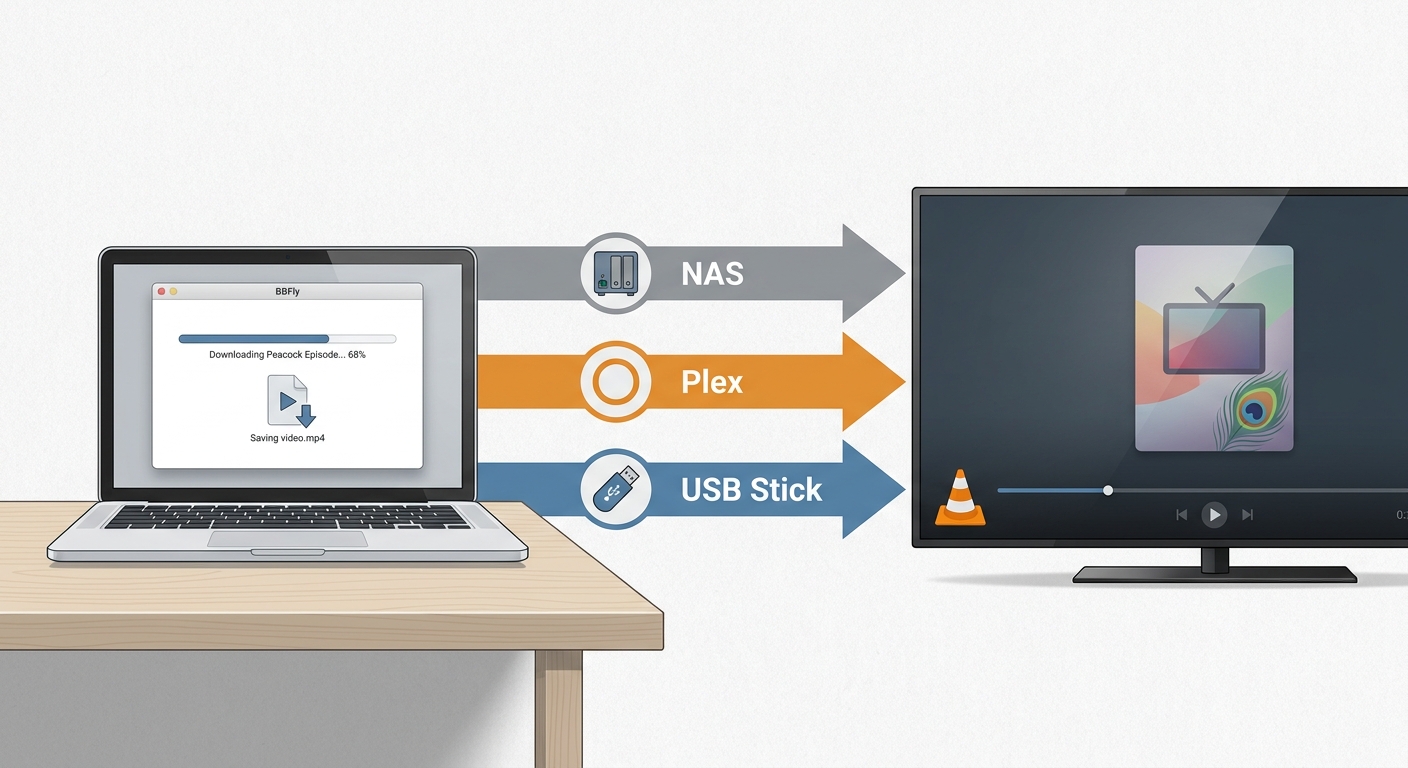
If the official mobile-only download doesn't reach your scenario — a long flight where the phone runs out of battery, a cabin without service, a Plex library that feeds the living-room TV — the realistic option is a desktop downloader that produces a standard MP4 or MKV file. That file lives on your PC, copies to a USB stick or a NAS, and plays on the TV through the TV's built-in media player or via Plex/Infuse/VLC. The tool I reach for on Peacock is BBFly Peacock Downloader, mainly because it produces a plain file rather than a recording, and because I've used the same vendor's other-platform tools long enough to trust the output. I'll note the boundaries below honestly — this isn't for everyone, and the official app is still the right call for normal streaming.
How the permanent-file approach works in plain terms
You need three things: an active Peacock subscription, a Windows or macOS desktop, and the desktop tool. The flow is unromantic — open the tool, sign in to your Peacock account through it, pick a title, pick the quality and audio/subtitle tracks you want, save. Out the other end is a standard MP4 or MKV. From there it's a regular file: copy it to a USB stick that plugs into the TV's USB port, drop it into a Plex library that the TV picks up over the network, or sync it to an Infuse folder on Apple TV. The frame here matters: this is a personal offline copy of content you already pay for, not a workaround for paying, and the moment you redistribute it or strip it out of personal use, you've left what the tool is designed for.
Format and quality boundaries you can expect
On paper, BBFly's Peacock support tops out at 4K resolution with HDR10 or Dolby Vision preserved where Peacock's master provides them, H.264 or H.265 video, and Dolby Atmos, EAC3 5.1, or AAC 2.0 audio. MP4 or MKV output, chosen subtitle and audio tracks embedded, basic metadata written for media servers. The practical caveats from my use: Peacock's catalog is mixed — plenty of the back catalog masters out at 1080p SDR, so don't expect every title to give you a 4K HDR file just because the tool supports it. And Peacock-side, BBFly currently downloads one title at a time, not in season-length batches; long binge queues need babysitting. As of June 2026 those are the specs the vendor publishes — confirm current figures on BBFly's official product page before purchase, since the catalog and the tool both move.
Getting the file onto your TV
Three paths I've actually used, in order of friction:
- USB stick into the TV. Most Samsung, LG, Sony, and Hisense TVs play MP4 from a USB drive natively. Fastest path, zero network setup.
- Plex, Infuse, or VLC over your home network. Drop the file into your Plex library on a PC or NAS; the Plex app on the TV (or on a Roku/Fire TV/Apple TV connected to it) finds it. This is what I keep at home.
- NAS folder mounted as a TV media share. Samsung/LG/Sony TVs can see SMB shares; the UI is rougher than Plex but it works without an extra app.
To be clear about scope: if all you want is to stream Peacock on the TV when you're home and on Wi-Fi, install the official app and stop reading. The path above earns its complexity only when the use case is genuinely offline — travel without service, a media library you're consolidating, or a TV that can't reach the internet at all.
FAQ: Downloading and Watching Peacock on TVs
Can I download Peacock movies to watch offline on my TV without Wi-Fi?
Not through Peacock directly. The official Download button is iOS/Android-only and the files don't leave the phone. For a TV-playable offline file you'll need the desktop-downloader path in Section 7, or you'll need to feed the TV from a phone with a USB-C-to-HDMI adapter — within Peacock's 48-hour playback window.
How long do official Peacock downloads stay watchable on a phone?
Per Peacock's Help Center, once you press Play on a downloaded title you have 48 hours to finish it before it expires. Unwatched downloads expire after 30 days. The roughly 25-title cap is shared across all the devices on your account. Confirm current limits on the Peacock Help Center, since these have shifted before. The honest read: this design assumes you're downloading a few things the night before a flight, not building a library.
Why isn't the Peacock app available on my smart TV?
Three usual causes, in the order I'd check them: your account or TV region is set outside the US (Peacock is US-only); your TV's model year is below the supported floor (Samsung pre-2017, LG WebOS 2.x and older, Roku OS below 9.2); or your TV runs an OS Peacock simply doesn't ship for. If region and model year are fine and the search still shows nothing, add a Roku or Fire TV stick — much shorter route than firmware spelunking.
Is it safe to sign into Peacock inside a third-party downloader?
The right framing is which third-party tool, not whether third-party tools are categorically risky. Stick to established names with a real company behind them, a verified site, a clear personal-use stance, and an actual support channel. Avoid no-name tools that ask for your password without any of that. My own rule: I won't enter streaming credentials into anything I can't trace to a registered business and a multi-year track record. Reputable downloaders handle sign-in like any other consumer app; the danger isn't the category, it's the no-name end of it.
Does Peacock offer a free trial in 2026?
Peacock no longer runs a standing free trial as of June 2026 — promo windows show up occasionally (annual sign-ups, holiday discounts on Premium Plus), but the steady-state offer is paid from day one. Confirm current promotions on peacocktv.com before assuming anything; the marketing changes faster than this article will.
What's the difference between Peacock Premium and Premium Plus for downloads?
Premium streams with ads and has no download feature at all. Premium Plus is the only tier with the in-app Download button, still on iOS and Android only, still subject to the 48-hour playback / 30-day unwatched / ~25-title limits. Both tiers fall under the same expiry rules once you press Play. Current pricing lives on Peacock's official site; check there before signing up.
Peacock installed but won't open or buffers on my smart TV — what now?
Try this order:
- Power-cycle the TV — fully off at the wall, not just the remote, for thirty seconds.
- Uninstall the Peacock app, restart the TV, reinstall from the app store, sign back in.
- Check the TV's OS version against the floors above (Samsung Tizen 2017+, LG WebOS 3.5+, Roku OS 9.2+).
If the buffering persists, I'd switch the source to a Roku or Fire TV stick rather than keep fighting a built-in app — the streaming sticks update faster than smart-TV firmware does, and Peacock's stick builds are noticeably better maintained.
Bottom Line: Pick the Path That Matches Your Goal
Two routes, two readers. If what you want is Peacock on the TV for normal streaming, install the app from your Samsung, LG, Roku, Apple TV, Fire TV, Vizio, Hisense, or Android TV's app store and you're done; pre-2017 hardware just needs a $30 stick. If you want a file you can actually play offline on that TV — flights, cabins, Plex libraries — you're outside what Peacock natively offers, and a desktop downloader on Windows or macOS is the realistic answer, used inside its personal-use frame. Pick the question you're really asking; the rest follows.