
Paramount Plus on Android TV: Install, Activate, Watch Offline
Table of Contents
Short answer: Paramount+ runs on Android TV through the Google Play Store on any device meeting Android 7.0+ (Android 5.0 for legacy builds). You install the app, generate an activation code, finish sign-in at paramountplus.com/activate/androidtv. The platform offers no offline downloads on Android TV — that's a known gap, not a missing feature you can toggle on.

Most people land on this page because something is already not quite right. On Android TV, Paramount+ behaves measurably worse than Netflix or YouTube on the same hardware: buffering nobody else seems to get, the occasional "Error 6000", a sign-in that works on the phone and dies on the TV. I've set this app up on a Sony Bravia, an NVIDIA Shield, and a $40 Mi Box S over the last two years, and the failure modes repeat themselves. This guide walks the install, the activation, the realistic streaming and offline ceiling, the fixes that actually hold, and what to do about the platform's blank-page approach to offline viewing on this device class.
Android TV vs. Google TV: Does Paramount Plus Treat Them the Same?
Yes. Paramount+ ships one Android TV build that runs identically on Android TV and on Google TV — Google TV is a launcher skin over the same OS. Sony Bravia (Google TV), Chromecast with Google TV, NVIDIA Shield (Android TV), and Mi Box all get the same APK and the same activation flow. The fork worth knowing is Amazon Fire TV: Amazon runs its own Android branch and ships a different P+ binary there with its own quirks, and this guide doesn't cover it.
Same OS, different launcher — what changes (and what doesn't)
Google TV is Android TV with a different home screen on top. For Paramount+, that distinction is cosmetic. The Play Store listing is the same, the app behaves the same, the error codes are the same. If you're following a tutorial written for Chromecast with Google TV and you own a Sony Bravia or an NVIDIA Shield, you can read straight through; nothing changes at the app layer. Fire TV is the exception. Amazon forks Android, the store is different, the sideload procedure is different, and the Paramount+ build there isn't this one. Treat any Fire TV tutorial as a separate document.
How to Install Paramount Plus on Android TV (Play Store + Sideload)
For 95% of readers on current Android TV hardware, install Paramount+ from the Google Play Store in five steps:
- From the TV home screen, open Google Play Store and search "Paramount+".
- Select the app published by CBS Interactive, Inc. — verify the publisher before pressing Install.
- Press Install, wait for the download to finish, then open the app.
- Choose Sign In (existing subscriber) or Sign Up (new account).
- Generate the activation code on the next screen and continue to the activation flow.
Auto-update is on by default; you don't need to manually update unless you've turned that off.
Install via Google Play Store (the path most readers should take)
The Play Store install takes about three minutes on a decent network. The app is built and signed by CBS Interactive, Play Protect handles the integrity check, and the DRM certificate handshake is automatic. I'd recommend this path for every current device: Sony Bravia from 2020 onward, NVIDIA Shield (any generation), Chromecast with Google TV (HD or 4K), Mi Box S, Xiaomi Mi TV Stick. Three minutes, then on to activation.
Which Android TV devices are supported (and which aren't)
Per the APKMirror metadata for the Paramount+ Android TV listing, the current 16.x build requires Android 7.0 or newer; the older 15.x builds still run on Android 5.0+. In practice that covers virtually every Android TV box and Google TV set sold in the last six years. What it doesn't cover: older Samsung Tizen TVs, older LG webOS TVs, and the occasional Android TV stuck on a pre-2017 firmware that the manufacturer never updated. The honest fix for those isn't a sideload trick: it's a $40 Mi Box S or a $50 Chromecast with Google TV plugged into a spare HDMI input. Replacing a TV's app ecosystem with a $50 puck is the path I keep recommending to relatives.
Sideloading the Paramount Plus APK for older / unsupported devices
Sideloading is the narrow path for an older Android TV on 5.0 or 6.0 that the current Play Store no longer serves. Procedure: Settings → Device Preferences → Security → Install from unknown sources → enable for your file manager or the Downloader app → fetch the APK from APKMirror (a CBS-Interactive-signed build, never a "premium unlocked" repackage) → install. Verify the signing certificate on APKMirror's listing first. On current hardware (Android 7.0+), don't sideload at all — you skip the Play Protect chain, the DRM handshake degrades, and playback drops below what the Play Store build delivers.
Activate Paramount Plus on Android TV: Code and QR Walk-through
To activate Paramount+ on Android TV: open the app, sign in to surface the activation screen, then on a phone or laptop visit paramountplus.com/activate/androidtv, sign in to your P+ account, and enter the 8-character code (or scan the QR code on the TV screen). The TV refreshes within seconds. The catch: the code expires in 15 minutes, so do this on a second device that's already signed in.
Get the activation code on your TV
After install and first launch, the TV shows an activation screen with two equivalent paths: an alphanumeric code (typically 8 characters) and a QR code. Both point to the same activation endpoint; the QR is a shortcut for people activating from a phone camera. The code is one-time; if you sign out and back in, a fresh one is generated.
The most common failure I've watched isn't technical, it's procedural. Most people generate the code on the TV first, then go hunt for their Paramount+ password on the laptop, then can't remember whether it's the email they signed up with or an SSO account through their cable provider, and by the time they paste, the 15-minute window has closed. The fix is sequencing: open paramountplus.com/activate/androidtv on the laptop, sign in to your P+ account, then press the generate-code button on the TV. The code is the last thing you produce, not the first.
Complete activation on paramountplus.com/activate/androidtv
On the laptop or phone:
- Go to paramountplus.com/activate/androidtv in a browser.
- Sign in to your Paramount+ account (or sign up if you don't have one).
- Type the 8-character code from the TV, or scan the QR with the phone camera.
- Submit. The TV refreshes within about 5 seconds.
The QR path skips the typing if you're activating from a phone. Either route is fine.
The 15-minute expiry and the "Invalid Code" fix
Per Paramount+'s activation page, the code expires after 15 minutes. If the site returns "Invalid code," the code was mistyped or has expired. Don't reinstall the app: that resets your TV's playback state for no reason. Back out of the activation screen on the TV, re-enter, and generate a new code. The whole loop takes 20 seconds. Reinstall is the wrong fix for a 15-minute-expiry error, and I see it suggested in too many tutorials.
What Paramount Plus Actually Delivers on Android TV (Quality, Audio, Offline)
On Android TV, Paramount+ Premium streams up to 4K HDR on supported titles when paired with HDCP 2.2 and a 4K-capable streaming device (NVIDIA Shield Pro, Chromecast with Google TV 4K, Sony Bravia 4K). The Essential ad-supported tier caps lower. As for offline downloads on Android TV: there are none — the platform does not offer an offline mode on this device class, period. Downloads are mobile-only, with their own expiry rules.
Streaming quality: when 4K HDR actually arrives
The "Premium streams 4K" line is true conditionally. You need a Premium plan, a 4K-capable Android TV device, an HDCP 2.2 HDMI chain through to your TV, and a title authored in 4K. Most Paramount+ originals released in the last few years are 4K HDR; a lot of older library content tops out at 1080p. The Essential tier caps below 4K and inserts ads. Plan tiers and pricing shift periodically — confirm the current figures on paramountplus.com's pricing page rather than trusting a number quoted in any third-party article (this one included).
Audio tracks and subtitles inside the Android TV app
Audio and subtitle selection live in the in-player overlay: while a title is playing, the on-screen UI exposes a track switcher. Available tracks depend on the title and the plan. Where Dolby Atmos is offered, it surfaces here on devices that pass through Atmos correctly. Subtitle language selection is similarly title-dependent — most originals carry several languages, much of the older catalog carries one or two. The honest constraint is this: the Android TV app exposes whatever the platform chose to stream to that device. You don't get a pre-download track menu, because there are no downloads, and the ceiling on TV is what the platform allots, not what the master mix contains.
Offline downloads: not on Android TV (and the mobile catch you should know)
Paramount+ on Android TV has zero offline-download capability. Most third-party guides skirt around this; I'd rather say it plainly. The Android TV app is stream-only. Paramount+ does offer offline downloads on its mobile iOS and Android apps, with two constraints worth knowing before you rely on them: a 30-day storage limit from the moment of download, and a 48-hour playback window once you first press play. After the 48 hours expire, the file is locked even though it physically remains on disk. For a long flight or a hotel with broken Wi-Fi, the 48-hour clock is the actual problem, not the 30-day one. I'll show what to do about it two sections down.
Why Paramount Plus Isn't Working on Your Android TV — and How to Fix It
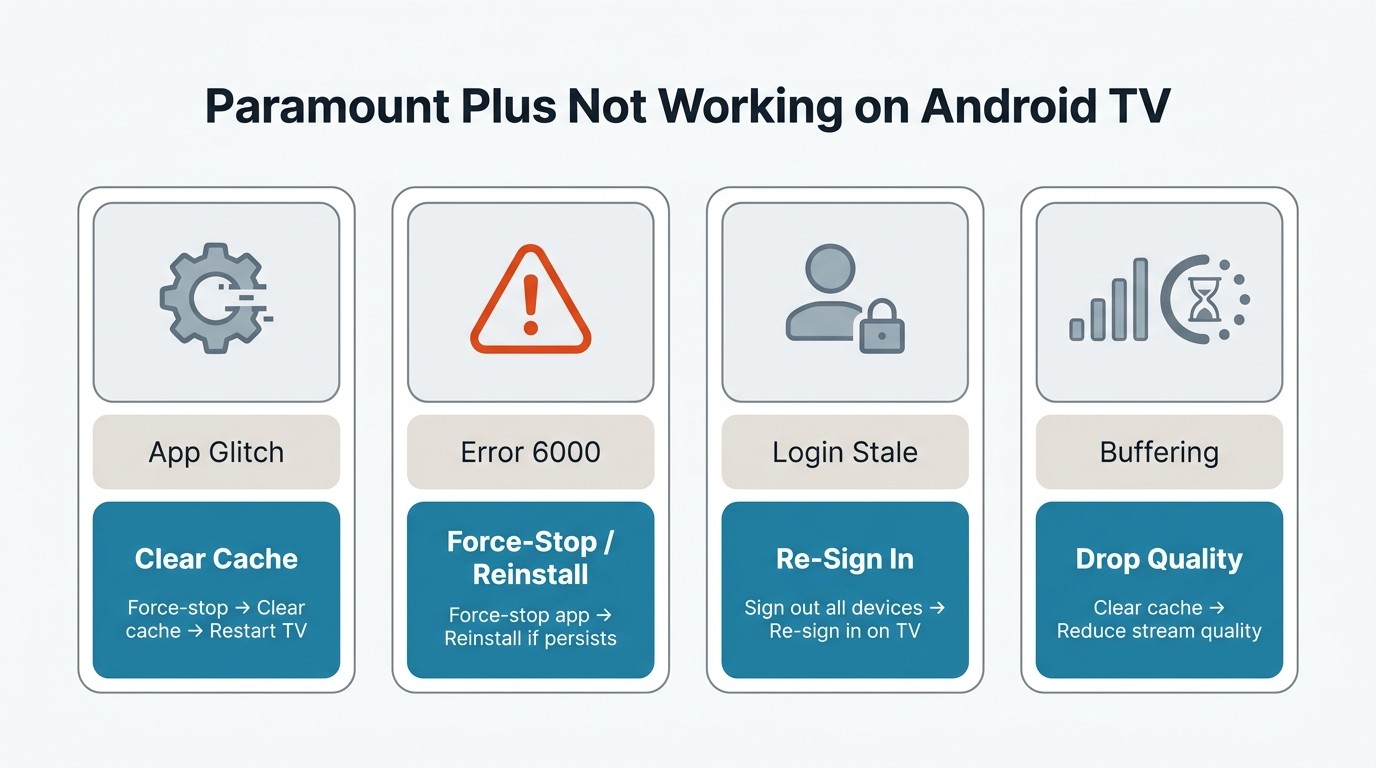
Knowing the platform's ceiling doesn't help when the app itself stops working — and on Android TV, Paramount+ stops working more often than its peers. When it breaks, the four common failure modes are: a transient app glitch (cache clear, not reinstall), Error 6000 from VPN detection (often a router-built-in VPN you didn't know about), a sign-in that works on the phone but fails on the TV (stale session), and selective buffering on P+ while every other streaming app behaves. Work them in that order.
Force-stop + clear cache + restart (the boring fix that works)
Most one-off glitches clear with the boring sequence: Settings → Apps → See all apps → Paramount+ → Force stop, then Clear cache (not Clear data — that wipes your sign-in), then restart the TV. This resolves the bulk of "the app froze" reports without losing your watch history. Reinstall is the last resort, not the first; too many tutorials reach for it instinctively and cost you progress for no reason.
Error 6000 and "Network problem" — check your router's hidden VPN
Error 6000 reads as a network problem. Most of the time it isn't your network: it's anti-VPN detection. A documented case on AVSForum traces the symptom to Paramount+'s tightened VPN-detection logic colliding with Spectrum's cable router, which runs a built-in VPN by default. Disable the router-side VPN in your gateway admin panel and the error usually clears immediately. A standalone VPN on the TV will trip the same block, no surprise there — but the router-built-in VPN catches people because they don't know it's running.
Sign-in works on phone but fails on TV
When the phone app signs in cleanly and the TV app errors out, suspect a stale session. The fix that works for me: on a phone or laptop, go to your Paramount+ account page → Sign out of all devices → wait 30 seconds → sign back in on the TV. This forces a fresh token and clears about half the "something went wrong" reports I see. Account-region mismatch (signing up via a VPN, then trying to use the account from a different country) produces the same symptom and isn't fixed this way — that one needs a support ticket.
Buffering only on Paramount Plus, fine on everything else
If Netflix and YouTube stream cleanly on the same hardware while Paramount+ stutters, the network isn't the bottleneck — it's app-side, and it's the single most-complained-about Android TV behavior on the P+ subreddit. Clear cache first. If buffering persists, drop the playback quality in-app, and as a last resort uninstall and reinstall. This is the one place reinstall is the right call, because the cache the app accumulates on Android TV over months genuinely becomes corrupt.
A Workaround for Offline Viewing: Download on PC/Mac, Play on Your Android TV
Please note: Third-party downloaders sit outside Paramount+'s Terms of Use. Keep any local copy for personal, offline viewing of content you actively subscribe to, and don't redistribute or resell it. Where the platform offers an official download path on a device you own, that's always the cleaner route.
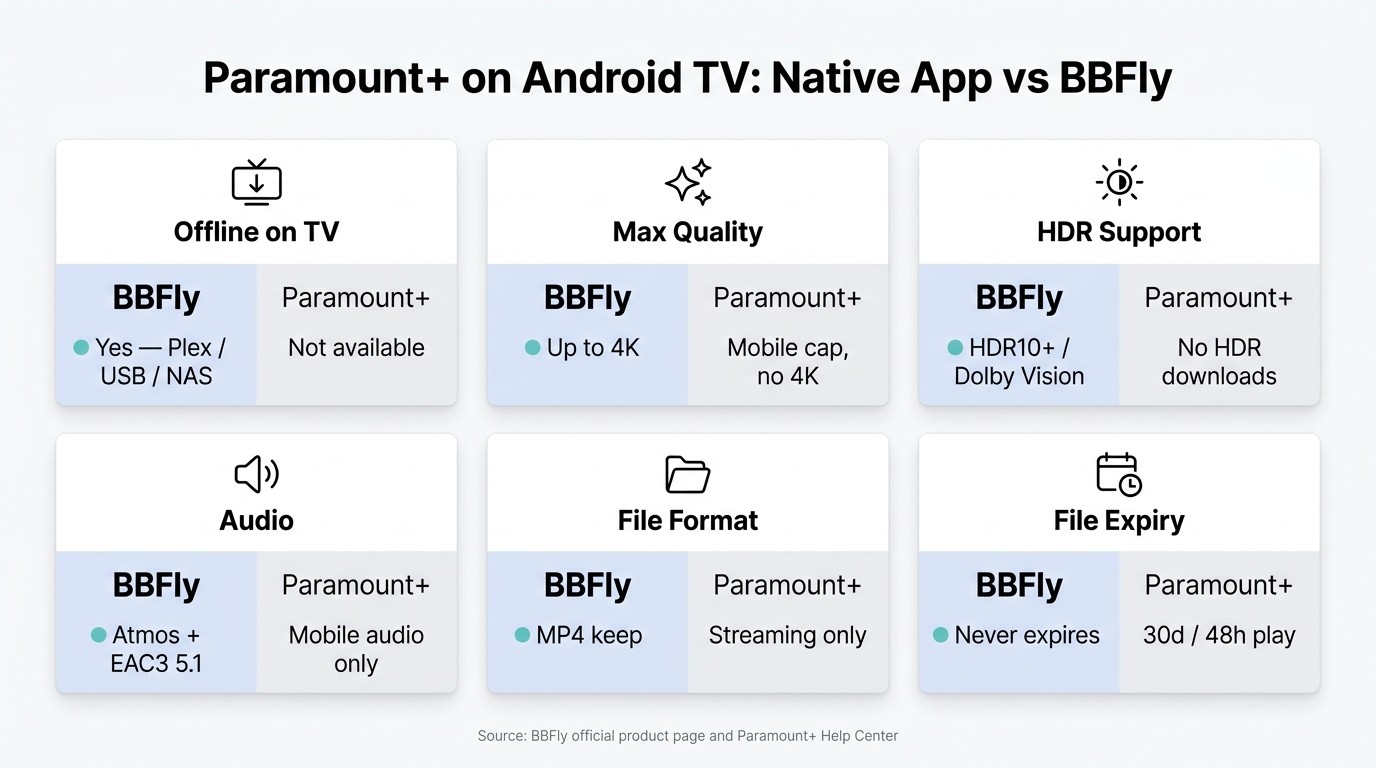
The practical route around the missing Android TV offline mode is to do the download on a Windows or Mac desktop with a tool like BBFly Paramount Plus Downloader, save the file as MP4 or MKV, then serve it to the TV via Plex, Jellyfin, USB, or a NAS share. No 48-hour clock, no Android TV app required. This is the workflow I use when a trip matters more than the convenience of streaming — two things I care about, and neither is on the official mobile-download path: the file doesn't expire, and I can pick the audio track.
The workflow: download on desktop, serve to your Android TV
Three steps:
- Install BBFly on a Windows or Mac machine signed into an active Paramount+ subscription. (This is offline backup for content you subscribe to, not a way around the subscription.)
- Pick the title from inside BBFly, choose the resolution and audio track — up to 4K with HDR10+ or Dolby Vision when the source has it, plus a Dolby Atmos or EAC3 5.1 track if your home theater can use it — and let it download to MP4 or MKV.
- Drop the file into a Plex or Jellyfin library, or copy it to USB or NAS, and play it through the matching client on the Android TV side. No expiry.
What BBFly actually preserves vs. the official mobile download
I only care about two things when comparing this to the official mobile download: does the file expire, and do I get a choice of audio track? Everything else in the table below is supporting detail.
Paramount Plus on Android TV: Native Capability vs. Local-File Workaround
| Capability | Paramount+ on Android TV | Local-file workaround via BBFly |
|---|---|---|
| Streaming on the TV | Yes, up to 4K HDR on Premium with capable hardware | Yes, plays whatever the file holds (up to 4K HDR10+ / Dolby Vision) |
| Offline download on the TV | Not available | Yes, MP4 / MKV stored on disk, USB, NAS, or Plex library |
| Offline download elsewhere | Mobile only, 30-day storage, 48-hour playback after first play | Desktop only, file does not expire |
| Max video quality (downloads) | Mobile cap, not 4K | Up to 4K (BBFly verified spec) |
| HDR / Dolby Vision (downloads) | No | HDR10+, Dolby Vision (BBFly verified spec) |
| Audio formats (downloads) | Mobile-app audio only | Dolby Atmos, EAC3 5.1, AAC 2.0 (BBFly verified spec) |
| Output container | DRM-locked inside the app | MP4 / MKV, plays in Plex, Jellyfin, VLC, Smart TV via USB |
Source: BBFly's official product page and Paramount+'s official Help Center, as of July 2026.
The practical upshot: 4K with HDR and Atmos preserved is the headline, but the daily payoff is the file not vanishing on a 48-hour timer and the audio menu actually being a menu. Best for: a subscriber who travels, wants Plex/NAS-served copies, or cares about Atmos passthrough. Not ideal for: someone who only watches on a single mobile device and finds the official mobile download window perfectly adequate — for that use case the official path is simpler and free.
Personal-use scope (the only framing we're recommending this in)
The use case is offline backup for content you already pay to subscribe to. BBFly is positioned for personal offline viewing — not for redistributing files, not for sharing copies, not as a way to skip the Paramount+ subscription itself. An active subscription is required; the tool gets you a permanent local copy of content you have legitimate access to, nothing else.
Frequently Asked Questions
What Android version do I need to run Paramount Plus on Android TV?
Android 7.0 or newer for the current Paramount+ Android TV build (16.x line). The older 15.x builds still run on Android 5.0+, but they're security-stale and the Play Store will push you to the current build wherever your TV supports it. If your Android TV is stuck below 5.0, the app won't install — a $40–$50 streaming box is the realistic fix, not a sideload trick.
Is sideloading Paramount Plus from APKMirror safe?
Conditionally. Install only CBS-Interactive-signed APKs and verify the signing certificate on APKMirror's listing first. Any APK labeled "modded," "premium unlocked," "ad-free," or anything other than the CBS Interactive original is a hard no — those repackages aren't safe and aren't legal. On current hardware (Android 7.0+), don't sideload at all; the Play Store build performs better because the DRM handshake completes properly.
How long do Paramount Plus mobile downloads actually last?
Two clocks. The 30-day clock starts at download and expires the file at 30 days whether you've played it or not. The 48-hour clock starts when you first press Play. Most articles get the second number wrong by quoting "48 hours from download" — it isn't. The playback clock starts at first play.
Can I cast Paramount Plus from my phone to my Sony Bravia or Chromecast if the TV app is broken?
Yes. Chromecast Built-in is supported in the Paramount+ mobile app; the cast button appears in the player. A useful fallback while the native TV app is misbehaving. Quality matches the casting device's plan and the receiver's display ceiling — casting from a Premium phone subscription to a 4K Chromecast with Google TV reaches 4K HDR on a supported title.
Does the Paramount Plus free trial work when I sign up from Android TV?
Trial eligibility is account-based, not device-based — a brand-new account signed up from the Android TV gets the standard trial period (subject to ongoing promotional changes). In practice it's easier to sign up on the web first, then activate on the TV. The on-TV typing experience for billing and payment info is brutal, and I've never met anyone who enjoyed it.
Is it legal to use a downloader to save Paramount Plus content?
Two different categories of risk sit under that question. Using a third-party tool to save platform content is typically a Terms-of-Service matter (the platform can suspend your account; civil contract issue), separate from copyright. Distributing or commercially exploiting downloaded files is a copyright issue — different category, real risk. Personal offline viewing of content you have an active subscription to sits in a gray zone that varies by jurisdiction. Check Paramount+'s current Terms and your local law before acting; this guide doesn't dispense legal advice.
The Practical Takeaway
Install from the Play Store on any current Android TV, not by sideload. Activate with the laptop already signed in to paramountplus.com/activate/androidtv before you press the generate-code button on the TV; the 15-minute timer is the trap. When playback breaks, work it in order — force-stop and cache-clear first, then the router-VPN check for Error 6000, then a fresh sign-in via Sign Out Of All Devices. Treat reinstall as the last resort, not the first. And for the offline gap the platform doesn't plan to fix on Android TV, the desktop-download-to-Plex workflow is the path I actually use when I need a file that doesn't expire. Keep the subscription; keep the personal-use lane.