
Download OnlyFans Videos on iPhone: Limits and 3 Ways
Table of Contents
If you searched how to download OnlyFans videos on iPhone, the direct answer is that OnlyFans offers browser access, not a native save-to-files control. Your practical choices are screen recording, a mobile or browser downloader, or downloading on a computer and transferring the local file to your iPhone.
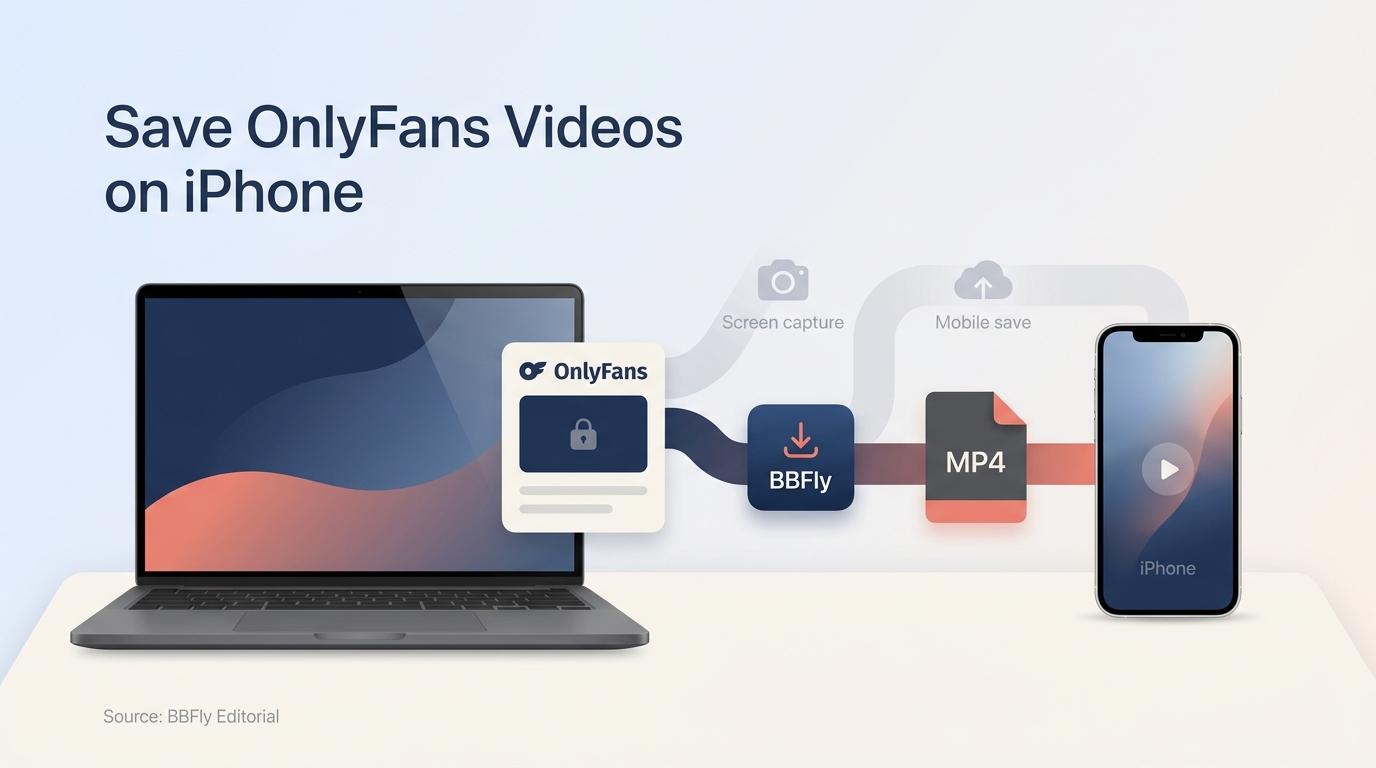
One iPhone user described relying on Aloha Browser until it simply stopped saving OnlyFans videos. I have seen that pattern often with web-based media tools: the convenient route works, the site or browser changes, and the workflow disappears. My judgment is blunt: iOS-only convenience is a poor foundation for a media library. When I am choosing for one long video or several posts, I stop treating the phone as the download machine; too many parts of that workflow sit outside my control. This guide starts with the limits, then works from a short clip to a portable file you can verify and manage yourself.
OnlyFans on iPhone: Browser Access and Download Limits
OnlyFans does not provide a native iPhone control that exports subscriber videos as portable offline files. You can access the service in a browser and add a Home Screen shortcut, but that shortcut is not an offline media library.
What “OnlyFans app download” searches are really asking
An OnlyFans app download iPhone search can point to three different goals: opening the site quickly, installing a conventional App Store app, or saving a creator's video. Those are not the same task.
Safari can place a website shortcut on the Home Screen through Share > Add to Home Screen. It opens the browser experience and may look app-like, but it does not add a video export button. If your real goal is to save OnlyFans videos on iPhone, you need to decide whether you want a quick capture or a separate local file.
Avoid APK files, configuration profiles, and installers promoted as an OnlyFans app download for iPhone. An APK is an Android package, and an unknown iOS profile can request access far beyond what a video tool needs.
Why there is no simple official save-to-iPhone workflow
The iPhone browser keeps websites and apps inside restricted storage areas. The OnlyFans player also controls how subscribed media is delivered. Together, those limits prevent a normal Save Video command from appearing for most subscriber content.
That distinction matters. Watching a video in Safari is platform-managed access; an MP4 or MKV is a portable file that you can move, name, and play in a compatible app. After years of managing media libraries, I put that file distinction ahead of a clever one-tap trick. Tricks age badly.
Prerequisites before saving any video
Before using any method, make sure you have valid access to the selected post or purchase, enough iPhone or cloud storage, and a personal offline-viewing purpose. Do not share, resell, publicly post, or redistribute a creator's work. Platform terms and local law still apply even when the file sits on hardware you own.
How to Download OnlyFans Videos on iPhone: 3 Practical Paths
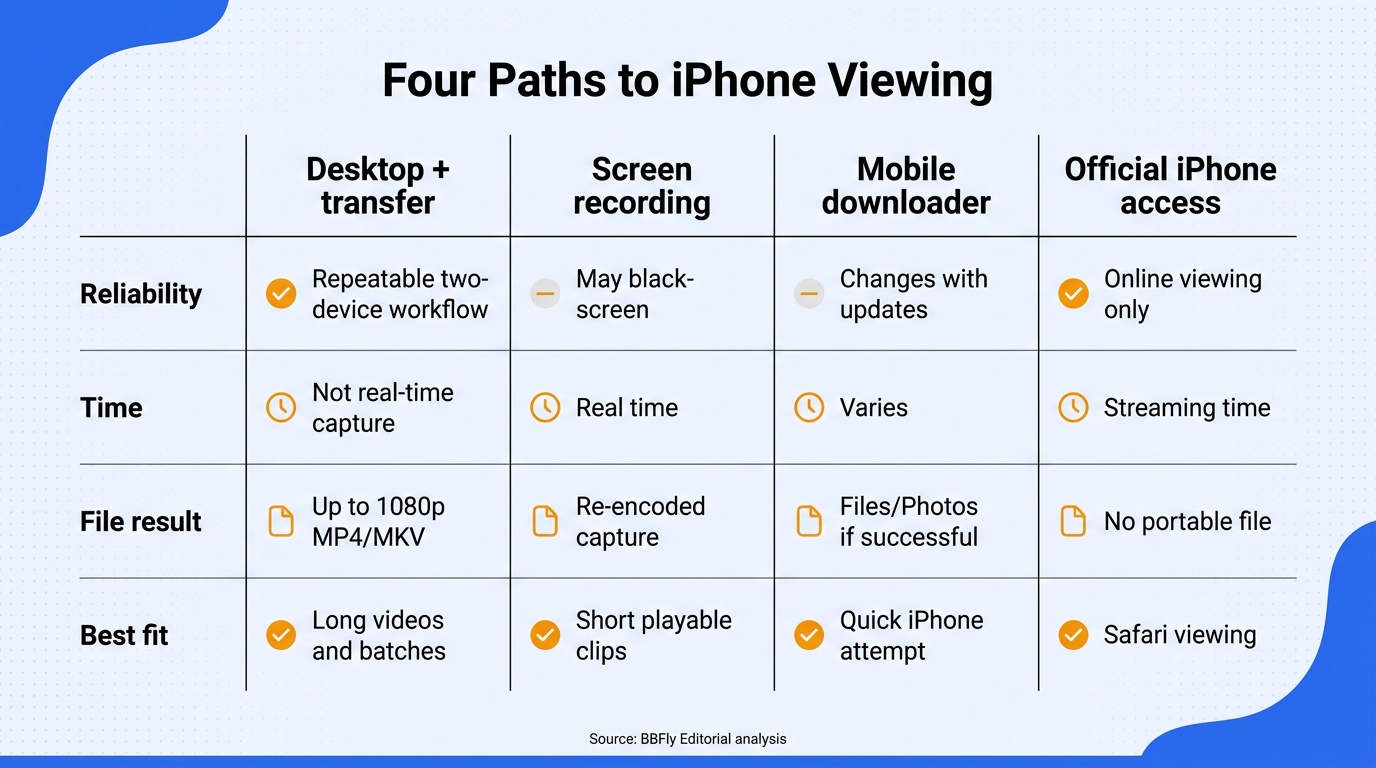
There are three realistic paths: record a short playable clip in real time, try a browser or mobile downloader, or create a local file on a Windows PC or Mac and transfer it. I make the choice by asking whether I need a quick capture or a file worth checking and keeping. Once the job becomes one long video or several posts, I leave the phone-only routes behind: recording runs in real time, while mobile downloaders depend on more changing parts.
Please note: Mobile and desktop downloaders may conflict with OnlyFans' Terms of Service. Use them only for media you are authorized to access and for personal offline viewing, and never redistribute the files.
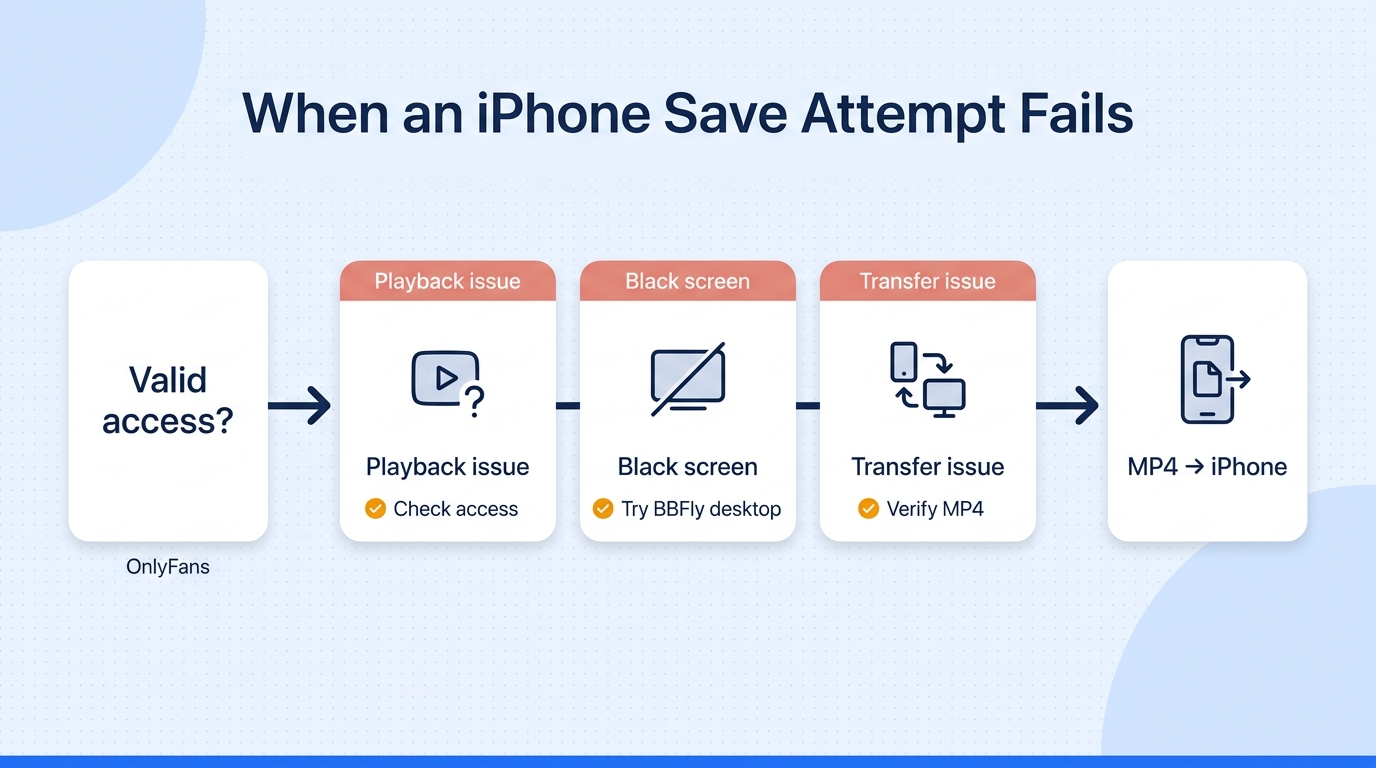
Why iOS-only approaches stop working
An iPhone-only downloader depends on the current browser, page structure, media delivery method, and iOS permissions. A change in any one of those layers can break a previously useful tool. As one Reddit poster wrote, “I used to download them with Aloha Browser but it stopped working for this purpose.”
The failures are not always graceful. In one Reddit comment, a downloader returned “405 (METHOD NOT ALLOWED)” while crawling the page; another commenter reported files rejected for unsupported encoding settings (crawler-error comment, encoding comment). This is why I judge mobile downloaders by what happens after the save button, not by how polished that button looks.
Path 1: Screen record a short, playable clip
Use screen recording only when the video plays normally and you have permission to make a personal copy.
- Open Settings > Control Center and add Screen Recording if it is not already available.
- Open the authorized OnlyFans video and prepare it at the starting frame.
- Open Control Center, start recording, return to the video, and play it through.
- Stop recording, open the result in Photos, trim the start and end, and check that video and audio were captured.
Recording runs in real time and creates a new encoded copy, so it can lose quality and consume substantial storage. Notifications or interface controls may also appear in the result. One Reddit commenter put the larger problem plainly: “I had to screen record every video but I’ve heard some accounts won’t even let you do that?” If protected playback produces a black screen or missing audio, stop there; this method does not support that video.
- Best fit: an occasional short clip that plays cleanly.
- Not ideal for: long videos, multiple posts, or a quality-conscious archive.
Path 2: Use a browser or mobile downloader
A mobile downloader may save a playable file to Files or Photos, but reliability changes as OnlyFans and iOS change.
- Choose a tool from its official website or a recognized app marketplace, then review its privacy policy and requested permissions.
- Open the authorized post in the tool's browser, or paste the post URL if the tool supports that workflow.
- Sign in only through the expected OnlyFans page, not an unfamiliar form that asks for unrelated information.
- Process the video, save the result to Files or Photos, and play the entire file before deleting any temporary copy.
Do not assume every tool supports newer posts, paid messages, or every encoding. If it returns an access error, fails to detect the video, or creates an unreadable file, treat that as a failed attempt rather than an invitation to hunt for a workaround.
- Best fit: a quick iPhone attempt when convenience matters most.
- Not ideal for: paid-message edge cases, repeatable batch work, or readers who do not want to enter account credentials into a mobile tool.
Path 3: Download on a computer, then transfer to iPhone
A desktop workflow adds a transfer step, but it separates file creation from iOS browser restrictions. For longer videos or a managed collection, that is usually the trade I would make.
- Install a reputable Windows or macOS downloader from its official site.
- Sign in with an account that can legitimately play the selected content.
- Select the video and choose an iPhone-friendly output. MP4 with H.264 video and AAC audio is the safest native choice; MKV usually needs a player such as VLC or Infuse.
- Download the file and play it on the computer to confirm that it is complete.
- Transfer it with AirDrop, iCloud Drive, Finder, or a USB connection.
- Open the file on the iPhone and confirm playback before removing the desktop copy.
- Best fit: long videos, several downloads, and readers who care about portable files.
- Not ideal for: someone who needs one short clip immediately and has no computer available.
Which path fits your use case?
| Method | Reliability | Time model | File result | Best fit |
|---|---|---|---|---|
| Official iPhone access | Online viewing only | Streaming time | No portable file | Safari viewing |
| iOS screen recording | May fail on protected playback | Real time | Re-encoded capture | Short playable clips |
| Mobile downloader | Changes with browser updates | Varies | Files or Photos output | Quick iPhone attempt |
| Desktop download + transfer | Adds a transfer step | Not tied to playback | Up to 1080p MP4/MKV | Long videos and batches |
Source: BBFly's official OnlyFans Downloader product page and OnlyFans' official website, as of August 2026.
The practical split is simple. Recording is temporary convenience, mobile downloading is a calculated gamble, and desktop downloading is the deliberate choice when the file itself matters.
How BBFly Creates a 1080p File for iPhone Playback
BBFly OnlyFans Downloader is a third-party Windows and macOS tool for content you can validly access, subject to OnlyFans' terms and local law. It saves H.264 video with AAC 2.0 audio at up to 1080p in MP4 or MKV for transfer to iPhone. For a long video or several posts, I accept the desktop step because I can verify the file before and after transfer.
Prerequisites and product positioning
BBFly suits readers who value a checked local file. It is not an iPhone app, and the computer-to-phone step is the real limitation.
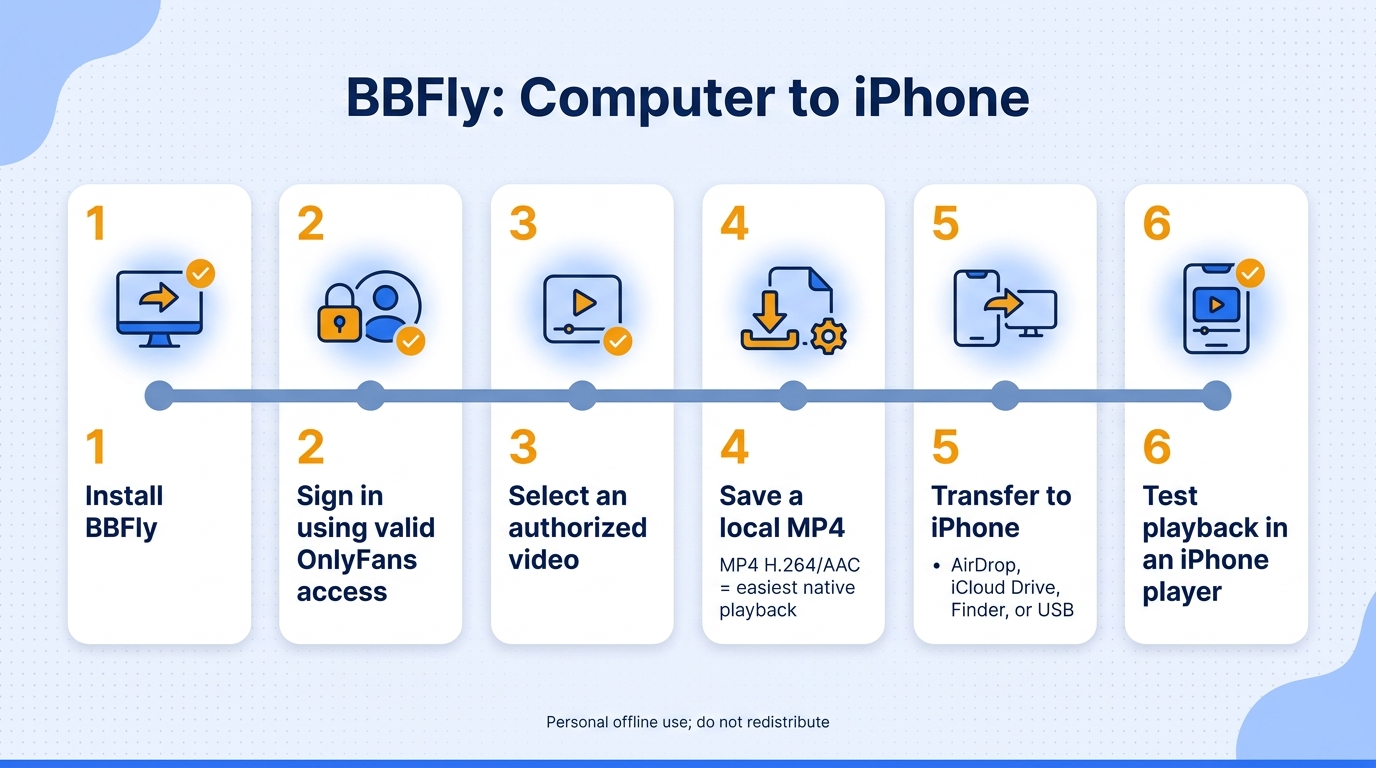
BBFly workflow from OnlyFans to iPhone
- Install BBFly on Windows or macOS.
- Sign in and open content your account can play.
- Select one video or a batch of authorized videos.
- Choose 1080p or 720p and MP4 or MKV. I would choose MP4 for the least complicated iPhone playback.
- Download the selected files and check the result on the computer.
- Move the files by AirDrop, iCloud Drive, Finder, or USB, then open them on the iPhone.
Verified output specs and product limits
The relevant iPhone spec string is concise: up to 1080p H.264 video, AAC 2.0 audio, and MP4 or MKV output, with batch downloading available. For OnlyFans, BBFly does not remove ads, download subtitles, select audio languages, or embed metadata. The value here is the portable video file, not a decorative feature checklist.
Trial, price, and license check
As of August 2026, the 30-day trial permits three complete videos per service; plans start at $29.90 monthly, and Lifetime covers three PCs. Before buying, decide whether this desktop handoff fits your routine. Best fit: longer videos and repeat file management. Not ideal for: an iPhone-only workflow or one short clip.
FAQ About Saving OnlyFans Videos on iPhone
The key questions are not just whether a save button works, but what type of file you get, what access you need, and where the method should stop. These answers cover the common iPhone edge cases without promising support a tool cannot reliably provide.
Can I download an OnlyFans video directly on iPhone without screen recording?
Sometimes a mobile or browser downloader can save a playable file, but there is no consistently reliable native iPhone export path. If you need a predictable MP4 or MKV, a desktop download followed by AirDrop, iCloud Drive, Finder, or USB transfer is the stronger route. If you need only a short playable clip, recording may be simpler.
Why does screen recording show a black screen, and does it reduce quality?
A black screen means the playback path does not allow the recorder to capture that video; stop rather than trying to work around it. Recording also creates a newly encoded, real-time copy, so quality can be lower than the played source and audio may not be captured correctly. It is a capture method, not the same thing as saving the delivered media file.
Can I save Messages, PPV purchases, or videos by username?
Valid access to a message or PPV purchase is required, but access does not guarantee that a downloader can detect message-only media. A username alone cannot grant access to posts or purchases. If the selected video is not detected, do not assume another URL format or account lookup will make it available.
Do I need active access, and is it safe and legal to sign in?
Yes, you need legitimate access to the selected content. Use a downloader from its official site, confirm HTTPS and a clear privacy policy, and avoid unknown web forms or extensions that request unrelated permissions. Tool use may raise a Terms of Service issue; redistribution or commercial use raises separate copyright concerns. Keep any copy personal, and do not use a tool to obtain media your account cannot play.
Can I use an APK or a Firefox extension on iPhone?
No APK can install on iOS because APK is an Android package format. Firefox on iPhone also does not run desktop extensions in the same way Firefox on a computer does. Avoid unverified profiles or sideloaded packages advertised as an OnlyFans app download for iOS; they do not solve the file-access problem and may create a larger security problem.
Will a transferred file play on a flight or after the post is removed?
A complete local MP4 with H.264/AAC can play without internet in a compatible iPhone app, provided it is already stored on the device. MKV may require VLC or Infuse, so test it before travel. Removing the online post does not automatically erase a separate local file, but the creator's rights, platform terms, and rules against redistribution still apply. Technical persistence is not a transfer of ownership.