
Disney Plus Stuck on Loading Screen: 6 Fixes Tested in 2026
Table of Contents
When Disney+ is stuck on the loading screen with no error message, the cause is almost always one of six things: a server-side outage, a corrupted local cache, a stale device session, an ad blocker or VPN blocking CDN traffic, an IPv6 routing loop, or an outdated app build. Rule out a Disney+ outage on Downdetector first, then work through cache → power-cycle → extensions and VPN → IPv6 → reinstall.

The thread that pulled me into writing this came from a user on the Google Nest Community: "Disney+ starts loading but never gets past the spinning wheel — even after 30 minutes. Clearing cache, reinstalling, and rebooting didn't help." That is the audience standard listicles miss — readers who already did the obvious. The fixes that survive that filter live one layer deeper than "clear the cache." Below is the order I actually work through.
TL;DR — Why Your Disney+ Is Stuck on the Spinning Wheel
Before you touch any setting, rule out two things: a Disney+ outage and your VPN. If both are clean, the cause is local — corrupted cache, a desynced device session, a network-layer block (ad blocker or IPv6), or an outdated app build. I do not recommend reinstalling first; it wipes your saved progress and download queue and is almost never the actual root cause. Work the steps below in order. Most cases close before you ever touch the router.
How to Fix Disney Plus Stuck on Loading Screen: The 6 Steps That Actually Work
The fastest sequence:
- (1) confirm Disney+ is not down on Downdetector,
- (2) clear cache and force-close,
- (3) power-cycle the device and router,
- (4) turn off ad blockers and VPN,
- (5) disable IPv6 on the router,
- (6) reinstall the app.
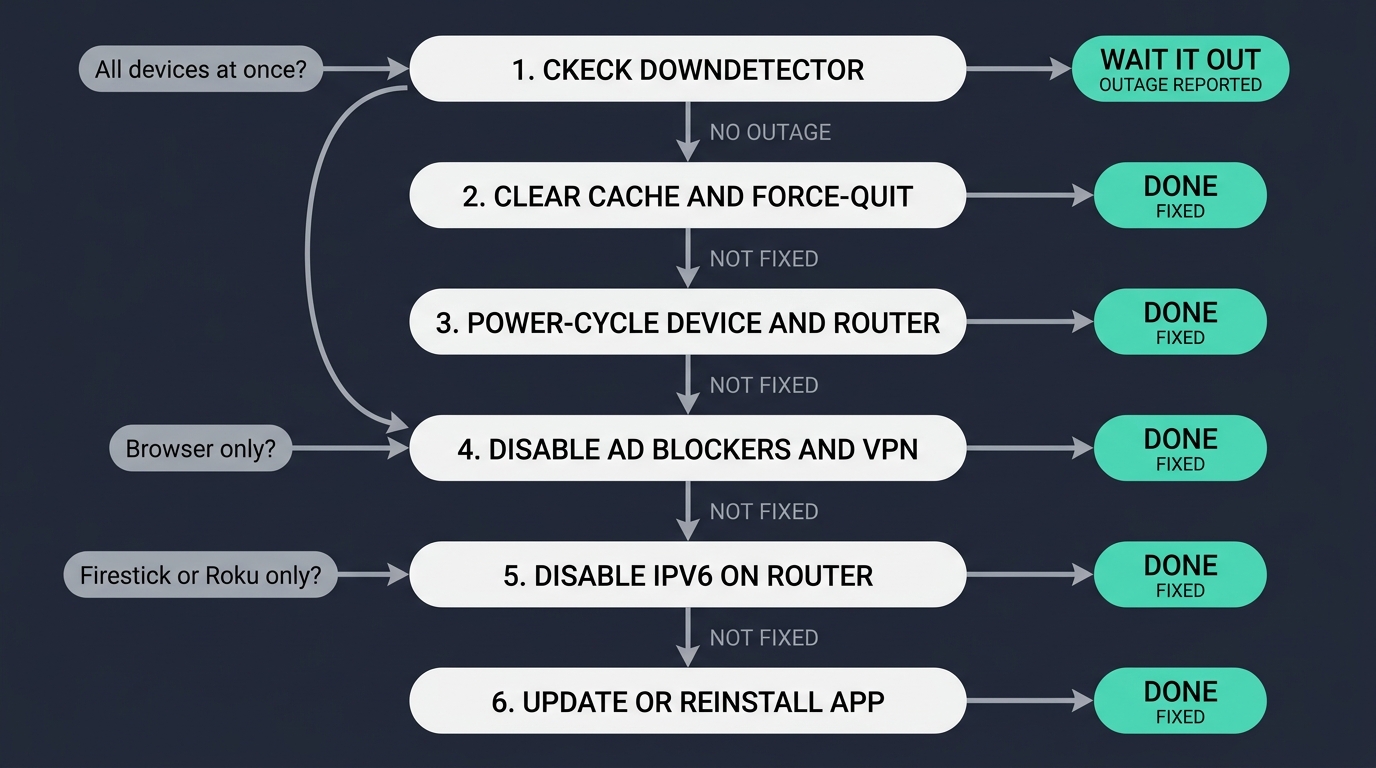
About nine cases in ten close in steps two through four.
| Symptom | Likely cause | First fix |
|---|---|---|
| Spinning wheel forever, no error message | Cache corruption or outdated app build | Clear cache and data, then force-close and relaunch |
| Stuck right after the Disney+ logo | App / device build mismatch or signed-out background session | Reinstall the app and sign in fresh |
| Stuck only inside a browser (Chrome / Firefox) | Ad blocker blocking Disney+ CDN scripts | Disable ad blockers; try incognito with extensions off |
| Stuck on Firestick or Roku, other apps work fine | DNS or IPv6 incompatibility, or device RAM exhaustion | Disable IPv6 on the router, then power-cycle for 60 s |
| Stuck only when casting to Chromecast / Google TV | Device authorization desync between phone and TV | Cast from the phone again and accept the on-screen prompt |
| Stuck on every device at the same time | Disney+ server-side outage | Check Downdetector or @DisneyPlusHelp on X |
| Stuck before the Disney+ logo loads at all | Corrupted install or app version too old for the OS | Uninstall and reinstall from the official app store |
Rule out a Disney+ server outage first (Downdetector)
If Disney+ is stuck on every device — phone, TV, browser — no local fix will help. Open Downdetector and check @DisneyPlusHelp on X. If incident reports are spiking, skip the rest of this list. This is the cheapest check and the one I run first.
Clear Disney+ cache and data, then force-close the app
Device paths vary by platform:
- Smart TV: Apps → Disney+ → Clear Cache, then Clear Data.
- Firestick: Settings → Applications → Manage Installed Applications → Disney+ → Clear Cache.
- Mobile: Settings → Apps → Disney+ → Storage → Clear Cache.
On the Firestick in my living room, this step alone clears the spinner about half the time. Force-close the app afterward; relaunching from background is not enough.
Power-cycle the streaming device and the router
A full power-cycle, not a soft restart. Unplug the streaming device and router from the wall for thirty seconds (sixty for Samsung TVs — their firmware holds state longer than most). A "restart" from the system menu does not always clear the network handshake Disney+ is stuck on.
Disable ad blockers, browser extensions, and VPN / proxy
Two separate problems hide under one fix. Browser ad blockers such as uBlock or AdGuard can block CDN scripts Disney+ needs for the initial handshake — an incognito window with extensions off tests that cleanly. The VPN issue is different: Disney+ refuses to load if your apparent region does not match your subscription country. Turn off any VPN and reload. Do not skip this on a smart TV; router-level VPN and Smart DNS setups are common and silent.
Disable IPv6 on the router (the underrated network-level fix)
Some IPv6 implementations on consumer routers loop the Disney+ authentication call until it times out — the app sits on the spinner with no error. The fix is in the router admin page (Advanced → IPv6 → Off), not in the app. This fixed mine last year on a four-year-old ASUS after every other step had failed. Try it before reinstalling.
Update or reinstall the Disney+ app (last-resort but reliable)
Reinstalling resets your in-progress downloads and saved progress, which is why I save it for last. But it is reliable — a fresh install resyncs device authorization, the actual hidden root cause on many Chromecast and Google TV setups. After reinstalling, accept the device re-authorization prompt on first launch. If the spinner returns on the next session, the problem is upstream of the app and the earlier five steps are where to focus.
Beyond the Spinning Wheel: Keeping Disney+ Titles as Permanent Local MP4 Files for Personal Offline Viewing
If your Disney+ app keeps freezing and in-app downloads keep expiring, the most reliable path is exporting titles you actually rewatch as a permanent local file on Windows or Mac — one that no longer depends on the app launching cleanly.
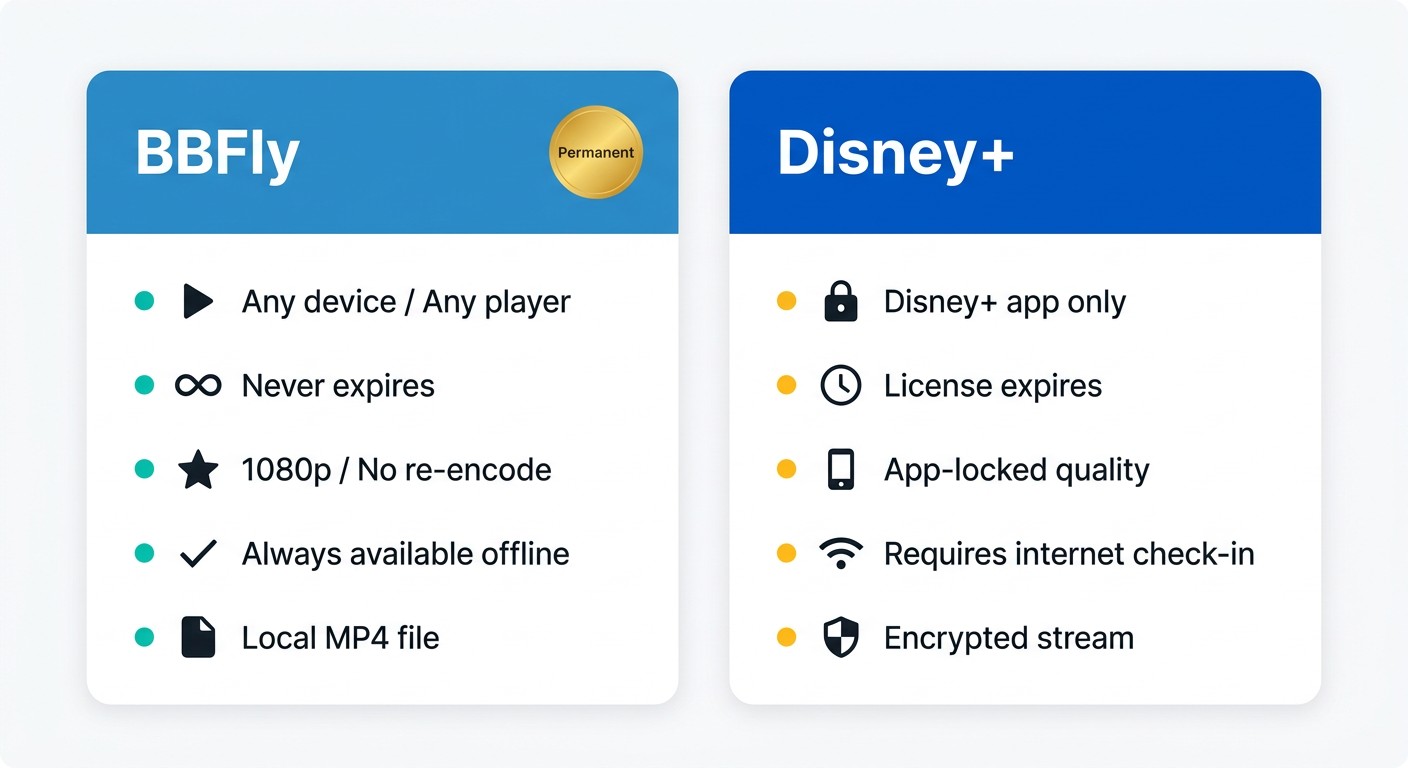
Please note: Third-party downloaders sit outside Disney+'s Terms of Use. Use them only with an active Disney+ subscription, only for personal offline viewing, and never to redistribute or resell. Where an official Disney+ download path exists, that path is the most worry-free.
What BBFly does differently — native download on Windows / Mac, output as MP4 / MKV
After watching Disney+'s in-app downloads tighten — forty-eight-hour playback expiry, a thirty-day online check, titles dropping without notice — I stopped treating those as files I own. BBFly Disney Plus Downloader on Windows and Mac fills the gap Disney+ leaves on desktop (there is no official Disney+ download on PC or Mac), outputs a standard MP4 or MKV at up to 4K (as of June, 2026; verify Disney+ tier rules on disneyplus.com), and keeps the 26 subtitle tracks Disney+ ships with most titles. The local file plays in VLC, Infuse, or Plex without an app check-in — a personal offline backup of content you subscribe to.
Disney Plus Loading Screen FAQ
Is Disney+ down right now?
Check Downdetector and @DisneyPlusHelp on X. If outage reports are spiking, no local fix will help — wait it out. If those dashboards are clean, work through the six-step sequence above.
How do I fix Disney+ stuck on loading screen on Firestick, Roku, or Samsung TV?
- Firestick: Hold Select + Play for about ten seconds to soft-reboot, then clear cache via Settings → Applications → Disney+.
- Roku: Press Home five times, then Up, Rewind, Fast-Forward, Rewind, Fast-Forward to trigger a soft restart.
- Samsung TV: Full unplug for sixty seconds, then reinstall Disney+ from Smart Hub.
For the universal fix sequence, see the six steps above.
Why does Disney+ open to a black screen instead of the spinner?
Black screen with audio is usually a graphics or HDCP handshake issue — try a different HDMI cable, and on smart TVs check for an HDR / Dolby Vision mismatch in picture settings. Black screen with no audio is closer to a cache or install problem; the spinner fix sequence above applies.
Why is Disney+ stuck right after I cast or sign in on a smart TV?
A user on the Google Nest Community summed it up: "After casting from my Android phone to Google TV, the app prompted device authorization — after authorizing it all worked." Many Chromecast and Google TV setups silently desync device authorization on the receiver side; cast from the phone again and accept the on-screen prompt.
Can I watch Disney+ offline if the app keeps failing on my device?
Disney+'s built-in downloads are mobile-only on the Premium tier (as of 2026-06; verify on disneyplus.com) and expire forty-eight hours after first play or thirty days unplayed — they do not solve a chronic loading-screen problem on a TV or PC. The reliable alternative is exporting a personal local MP4 with a third-party downloader such as BBFly on Windows / Mac, used with an active Disney+ subscription for personal offline viewing only.
If You're Still Stuck: Next Steps and When to Escalate
If all six fixes failed, the problem is either device-specific compatibility or a Disney+-side account flag. Contact Disney+ Support via the in-app help link or disneyplus.com/help with your device model, OS version, and a screenshot of the spinner. If the device itself is the bottleneck on titles you rewatch, see the offline-file option above.