
Disney Plus Black Screen: 7 Fixes by Cause + a Permanent One
Table of Contents
A Disney+ black screen looks like one problem and is actually four. The right fix depends on which one you are staring at. Quick read: if audio plays but the picture is gone, it is an HDCP or HDR handshake. If there is no audio either, it is the app or your network. If it only happens with a VPN on, that is geo-detection. If it only happens when mirroring, that is DRM doing its job.
I have been running streaming gear for fifteen years, and the cleanest tell I have ever seen for the picture-gone-but-audio-fine version came from an Apple Community thread: a user with audio but no Disney+ video on Apple TV 4K dropped the output from 1080 HDR to 1080 SDR, and the picture came back. That single move tells you the cause exactly. Most black-screen troubleshooting fails because people start with reinstalls and cache wipes before sorting which of the four causes they actually have.
Why Disney+ Goes Black: Four Root Causes and the First-Line Fixes
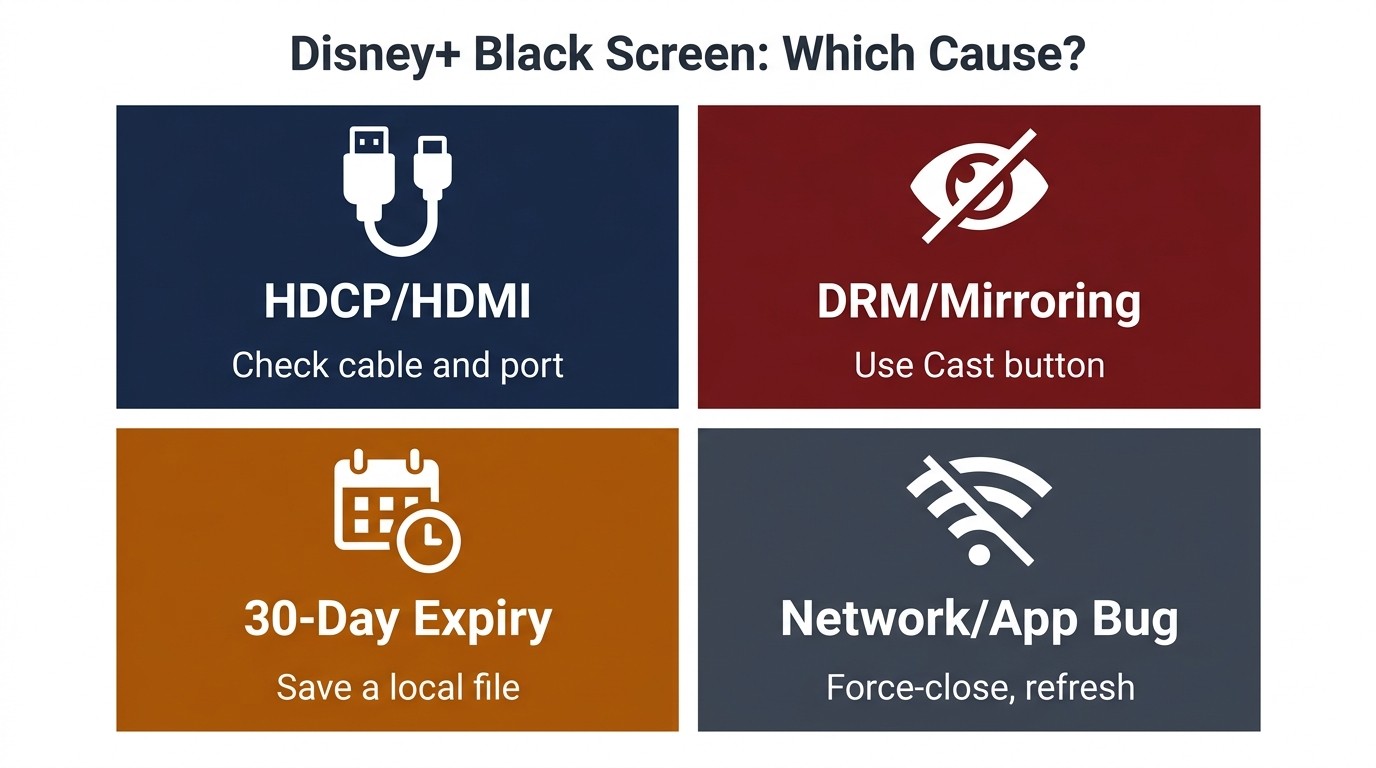
A Disney+ black screen has four causes — app/network, HDCP, VPN, or mirroring. Match your symptom to the right bucket in the table before applying any fix. Do not lead with reinstall: it wipes titles you already saved in the official app.
Disney+ Black Screen: Match the Symptom to the Cause to the Fix
| Symptom | Likely cause | First-line fix |
|---|---|---|
| Black screen + audio plays | HDCP / HDMI handshake failure (especially HDR on Apple TV 4K) | Swap HDMI port; confirm cable is HDCP 2.2; on Apple TV, drop output from 1080 HDR to 1080 SDR |
| Black screen + no audio | App or device hang; corrupt cache; outage | Force-close the Disney+ app; clear cache; check server status on Downdetector; reboot |
| Black screen only with VPN on | Disney+ VPN detection (IP + DNS + cached login signals) | Disable the VPN for the Disney+ session |
| Black screen only when screen mirroring | Disney+ DRM blocks system-level mirror output by design | No app-side fix; use the Disney+ Cast button on a certified device, or play a local file on the TV directly |
Sources: Disney+'s Help Center; Apple Community thread on Apple Discussions (HDR-to-SDR). As of June 2026.
Match Your Symptom to One of Four Causes
Two questions sort most cases: does audio play, and does the black screen happen everywhere or only in one setup? Audio without picture points to HDCP. No audio at all points to the app or your network. Only when a VPN is on points to Disney+'s detection layer. Only when mirroring points to the DRM block. The fix lives in one bucket, not all four.
Seven Standard Fixes That Clear Most Cases
For the app/network bucket (no-audio black screens, post-update flakes, random one-time hangs), work through these in order:
- Force-close the Disney+ app and reopen it.
- Clear the app cache, or in a browser clear cookies for disneyplus.com.
- Check Disney+'s server status on Downdetector.
- Confirm at least 5 Mbps for HD or 25 Mbps for 4K UHD, ideally wired (per Disney+'s Help Center).
- Disable any VPN running on the device or router.
- Disable browser extensions and ad blockers, then reload.
- Update the Disney+ app. Reinstall only as a last resort — it wipes any titles still downloaded inside the app.
Sound but No Picture: HDCP, HDMI, and the Apple TV Trick
Sound with no picture is the HDCP fingerprint. Audio decodes inside the app; video has to clear the HDMI handshake. When that fails — wrong HDCP version, marginal cable, or an HDR negotiation the chain cannot sustain — Disney+ blanks the picture and leaves audio alone. The fix lives in cables and output, not in the app.
What HDCP Is and Why Disney+ Enforces 2.2
HDCP — High-bandwidth Digital Content Protection — is the encryption handshake between source and display. Disney+ requires HDCP 2.2 for 1080p and 4K UHD; an older 1.4 cable or a non-certified adapter passes audio through and silently strips the picture. Most fix lists bury this, which is why people burn an evening on cache wipes for what is actually a cable problem. I keep a certified HDCP 2.2 cable in a drawer for the A/B test.
HDMI Troubleshooting and Browser Fixes
A few moves, in order of likelihood:
- Swap the HDMI port. One Apple Community user reported, verbatim: "HDMI Input 2 gives me just sound with black screen." Some receivers route certain inputs through stricter HDCP than others.
- Use a certified HDCP 2.2 cable. Bargain-bin cables fail this check intermittently, especially as they age.
- On Apple TV 4K, drop output from 1080 HDR to 1080 SDR. Per the same thread: "downgraded 1080 HDR to 1080 SDR and that did the trick." HDR adds a layer not every chain can sustain. I tried this the first time I hit it; cleaner than swapping cables for an hour.
- For iPhone, the HDCP path runs through the Lightning or USB-C adapter to HDMI. Most no-name adapters fail Disney+'s check in my experience — use a certified Apple adapter, or skip the cable with the Cast button.
If the black screen is browser-only, the culprit is usually GPU acceleration colliding with Widevine. Chrome: Settings → System → toggle off "Use hardware acceleration when available," then restart. If that does not clear it, clear cookies for disneyplus.com. Firefox behaves the same way under its own DRM layer.
When a VPN Triggers a Disney+ Black Screen
Yes, a VPN can trigger a Disney+ black screen, and it is not only IP-based detection you are up against. Disney+ checks several signals at once, which is why bouncing through new servers usually does not stick. The realistic fix is to disable the VPN for Disney+ sessions, not to hunt for a magic exit node.
How Disney+ Detects VPNs Beyond IP
I leave a VPN on most of the time, and for Disney+ it is the first toggle I flip. Disney+ does not just look at the IP. It checks DNS request paths for leaks, reads GPS on mobile, and cross-references your account's recent login region against where the current request is coming from. Switching to a new server can clear one signal (a fresh IP) while leaving the others mismatched, which is why threads about VPNs and Disney+ are full of partial fixes that quietly revert a day later.
The practical move is unglamorous: turn the VPN off, watch the title, turn it back on after. If you need a VPN running for everything else, treat Disney+ as a deliberate exception in your client's split-tunneling rules.
Why Screen Mirroring Disney+ Goes Black (It's Policy, Not a Bug)
Disney+ does not break during screen mirroring; it is designed not to work. The DRM strips video from the system-level mirror output so the screen content cannot be re-captured, while audio passes because it is handled separately. No app-side fix changes this. The working paths are Disney+'s certified Cast button on supported devices, or playing a local file on the TV directly.
Disney+ Blocks System Mirroring by Design
This is intentional, not a bug to file. Disney+'s DRM intercepts the mirror buffer because that is the obvious capture point. The signature is audio playing fine with video gone, which one user on JustAnswer described cleanly: "We're trying to get Disney+, trying to mirror. We hear audio, but screen is black." That is the protection working as designed. I have watched people spend an evening flipping AirPlay settings, swapping HDMI cables, and reinstalling for this one. None of it changes the outcome.
What Actually Works: Cast-Certified Paths and the Local-File Alternative
Two routes work, neither of them mirroring:
- The Cast button inside the Disney+ app on a certified Chromecast or AirPlay device. The app sends the stream under Disney+'s own licensed delivery path, not your phone's mirror buffer. Worry-free when your TV supports it.
- A local file played directly on the TV (USB drive, Plex, Infuse, a TV's built-in player). If the Cast button is not available on your hardware (older TVs, projectors, and a fair number of streaming sticks do not show up as a Cast target), the local-file route is what I default to. That is the bridge to the next section.
The Permanent Route: A Local Disney+ File That Sidesteps the Whole Chain
Boundary, up front: this workflow is a personal-backup route for titles you already have under an active Disney+ subscription. Third-party download tools can conflict with Disney+'s Terms of Use, so keep saved copies for your own offline viewing, do not redistribute, and where an official download exists on your device, that is the safer route.
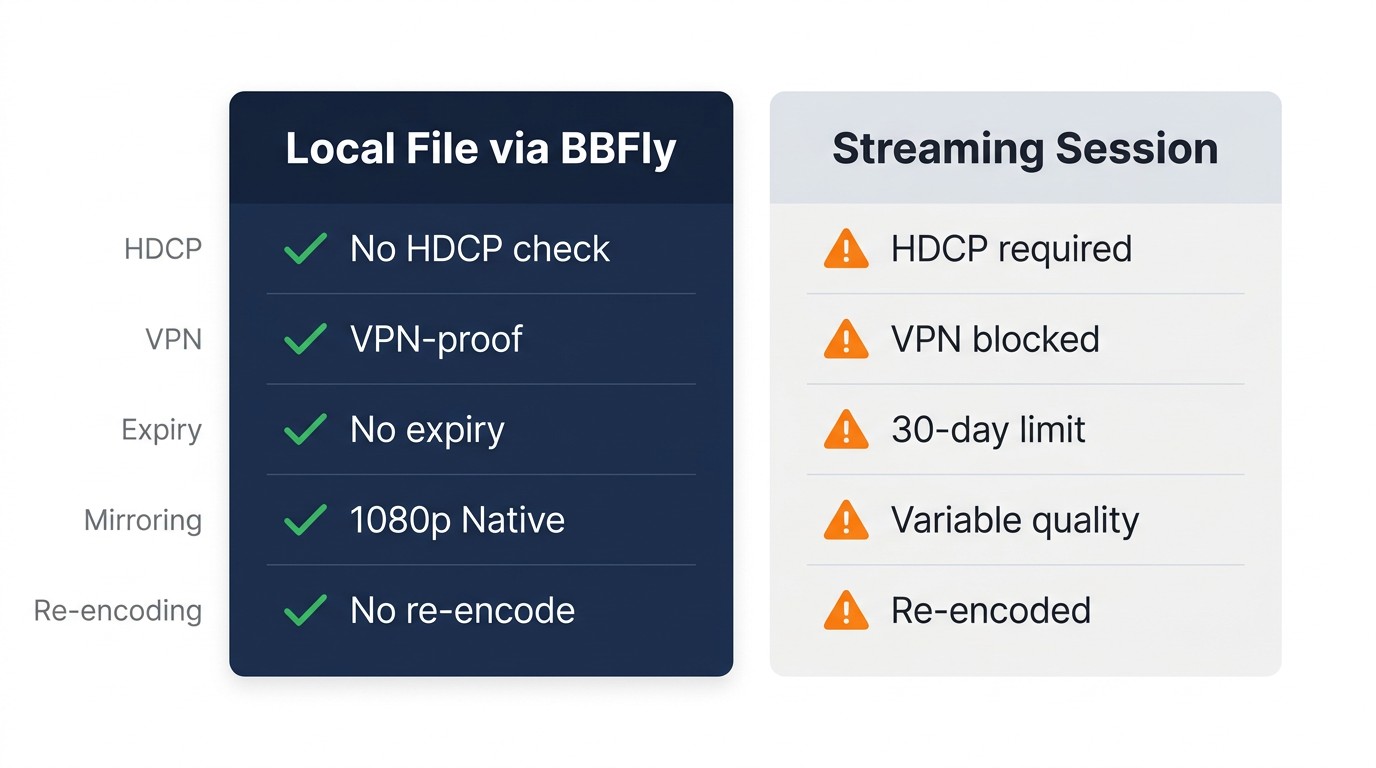
A local file removes every cause above in one move: no HDCP chain, no VPN signal, no server dependency, no mirroring policy. The catch: there is no official PC or Mac download path, so a third-party tool is the only desktop route — and keeping it inside personal-use bounds is on you.
Why a Local MP4/MKV Cuts the Entire Failure Chain
One line per failure mode the file removes:
- No HDCP handshake. Plays in VLC, Infuse, or any TV's built-in player.
- No VPN exposure. Nothing is hitting Disney+'s detection layer.
- No server outage. Downdetector spikes do not matter when nothing is calling home.
- No 30-day re-auth. Disney+'s in-app downloads expire after 30 days offline (per Disney+'s Help Center); a plain MP4 does not.
- No content-rotation surprise. When Disney+ rotates a title out, your local copy stays.
BBFly Disney+ Downloader: What It Does (and What It Doesn't)
I have tried a few playback routes for Disney+ — Cast, mirroring, HDR-on, HDR-off, VPN on a separate profile. The differences that actually matter for living-room viewing are these, side by side:
| Streaming session | Local file via BBFly | |
|---|---|---|
| HDCP chain | required for HD/4K | not used |
| VPN detection | can blank the screen | none |
| 30-day re-auth | required | not required |
| Mirroring to a TV | blocked by DRM | unrestricted on your own device |
| Server outage | affects playback | unaffected |
The choice I keep coming back to: I would rather download a title once and own the file than reinstall, swap cables, or troubleshoot a VPN every time the chain breaks.
BBFly Disney Plus Downloader covers the desktop side Disney+ does not — the official download is mobile-only — and keeps the original H.265 video and EAC3 5.1 audio instead of re-encoding from a recorded screen, so playback is source quality, not a transcode. Output is plain MP4 or MKV; an active Disney+ subscription is the entry ticket.
Disney+ Black Screen FAQ
Why does Disney+ show a black screen but the audio still plays?
That is the HDCP fingerprint. Swap HDMI ports, use a certified HDCP 2.2 cable, and on Apple TV 4K drop output from 1080 HDR to 1080 SDR before you reinstall anything.
What is an HDCP issue on Disney Plus?
HDCP is the encryption handshake between your source and your display. Disney+ requires HDCP 2.2 for HD and 4K; older 1.4 cables and non-certified adapters pass audio and silently strip the picture. On iPhone the same protocol runs through the Lightning or USB-C-to-HDMI adapter, and most no-name adapters fail in my experience — use a certified Apple adapter, or skip the cable with Cast. More "Disney+ black screen on TV" cases trace back to cables than to anything inside the app.
Can I fix a Disney+ black screen when I'm screen mirroring to my TV?
No. Mirroring is blocked by design. Use the Disney+ Cast button on a certified device, or play a local file on the TV directly. I have watched people lose an evening to this one; no setting flips it on.
Why is Disney Plus showing a black screen only in Chrome?
Hardware acceleration colliding with Widevine. Chrome → Settings → System → toggle off "Use hardware acceleration when available," then restart. If that does not clear it, clear cookies for disneyplus.com.
Will using a VPN cause a black screen on Disney+?
Often, yes. Disney+ cross-references IP, DNS leaks, mobile GPS, and your account's recent login region. Switching servers usually moves the same problem to a new IP. The realistic move for Disney+ sessions is to turn the VPN off.
Does saving Disney+ titles offline avoid all these black screen issues?
Yes. A local MP4 or MKV plays without the HDCP chain, the VPN check, or the 30-day re-auth the in-app download enforces. The caveat: an active Disney+ subscription is required, copies are for your own personal offline viewing only, and no redistribution. From my own use, it is the cleanest answer to the whole black-screen category — as long as you stay inside that personal-use line, it just works.
Bottom Line
There is no universal fix because there is no universal cause. Match the symptom first: app and network cases fall to the standard seven; HDCP cases want a port swap, a certified cable, and on Apple TV 4K, SDR; VPN cases want the VPN off; mirroring is not a fix at all, it is a switch to Cast or to a local file. Pick the right lane before you start, and you save yourself the evening.