
OnlyFans Downloader Android: App Limits and a PC Route
An 'OnlyFans downloader Android' search does not lead to an official app: OnlyFans provides browser access, not native offline downloads. For Android playback, use a carefully vetted on-device workaround or download on Windows/macOS and transfer the resulting file.
The recurring frustration is simple: paid access on a phone does not automatically create a portable file, especially when there is no PC nearby. I have spent too many years managing media libraries to call screen recording a proper download; it is a real-time re-encode with extra failure points. The sensible route depends on whether you need immediate Android-only convenience or a stable MP4 or MKV file you can store and play locally. This guide first separates the official shortcut from a downloader, then compares the compromises and explains the desktop-to-Android workflow.
OnlyFans on Android: The Official App and Download Reality
For the 'onlyfans downloader android' query, the official answer is no: OnlyFans does not provide a dedicated Android app that downloads videos for offline playback. The official site does not offer an 'OnlyFans video downloader for Android'; it offers browser access through a home-screen shortcut.
The official home-screen shortcut is browser access, not offline download
The shortcut launches OnlyFans in the browser and makes the site easier to reach. It does not create an Android media library, an export folder, or a portable video file. That distinction matters because an icon on the home screen can look like an installed app while still depending on the live website.
What Android downloader search results may actually refer to
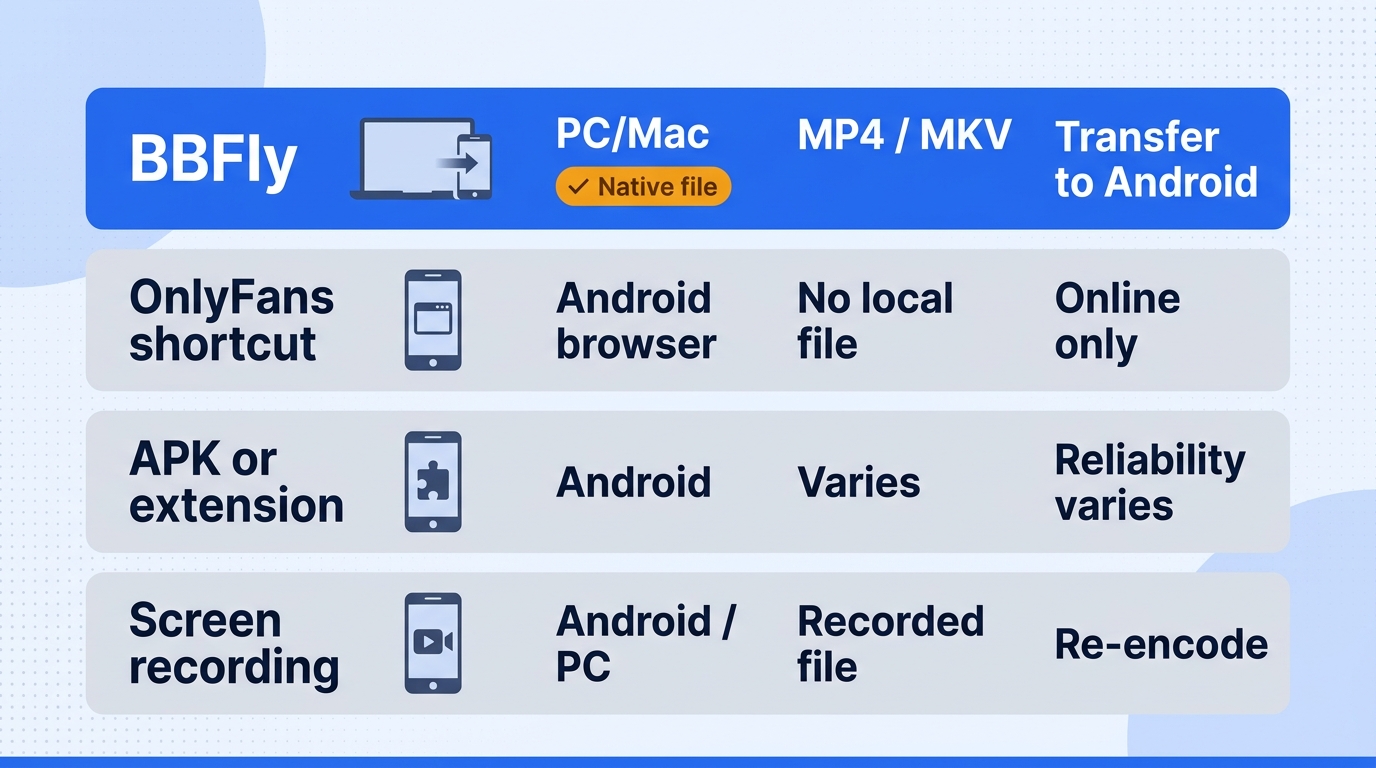
An “Android downloader” result may mean an unofficial APK, a browser extension, a screen recorder, or a file created on a computer and later copied to Android. Those are four different routes with different trust, quality, and storage consequences. My advice is to identify the route before installing anything; the label “downloader” tells you remarkably little.
Android Apps, Extensions, and Screen Recording: What Works?
Android browser extensions and unofficial APKs may work in limited cases, while screen recording produces a local capture at the cost of time and quality. A desktop download followed by Android transfer is less convenient, but it is the clearest route when the goal is a controllable local file.
Please note: Downloader apps and extensions may conflict with OnlyFans' Terms of Service. Save only content you are authorized to view, keep it for personal offline use, and do not redistribute, sell, or publicly post creator material.
Browser extensions on Android
An OnlyFans downloader Android extension is not automatically compatible with mobile Chrome just because it works on desktop Chrome. Standard Android Chrome does not install the full desktop extension catalog, while browsers that do support add-ons may implement permissions and updates differently. Check the browser requirement, developer identity, update history, and requested access before signing in.
Extension reliability ages quickly: a platform change can turn yesterday's shortcut into today's dead button. That maintenance problem is why I would treat an add-on as a temporary convenience, not an archive workflow.
This route suits a technically confident user testing a well-maintained extension in a compatible Android browser. It does not suit anyone who expects desktop Chrome instructions to work unchanged on a phone.
Unofficial Android APKs
An APK can offer a native-looking interface, but the important questions are where it came from, what permissions it requests, and whether the developer still maintains it. Avoid packages from file mirrors with no verifiable publisher or update record. A login form that looks familiar is not evidence that credential handling is sound.
I would consider an APK only after verifying the publisher, package source, permissions, and current maintenance. A free one-tap promise is not a substitute for those checks.
Android screen recording
Screen recording runs directly on Android and creates a playable file, but it captures in real time and re-encodes what appears on the screen. Notifications, dropped frames, audio routing, display resolution, and protected-playback behavior can affect the result. It may also miss separate subtitle tracks because the recorder captures the rendered picture rather than a media package.
This is where I draw a firm line: recording is a fallback, not an equivalent substitute for a native download. It suits a short clip when convenience matters more than fidelity. It is a poor choice for long videos, repeatable archiving, or anyone who cares about preserving the original stream quality.
Desktop download followed by Android transfer
The desktop route uses Windows or macOS to create a standard file, then moves that file to the phone by USB, cloud storage, or an SD card. Its decisive limitation is obvious: it does not solve the no-PC scenario. In return, it gives you a file that can be named, organized, checked in a media player, and stored outside a browser session.
For a subscriber with computer access who values file control and predictable Android playback, desktop transfer is the cleaner choice. It does not solve the immediate needs of an Android-only user.
BBFly OnlyFans Downloader: Specs, Trial, and Limits
For readers searching 'onlyfans downloader android free,' BBFly is not an Android app or APK; the relevant offer is its Windows/macOS complete-video trial. It creates Android-ready MP4 or MKV files on a computer, with output up to 1080p H.264 and AAC 2.0.
Where BBFly fits in the Android workflow
BBFly is a third-party desktop tool used alongside OnlyFans' official browser access, subject to the platform's terms and local law. You sign in with valid access on the computer, save authorized content for personal offline viewing, and transfer the resulting file to Android. If you have no Windows or macOS machine, this route is not for you.
Verified output, automation, and limitations
| Route | Runs on Android | Portable file | Process and quality | Main limitation |
|---|---|---|---|---|
| OnlyFans home-screen shortcut | Yes | No | Browser playback | Not a downloader |
| Android APK or extension | Varies | Varies | Tool-dependent | Compatibility and trust checks |
| Screen recording | Yes | Yes | Real-time re-encoded capture | Quality loss or capture failure |
| BBFly desktop transfer | Playback after transfer | MP4 or MKV | Up to 1080p, H.264, AAC 2.0 | Requires Windows or macOS |
OnlyFans' official blog and BBFly's official product page; pricing and availability are current as of October, 2026.
The practical result is straightforward. BBFly can queue multiple videos and monitor subscribed channels, but the OnlyFans product does not remove ads, download subtitles, select audio languages, or write metadata. I would rather see those limits stated plainly than hidden behind an impressive-looking list of unrelated portfolio features.
Free trial and pricing
The free trial lasts 30 days and allows three complete videos per streaming service, with the same functions as the paid version apart from the quantity limit. “Free” here means enough complete output to evaluate the workflow, not unlimited access to creator content.
The trial is the sensible place to check compatibility before paying.
- Monthly: $29.90 for one PC
- Annual: $99.90 for one PC, about $8.33 per month
- Lifetime: $199.90 for three PCs
For an occasional single-file need, the cost may be hard to justify. This route makes more sense for repeat desktop-to-Android transfers.
How to Download OnlyFans Videos for Android Playback
Searches for 'download onlyfans videos android' usually hide a desktop handoff: use BBFly on Windows or macOS, then transfer the finished file. If your query is 'how to download OnlyFans on Android' or 'how to save OnlyFans videos on Android,' the workflow still starts on a computer. The same desktop handoff answers searches for 'download videos from OnlyFans Android' without implying that the downloader runs on the phone.
Prerequisites: authorized access, a computer, Android storage, and a player
Prepare these items before starting:
- A supported Windows or macOS computer
- A valid OnlyFans account with legitimate access to the video
- Enough free space on both the computer and Android device
- A USB cable, cloud-storage account, or SD card for transfer
- An Android video player that supports MP4 or MKV with H.264 video and AAC audio
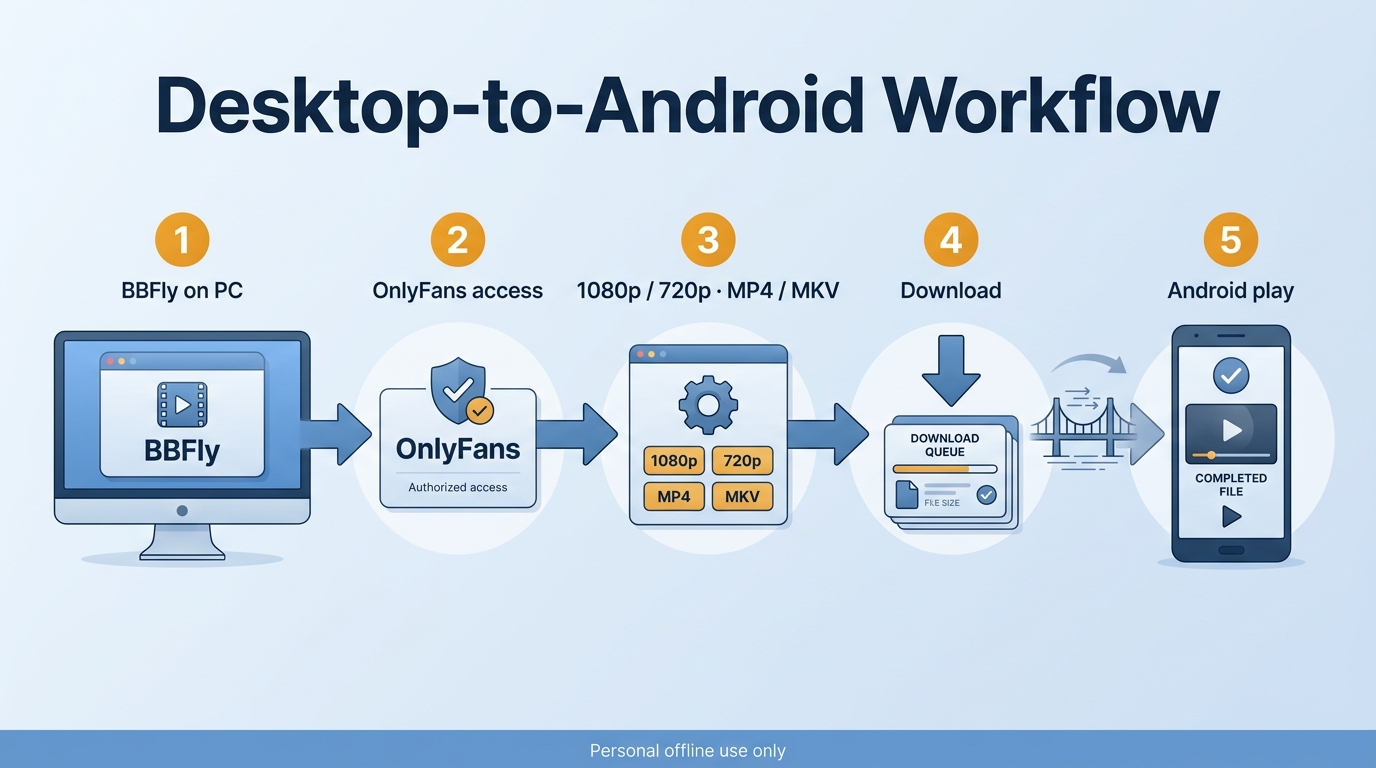
The workflow is easiest to troubleshoot when you keep acquisition, transfer, and playback as separate stages:
- Install the desktop downloader on the computer.
- Open OnlyFans and access the authorized video.
- Select the resolution and MP4 or MKV container.
- Download one video or create a batch queue.
- Transfer the finished file to Android and verify playback.
Step 1: Install BBFly on Windows or macOS
Download and install BBFly on a supported Windows or macOS computer. Do not look for an Android build under the same product name; native Android support is not part of the verified product specification. Launch the desktop application and confirm that you have enough local space for the videos you intend to save.
If Windows or macOS access is unavailable, stop here and return to the Android route comparison. Installing an unrelated APK with a similar name does not turn it into the desktop product.
Step 2: Open OnlyFans and access the video you are allowed to view
Navigate to OnlyFans through the downloader's supported access screen and sign in normally. Open the creator page, feed post, or message containing the video you have paid for or are otherwise authorized to view. The downloader should work within the access already granted to your account; it is not a substitute for a subscription or purchase.
Account discipline matters more than cleverness here. Use the publisher's official installer, keep the application current, and avoid copying credentials into scripts, browser pop-ups, or packages from unrelated download sites.
Step 3: Choose resolution and MP4 or MKV output
Select 1080p when the source and available option support it, or 720p when you prefer a smaller file or the higher option is unavailable. Both verified choices use H.264 video with AAC 2.0 audio.
For most Android phones, MP4 is the safer default because it has broad support in gallery apps, file managers, and video players. MKV is useful when your preferred player handles the container well or when you maintain a mixed-device media library. Container choice does not create extra resolution; it determines how the encoded video and audio are packaged.
This is the point where my old media-library habit pays off: choose the playback target before building the archive. A technically flexible file is not useful if the phone's everyday player refuses to open it.
Step 4: Download one video or build a batch queue
For one video, add the selected item and let the desktop download finish before moving it. For several authorized videos, use batch downloading to form a queue. Subscribed-channel monitoring can reduce repeated manual checks when you follow creators whose accessible posts change over time.
Do not infer unsupported extras from the batch feature. The verified OnlyFans product does not download subtitles, select alternate audio languages, remove ads, or write metadata. Name the output folder clearly and keep enough free space for the completed queue.
Step 5: Transfer the file to Android and verify playback
Connect the phone by USB and copy the file into a folder such as Movies, upload it to cloud storage and download it in the Android app, or move it to a compatible SD card. USB is usually the clearest option because you can see the source and destination folders at the same time. Cloud transfer is convenient but may duplicate storage use until you delete the temporary copy.
Before removing the desktop copy, open the transferred file on Android and check the full chain:
- Confirm that the video starts and seeks normally.
- Listen for audio through the phone speaker or headphones.
- Verify that the file is in the intended internal-storage or SD-card folder.
- Rename it with a neutral, useful filename if needed.
- Confirm that your Android player can reopen it after the file manager is closed.
I would not delete the desktop original until those checks pass. Fifteen years of media housekeeping has taught me that “copied” and “verified” are different words, usually discovered at the least convenient moment.
FAQ About OnlyFans Downloads and Android Playback
Is it legal to save OnlyFans content you paid for?
Answer: There is no universal yes-or-no answer. Using an unauthorized client may conflict with OnlyFans' Terms of Service, which is a platform and contract issue. Redistributing, selling, reposting, or publicly showing creator content raises separate copyright and consent concerns. Personal offline viewing of content you legitimately access sits in a legal gray area that varies by jurisdiction, so apply the platform terms and local law to your situation. Payment grants access under stated conditions; it does not automatically grant ownership of the creator's copyright. My line is conservative: personal viewing only, no redistribution, and no attempt to obtain material outside the account's legitimate access.
Is it safe to sign in to OnlyFans inside a desktop downloader?
Answer: Signing in can be reasonable when the downloader comes from an established publisher and uses a current, secure login flow, but no third-party client deserves blind trust. The risk is materially higher with a no-name APK, abandoned extension, or installer from a mirror site. Download the application from the publisher's official site, confirm that the connection uses HTTPS, review requested permissions, install updates, and enable two-factor authentication on the account where available. Do not reuse the OnlyFans password on unrelated services. If the sign-in page looks different from the expected service flow or asks for extra credentials, stop.
Can you move MP4 or MKV files to an Android SD card?
Answer: Yes, if the phone supports removable storage and the card's file system accepts the file size. FAT32 has a 4 GB limit for a single file, so larger videos need a card formatted with a file system such as exFAT that the phone supports. MP4 is generally the simpler choice for broad Android playback. MKV can also work well, but support depends more on the chosen player. After copying, open the file from the SD card and test seeking and audio before treating the transfer as complete.
Can you watch saved OnlyFans videos offline while traveling?
Answer: A successfully transferred local MP4 or MKV can be played without a live data connection in a compatible Android player. Prepare before leaving: test the file in airplane mode, confirm storage space, charge the phone, pack headphones, and keep the material private. Travel does not change the usage boundary. The file remains for personal offline viewing of content you were authorized to access, not for sharing with travel companions, uploading to a group, or displaying publicly.
Do local video files expire if a creator removes a post?
Answer: A standard local video file does not contain the same browser-session availability controls as a post on the OnlyFans site. That technical behavior does not cancel the creator's rights or give permission to redistribute material after a post is removed. One r/DataHoarder poster explained the concern: “Apologies if this not a proper topic for here but I was wondering if anyone knew of a method to download PPV videos sent through OnlyFans DMs, its DRM video. I dont plan to share merely want to save what I bought because I’ve heard horror stories of OF models deleting the videos you paid for in the DMs and don’t want to fall victim.” The understandable fear of deletion is not a license to repost. Keep any authorized local copy private and follow the terms and law that apply to it.
Can downloaded OnlyFans videos be shared or reposted?
Answer: No. Do not upload, forward, sell, publicly display, or repost downloaded creator content unless the rights holder has given explicit permission. A personal offline copy and a redistributed copy are not the same use. If you are Android-only, do not let urgency lower your standards for an APK or extension. If you have a computer and value a managed local file, the desktop-transfer route is the more disciplined choice. In either case, direct anyone else to the creator's official OnlyFans page; a personal offline copy is not permission to redistribute.

Mei Shirakawa
Mei takes download and recording tools apart and tells you where each one stops working.