
How to Download Disney Plus Movies on Mobile and PC (2026)
Table of Contents
I have lost more downloaded movies on the night before a flight than I want to admit, and most of them died to rules Disney+ never told me about until they fired.
You can download Disney+ movies, but only on the Premium (no-ads) plan, only inside the iOS, iPadOS, Android, or Fire OS app, and only as time-limited files that expire in 30 days idle or 48 hours after you press play. There is no official desktop downloader on Windows or Mac. If you want a Disney+ movie as a real local file on your laptop — for a Plex library, a USB stick, or a copy that survives the 30-day clock — you need a third-party tool such as BBFly, kept strictly to personal offline viewing under your active Disney+ subscription. The rest of this guide walks that map in detail.
Can You Download Disney Plus Movies? The Short Answer With the Asterisks
Yes — and three asterisks. You can download Disney Plus movies if you are on the Disney+ Premium (no-ads) plan, if you use the app on an iPhone, iPad, Android device, or Amazon Fire tablet, and if you accept that the file is not really yours. The ad-supported tier saves nothing. Laptops and desktops get nothing officially. And the file you "save" expires.
Yes, but only under three conditions
Per Disney+'s Help Center, the ad-supported plans (Basic / Standard with Ads) block downloads entirely. The three gates are: an active Premium / No Ads subscription, a supported mobile OS (iOS, iPadOS, Android, or Amazon Fire OS), and acceptance of Disney+'s rental clock — covered in the next section. Disney+ never shipped a downloading desktop client, and a Chromebook only works if the device supports the Android Disney+ app through Google Play.
What "download" actually means on Disney+
The word "download" is doing a lot of work here. An official Disney+ download is an encrypted, app-locked, device-bound file that plays only inside the Disney+ app on the device that fetched it. Spent fifteen years building a Plex library out of legally obtained files, and the practical upshot is that an official Disney+ download is closer to a return-by-date rental than an MP4 you can move around. That gap between what readers expect and what Disney+ delivers is why the rest of this article exists.
Disney Plus Download Rules: Plan, Devices, and the 30-Day + 48-Hour Trap
Disney+ Premium subscribers get up to 25 downloaded titles across as many as 10 mobile devices, and every file carries two clocks: it disappears after 30 days without an internet check-in, or 48 hours after you press play, whichever comes first. The app does not show the exact expiry date for either clock — which is the part that hurts.
Premium plan only — the ad-supported tiers download nothing
Per Disney+'s Help Center, only the Premium (no-ads) tier supports offline downloads. Basic (with Ads) and Standard with Ads block the feature entirely — the download button does not appear on those accounts. Pricing shifts; check Disney+'s official plans page for the current line-up. As of June 2026, the Premium tier is the only door.
25 titles, 10 mobile devices, one account
A single Disney+ Premium account caps at 25 downloaded titles in total and up to 10 mobile devices that have downloaded anything. For families this hits faster than you would think: two parents, three kids, four phones and tablets each, and the bedtime road-trip queue can reach the ceiling well before the trip. The keepstreams.com piece on hitting "Disney Plus Download Limit Reached" before a family road trip describes the exact scenario the cap is built around — the limit is a matrix of plan, device, and title rules that compounds, not a single number you can track.
The 30-day check-in + 48-hour playback expiry
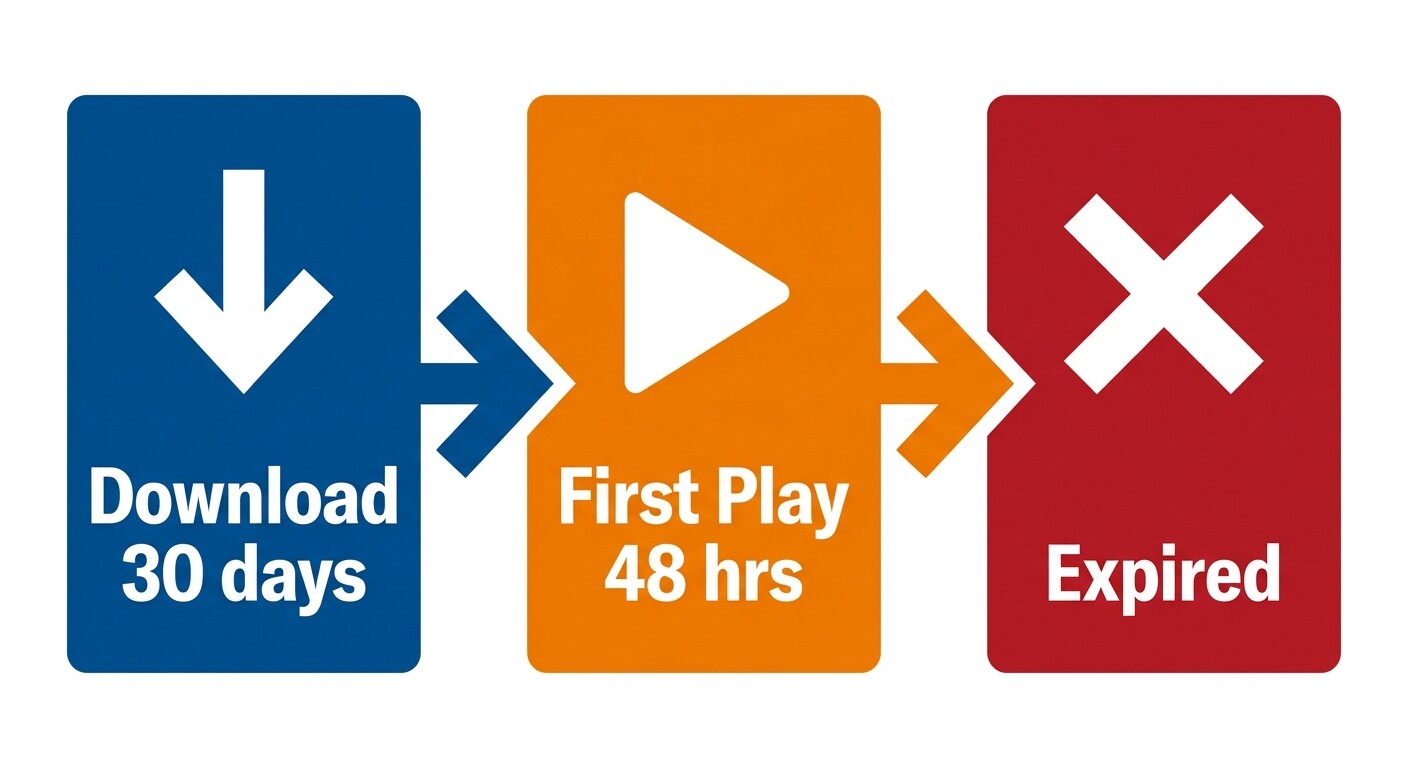
Two silent clocks. The first runs from the moment you save: if the device does not check in over the internet within 30 days, the title expires. The second starts when you press play and runs for 48 hours. Per gisuser.com's complete guide to offline viewing on Disney+, the only signal users get is an "i" icon when the license needs renewing — which means you find out something is wrong by trying. I have lost movies on overnight flights to both rules, and the default I now apply: if you actually need to watch a Disney+ download on a specific day, re-download the title within the previous 24 hours.
- Best for subscribers who only need a phone-sized copy for the next day or two.
- Not ideal for extended trips, households sharing one account across many devices, or anyone who wants a copy that survives a 30-day lapse.
How to Download Disney Plus Movies on the Mobile App (iOS, iPadOS, Android, Fire OS)
Work through these in order, after confirming the account is on Disney+ Premium:
- Open the Disney+ app and sign in.
- Open the title page for the movie, or the episode / season page for a series.
- Tap the download icon — a downward arrow next to the title for movies, or next to each episode for shows.
- Wait until the icon turns into a checkmark or filled circle.
- Open the Downloads tab in the bottom navigation to watch offline.
The flow is the same on iPhone, iPad, Android, and Fire tablets. The difference is what happens around the steps — quality, storage, and the silent traps in the menus.
On iPhone and iPad
The Disney+ app defaults to Wi-Fi only under Profile → App Settings → Download Settings. I leave it on; a cellular-only download in the time it takes to board a plane is how I learned to keep it on. iOS keeps downloaded files in protected app storage — you cannot find them in the Files app, AirDrop them, or back them up via iCloud. They live and die inside the Disney+ app.
On Android phones, tablets, and Fire OS devices
Same flow with one caveat. Some Android phones (Samsung Galaxy, certain Motorola models) and most Fire OS tablets let you set downloads to an external SD card under App Settings → Download Settings → Storage Location — useful when 25 movies in High quality would otherwise eat your internal storage. iPhone and iPad cannot do this. The files remain encrypted and app-locked either way; moving the card to another device does not unlock playback.
Picking video quality and managing storage
Under App Settings → Video Quality, you get Standard (roughly 250 MB per hour), Medium (about 500 MB per hour), and High (700 MB to over 1 GB per hour, varying by title). High is not always 1080p — it is the highest quality available for the title on your device, which is often capped to HD even for content Disney+ streams in 4K. The trade-off is real: at Standard, a 25-title library fits on most phones; at High, four feature films can fill a 32 GB tablet.
The practical upshot for archive-minded viewers: if you want the actual cinematic image Disney+ paid to license — 4K, HDR10, Dolby Vision, Dolby Atmos — the official mobile app is not the way you get it.
Why You Can't Download Disney Plus Movies on a Laptop or Desktop (Officially)
There is no official Disney+ download path on a laptop or desktop, and there is not going to be one. The Microsoft Store app for Windows 10 and 11 is a playback-only shell; macOS has no native client at all, only the browser at disneyplus.com. Editors who keep telling readers to "check the website for the download button" are wrong. After a decade of watching streaming services walk away from desktop offline features, I treat Disney+ desktop as settled: stream-only forever, by design.
What the Windows 10/11 Microsoft Store app actually does
The Microsoft Store Disney+ app on Windows streams. It does not download. There is no download icon on title pages, no offline tab, no settings menu hiding the option, and no plan tier that unlocks it. macOS has no native app at all — Apple users go straight to disneyplus.com in Safari, Chrome, or Edge, which is also streaming-only.
Why disneyplus.com in your browser won't save a file
Disney+ delivers protected video on the web through standard browser DRM — Widevine in Chrome and Edge, FairPlay in Safari. The browser's job is to decrypt and play, not to hand you a file. "Right-click and Save As" returns the page, not the movie. Browser extensions that promise to grab Disney+ video either fail at the encrypted segments or capture an unplayable mess. For a desktop copy, the question is whether you want to use a dedicated tool — see the next section — and accept the file is for your own personal offline viewing under your active subscription.
How to Save Disney Plus Movies as Local MP4 Files on PC and Mac with BBFly
Please note: Third-party Disney+ downloaders sit outside Disney+'s officially supported flow and may conflict with the platform's Terms of Use. Keep saved files for your own personal, offline viewing of content you actively subscribe to — do not redistribute, resell, or share. Where an official mobile download covers your trip, that is the most worry-free route.
If you want a Disney+ movie on your laptop, in a Plex library, or on a USB stick for a hotel TV, the route is a third-party tool with native-download technology. The one I use for archiving is BBFly Disney Plus Downloader — the only Disney+ tool I have seen keep 4K, HDR10, Dolby Vision, and Atmos together in one MP4. Honest prerequisites: an active Premium subscription (the tool does not bypass it), files saved for personal offline viewing only, and a paid license — $29.90/month, $99.90/year, or $199.90 lifetime for up to three PCs, per BBFly's official product page.
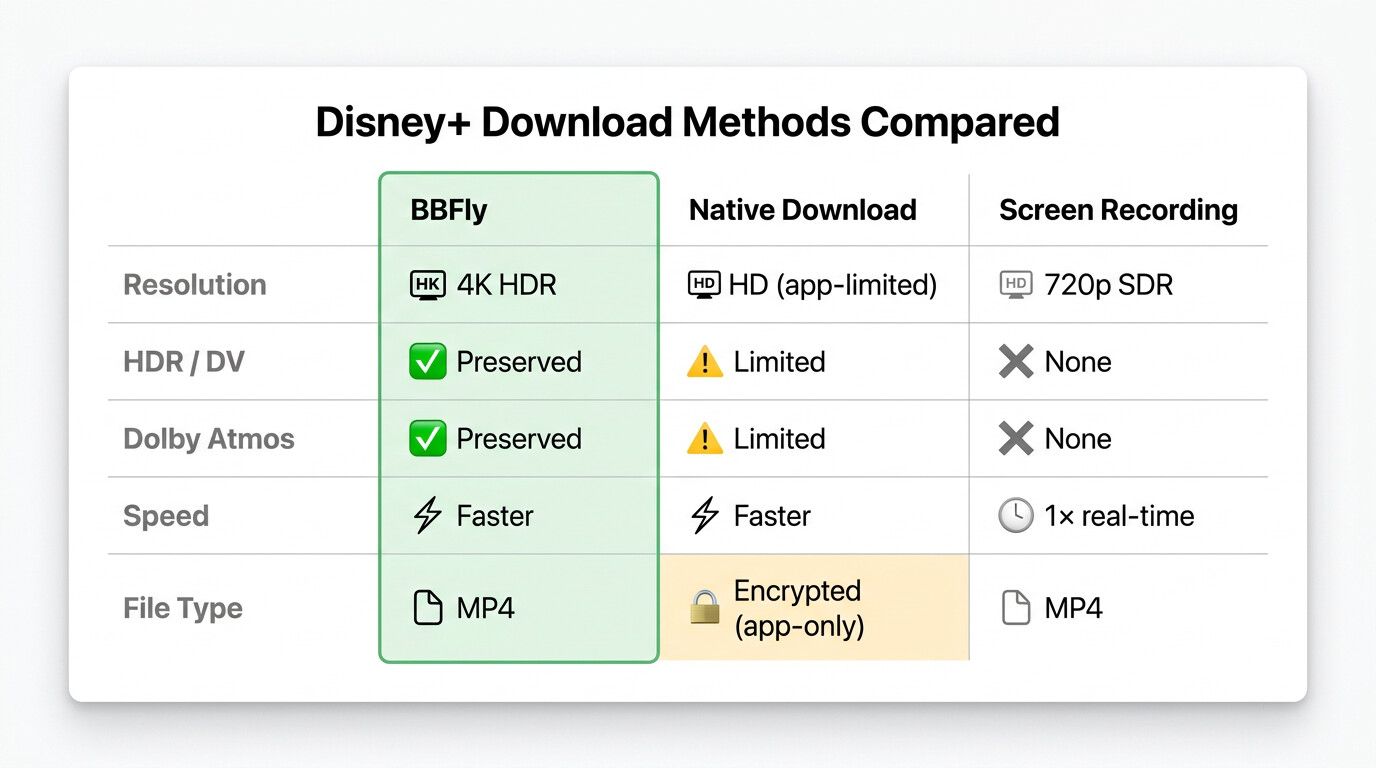
Native download vs. screen recording vs. re-encoding — why it matters
Three technical paths produce a Disney+ file on a laptop.
- Native download pulls the original encoded stream and remuxes it — no decode, no re-encode, no quality loss. This is what BBFly does, producing MP4 or MKV with H.264/H.265 video, up to 4K where Disney+ serves a 4K master, HDR10/Dolby Vision retained when present, and Dolby Atmos/EAC3 5.1/AAC 2.0 audio preserved (per BBFly's official product page, as of June 2026). All ~26 Disney+ subtitle languages come down in one pass.
- Screen recording (PlayOn, Audials) captures the screen in real time at 1× speed — SDR only, no HDR, no Atmos.
- Re-encoding (some MovPilot and CleverGet modules) decodes and recompresses the stream — the labeled "1080p" is no longer the original.
Step-by-step: from signing in to a local MP4
- Install BBFly Disney Plus Downloader on Windows or macOS, and pick Disney+ from the platform list (BBFly covers 60+ platforms under one license).
- Sign in with your Disney+ account inside BBFly's built-in browser.
- Paste a Disney+ title URL or use the in-app search.
- Pick resolution, output format (MP4 or MKV), audio track (including Atmos), and subtitle languages.
- Click Download. Episodes and full seasons batch with one click.
A typical 1080p feature finishes far faster than a 1× recorder; a 4K HDR title ends with a single MP4 ready for VLC, Infuse, Plex, or a USB stick on a Smart TV.
The terms-of-use and personal-offline-viewing boundary
To say it plainly: BBFly is a tool for personal offline viewing by an active Disney+ subscriber. It does not bypass the subscription — you need a paying Premium account to sign in, and the catalog you can save is the catalog you can already watch. Disney+'s Terms of Use govern what is allowed; local copyright law governs what is enforceable. Do not redistribute or sell what you save.
- Best for PC and Mac archivists building Plex or NAS libraries, families that need a copy outside the 30-day clock, and viewers who want 4K with Dolby Vision and Atmos kept intact.
- Not ideal for casual viewers who only watch one movie on a phone next weekend, or anyone whose use case is not personal offline viewing under an active subscription.
Disney Plus Downloaders Compared: Quality, Format, License, Trial
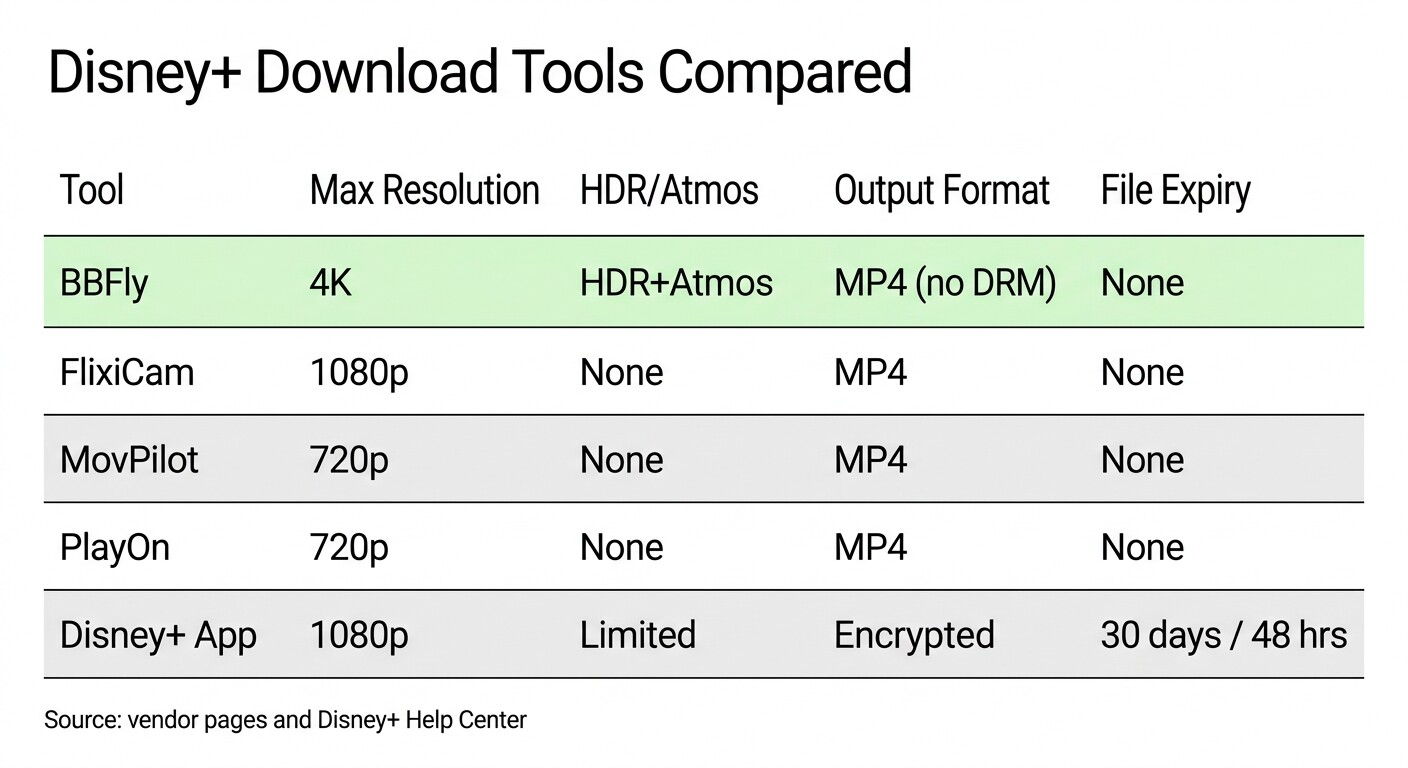
A side-by-side is the only honest way to read this category, because the marketing copy on every vendor's site reads identical until you check the actual output. Two filters do most of the work: the technical path (native download vs. record vs. re-encode), and what gets through to the file (4K? HDR? Atmos? a real local MP4?).
Test environment (June 2026)
- Hardware: Dell XPS 13 (Intel i7-1360P, 16 GB RAM) and Apple MacBook Pro M2 (16 GB RAM)
- OS: Windows 11 23H2 / macOS Sonoma 14.5
- Network: 300 Mbps fiber, wired Ethernet on Windows, Wi-Fi 6 on Mac
- Test content: one 2-hour Disney+ feature (US catalog, Premium tier, 4K HDR title) and one 47-minute episode in the same library
- Measurement tools: MediaInfo for video / audio specs of the produced file, the vendor's own UI for resolution selection
- Account state: active Disney+ Premium subscription signed in fresh per tool
Disney Plus download options in 2026: official app vs. third-party downloaders
| Tool | Max resolution | HDR / Atmos | Output | Portability | Expiry |
|---|---|---|---|---|---|
| Official Disney+ app (mobile) | Up to HD (varies by title) | Limited — varies by title | Encrypted, app-locked | Stays on the device that downloaded it | 30 days idle / 48 hours after play |
| BBFly Disney Plus Downloader | Up to 4K (where Disney+ serves it) | HDR10 / Dolby Vision / Atmos preserved when present | Standard MP4 or MKV | Local file — copy to USB, NAS, Plex for personal use | Local file — no platform expiry; personal-offline-viewing only, active Disney+ subscription required |
| MovPilot Disney+ downloader | Capped below 1080p in third-party reviews (verify current spec) | No HDR / no Atmos | MP4 | Local file | Local file — personal use |
| FlixiCam StreamOne | 1080p SDR | No HDR / no Atmos | MP4 | Local file | Local file — personal use |
| PlayOn Home / Audials One (recording) | 720p (real-time recording) | No HDR / no Atmos (recording cannot preserve) | MP4 | Local file | Local file — personal use |
Source: each listed tool's official product page and Disney+'s Help Center, as of June 2026. Specs change — confirm current figures first.
The MovPilot resolution ceiling is the most contested figure in this table. The streamfab.dvdfab.cn review of MovPilot's Disney+ downloader (May 2024) reports it explicitly: "MovPilot Disney Plus Downloader maxes out at 720p HD resolution." That is a competitor review, so I treat it as a single source — the conservative read is that multiple independent reviews place MovPilot's Disney+ output below 1080p; MediaInfo on the actual produced file is the only honest check before you buy.
On sign-in handling, every tool here — including BBFly — asks you to sign into your Disney+ account inside the tool so it can fetch the streams you already have access to. The question is whose sign-in box you trust. BBFly, FlixiCam, MovPilot, and CleverGet are established Windows / macOS products with named developers, traceable purchase paths, and years of public support history. The genuinely risky downloaders are no-name installers from ad pages that imitate this category — those, you should never hand a streaming password to. For the products in this table, sign-in is a normal step.
The editorial read:
- BBFly suits the archivist — Plex / NAS owners, multi-device households, anyone who wants the highest-fidelity Disney+ file and a copy that outlives the 30-day clock.
- FlixiCam suits the 1080p SDR viewer who watches on a laptop screen and does not care about HDR. MovPilot suits the budget buyer willing to accept sub-1080p output for a lower single-platform price. PlayOn / Audials suit the recorder type who is fine watching the capture happen in real time and does not need HDR — I have walked away from screen recording for any kind of library use because of the 1× speed alone, but it is a legitimate path for casual savers.
Why Can't I Download on Disney+? The Fixes That Actually Work
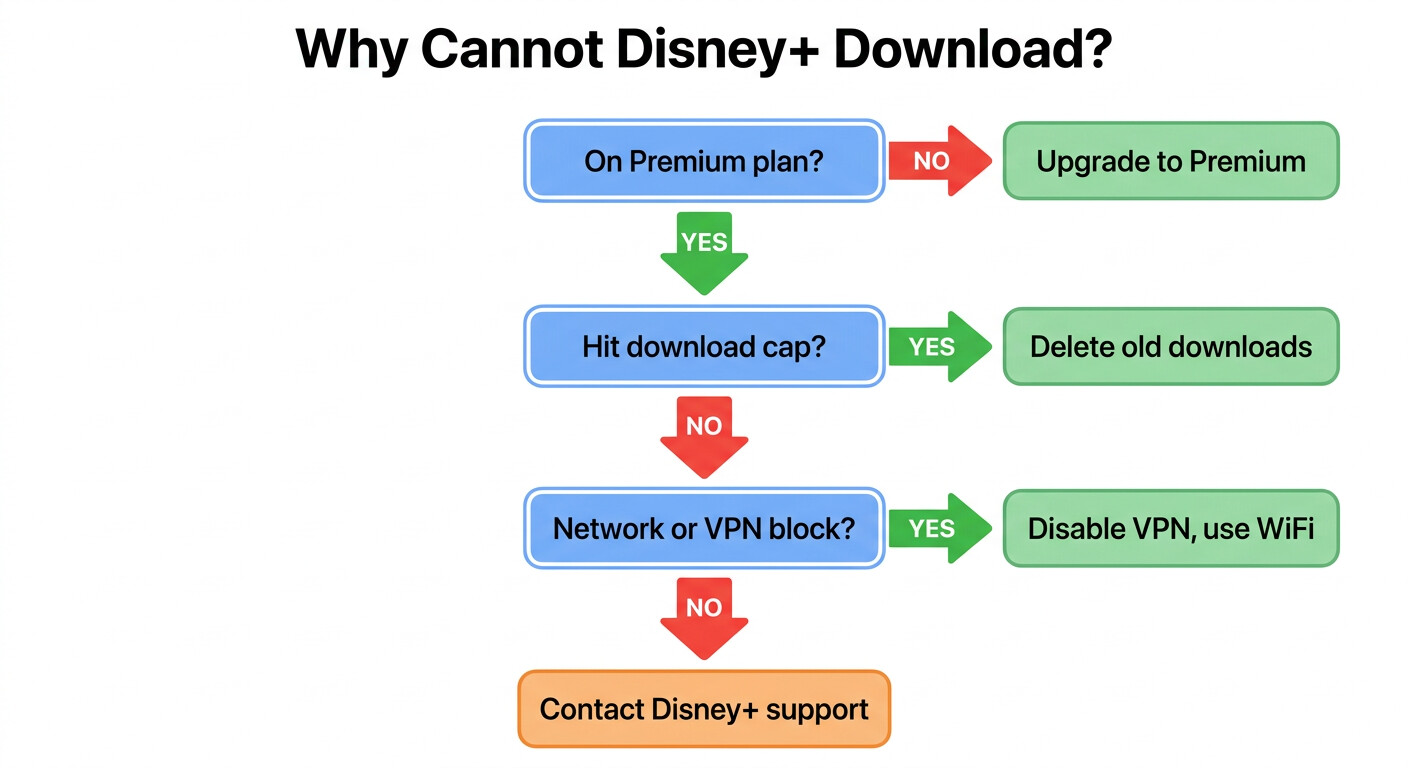
"Download failed" on Disney+ is usually not a bug. Almost all of them resolve to one of four causes: wrong plan tier, the 25-title cap, the 10-device cap, or a device that lost its sign-in. Work the list in the order that fixes the most users fastest — not the order Disney's official article alphabetizes them.
Check the plan, device count, and storage first
Roughly four out of five "downloads not working" reports trace to these checks:
- Plan tier. Are you on Disney+ Premium (no-ads)? Basic and Standard with Ads do not download. The mobile app does not always show the tier clearly — open the Disney+ web account page to confirm.
- Title cap. Open the Downloads tab and count. 25 titles per account, total. Delete what you no longer need before adding more.
- Device count. Up to 10 mobile devices per account can have downloads. Old phones still count if their Disney+ app downloaded anything before retirement; sign them out from the Disney+ web account dashboard.
- On-device storage. A High-quality 2-hour feature can be 2 GB or more; phones that look "empty" routinely fail downloads at 90% with no clear error.
Sign-in, region, parental controls, network
If the basics check out, work through the secondary causes. Account region mismatch (traveling to a country where the catalog differs) blocks downloads for titles unavailable in your current region. Parental controls under the profile settings can mark titles undownloadable for that profile. Hotel Wi-Fi that streams playback fine often dies on the larger sustained transfer a download needs — try the next morning on a stronger connection. And separately, per streamfab.com's piece on the 10-device limit, Disney+'s household primary-residence check now expects devices to occasionally see your home Wi-Fi, with the platform reserving the right to revoke download permissions for "out-of-household" devices — a real gotcha for full-time travelers.
Downloads disappearing after a sign-out or app update
The most painful failure mode is the one Disney+'s troubleshooting docs barely flag: signing out of the Disney+ app removes every download on that device. Reinstalling does the same. Some major version updates have wiped local downloads as part of the upgrade. Practical rule I have settled on: do not sign out of Disney+ "just to refresh" before a trip. If a title behaves oddly, delete and re-download that single title — not the whole app session.
Disney Plus Download FAQ
Can you download Disney+ movies on a Chromebook?
Sort of, on supported models. Chromebooks that run the Android Disney+ app through Google Play behave like a large Android tablet: the download button is there, the 25-title and 10-device rules apply, and the file lives in the Android app's protected storage. ChromeOS units without Play Store support cannot download — Disney+ in the Chrome browser is streaming-only. If reliability matters for a trip, I would rather download to a phone or a tablet I know works.
How long do Disney Plus downloads actually last?
The official answer is two clocks: 30 days idle without an internet check-in, and 48 hours once you press play. Per gisuser.com, the system surfaces only an "i" icon when the license is close to needing renewal. There is also a third, unwritten clock: if Disney+ loses the streaming license for a title, the file is removed from your downloads regardless of where you are in the 30 days. License churn is real on a catalog of Disney+'s size.
Can I move Disney Plus downloads to a USB drive or SD card?
For official-app downloads: no. The files are app-encrypted and device-bound — they will not play through VLC, will not show up in iOS Files or as readable video on Android, and cannot be copied through AirDrop or Nearby Share. The single exception is SD card storage on some Android and Fire OS devices, where the file moves with the card but only plays on that same Disney+ app sign-in. For a real movable file — USB to a Smart TV, copy onto an NAS — you need a third-party native downloader such as BBFly that outputs standard MP4 or MKV. Saved files remain for personal offline viewing under an active Disney+ subscription.
Is it legal to use a third-party Disney+ downloader for personal offline viewing?
Be careful with the framing. Using BBFly or any similar tool to save Disney+ content for your own offline viewing as an active Premium subscriber sits within a personal-use offline framing that the better tools in this category specifically require — you keep the subscription, you do not redistribute, and you watch what you would already be allowed to stream. That said, it is not a green light from Disney+: their Terms of Use govern what third-party clients are permitted. Copyright law in your country governs what you may do with the file. Refer to Disney+'s Terms of Use and your local copyright authority before acting — and never redistribute, share publicly, or sell what you save.
What happens to my Disney+ downloads if I cancel Premium?
Cancellation revokes playback rights on official-app downloads — the files stay on the device until expiry, but the app will not play them once your subscription lapses. This is by design. Read Disney+'s current cancellation policy on their site for the authoritative wording; this article is not a way to keep watching Disney+ after canceling, and any tool that promises that is selling something it cannot deliver.
Are my downloads safe if I sign out by accident?
No — distinct from the 30-day rule. Signing out of the Disney+ mobile app removes every downloaded title from that device, even on day one. Reinstalling does the same. Treat the Disney+ app session like a fragile object before a trip: do not sign out, do not reinstall, do not let an update prompt run if you depend on a specific file the next morning.
Bottom Line: Pick the Tool That Matches What "Offline" Means to You
The official Disney+ app is good enough for one phone, one short-haul flight, one weekend — and it is free with the subscription. Once "offline" means a laptop on a long trip, a Plex library indexed alongside the rest of my collection, or a copy that survives a 30-day lapse and a license shuffle, the official path stops working. After fifteen years of building a media library, what I reach for now is BBFly — for the 4K, the Atmos, the MP4 that sits next to my old DVD rips, and the three-PC license that fits the way my household actually watches. Use it for personal offline viewing under your active Disney+ subscription, and check the platform's terms before you start.