
Does Peacock Stream in 4K? Plans, Devices, and How to Save It
Table of Contents
You paid for Premium Plus to see 4K on the TV, and the picture looks worse than it did on your phone. Yes, Peacock 4K streaming exists, but only on the Premium Plus tier (around $16.99/month as of June 2026 on Peacock's pricing page), only on a whitelisted set of devices, and only across a curated slice of the catalog. Most of what you watch is still 1080p.

I've been on the streaming-media beat since "HD" meant 720p downscaled to a CRT, and Peacock is the platform that most often makes me check a title's quality badge before pressing play. The 4K library here is a perk attached to a service, not a platform-wide tier the way Netflix or Disney+ treat it. That framing matters: almost every "Peacock 4K not working" complaint I've read is really a mismatch between what the reader thinks they bought and what NBCUniversal actually ships. This guide walks the plans, the device whitelist, the live-sports calendar, the troubleshooting that actually works, and a desktop-offline path for the episodes you want to keep.
What 'Peacock 4K' Actually Means in 2026: Plans, Library, and the Fine Print
Peacock streams in 4K only on Premium Plus, and even then only on select originals, qualifying live events, and a curated handful of NBC titles. Ad-supported Premium caps at 1080p, and the rest of the catalog runs in 1080p with HDR on qualifying titles. If you upgraded expecting a Netflix-shaped 4K library, you upgraded for the wrong reason.
Premium Plus, Not Premium: Which Plan Unlocks 4K
Two paid tiers matter. Premium is ad-supported, streams up to 1080p, and does not unlock 4K UHD. Premium Plus is ad-free and the only plan eligible for 4K on qualifying titles and live events. As of June 2026, Peacock lists Premium around $10.99/month and Premium Plus around $16.99/month — confirm current figures on Peacock's pricing page.
The practical read: pay for Premium Plus only if you want a specific 4K tentpole or live event. Otherwise, Premium is the sensible default.
How Much of Peacock's Library Is Actually in 4K
A small fraction. Per Peacock's Help Center, "only some content" is in 4K Ultra HD, and the platform does not publish a library count. In practice it's a curated set of NBC originals, a slice of Universal films, and the live events Peacock has explicitly upgraded — Sunday Night Football, the NBC Sports tentpoles, and the occasional special. Most VOD episodes stream in 1080p with HDR on qualifying titles; most films are 1080p SDR.
Peacock 4K is a quality marker on specific titles, not a tier-wide guarantee the way Netflix or Disney+ treat their top tiers.
How to Tell If a Title Is in 4K Before You Hit Play
Two signals worth trusting. First, a UHD badge on the title card in the Peacock UI — that's the platform's own confirmation. Second, the in-stream quality indicator should show UHD on a known 4K title; if it shows HD, the player has silently downgraded for a device, bandwidth, or HDMI reason (see troubleshooting below). No UHD badge on the card means it was never a 4K release. Peacock's Help Center has the official "How do I tell if content is available in 4K Ultra HD?" walk-through.
Which Streaming Devices Actually Support Peacock 4K, HDR, and Dolby Atmos
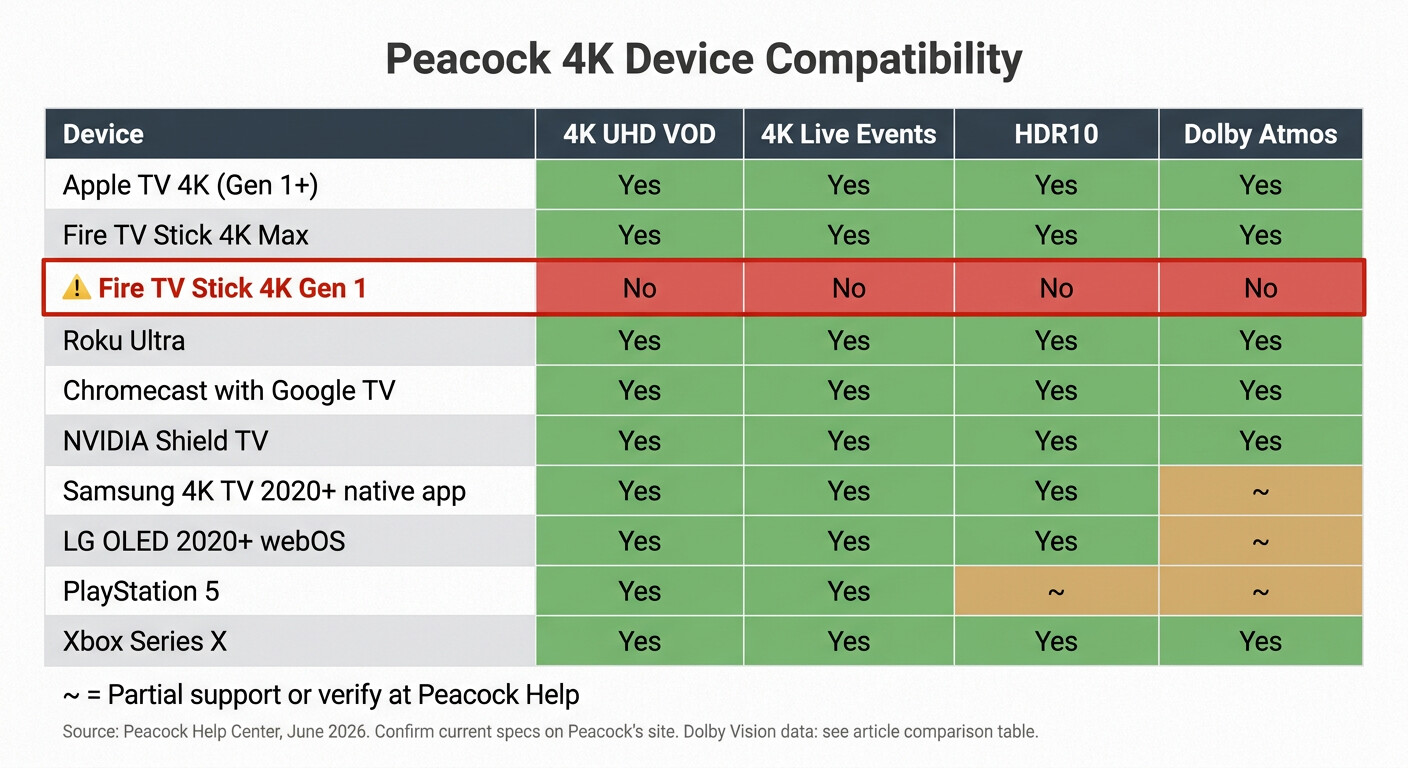
A device that ships with "4K" on the sticker is not automatically a Peacock-4K device. NBCUniversal whitelists Peacock 4K per model, doesn't publish the full list, and has left capable hardware off it. The Fire TV Stick 4K Gen 1 is the case I keep citing: 4K-capable hardware that has never been provisioned for Peacock VOD/Live 4K, HDR, or Atmos, confirmed by users on AVS Forum. Defend a device-list check, not the spec sticker.
Peacock 4K device compatibility (June 2026)
| Device | 4K UHD VOD | 4K Live Events | HDR10 | Dolby Vision | Dolby Atmos | Notes |
|---|---|---|---|---|---|---|
| Apple TV 4K (Gen 1+) | Yes | Yes | Yes | Yes | Yes | Most consistent Peacock 4K experience in my testing window |
| Fire TV Stick 4K Max | Yes | Yes | Yes | Check Peacock Help | Yes | Current-gen Fire 4K hardware is whitelisted |
| Fire TV Stick 4K (Gen 1) | No | No | No | No | No | Not provisioned for Peacock 4K despite 4K-capable hardware |
| Roku Ultra | Yes | Yes | Yes | Check Peacock Help | Yes | Roku models below Ultra often cap at HD on Peacock |
| Chromecast with Google TV | Yes | Yes | Yes | Yes | Check Peacock Help | HDR and Atmos historically disabled on live events |
| NVIDIA Shield TV | Yes | Yes | Yes | Yes | Yes | Android TV ecosystem; same live-event caveat |
| Samsung 4K TV (2020+ native app) | Partial | Partial | Yes | Check Peacock Help | Check Peacock Help | App build varies; readers report worse picture than iPhone/PC |
| LG OLED (2020+ webOS) | Yes | Yes | Yes | Yes | Yes | Reliable when TV firmware is current |
| PlayStation 5 | Yes | Check Peacock Help | Yes | No | Check Peacock Help | Community reports of inconsistency vs other apps on the same console |
| Xbox Series X | Yes | Yes | Yes | No | Yes | Stable in practice |
Source: Peacock's official Help Center and ecoustics (November 2025), as of June 2026. Confirm current figures on Peacock's site before buying hardware.
The practical upshot: if a cell says "Check Peacock Help," I would not assume it's a yes. Buy on the cells that explicitly say yes for the formats you care about.
Why a '4K TV' Isn't Always a Peacock-4K TV
Peacock provisions 4K per app and per model. Generation matters: the Fire TV Stick 4K Gen 1 is 4K-capable hardware Peacock has never lit up; the 4K Max sibling is fine. Some Samsung TV builds of the Peacock app underperform the iPhone or PC apps on the same account — a community thread on Vital MX summed it up bluntly: "It's garbage on the Peacock app on my Samsung tv. Crystal clear on my iPhone and pc." That's not a connection problem; it's the app build on that TV vendor. If your TV's native app gives you a worse picture than your phone, the cheapest fix is to plug in an Apple TV 4K or Fire TV Stick 4K Max and bypass the TV app entirely.
Internet Speed and HDMI: The Other Half of the 4K Equation
Peacock states 8 Mbps as the minimum for 4K. The honest recommendation is 15–16 Mbps sustained with headroom, because a 4K HDR stream that dips to 8 Mbps will downshift to 1080p mid-episode and stay there. The other half is HDMI: a certified HDMI 2.0 cable, an HDCP 2.2 path through any AVR or soundbar, and the TV's HDR setting on for that input. Plenty of "Peacock won't go to 4K" tickets resolve when a reader swaps the cable or plugs the streamer into the TV's HDMI 2.0 port instead of the AVR passthrough.
Live Sports in 4K on Peacock: NFL, Super Bowl LX, Olympics, Premier League
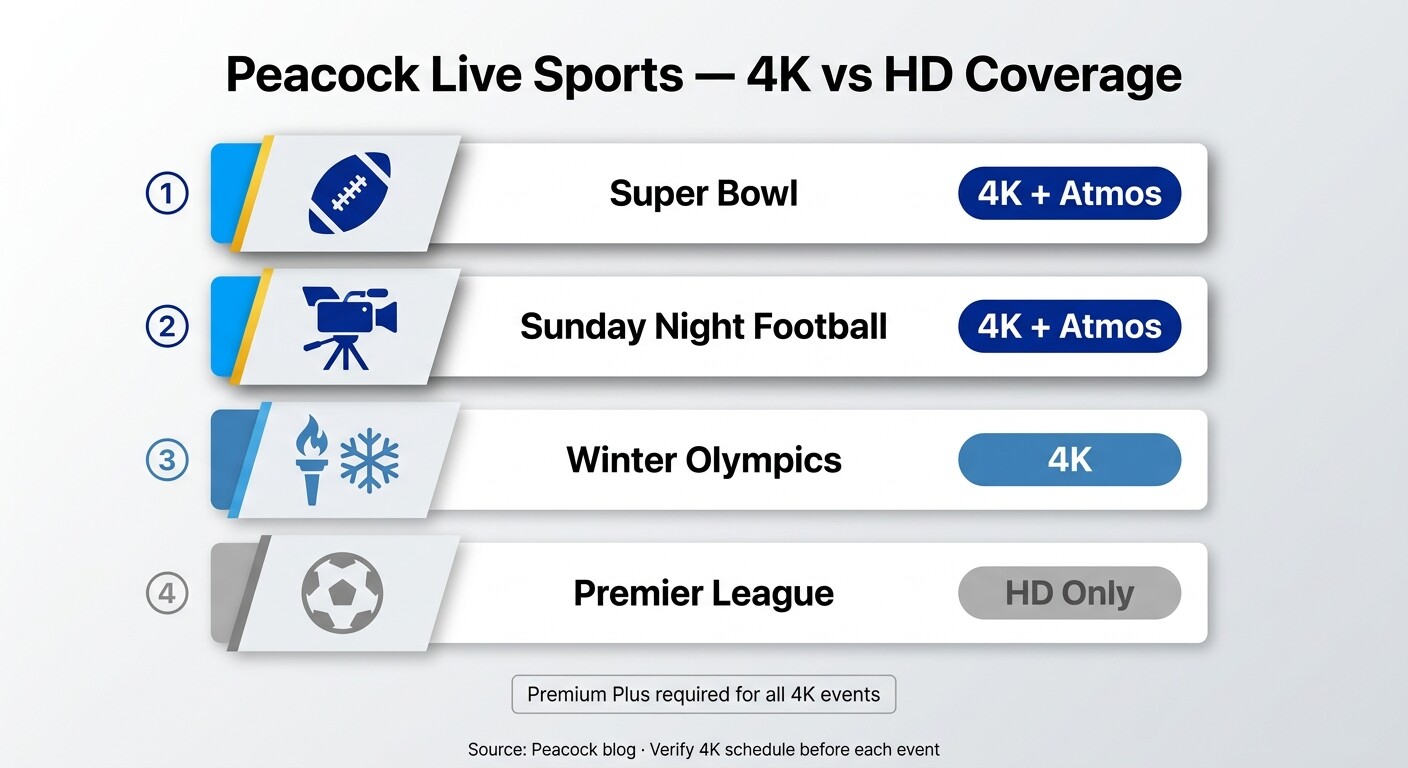
Peacock's 4K live calendar is event-by-event, not a default. The 2026 marquee items are Super Bowl LX and the Milan Cortina Winter Olympics; Sunday Night Football has streamed in 4K with Dolby Atmos for several seasons. Premier League regular-season matches and most everyday live events still stream in HD.
2026 Confirmed 4K Live: Super Bowl LX, Winter Olympics, Sunday Night Football
Per Peacock's January 2026 blog post and the Comcast corporate press release of the same date, NBC and Peacock go "4K All Day" on February 8, 2026, covering Super Bowl LX from Levi's Stadium and Milan Cortina Winter Olympics coverage. Sunday Night Football has been a 4K + Dolby Atmos broadcast for multiple seasons. Programming changes annually — verify the current 4K live schedule on Peacock's blog before the event.
My read on this: Peacock binding its flagship 4K dates to the Super Bowl and Olympics is platform strategy, not a sign that live 4K is becoming the default. The marquee dates draw new Premium Plus signups; the rest of the calendar stays HD.
Premier League and Everyday Live Events: Where 4K Drops Off
Peacock holds U.S. Premier League rights, but 4K coverage of regular-season matches is not standard. Most matches stream in HD. Same caution for Olympic feeds outside the tentpole windows and for NBC Sports' lesser events. If you're paying Premium Plus for Premier League specifically, do it for the rights package; the 4K is reserved for the marquee dates.
What Live 4K Requires (and What Gets Silently Downgraded)
Three preconditions: a whitelisted device, an active Premium Plus plan, sustained bandwidth. The historical pattern worth flagging: per ecoustics' November 2025 reporting, Peacock has disabled HDR and Dolby Atmos on live events on Android TV / Google TV devices, even when the broadcast supports them. That's a Peacock-side choice for the live path, not a hardware limit. If a Sunday night game on Google TV looks flatter than the VOD episode you watched the day before, that's why.
Why Peacock Won't Stream in 4K on Your TV (Black Screen, 'Mode Not Supported,' and Real Fixes)
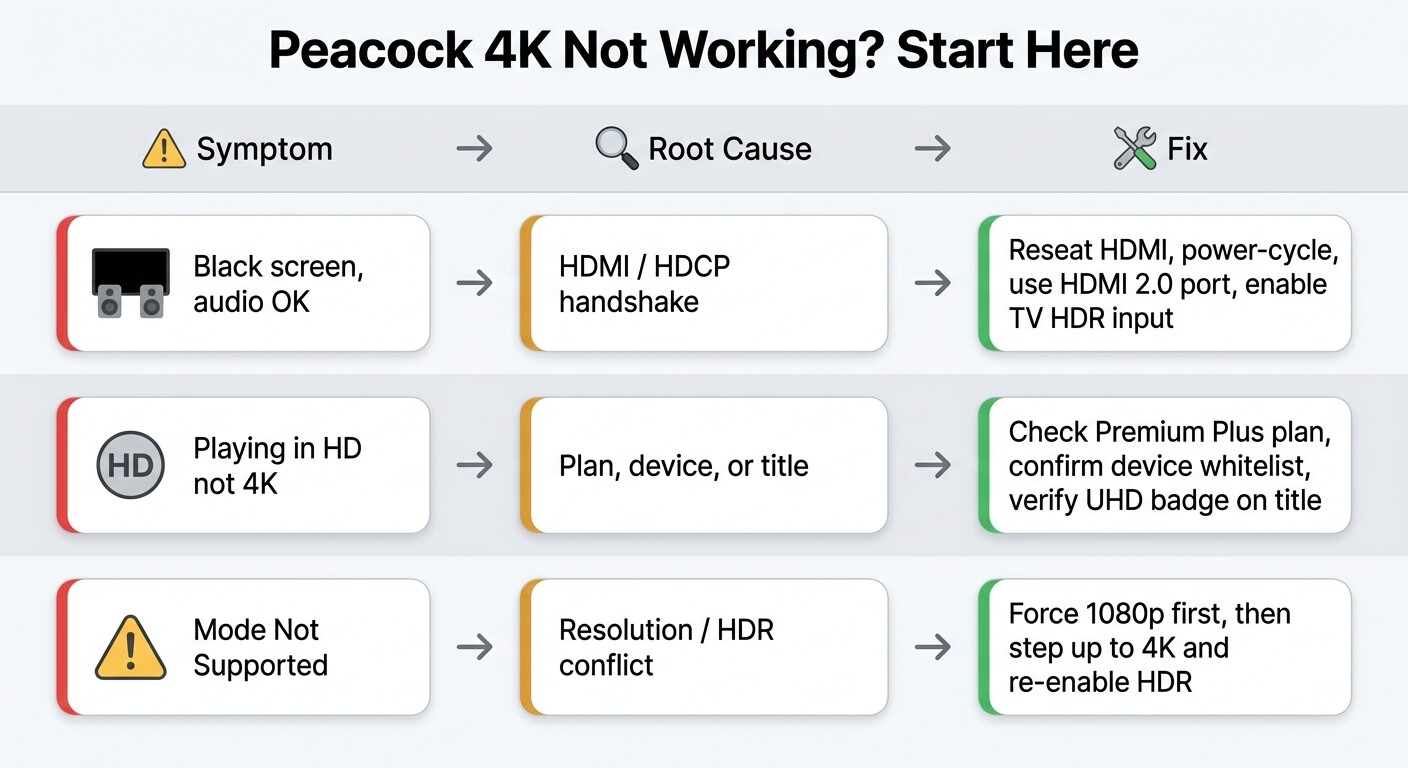
Most "Peacock 4K not working" tickets come down to three failure modes, and the default advice — "reinstall the app" — is wrong about half the time. Black-screen-with-audio is almost always an HDMI handshake or HDCP issue, not the app. Work the cable, the display HDR setting, and the streamer reboot before touching the app itself.
Black Screen With Audio: The HDMI Handshake Fix
This is the most common failure: audio plays, picture is black, and on some TVs the message reads "Mode Not Supported, Resolution not supported" (the exact wording captured in an Xfinity community thread). It's a handshake problem between the streamer's 4K HDR output and the display chain. Work it in this order:
- Unplug the HDMI cable from both ends, leave it out for 30 seconds, then reseat firmly.
- Power-cycle the TV and the streamer (full unplug, not remote-off).
- Verify the cable is rated for HDMI 2.0 / 18 Gbps, and plug the streamer directly into the TV's HDMI 2.0 port — skip the AVR or soundbar for the first test.
- Turn the TV's HDR setting on for that input (it's often per-input, not global).
If the picture comes back direct-to-TV but breaks through the AVR, the AVR's HDMI port or HDCP version is the bottleneck, not Peacock.
'Mode Not Supported' or Picture-Quality Drops: Resolution and HDR Conflicts
Same root cause, different symptom. The streamer is trying to output 4K HDR into a chain that can't carry it end-to-end. Force the streamer's output to 1080p first, confirm playback is stable, then step up to 4K and re-enable HDR. If the picture holds at 4K SDR but breaks at 4K HDR, the HDR pipe is the culprit and HDR is the setting you turn back on last.
When the Peacock App Itself Is the Problem (Samsung, PS5, FireStick Gen 1)
A short list where the app, not the chain, is at fault. Samsung native TV apps that underperform the iPhone or PC build on the same account — fix by switching to an external 4K streamer. PS5 inconsistency reported by readers on the same console where other streaming apps run fine — try the same title on a different device to confirm. Fire TV Stick 4K Gen 1 that simply won't go to 4K because Peacock never provisioned it — the AVS Forum confirmation, and the workaround is the 4K Max or a different streamer entirely. None of these are reinstall-fixable.
What to Check Before You Reinstall Anything
A pre-reinstall checklist that catches roughly four out of five tickets in my experience:
- Confirm Premium Plus is the active plan (Premium and free tiers do not stream 4K).
- Confirm the title actually has a UHD badge; not every Peacock title is a 4K release.
- Confirm the device is on Peacock's compatibility list for 4K.
- Confirm internet speed under load — 15–16 Mbps sustained, not peak.
- Only after those four, consider reinstalling.
Keep Peacock 4K Episodes Offline on PC or Mac: BBFly Peacock Downloader
Please note: Third-party downloaders may conflict with the platform's Terms of Use. Keep any downloads for your own personal, offline viewing of content you subscribe to, and don't redistribute or resell them. Where an official download path exists on your device, that's the most worry-free route.
Once the device, the HDMI chain, and the bandwidth are ruled out, the question I get next is whether a PC or Mac user can simply keep an episode for the road. Peacock's own offline download is mobile-only — iOS and Android — and the file expires 48 hours after first play. Live events are excluded from official download entirely. If you're a PC or Mac user who wants to keep a 4K episode you paid for as a permanent local MP4, there is no official desktop path.
BBFly Peacock Downloader is the desktop route I've kept using to fill that gap: original 4K resolution where the title qualifies, persistent MP4 on your own drive, no 48-hour timer. You still need an active Peacock subscription; the tool downloads what you already have legitimate access to, for personal offline viewing.
Why Peacock's Official Download Isn't a PC or Mac Option
The Peacock mobile app supports offline download on iOS and Android only; there is no native desktop client on Windows or macOS. Once you press Play on a mobile download, the file expires 48 hours later and disappears, and live events are excluded from the offline list. For a PC or Mac user who wants the same episode on a laptop on a flight, the official path is a dead end.
What BBFly Peacock Downloader Does
Of the desktop tools I've tested for this specific gap, BBFly is the one I kept coming back to. Three things matter for this use case: it outputs up to 4K on titles that ship in 4K, it produces a permanent local MP4 for personal offline viewing (no 48-hour expiry), and it runs on Windows and macOS — the two operating systems Peacock's own download policy ignores. It does not batch-download a full season in one queue at launch (per its verified specs).
Quick Walkthrough: From a Peacock 4K Stream to a Local MP4
- Launch BBFly Peacock Downloader on Windows or macOS.
- Pick Peacock from the platform list.
- Sign in with your own Peacock subscription inside the app's built-in browser; the tool does not circumvent Peacock's access control — an active subscription is required.
- Open a 4K-eligible title; confirm the resolution, audio track, and subtitle selections before queuing.
- Save as MP4, or MKV if you'd rather keep multiple audio tracks side-by-side.
This is for the PC and Mac users Peacock's policy leaves out, watching content they already subscribe to. It is not for anyone redistributing or reselling what they download.
Peacock 4K FAQ
These are the questions I see most often after readers spend a week on Premium Plus. They're ordered from buy-decision to in-use to a safety note I'd flag without being asked.
Is Peacock Premium Plus worth it just for 4K?
Only if you specifically want the 4K tentpoles — Sunday Night Football, the Super Bowl, the Olympics, or a handful of NBC originals. The 4K catalog is a curated perk, not a depth play. If you don't care about those events, stay on Premium and save the difference. I made that call myself for the Premier League regular season — 4K isn't standard on those matches, so Premium Plus didn't add value on that use.
How does Peacock 4K compare to Netflix and Disney+ 4K?
Different model. As of June 2026, Netflix and Disney+ ship deeper 4K catalogs with broader HDR and Dolby Vision support, particularly on originals. Peacock's 4K shines on NBC tentpoles and live sports rather than on catalog depth.
Can I download Peacock 4K to my PC or Mac, and how long do downloads last?
Officially, no — Peacock's offline download is mobile-only, the file expires 48 hours after first play, and live events are excluded. For a PC or Mac user who wants a permanent personal copy of an episode they already subscribe to, BBFly Peacock Downloader on Windows or macOS is the desktop path described above; the 30-day trial covers three full titles per platform so you can verify quality and subtitle sync before paying, with $29.90/month, $99.90/year, or $199.90 lifetime (3 PCs) thereafter. Peacock's mobile policy may change; for the current BBFly trial and specs, see the BBFly product page.
Does Peacock stream Premier League in 4K?
Peacock holds U.S. Premier League rights, but regular-season 4K is not standard. Most matches stream in HD. The 4K-confirmed list is what's on the live calendar above; assume HD for anything not explicitly announced.
How fast does my internet need to be for Peacock 4K?
Peacock states 8 Mbps as the minimum on its Help Center. The practical recommendation, given how many other devices share a typical home network, is 15–16 Mbps sustained with headroom — enough to keep a 4K HDR stream from silently downshifting mid-episode. Wired Ethernet on the streamer makes a bigger difference than most readers expect.
Is it safe to log in to my Peacock account inside a third-party downloader?
The real risk isn't third-party downloaders as a category; it's no-name tools you've never heard of. A reputable vendor's tool runs the platform sign-in inside its own built-in browser on your machine and stores the session locally — it does not proxy your password to a remote server. Before trusting any new tool, I install it on a secondary machine and watch the network traffic during sign-in before bringing my main account near it. Keep platform 2FA on where supported, and stick to vendors with a public, traceable track record. BBFly's login flow fits that pattern: the Peacock sign-in runs inside the app's local browser, with no credentials sent off your machine.