
Download Mediaset Infinity Videos: Official App or Desktop Files
Table of Contents
To get straight to the point, Mediaset Infinity supports official in-app downloads for eligible accounts and titles, but plan, device, region, and title availability determine whether they work. Readers who need a computer file have a separate desktop option for authorized personal offline viewing.
This guide explains both routes for anyone looking to download Mediaset Infinity videos: official app downloads for eligible mobile viewing and a Mediaset Infinity video downloader workflow for Windows or Mac local files.
What Is Mediaset Infinity?
Mediaset Infinity is an Italian streaming service with TV shows, movies, documentaries, and live programming. For readers in the United States, access, playback, and download eligibility may depend on location, subscription, and title availability. I would confirm that the title plays on your account before choosing either download route.
Mediaset Infinity Plans and Download Eligibility
Mediaset Infinity plans determine whether official app downloads are available, so eligibility matters more here than a headline price.
Eligible subscribers can use official app downloads through GOLD experience, Infinity+, or qualifying paid Channel subscriptions. Availability can still vary by title, device, and account.
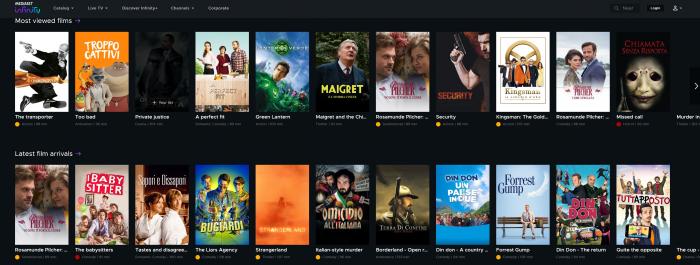
As of July 2026, these are the official subscription categories associated with offline-download access. This article does not list a price because plan offerings can differ by account and market.
Can You Download Mediaset Infinity Videos?
Official In-App Downloads
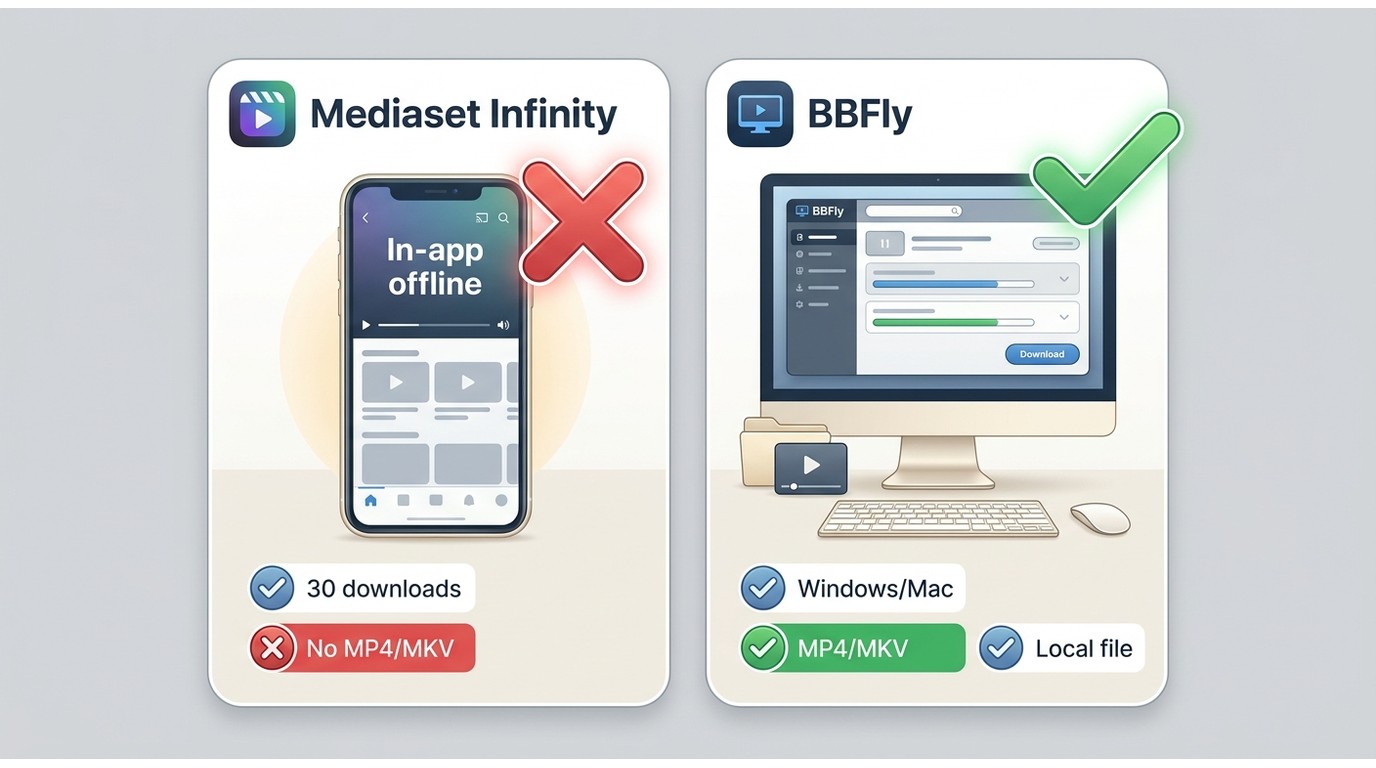
Eligible GOLD experience, Infinity+, and qualifying Channel subscribers can download supported titles in the Mediaset Infinity mobile app. These official downloads remain inside the app and are intended for eligible offline viewing, with a documented maximum of 30 downloads.
Desktop MP4 or MKV Files
Windows and Mac users who need an MP4 or MKV file are considering a different workflow. A desktop local file can be useful for authorized personal offline viewing where permitted by platform terms and applicable law, but title availability and results remain title-dependent.
| Decision point | Mediaset Infinity official app download | BBFly desktop workflow |
|---|---|---|
| Best fit | Eligible viewers who want offline playback in the mobile app | Authorized Windows or Mac users who need an MP4 or MKV file for personal offline viewing |
| Supported device | Supported mobile devices running the Mediaset Infinity app | Windows and Mac computers |
| Account or plan requirement | Eligible GOLD experience, Infinity+, or qualifying paid Channel subscription | An account authorized to access the selected title, plus use permitted by applicable terms and law |
| Where the download is stored | Inside the Mediaset Infinity app | In a local folder selected on the computer |
| Output format | App-bound offline copy, not a general MP4 or MKV file | MP4 or MKV |
| Maximum stated quality | Title and device dependent | Up to 1080p, title dependent |
| Download limit | Up to 30 downloads | During the 30-day trial, up to 3 full titles per platform; other use depends on the selected plan |
| Expiration or removal conditions | May be removed after expiration, logout, or app uninstallation | Not tied to the mobile app's expiration state; use remains limited to authorized personal offline viewing |
| Playback conditions | Playback occurs in the Mediaset Infinity app | Playback uses a compatible local media player |
| Main limitation | Eligibility, device support, and title availability | Title detection, selected quality, and lawful authorized use |
Official app-download details: Mediaset Infinity Help Center.
Download Mediaset Infinity Videos with BBFly
If the official app meets your needs, it is the simpler route. For authorized content where a Windows or Mac local file is appropriate, BBFly Downloader provides one practical desktop workflow for personal offline viewing.

When the Desktop Workflow Fits
This route fits readers who need a local MP4 or MKV file rather than an app-bound copy. BBFly Downloader is a Windows and Mac desktop app that uses native download mode and can save eligible Mediaset Infinity titles at up to 1080p, with results dependent on the title.
The 30-day trial allows up to 3 full titles per platform, which is enough to evaluate a complete file before deciding whether the workflow suits your library. I favor that check over judging a downloader by a polished progress bar or a short preview.
Steps for Windows and Mac
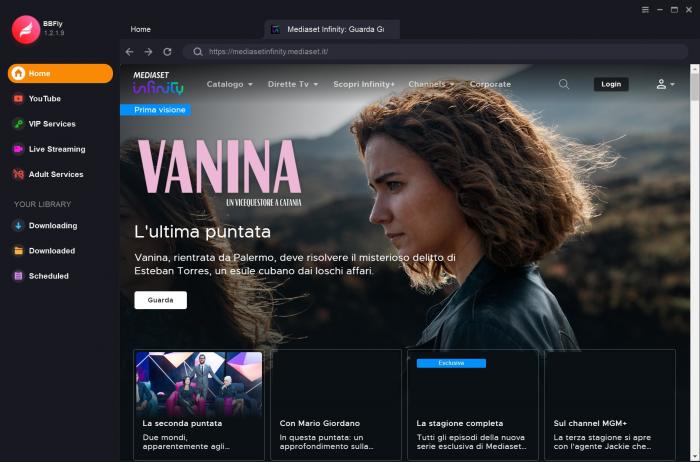
Before you begin: Use a Windows or Mac computer, sign in to an account authorized to play the title, and confirm that the title opens in Mediaset Infinity. 1. Install BBFly Downloader and open its built-in browser.
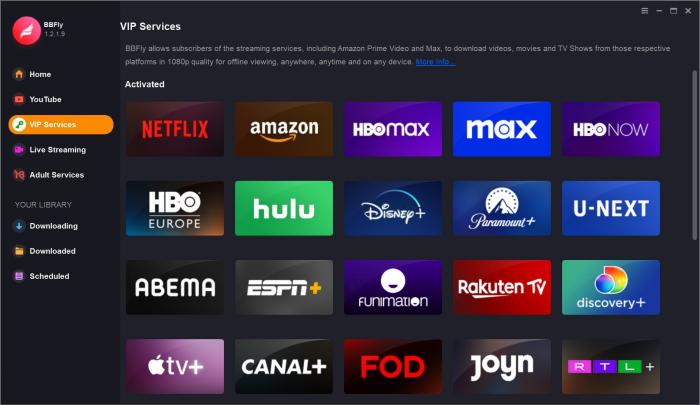
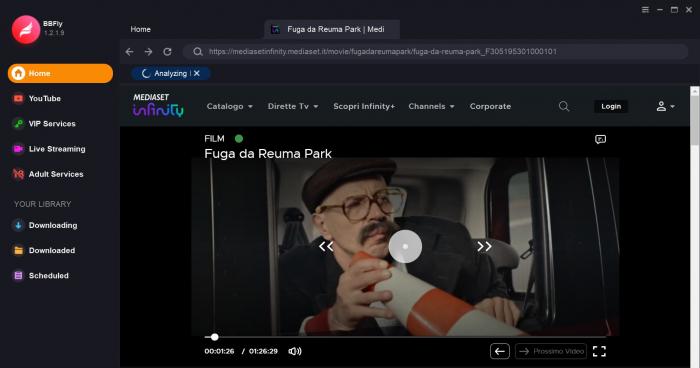
2. In BBFly's built-in browser, open Mediaset Infinity, sign in, and start the title. Wait for the title to be detected; if it is not detected, reload the page and confirm that the title is supported rather than repeatedly attempting the same failed request.
3. Select the available quality and preferred MP4 or MKV format, then click Download. Keep the computer connected until completion; a stalled transfer may reflect storage, network, or title-specific availability rather than a completed file.
Check the Saved File
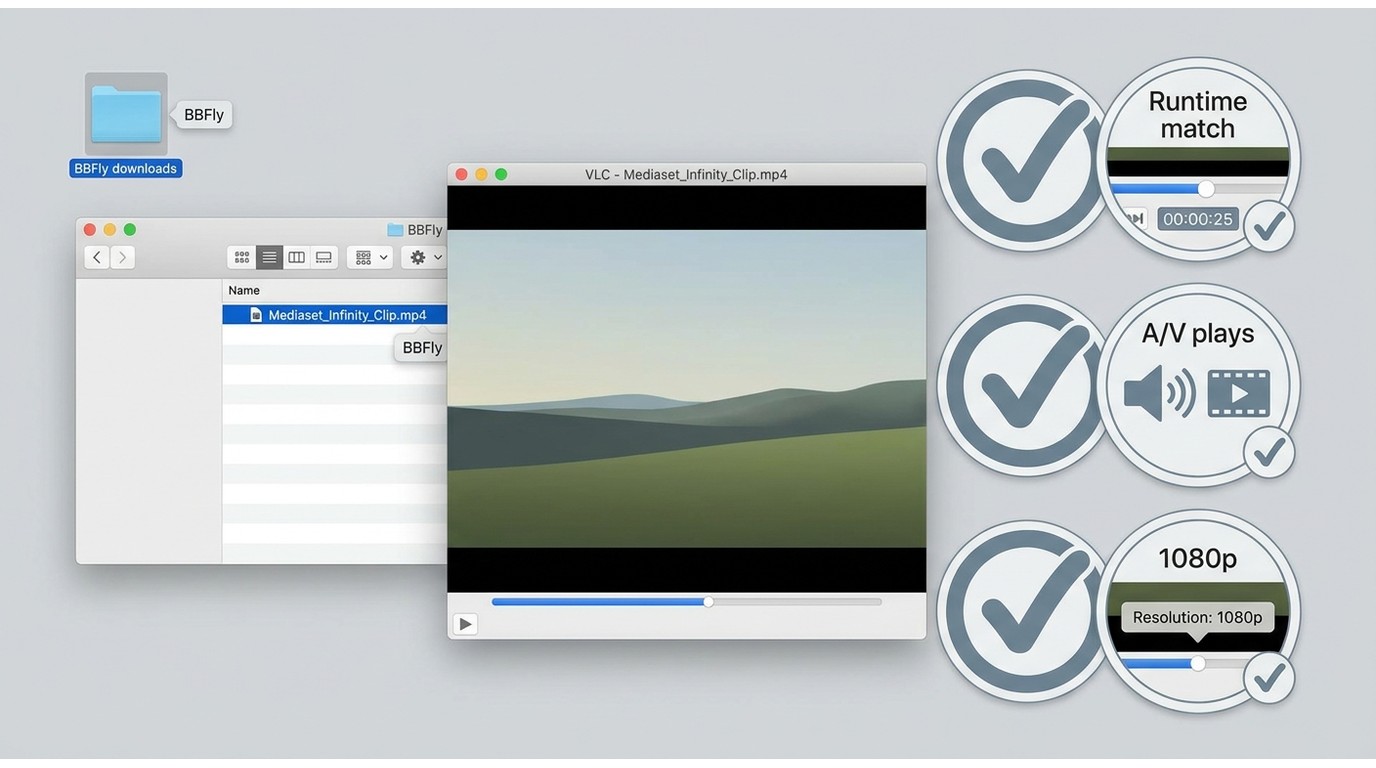
4. Compare the saved file's duration with the title runtime, open it, confirm both video and audio playback, and verify the selected resolution before deleting temporary data. In my experience, checking the first completed file is more reliable than assuming a finished progress bar means the entire episode was saved.
Download Limits and Troubleshooting
Official Download Requirements
Official Mediaset Infinity downloads require a supported mobile app, an eligible subscription, a supported title, enough storage, and a stable network connection. The app route is limited to 30 downloads, and offline copies can disappear after expiration, logout, or app uninstallation.
When a Download Fails
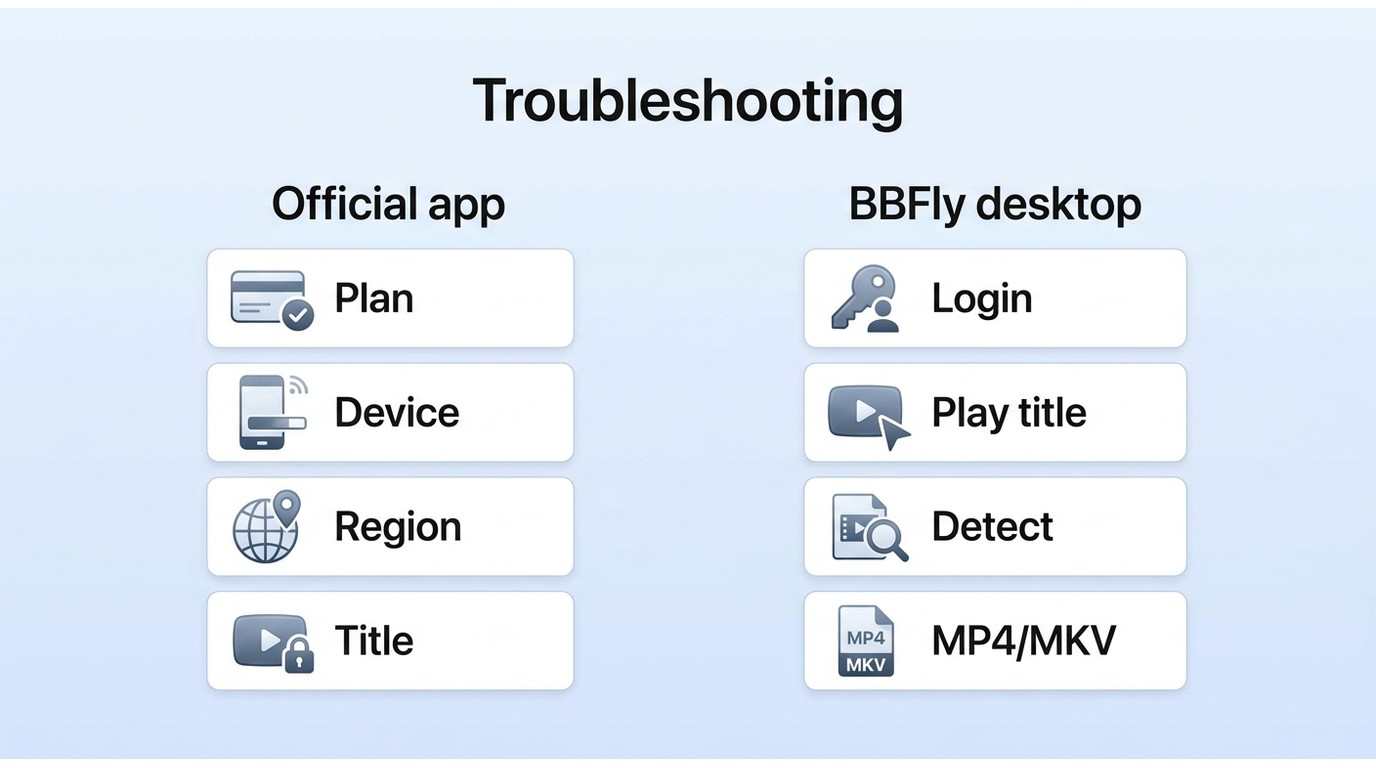
If Mediaset Infinity downloads are not working, first confirm that the title plays on the same account and that your plan and location are eligible. For app downloads, restart the app, free storage, and reconnect to a stable network. For desktop files, do not rely on screen recording, link services, or browser extensions when protected playback is blocked. Instead, check title detection, selected quality, file duration, and playback after completion. If the file is incomplete or the title is unsupported, wait for support rather than repeatedly retrying the same failed task.
Conclusion
Use the official app when your account, title, device, and region are eligible and app-based offline playback is enough. Consider the desktop workflow when you are an authorized Windows or Mac user who specifically needs MP4 or MKV output for personal offline viewing; you can review BBFly if that file-based workflow matches your needs.
FAQ
Why did my Mediaset Infinity download disappear?
Official app downloads can be removed after their expiration state, after you log out, or when the Mediaset Infinity app is uninstalled. Confirm that the account, app, and title are still eligible before trying the download again.
Can I download Mediaset Infinity videos on Android?
Yes, eligible official downloads are handled through the Mediaset Infinity mobile app on supported Android devices. You need an eligible subscription and a supported title; this is not a separate Android downloader workflow.
Can I use Mediaset Infinity from the United States?
Availability from the United States is region-dependent. Mediaset Infinity's portability provisions focus on EU member states, so playback and the ability to begin a download from the United States depend on your location, account, and the title.
How can I tell whether a desktop download finished correctly?
Match the file duration to the title runtime, open the file in a compatible player, confirm that audio and video play correctly, and verify the selected resolution. Do this before removing temporary data or starting a larger batch.

Nora Whitfield
Nora goes deep on one broadcaster at a time, so you don't have to search twice.