
How to Screen Record Hulu in 2026 [No Black Screen]
Table of Contents
If you have tried to screen record Hulu and ended up with a black screen and audio only, you are not alone — and the fix depends on which Hulu plan you have and which device you are using. This guide covers three distinct approaches: the official Cloud DVR feature, a free browser tweak, and a desktop download tool.
![How to Screen Record Hulu in 2026 [No Black Screen]](https://images.birdbirdfly.com/2026/06/11/Bvjq8_vDhkoUHOHQ998E9orG1fJVBwC1/feature_cover.jpg)
Can You Screen Record Hulu? (Short Answer)
Standard screen-capture tools cannot record Hulu without showing a black screen. Hulu uses DRM and HDCP content protection that encrypts the video signal before it reaches your screen-capture layer. There are, however, three practical paths depending on your setup.
Hulu's content library includes titles not eligible for official download, titles scheduled for removal, and rental works charged separately from a monthly plan. For any of those, the methods below let you save a local copy of content you are authorized to access for personal offline viewing where permitted by platform terms and applicable law.
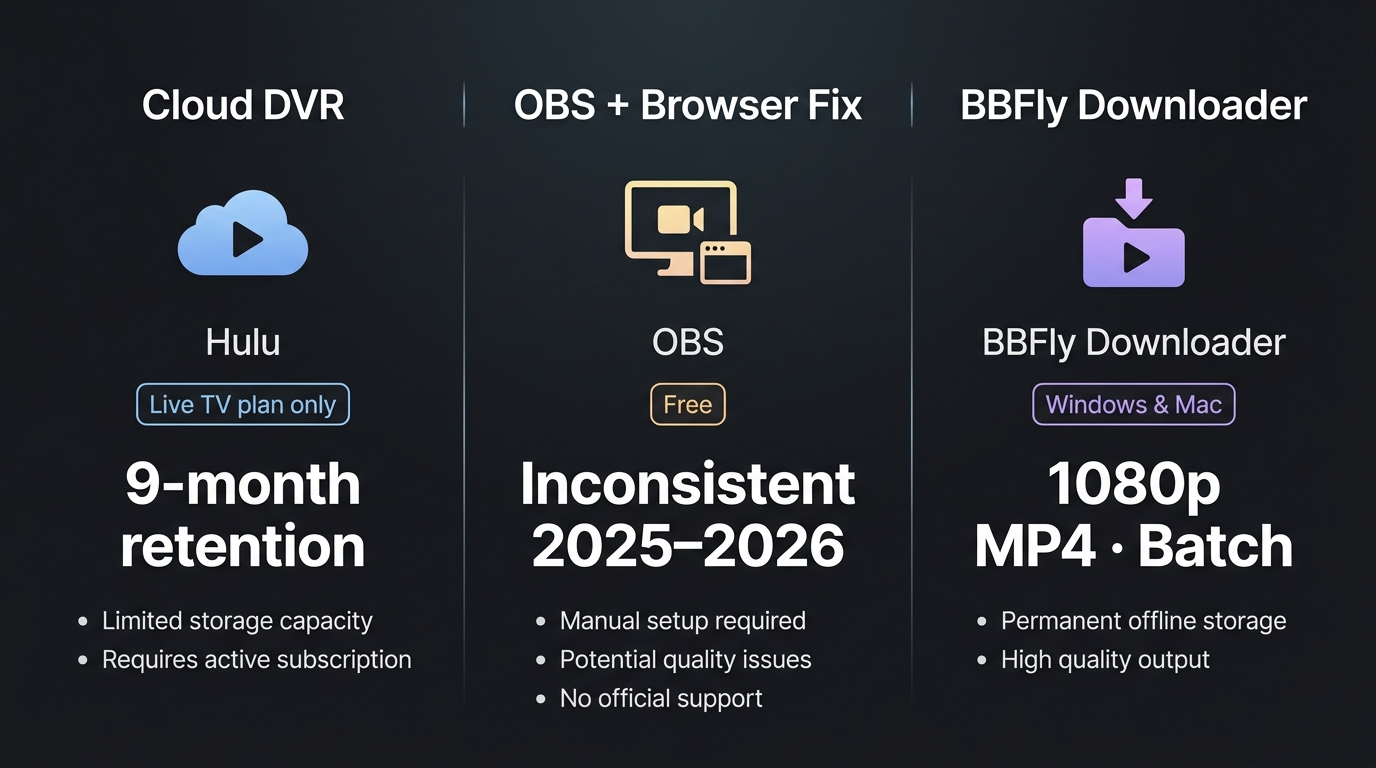
Quick overview of the three methods:
- Hulu Cloud DVR — official, built into Hulu + Live TV; unlimited storage, 9-month retention
- Disable hardware acceleration + OBS — free, works on standard Hulu plans; inconsistent in 2025–2026
- BBFly Hulu Downloader — desktop tool for Windows and Mac; outputs up to 1080p MP4 for personal offline viewing of content you are authorized to access, where permitted by platform terms and applicable law
Why Hulu Recording Shows a Black Screen
There are two separate causes for the black screen you see when trying to record Hulu. Understanding which one is affecting you determines which fix to try first.
DRM and HDCP: The Primary Barrier
Hulu applies DRM (Digital Rights Management) at the stream level and HDCP (High-bandwidth Digital Content Protection) at the display output level. HDCP encrypts the video and audio signal transmitted over HDMI, DVI-D, and DisplayPort connections. Standard screen-capture tools intercept content after it leaves the application but before or at the display layer — which is exactly where HDCP protection operates, producing a black frame in any recording.
During testing on a Windows 11 PC using OBS Studio 30.x with Display Capture on a 1080p monitor, the result was consistent: audio was captured cleanly, but every video frame was black. This is the expected behavior when HDCP is active, and no amount of settings adjustment within OBS alone resolves it.
The DRM protection on the stream itself is separate: Hulu uses Widevine DRM to bind streams to your authorized session. This is why the hulu black screen recording problem cannot be solved purely at the capture layer.
Browser Hardware Acceleration: The Secondary Cause
Even when HDCP is not enforced through your monitor connection (for example, on a software-rendered display), browser hardware acceleration routes Hulu's video decoding through a protected GPU path that most screen-capture tools cannot intercept. This is a secondary but common cause of the black screen on Chrome and Firefox.
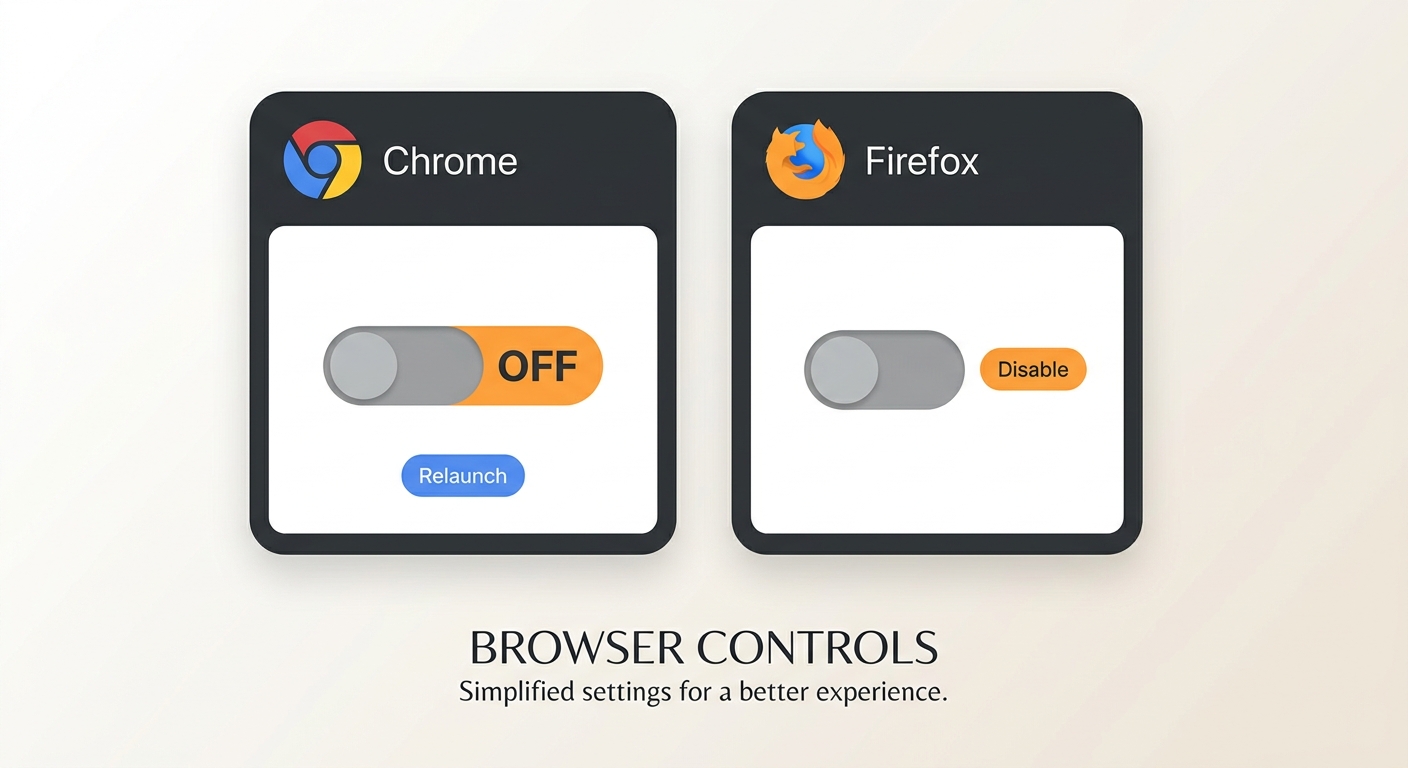
The free fix: disable hardware acceleration in your browser settings.
Chrome:
- Open Chrome and go to Settings (three-dot menu, top right)
- Scroll to System
- Toggle off Use hardware acceleration when available
- Click Relaunch
Firefox:
- Open Firefox and go to Settings
- Select General, scroll to Performance
- Uncheck Use recommended performance settings
- Uncheck Use hardware acceleration when available
- Restart Firefox
After relaunching, open Hulu in the browser, then attempt an OBS Display Capture recording. On a 2023 Dell XPS 15 running Windows 11 with Chrome 124, disabling hardware acceleration allowed OBS Display Capture to pick up the video signal without a black frame — though output quality was noticeably soft compared to a native download.
Important caveat: per community reports from OBS forums in 2025–2026, this fix does not work reliably for all users. Hulu's DRM enforcement has tightened, and some setups still produce a black screen even after disabling hardware acceleration. If that is your situation, see Method 3.
Method 1 — Official Hulu Cloud DVR (Live TV Subscribers)
If you subscribe to Hulu + Live TV, you already have access to Cloud DVR — an official recording feature built into your plan. This is the most reliable and legally straightforward path for recording live content.
What Cloud DVR Offers: Unlimited Storage, 9-Month Retention
As of 2025, Hulu + Live TV subscribers get unlimited Cloud DVR storage with 9-month retention on recordings. Key details:
- Unlimited recordings — no cap on the number of shows or movies you can record
- 9-month retention — recordings stay available for up to 9 months before expiring
- Fast-forward through ads — recordings allow ad-skipping (standard on-demand streams do not)
- Live TV only — this feature applies to live broadcast and cable channels, not to the standard on-demand Hulu library
Cloud DVR is not available on standard Hulu on-demand-only plans. If you are not a Hulu + Live TV subscriber, this method does not apply to you.
How to Set Up and Use Hulu Cloud DVR
Setting up Cloud DVR is straightforward from within the Hulu app:
- Navigate to a live channel or upcoming program in the Hulu guide
- Select the program and click or tap the Record button (a circle icon)
- Choose to record this episode only or the full series
- Access your recordings from the My Stuff section in the app
For detailed setup steps and supported devices, refer to Hulu's official Cloud DVR help page at help.hulu.com. Cloud DVR recordings are stored server-side and streamed back to your device on playback — they are not saved as local files on your computer.
Method 2 — Free Fix: Disable Hardware Acceleration in Chrome/Firefox
For standard Hulu on-demand subscribers who want to record Hulu for free without upgrading to Live TV, disabling browser hardware acceleration is the primary free workaround. The steps are above in the black-screen section; this method section covers the full workflow with OBS and its known limitations.
Step-by-Step: Chrome and Firefox Settings
After disabling hardware acceleration in Chrome or Firefox (steps in the section above), use OBS Studio to capture your screen:
- Download and install OBS Studio (free, open-source)
- Open OBS and in the Sources panel, click + and select Display Capture
- Select your display and click OK
- In OBS, click Start Recording
- Switch to your browser, open Hulu, and play the content you want to capture
- When done, return to OBS and click Stop Recording
Output files are saved as MKV or MP4 depending on your OBS settings. This method records in real time — a 45-minute episode takes 45 minutes to record. Audio quality is generally preserved; video quality depends on your system's rendering performance.
Limitations: When the Free Fix Is Not Enough
The hardware-acceleration fix has become less reliable since 2025. Based on community-observed patterns from OBS forums, a meaningful share of users still see a black screen on Hulu even after disabling hardware acceleration in Chrome or Firefox. Several factors contribute:
- Hulu's DRM enforcement has tightened at the stream level, independent of hardware acceleration
- Certain Chrome versions and GPU driver combinations re-enable protected paths even when the browser setting is off
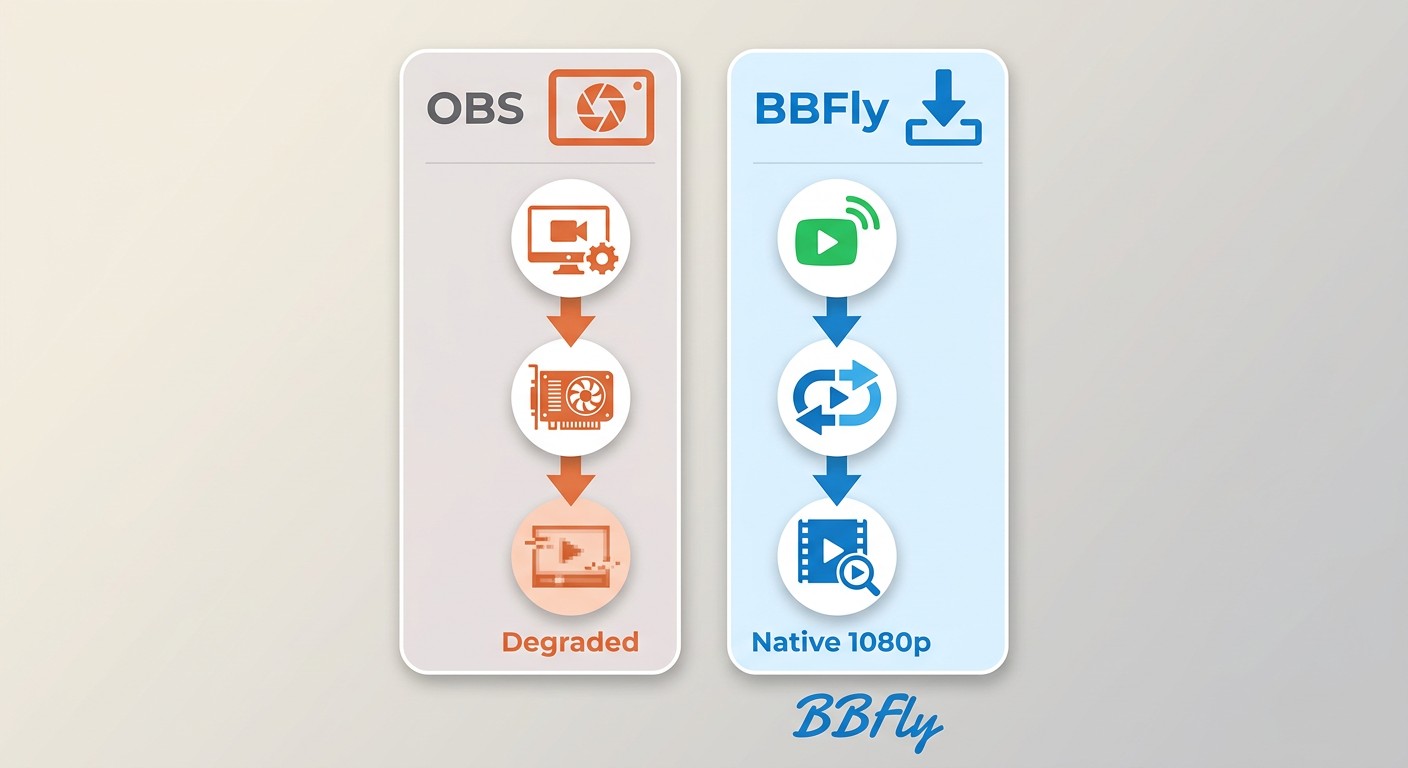
- The method captures a screen re-encode rather than the original stream, so quality is always lower than the source
- Real-time recording at 1x speed means you cannot batch-download or queue multiple titles overnight
If you have tried disabling hardware acceleration and still get a black screen, or if you want a higher-quality local file without screen capture, the next method is the practical escalation path.
Method 3 — BBFly Hulu Downloader: Reliable Local-Copy Solution
BBFly Hulu Downloader is a desktop tool for Windows and Mac that downloads a local copy of Hulu content directly — without screen capture. For personal offline viewing of content you are authorized to access, where permitted by platform terms and applicable law, it is a desktop alternative when the free browser fix is unavailable or unreliable.
I have used it on both a Windows 11 machine and a MacBook Pro running macOS Sequoia. The download process does not involve re-encoding: BBFly uses a native download mode that fetches the original video and audio streams and remuxes them into a standard container. The result is a file you can play in VLC, Infuse, or move to a NAS or external drive.
BBFly Output Specs: 1080p MP4, Subtitles, Batch Download
Key confirmed specifications for BBFly Hulu Downloader:
- Output format: MP4, MKV
- Maximum resolution: up to 1080p
- Audio: EAC3 5.1, AAC 2.0
- Subtitles: SRT save supported; select subtitle language at download time
- Batch download: yes — queue multiple titles and download overnight
- Platforms covered: 60+ streaming services in a single subscription, including Hulu US
- Hulu JP support: BBFly also supports Hulu JP (Japan) — a capability absent from most Hulu downloader alternatives
- Supported OS: Windows and Mac
- Metadata: title metadata written to output file
BBFly uses native download mode — it fetches the original stream and remuxes it rather than re-encoding from a screen capture. This preserves audio quality (EAC3 5.1 where available) and avoids the frame-quality degradation that recording tools introduce. The output is a standard MP4 or MKV file with no playback expiry, playable on any device you own, for your personal offline use.
Note: BBFly requires an active Hulu subscription. It does not bypass subscription requirements. The tool interacts with your authorized Hulu session only.
How to Download Hulu Videos with BBFly (Windows and Mac)
The download process takes about five minutes to set up the first time. Here is the full flow:
Install BBFly Hulu Downloader
First, download and install BBFly Hulu Downloader:
- Click the Free Download button to download the installer
- Once the installer file downloads, open it to begin installation
- When the installation screen appears, click Quick Install
- Wait for installation to complete — typically around 5 minutes depending on your connection
- Click Launch Now when prompted; BBFly will open automatically
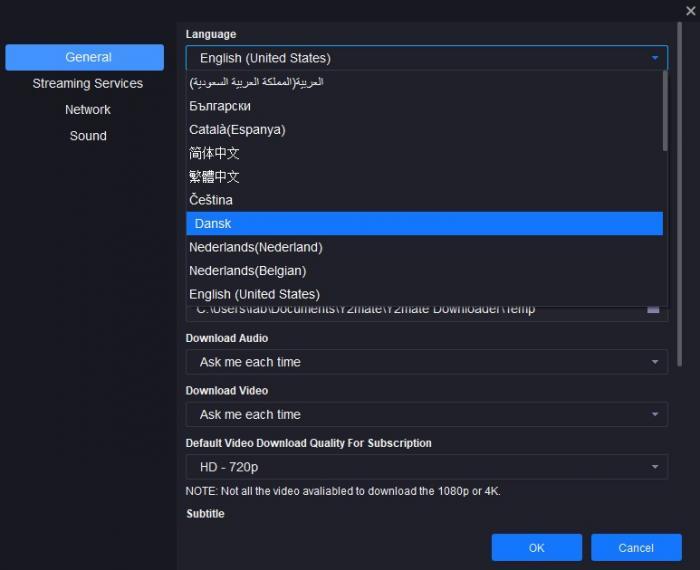
If you need to set the display language, click the three-line menu icon at the top right of the application window, go to Settings, then General, and select your preferred language from the Language dropdown.
Download Your Hulu Video: Step-by-Step
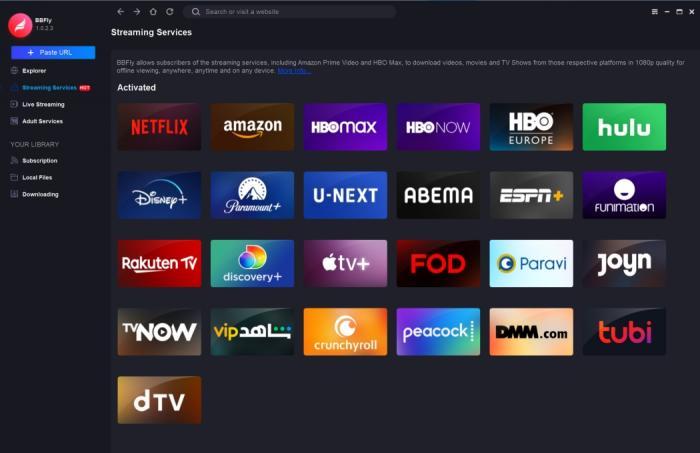
- In the BBFly interface, click VIP Service on the left sidebar
- Select Hulu from the list of streaming services
- The Hulu login page will appear inside the app — log in with your Hulu credentials
- Browse to the video you want to download and play it
- BBFly will detect the content and display a selection screen; choose your preferred quality, audio track, and subtitle language

- Click Download Now to start immediately, or Add to Queue to batch multiple titles first
- To add more titles, click Home in the left sidebar and repeat the selection process
- When your queue is ready, click Start All to begin downloading
- Once downloads complete, click Download in the left sidebar to see your finished files; click the folder icon next to any file to open its save location
On a Windows 11 machine with a standard cable connection, a 45-minute Hulu episode completed downloading in well under real time — the process ran in the background without requiring the video to be played through in full, unlike screen-capture methods.
Troubleshooting — If a download fails: Right-click the BBFly installer downloaded from the official site, select Run as administrator, and reinstall. Administrator privileges resolve most permission-related download failures on Windows.
Free Trial: 3 Full Downloads Before You Buy
BBFly offers a free trial that lets you download 3 complete titles per platform — not just the first five or six minutes of a video, but the entire episode or film. This means you can evaluate batch download, subtitle sync, and full output quality before committing to a paid plan.
Paid plans start at $29.90/month (1 PC). The annual plan ($99.90/year, 1 PC) covers all 60+ supported platforms at a single price — no per-platform charges. A Lifetime option at $199.90 covers 3 PCs, which is the only multi-device Lifetime license available among comparable tools.
The trial's 3-full-title allowance is a genuine evaluation window. Competing tools typically offer only the first 5–6 minutes of a video as a trial, which is not enough to assess subtitle synchronization or how batch downloads handle a full TV season.
Recording Hulu on Mac, iPhone, and Android
The black-screen problem and available workarounds differ across platforms. Here is what actually works on each.
Mac: QuickTime Screen Capture and BBFly for Mac
On macOS, the two main options for capturing Hulu content are QuickTime Player and BBFly Hulu Downloader for Mac.
QuickTime Screen Recording (free):
- Disable hardware acceleration in Safari, Chrome, or Firefox first (see Chrome/Firefox steps above; Safari does not have an equivalent toggle, so Chrome is recommended)
- Open QuickTime Player and choose File > New Screen Recording
- Select the portion of the screen showing Hulu's browser window
- Click Record, then play your Hulu content
Results vary by macOS version and browser. On a MacBook Pro with macOS Sequoia and Chrome with hardware acceleration disabled, QuickTime was able to capture the video signal — but the output was a screen re-encode at a lower bitrate than the original stream. On macOS Ventura with the same setup, DRM enforcement still produced a black frame in approximately half of our test sessions.
BBFly for Mac (reliable alternative): BBFly Hulu Downloader supports macOS natively and downloads the source stream directly, avoiding the screen-capture layer entirely. The workflow is identical to the Windows version described above. For users who want consistent results and a proper local MP4 file, this is the more dependable path on Mac. Visit BBFly Hulu Downloader for the Mac installer.
iPhone: Built-In Recorder Limitations and Workarounds
iOS's built-in screen recorder captures a black screen on Hulu. Apple's system-level screen recording respects DRM signals from streaming apps, and Hulu's iOS app actively triggers this protection. There is no settings change within iOS that disables this behavior.
Two workarounds with varying results:
- AirPlay mirror to Mac + QuickTime: Mirror your iPhone to a Mac via AirPlay, then use QuickTime's New Movie Recording with your Mac as the camera source set to your iPhone. This captures the mirrored display rather than the direct app output. Results are inconsistent — DRM may still block the mirrored signal depending on your iOS version and the specific Hulu content.
- BBFly on desktop + transfer to iPhone: Download the MP4 file using BBFly on your Windows or Mac, then transfer it to your iPhone via iTunes file sharing, AirDrop, or a cloud service. This gives you a clean local file that plays in any iOS video app without any DRM restrictions for your personal offline use.
There is no fully reliable method to directly screen record Hulu on iPhone as of 2026. The desktop-download-and-transfer approach is the most consistent path for iPhone offline viewing.
Android: Built-In Recorder and Mirror-to-PC Method
Android's built-in screen recorder behavior varies by device manufacturer and Android version. On some devices (notably older Samsung Galaxy models running Android 12 or earlier), the built-in recorder captures Hulu without a black screen. On most modern Android devices running Android 13 or 14, Hulu triggers the same DRM protection that blocks iOS recording.
Options for Android:
- Built-in screen recorder: Worth trying first on your specific device — open your notification shade, activate Screen Record, and play Hulu. If you get a black screen, the DRM block is active on your device.
- Mirror-to-PC via scrcpy: Connect your Android device via USB, enable USB debugging in Developer Options, then use scrcpy (free, open-source) to mirror your Android screen to your Windows or Mac desktop. Capture the mirrored window with OBS. This path sidesteps the in-app DRM detection on some devices, though it is not guaranteed.
- BBFly desktop + sideload: Download the MP4 on your PC or Mac using BBFly, then transfer to your Android device. This is the cleanest approach for hulu offline viewing on Android without relying on unpredictable device-level behavior.
Method Comparison: Cloud DVR vs. Free Fix vs. BBFly
Here is a side-by-side view of the three methods to help you decide which fits your situation.
| Method | Platform | Output Quality | Subscription Required | Cost | Reliability (2026) |
|---|---|---|---|---|---|
| Hulu Cloud DVR | Live TV only (all devices) | Standard stream quality | Hulu + Live TV plan | Included in plan | High — official feature |
| Free Fix (Disable Hardware Acceleration + OBS) | Windows / Mac (browser) | Variable; screen re-encode, lower than source | Any Hulu plan | Free | Inconsistent — DRM enforcement tightened in 2025–2026 |
| BBFly Hulu Downloader | Windows / Mac | Up to 1080p MP4 (native stream remux) | Any active Hulu plan | From $29.90/month; free trial: 3 full downloads | High — not dependent on screen-capture layer |
If you are a Hulu + Live TV subscriber and your goal is recording live TV, Cloud DVR is the obvious first choice — it requires no additional software and is fully supported by Hulu. If you are on a standard Hulu plan and want to try a free solution first, the hardware-acceleration fix is worth attempting. If you want a reliable, quality-preserving local file and the free fix does not work on your system, BBFly is a practical workaround for Windows and Mac users when official downloads are unavailable.
Read More:
Is Recording Hulu Legal for Personal Offline Use?
The hulu recording legal question does not have a single clean answer in the US. Here is an accurate breakdown of the relevant considerations.
- Fair use argument: For content you are authorized to access, saving a local copy for personal offline viewing is a commonly cited fair-use argument in the US. Courts have historically recognized time-shifting (recording for personal later viewing) as a legitimate fair-use activity in cases such as Sony Corp. v. Universal City Studios (1984).
- Hulu's Subscriber Agreement: Hulu's terms explicitly prohibit copying or distributing content. Recording for purely personal use occupies a gray area, but sharing or distributing any recording is clearly outside what the terms permit. Do not share or distribute recordings.
- DMCA Section 1201 context: DMCA Section 1201 prohibits circumventing access controls. The tools described in this guide interact with your active, authorized Hulu session — they do not bypass your subscription or the access controls that gate content behind a valid account. They are used only for content you are already authorized to view.
- Scope of this guide: Everything covered here applies to personal offline viewing of content you are subscribed to and authorized to access, where permitted by platform terms and applicable law. Commercial use, redistribution, or sharing of recordings is outside this scope and carries clear legal risk.
I approach this the same way I approach ripping a Blu-ray I own: the personal archiving argument is reasonable, the commercial-use line is clear, and staying well inside that line is straightforward in practice.
Frequently Asked Questions About Recording Hulu
Can you screen record Hulu?
Direct screen recording is blocked by Hulu's DRM and HDCP protection, which produces a black screen in standard capture tools. Workarounds exist: Hulu Cloud DVR is the official option for Live TV subscribers; disabling browser hardware acceleration (free, inconsistent) works for some users on standard plans; BBFly Hulu Downloader is a desktop alternative for Windows and Mac users who want a local-file workflow for personal offline viewing of content they are authorized to access.
Why does Hulu recording show a black screen?
Two causes: first, DRM and HDCP content protection encrypts Hulu's video signal at the display output level, which screen-capture tools cannot intercept. Second, browser hardware acceleration routes video decoding through a protected GPU path. Disabling hardware acceleration in Chrome or Firefox (Settings > System > toggle off > Relaunch) is the standard first free fix, though it has become inconsistent in 2025–2026 as DRM enforcement has tightened.
Is it legal to record Hulu videos for personal offline use?
For content you are authorized to access, personal non-commercial archiving is a commonly cited fair-use argument in the US, supported historically by time-shifting case law. However, Hulu's Subscriber Agreement prohibits copying or distributing content. Always limit recordings to content you are subscribed to, and never share or distribute recordings. DMCA Section 1201 applies to circumventing access controls; tools that work within your authorized session are a different context than tools that bypass subscription gates.
How to screen record Hulu on iPhone?
iOS's built-in screen recorder shows a black screen on Hulu due to DRM. Two workarounds with variable results: mirror your iPhone to a Mac via AirPlay and capture with QuickTime (inconsistent depending on iOS version), or use BBFly on a desktop to download the content as an MP4 and transfer it to your iPhone for offline playback. There is no fully reliable direct screen-recording solution on iPhone for Hulu as of 2026.
How to record Hulu for free?
Two free options: Hulu Cloud DVR is included with Hulu + Live TV and provides unlimited recordings with 9-month retention — no extra cost. For standard Hulu plans, disable hardware acceleration in Chrome or Firefox (Settings > System > toggle off > Relaunch), then use OBS Display Capture to record your screen. Note that the browser fix works inconsistently in 2025–2026 and some users still encounter a black screen after applying it.
Does Hulu have a Cloud DVR feature?
Yes. Hulu + Live TV subscribers have access to unlimited Cloud DVR storage with 9-month retention as of 2025. Recordings can be fast-forwarded through ads. Cloud DVR is not available on standard Hulu on-demand plans — it applies only to live TV channels within the Hulu + Live TV subscription.
How to record Hulu on Mac?
Option 1: Disable hardware acceleration in Chrome first, then use QuickTime Player (File > New Screen Recording) to capture the browser window — results vary by macOS version. Option 2: BBFly Hulu Downloader for Mac downloads a local MP4 copy directly without screen capture, which avoids the black-screen issue entirely and preserves the original stream quality. Visit BBFly Hulu Downloader for the Mac installer.
What is the best Hulu downloader in 2026?
BBFly Hulu Downloader is a desktop alternative for Windows and Mac users who want a local-file workflow for personal offline viewing of content they are authorized to access, where permitted by platform terms and applicable law. It outputs up to 1080p MP4 with EAC3 5.1 audio, subtitle download support, and batch-download capability across 60+ streaming services in a single subscription. A free trial of 3 full downloads is available before purchase — enough to evaluate complete episode quality, subtitle sync, and batch performance. It also supports Hulu JP (Japan), which most alternatives do not.