
d-Anime Store Downloads on PC: 4 Options Compared
Table of Contents
If you want to download d-Anime Store videos, the first obstacle is not the download button. It is eligibility: the official d-Anime Store PC download experience is streaming-only, official offline viewing lives in the mobile app, and the service says viewing is unavailable outside Japan.
For a US reader, I would settle the region and account question before comparing software. Once that gate is clear, this guide weighs the official paths, an emulator, screen recording, and a Windows or Mac local-file workflow.
Can You Download d-Anime Store on PC?
A Windows or Mac browser can play supported d-Anime Store content, but it does not provide an official download function. That distinction matters because streaming on a computer is not the same as offline anime on PC.
The Short Answer
You cannot use the official site to download d-Anime Store videos directly to a PC. The service reserves official downloads for its mobile app, so a desktop user must either stream or evaluate a separate workflow.
United States Access Limits
d-Anime Store states that viewing is unavailable outside Japan. Anyone researching d-Anime Store outside Japan should therefore confirm that the account, location, and access rights are valid before spending time on a PC setup.
This is the decision point I would not skip. A polished downloader cannot solve an account that is not eligible to play the title in the first place.
Current Price and Catalog Snapshot
As of July 2026, the standard monthly price is ¥660, while billing through the App Store or Google Play is ¥760. The official Google Play listing reported more than 7,200 titles in June 2026 and describes the introductory offer as the first month free.
Catalog totals can differ by date and counting method, so the useful takeaway is the current scale of the library, not a timeless promise about an exact number.
Official Downloads and Their Limits
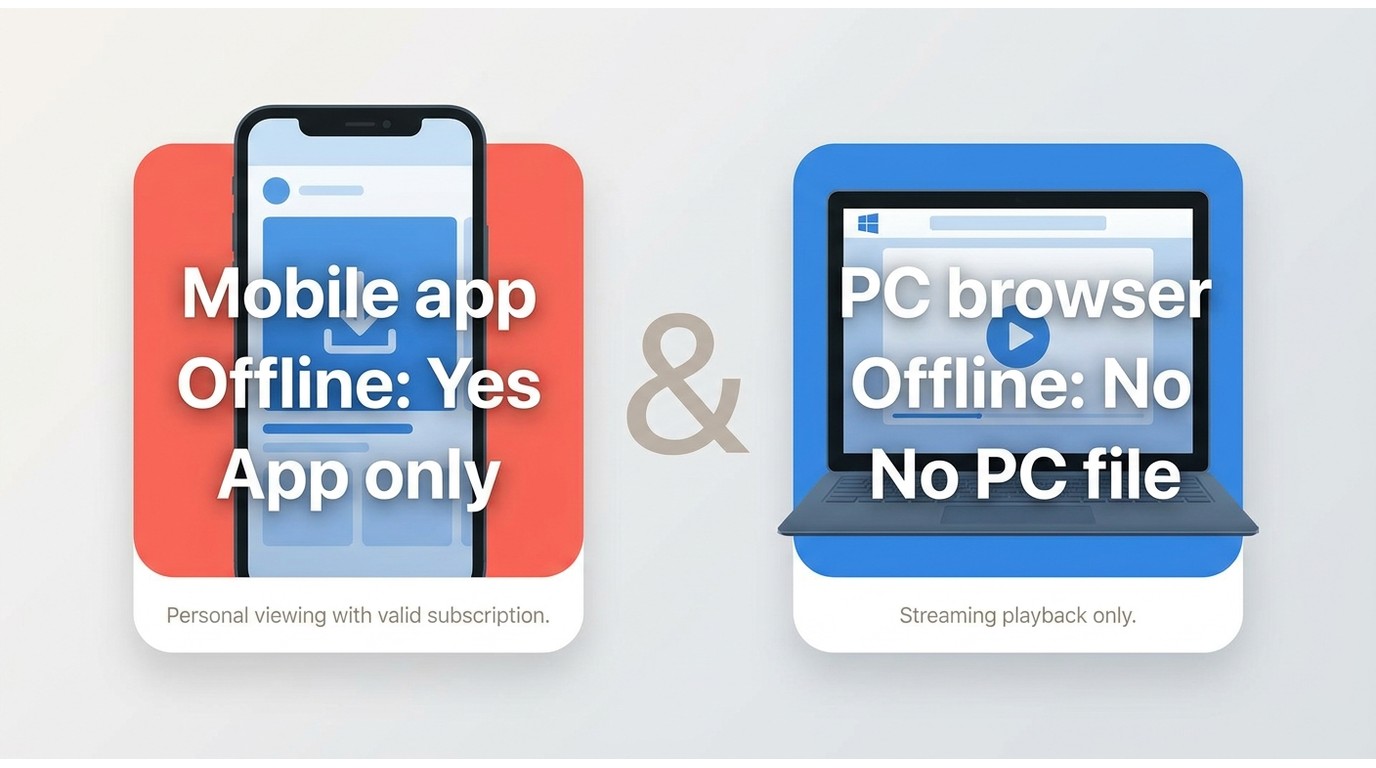
The official choices are straightforward: browser playback on PC and offline downloads in the d-Anime Store app. They serve different devices and do not produce a normal desktop media file.
Mobile App Offline Viewing
Official mobile download support is the simplest option for eligible users who only need episodes inside the supported app. It avoids a desktop setup and keeps playback within the service's own access rules.
PC Streaming Only
The official PC experience is browser streaming. It works when you have a connection and authorized access, but it is not a d-Anime Store PC download path and does not create a file for a desktop media library.
Access and Expiration Rules
d-Anime Store offline viewing remains subject to the title's current rights and official terms. Rental and offline Windows can vary by title, so a universal 48-hour rule would be misleading.
I treat app downloads as convenient temporary access, not as files I can organize independently. That is the practical line between the official method and a local-file workflow.
Four PC Options Compared
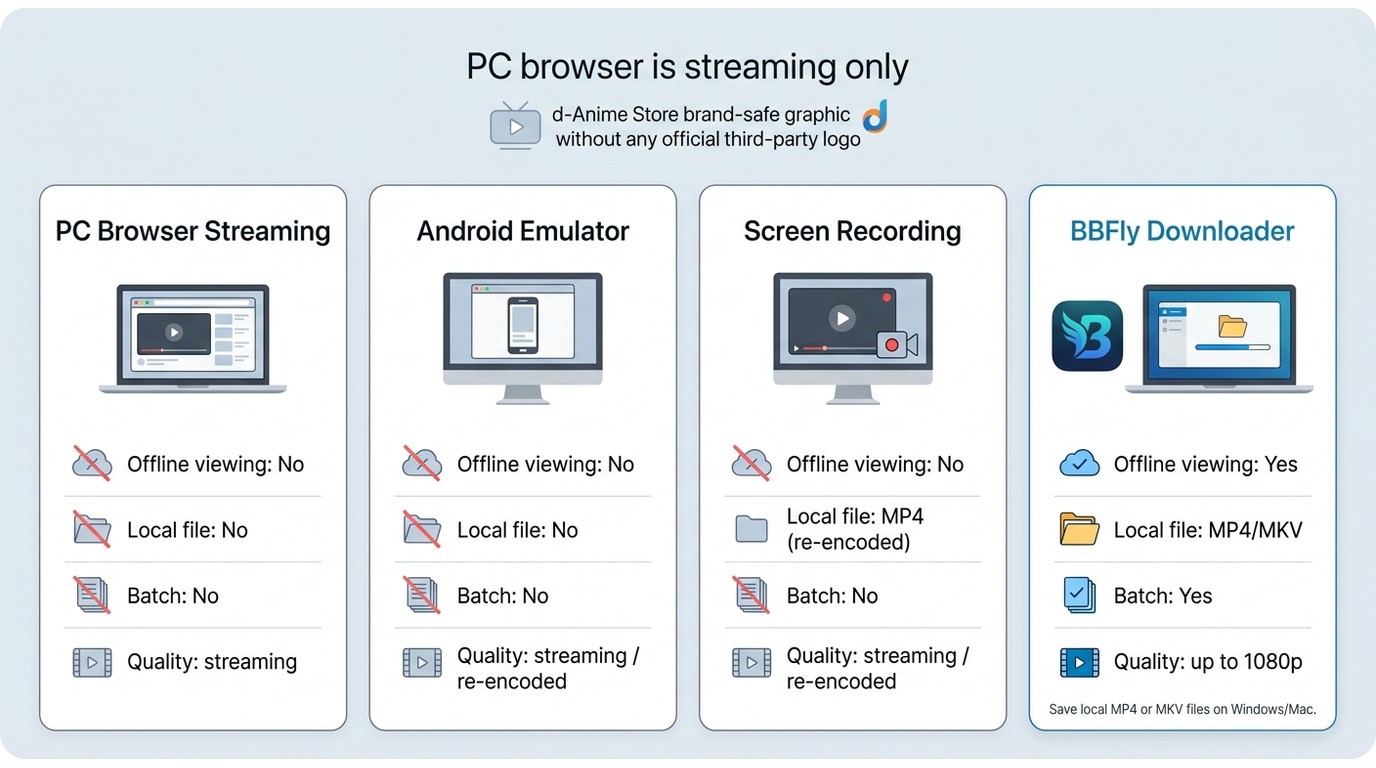
There are four practical directions for a computer user: continue streaming, run the mobile app through an emulator, record playback, or use an anime downloader for PC. The official mobile app is included below as the baseline because it is still the cleanest offline method when a phone or tablet is acceptable.
| Method | Windows or Mac | Offline viewing | Local file | Quality trade-off | Subtitle and audio handling | Batch support | Access limits | Setup | Fits | Main limitation |
|---|---|---|---|---|---|---|---|---|---|---|
| PC browser streaming | Yes | No | No | Uses normal streaming playback | Handled in the browser player | No | Requires eligible service access and a connection | Low | PC viewing without local files | No offline mode |
| Official mobile app | No | Yes | No | Official app playback | Handled inside the app | Not a PC queue | Subject to title and service terms | Low | Supported mobile offline viewing | Mobile-only app storage |
| Android emulator | Primarily Windows | Depends on app compatibility | No normal desktop media file | Adds an emulation layer | Depends on app behavior | Not verified | Still depends on eligible d-Anime Store access | Medium to high | Users who need the app interface on a computer | Compatibility can be fragile |
| Screen recording | Yes | Yes, after recording | Yes | Re-encodes playback in real time | Captures what is presented during playback | No efficient season queue | Requires authorized playback | Medium | A short clip when recording is permitted | Real-time capture and possible quality loss |
| BBFly Downloader | Windows and Mac | Yes | MP4 or MKV | Up to 1080p with H.264 | AAC 2.0; subtitle downloading is not verified for this product | Yes | Requires authorized access; title support can change | Medium | A desktop local-file and batch workflow | No promise that every title is supported |
Browser Streaming
Browser streaming is the least complicated PC choice. Use it when you want to watch now, have a dependable connection, and do not need d-Anime Store offline viewing.
Android Emulator
An Android emulator attempts to run the d-Anime Store app on a computer, but app compatibility, playback checks, and storage behavior can make the setup more trouble than it saves. I would test basic playback before assuming offline functions will work.
Screen Recording
Screen recording creates a new recording while the episode plays. It takes the full runtime, may reduce picture quality, and can flatten subtitle or audio choices into the recording, which is why I would not use it to batch download anime episodes.
BBFly Downloader
For content you're authorized to access, where permitted by platform terms and applicable law, BBFly provides a desktop alternative that saves local MP4 or MKV files and supports a batch queue. It is a better fit when file organization matters more than staying inside the mobile app.
The original article also linked to Japanese guides for Nico Nico Douga and TELESA; those are separate services, so their workflows are not mixed into this d-Anime Store comparison.
BBFly Fit, Specs, and Limitations
The BBFly d-Anime downloader is worth considering only after region, account, and local-file needs are clear. This is a short admission check, not a reason to turn an informational guide into a product catalog.
Who It Suits
Best for authorized Windows or Mac users who want offline anime on PC as manageable local files and expect to queue multiple episodes. In that situation, BBFly addresses a gap the official PC site leaves open.
Verified Output and Device Specs
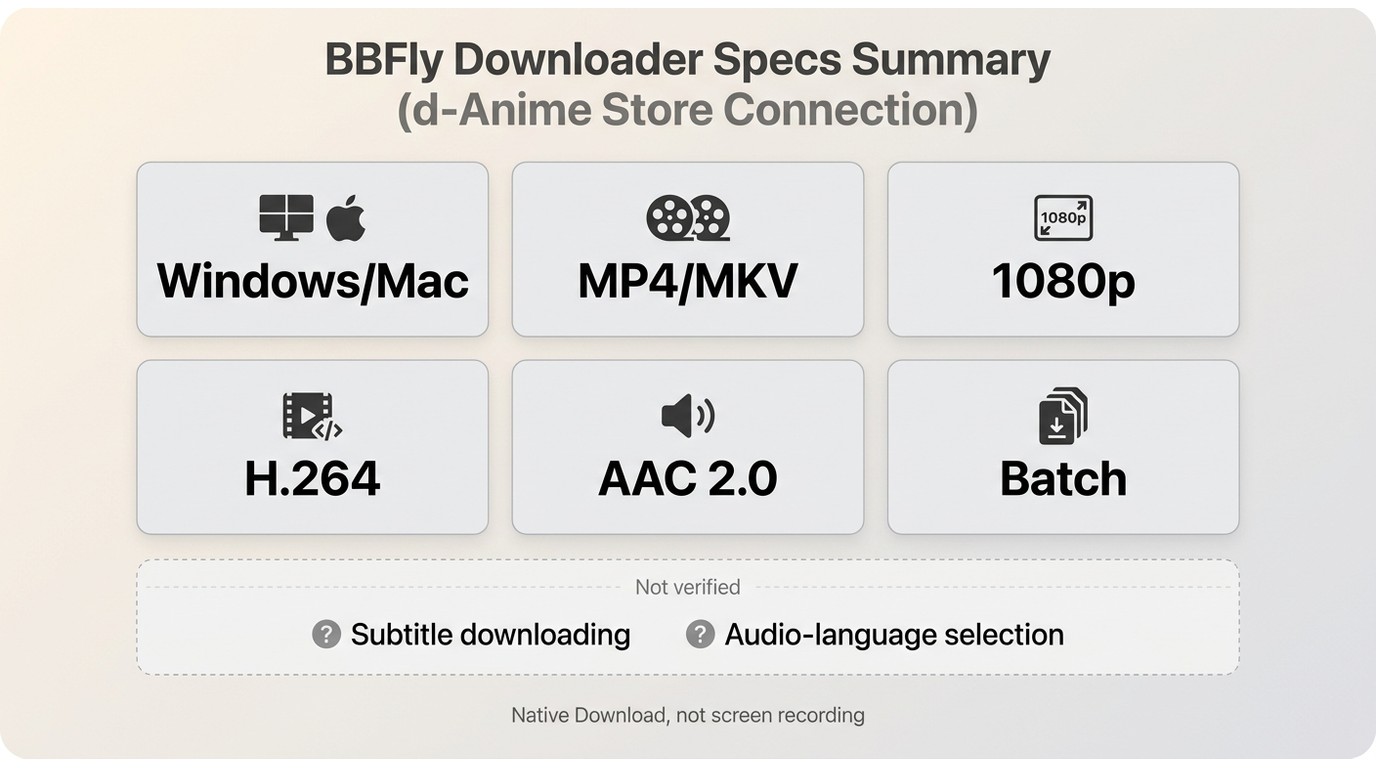
BBFly runs on Windows and Mac, outputs MP4 or MKV, supports up to 1080p video in H.264 with AAC 2.0 audio, and includes batch downloading, episode-following, and metadata writing. Subtitle downloading and audio-language selection are not verified capabilities for this d-Anime Store product.
BBFly uses a Native Download workflow rather than recording playback. The practical benefit is avoiding a second real-time recording pass, but source availability and service changes still define what can be processed.
Who Should Skip It
Not ideal for readers outside the service's supported region, anyone without authorized access, or users satisfied with official mobile download playback. It is also the wrong choice if separate subtitle downloads or selectable audio tracks are mandatory.
That honest boundary is more useful than a long feature list. If the verified limitations already conflict with your library, stop here rather than forcing the tutorial to fit.
Download d-Anime Store Videos with BBFly
This tutorial is a desktop local-file workflow for readers who have already confirmed their region, account access, and need. It is not the default recommendation for someone who only wants the official mobile download function.
- Install the desktop app. Download BBFly from its official site and install the Windows or Mac version.
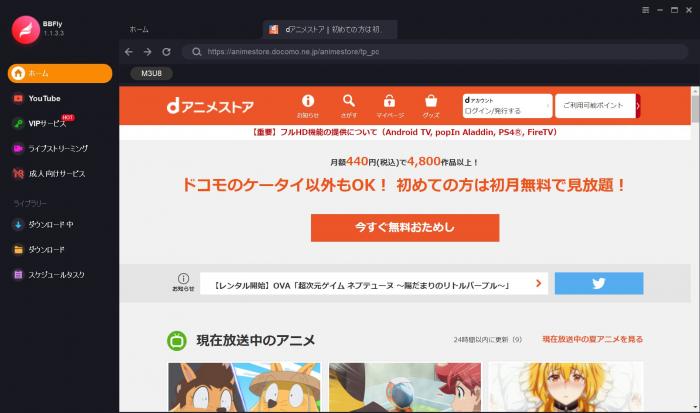
- Open d-Anime Store. Use the built-in browser to reach the service, then sign in with an account authorized to play the selected content.
- Play the episode. Start the title so the software can detect the available media.
- Choose verified settings. Select an available resolution and MP4 or MKV output. Do not assume separate subtitles or alternate audio selection.
- Start the task. Add the episode to the queue or begin the download, then check the finished file before adding a full season.
Install and Sign In
Install BBFly, open d-Anime Store in the built-in browser, and sign in. On a Windows 11 PC with an SSD, the verified cold-start benchmark was about three seconds, though the rest of the login flow depends on the service and connection.
Choose an Episode
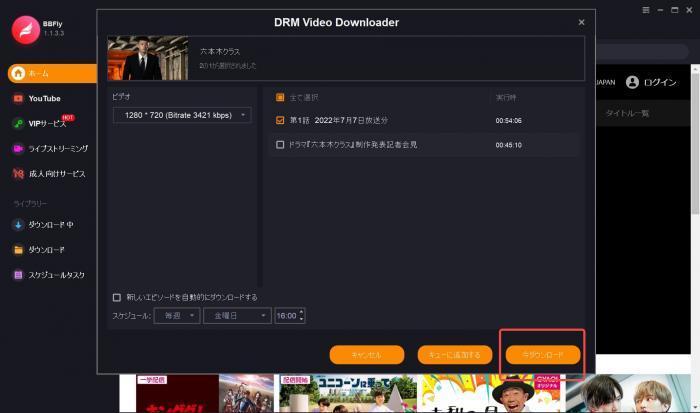
Open a title you are authorized to watch and begin playback. When the download panel appears, review the detected episode and available settings instead of assuming the entire catalog will behave identically.
Start the Download
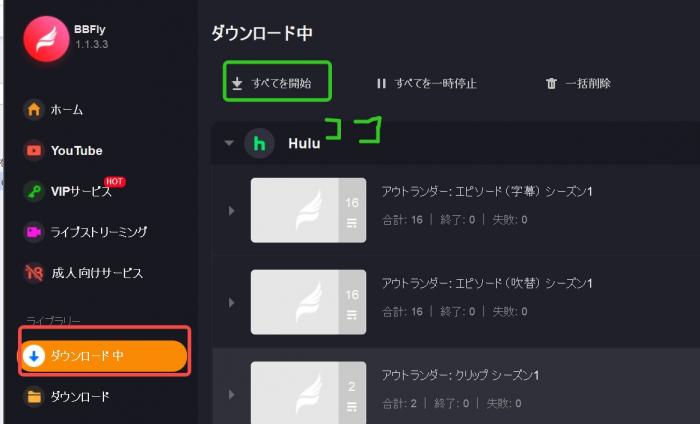
Choose MP4 or MKV and an available resolution, then add the task. In my workflow, the first completed episode is a compatibility check: it reveals a bad filename, playback issue, or unsupported title before a long queue wastes time.
Batch-Download a Season Efficiently
Batch download anime episodes only after one episode finishes and plays correctly. A short test is less glamorous than an overnight queue, but it is much easier to redo.
- Select the episodes you want from the same season.
- Add them to the download queue.
- Confirm the same verified resolution and output format for the group.
- Download one representative episode and note its actual file size.
- Multiply that size by the episode count and confirm sufficient storage.
- Start the full queue, then inspect filenames and the destination folder.
Build the Queue
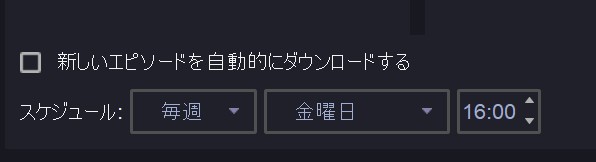
Use the episode list to build the queue and check that each task points to the correct season and episode. BBFly supports batch downloading, but no unverified maximum batch size should be assumed.
Name and Organize Files
Use a consistent show, season, and episode pattern so your offline anime on PC sorts correctly in a folder or personal media app. Metadata writing helps, but filenames remain the easiest fallback when a library scanner misidentifies a title.
Check Storage Before Starting
Storage varies with resolution, codec, audio, and episode length. Measure one real episode from your chosen settings, then estimate the season from that file instead of relying on a universal size claim.
Troubleshooting Failed Downloads
A failed task does not prove the whole workflow is broken. Check account playback, software version, title detection, and whether the issue is limited to one episode before changing the setup.
Update and Login Checks
Confirm that BBFly is current, sign out and back in, and make sure the title plays in the built-in browser. If the account cannot stream the episode there, the download task has no valid starting point.
Playback Detection Problems
If the panel does not appear, reload the title page, start playback again, and try a different episode from the same series. My first troubleshooting split is simple: determine whether detection fails for one title or for the whole service.
When Service Changes Break Support
Streaming services change playback systems, and those changes can temporarily affect an anime downloader for PC. Do not promise that every d-Anime Store title will download; document the affected title and wait for a compatible software update when normal checks do not help.
Personal-Use and Copyright Boundaries
Download anime videos legally by keeping the workflow tied to content you are authorized to access and to personal offline viewing, where permitted by platform terms and applicable law.
Authorized Access Comes First
An active, eligible account and playable title are prerequisites. A desktop tool should not be framed as a substitute for the subscription, rental, or regional rights that make the viewing authorized.
Do Not Share Downloaded Files
Keep local files private. Do not redistribute, upload, sell, publicly show, or send them to other people; a convenient output format does not turn copyrighted video into shareable material.
Regional and Platform Terms
US readers face the additional d-Anime Store outside Japan restriction. Regional availability and title rights come before any technical method, and a local file should not be described as extending a subscription or rental entitlement.
Choose the Right Offline Method
Use the official mobile app if supported mobile offline viewing is enough. Use PC browser streaming if you only need to watch on a computer. Consider BBFly as one practical desktop alternative when authorized access, MP4 or MKV output, and batch support match your needs.
If I were choosing, I would decide in this order: confirm region and rights, decide whether a local PC file is actually necessary, then test one episode. That sequence rules out more bad fits than any feature checklist.
FAQ
Can rental titles be saved for offline viewing?
Official rental and offline Windows can vary by title and service terms. A separate local-file workflow should be used only within your authorized access and must not be treated as extending rental or subscription rights.
How much storage should I plan for a full anime season?
Download one episode with your chosen resolution and format, check its actual size, and multiply by the number of episodes. That method accounts for the real video, audio, and runtime instead of inventing a universal season estimate.
Can I play local anime files on another personal device?
BBFly's verified MP4 and MKV outputs can play on a personal device or media app that supports the chosen format and H.264/AAC combination. Keep the transfer within personal authorized viewing, not file sharing.
Is there a free PC option for d-Anime Store offline viewing?
The official PC site does not offer offline downloads. An emulator may have compatibility problems, and screen recording takes real time with quality trade-offs. BBFly offers a verified 30-day trial in which three full titles per platform can be downloaded, but title compatibility is not universal.