
2 Ways to Download TF1+ Videos for Offline Viewing
Table of Contents
If you're eligible, download inside the official TF1+ app first: it is the simplest, sanctioned way to watch offline. Only reach for a desktop tool when you have rights to the content and genuinely need a local MP4 or MKV file on Windows or Mac.
I've watched TF1's platform change names and rules more than once, so I understand why a search for MYTF1 video download now drops you on a service called TF1+. The old how-to guides still tell you to paste a link and click a button, and that advice is stale. Below I map the two routes that actually hold up, when each one is worth it, and where a TF1+ offline download quietly fails.
TF1+ Replaced MYTF1
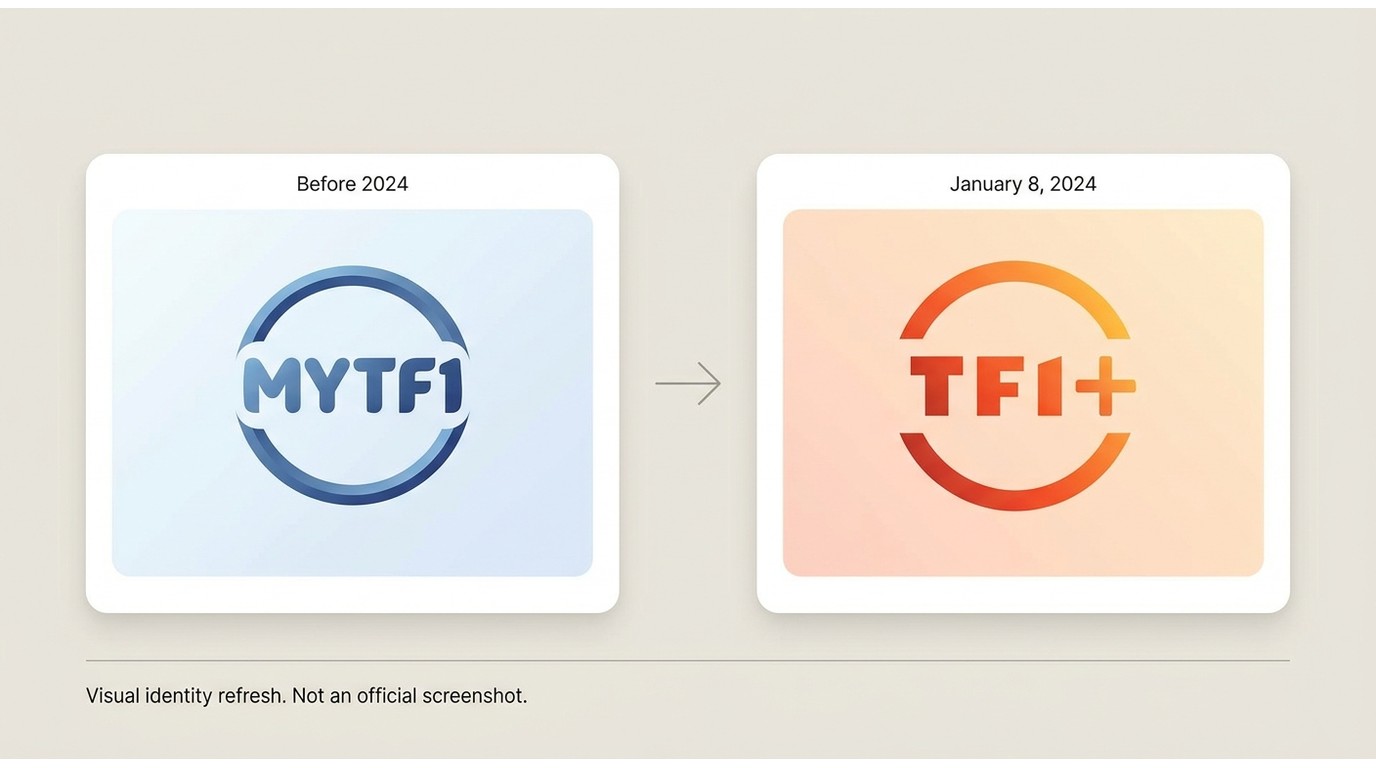
MYTF1 is gone in name only. On January 8, 2024, the TF1 group relaunched its free streaming site as TF1+. If you bookmarked MYTF1, you now land on TF1+, and the download TF1+ video workflow follows the current platform rules, not the old MYTF1 pages.
What Changed in 2024
The relaunch was more than a logo. TF1+ reorganized its free, ad-supported catalog (TF1, TMC, TFX, and TF1 Séries Films) and updated how accounts, regions, and offline access work. Tutorials written for the old brand still circulate, which is why a MYTF1 video download search often returns steps that no longer match the app you actually see.
Official TF1+ Downloads Come First
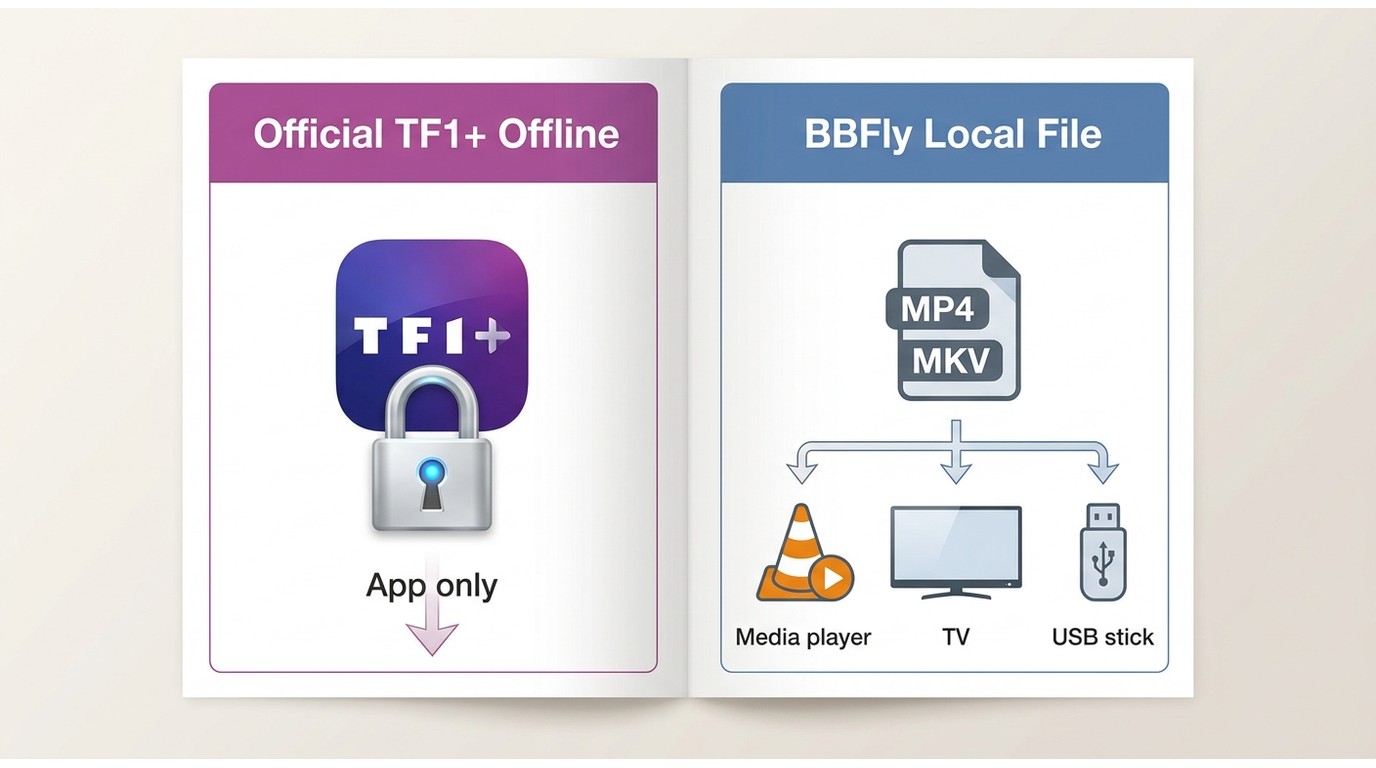
Start here: TF1+ supports in-app offline viewing for eligible programs, so for most viewers the official route is the simplest TF1+ offline download. As of July 2026, availability depends on your plan, the program’s own rights, your device, and a signed-in eligible account. One point to be clear about: an official offline download stays inside the TF1+ app. You can watch it without a connection, but it is not a loose MP4 you can move to another player or drive. That distinction decides whether the official route is enough for you.
Eligibility and Device Checks
Before you expect a download button, confirm the basics. Your account is signed in and eligible, the title itself allows offline saving (not every program does), and your device runs a current TF1+ app. If any one of those fails, the option simply will not appear. That is the app enforcing rights, not a bug.
Official Offline Steps
- Open the TF1+ app on a supported mobile or tablet device and sign in with your eligible account.
- Find a program that shows an offline or download control; if it is missing, that title likely is not eligible.
- Start the download, wait for it to finish, then watch it inside the app while you are offline.
In my experience the offline feature is reliable when the title qualifies. The friction is almost always eligibility, not the download itself.
US Access Changes What Works
From the USA, TF1+ behaves differently than it does in France, and that changes which method works. Separate three problems before you troubleshoot: whether the service opens at all in your region, whether your account is eligible to sign in, and whether a specific program grants download rights.
Region and Account Requirements
TF1+ is built around French availability, so access to TF1+ in the USA can be limited by region and account rules. Tools that change your apparent location are not a guaranteed fix, and they can conflict with the platform’s terms, so I do not treat them as a reliable access path. Even with the service open, an ineligible account or a rights-restricted title will still block a download.
Desktop Saving with BBFly
When the official app cannot give you a movable file, a desktop tool is the practical alternative. BBFly is a third-party desktop app, separate from TF1+’s own feature and subject to each service’s terms and applicable law, that saves a local MP4 or MKV for personal offline viewing of content you are authorized to access. Think of it as a way to get a file you manage yourself, not a shortcut around a subscription: a valid TF1+ account is still required.
Set up correctly, the BBFly TF1+ downloader runs on Windows and Mac and uses a native-download approach that avoids re-encoding, so the saved file mirrors the source rather than a screen-captured copy.

Before You Start
A few prerequisites save time: an active, eligible TF1+ account, the content you actually have rights to view, and a current build of the app on Windows or Mac. On a Windows 11 machine with an SSD, BBFly cold-starts in about three seconds (measured in May 2026), so setup is not the slow part. Access and eligibility are.
Save an Authorized Video
- Open BBFly and sign in to TF1+ through the app’s built-in browser, exactly as you would on the website.
- Play the authorized title so the app can detect the stream, then select the video you want to save.
- Pick your output, MP4 or MKV, along with the audio track and subtitle language you need.
- Start the save, then confirm the finished file plays cleanly in your target player before you rely on it.
If I were doing this, I would test one short title end to end first, saving it and then playing it on the device I actually care about, before batching a whole season.
Best Fit and Limitations
Best for viewers who need a file that plays on a specific player, TV, or drive, or who want subtitles and audio tracks kept together in one file. Not ideal for anyone whose needs are already met by the official in-app download, or for a title the platform does not support, because no desktop tool conjures rights that are not there. You can try it first: BBFly’s trial gives you three full titles per service within the trial window, which is enough to judge real download quality before you pay.
Quality, Formats, and Playback Compatibility
A saved file is only useful if it looks and sounds right, so judge TF1+ download quality in two layers: the source TF1+ serves, and what your method preserves. A clean method cannot upgrade a mediocre source, and a good source can still be wrecked by the wrong settings.
Resolution and Audio Checks
Check the actual resolution, not the label. Confirm the video is not interlaced, a common cause of combing on motion, and verify the audio track you saved matches the language you want. Your TF1+ video format choice matters here: a native download preserves the source stream, while recording or re-encoding can soften detail and flatten audio.
Files, Subtitles, and Devices
Decide the container up front. MP4 is the safest for broad device playback, while MKV is friendlier when you want multiple subtitle or audio tracks in one file. Confirm your subtitles actually load in your player, check that the file size looks sane for the runtime, and play a test clip on the device you will really use. A file that opens on your laptop but stutters on an older TV is not done yet.
Why TF1+ Download Methods Fail
Most TF1+ DRM errors and failed saves trace back to a prerequisite, not the tool. Work the ladder in order instead of swapping downloaders: confirm normal playback and login, remove conflicting extensions, verify region and program eligibility, then check whether the stream is protected, and only then judge the method itself.
Protected Streams and MPD Errors
Some TF1+ streams are protected, and a downloader that only grabs a manifest (the MPD playlist) will stall or error when protection or account state is not satisfied. That is expected behavior, not a defect. If a specific title consistently fails, treat it as unsupported rather than something to force.
Login, Ads, and Region Blocks
Three quieter culprits: a session that looks logged in but has expired, an ad blocker that stops the player’s manifest from loading, and a region rule that blocks the content outright. Test playback with extensions disabled first. If the video will not even play in a normal browser, no downloader will save it. Changing tools repeatedly is far less useful than finding which single prerequisite failed.
Personal-Use and Platform Boundaries
Keep any local-copy method inside clear lines. Save only content you are authorized to access, where the platform’s terms and your local law allow, and keep it for personal offline viewing. Do not redistribute, re-upload, or share saved files. This is not legal advice; it is the practical boundary that keeps offline saving legitimate.
Which TF1+ Method Fits You?
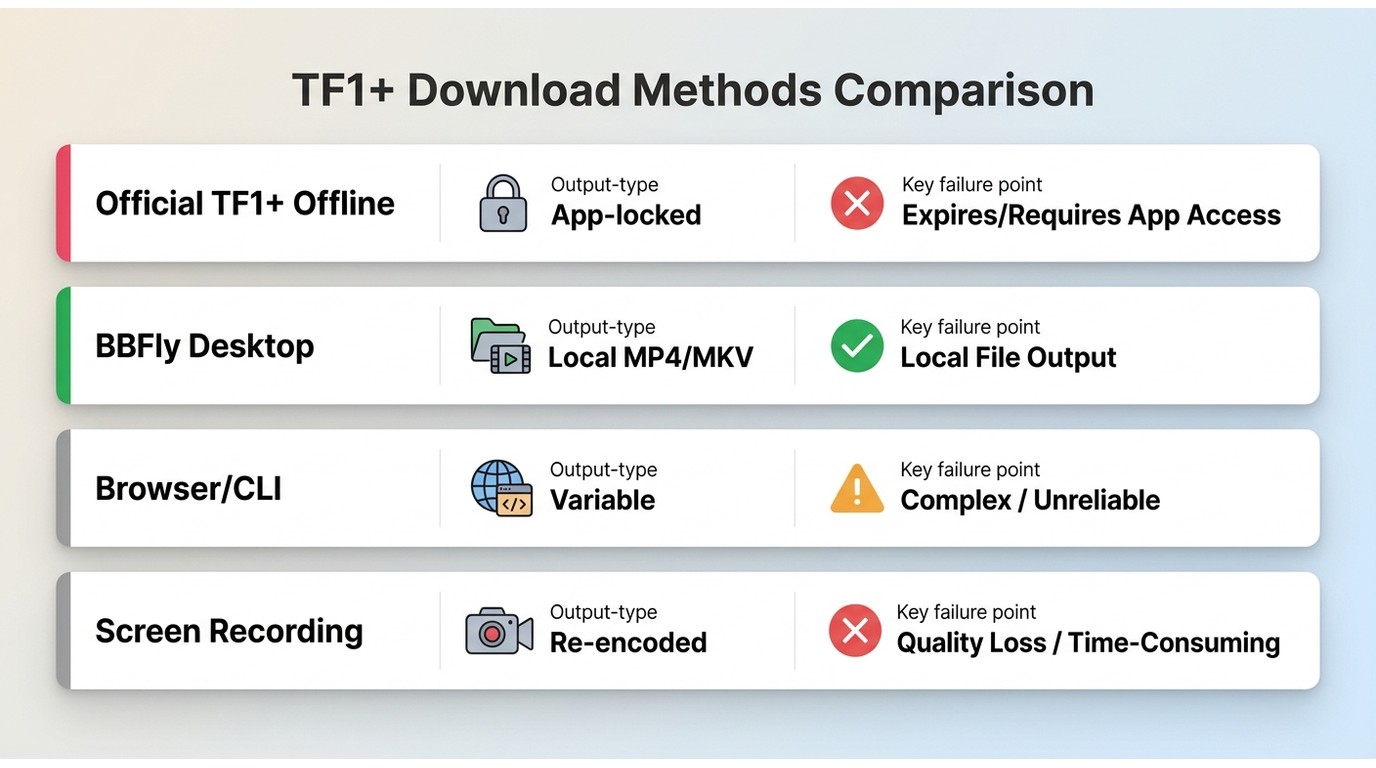
The four common TF1+ methods differ in where you watch, what they output, and how they fail. This table lays out the trade-offs so you can match a method to your access and your device.
| Method | Where viewing occurs | Region and account dependency | Eligible content | Output type | Quality and format visibility | Common failure points | Best fit | Not ideal for |
|---|---|---|---|---|---|---|---|---|
| Official TF1+ offline download | Inside the TF1+ app | High: needs an eligible region and account | Programs TF1+ marks as downloadable | App-locked offline copy, not a loose file | Set by the app, limited manual control | Missing eligibility or an expired login | Viewers fine watching in the app | Anyone who needs a movable file |
| BBFly desktop local-file workflow | Any player on Windows or Mac | Needs an eligible, signed-in account | Content you are authorized to access | Local MP4 or MKV you manage | Visible: you pick format, audio, and subtitles | Unsupported titles or protected streams | Users who need a portable file with subtitles | When the in-app download already suffices |
| Browser or CLI downloader workflow | Any player, if it works | Same account and region limits | Varies, and often fails on protected titles | Local file, quality varies | Inconsistent, depends on the stream | Protected streams, MPD errors, breakage | Tinkerers comfortable troubleshooting | Anyone wanting a dependable result |
| Screen recording | Any player | Only needs playback to work | Anything you can play in real time | Re-encoded local file | Lower, capped by screen and re-encode | Frame drops, no clean subtitles, slow | A quick one-off capture | Quality-sensitive or batch saving |
For a US reader, the trade-off that matters most is movability versus effort. The official route is easiest but keeps the file locked in the app, while a desktop workflow gives you a file you own the playback of, at the cost of setup and eligibility checks. Everything else is a fallback.
The Best Route Depends on Access
Here is how I would decide. If the program, plan, device, and region all qualify, use the official TF1+ offline download; it is the least friction. If you specifically need a local MP4 or MKV for a certain player or drive and you hold the rights, a verified desktop app such as BBFly is the sensible alternative. Treat browser, CLI, and recording methods as conditional fallbacks with real quality and reliability trade-offs. If none of your titles qualify and no method works, that is the platform enforcing rights, not a tool to hunt for.
TF1+ Download FAQ
Is TF1+ free, and does offline viewing need an eligible plan?
TF1+ is a free, ad-supported service, but free access and offline-download eligibility are not the same thing. Whether you can save a program offline depends on that title’s rights, your signed-in account, and your device, as documented in the current TF1+ app. General access does not guarantee a download button on every show.
Can I use TF1+ on Amazon Fire TV?
TF1 has documented MYTF1 and TF1+ availability on Amazon Fire TV, so the app can run on that device. Availability is not the same as offline capability, though. An app being present on a TV does not mean it stores transferable files or offers the same download options as other devices, so check the app on your specific hardware.
Why can an ad blocker stop a TF1+ video from loading?
Ad-block tools can prevent the player’s manifest from loading, so the video never starts and it can look like a download failure. Before blaming a downloader, disable your extensions and confirm the title plays normally in a clean browser. If it plays, re-enable them one at a time to find the culprit.
What should I check if a saved TF1+ video looks or sounds poor?
Run a quick checklist: the source quality TF1+ actually served, the stream or resolution you selected, whether the video is interlaced, the audio track and subtitle language you saved, your player’s compatibility, and your output settings. Often the fix is re-saving with the right track or container rather than chasing a resolution the source never offered.